
In this guide, we feature some of the best Linux distributions that you can install on your old PC and breathe some life into it.
Do you have an old laptop that has gathered layers of dust over time, and you don’t know exactly what to do with it?
A good place to start would be to install a fresh Linux distribution that will perfectly support its low-end hardware specifications without much of a hassle.
You could still enjoy performing basic tasks such as web browsing, word processing, watching videos, and listening to your favourite music, to mention a few.
1. Puppy Linux
Created in 2003 by Barry Kauler, Puppy Linux is a distribution that belongs to a family of lightweight Linux distros. It was designed to be a lean and portable system that can be run on almost any PC hardware.
It’s quite small – has a memory footprint of just 300MB – and was tailored with a focus on ease of use and installation. Given its portability, you can boot it off a USB drive, SD card, or any installation medium.
Puppy Linux is astonishingly lightweight and can be run from RAM without installing on your hard drive. Newer releases take up approximately 600MB of RAM (for 64-bit systems) and 300MB (for 32-bit systems).
Currently, the latest version is Puppy 10.0 (BookwormPup), based on Debian 12 “Bookworm” packages.
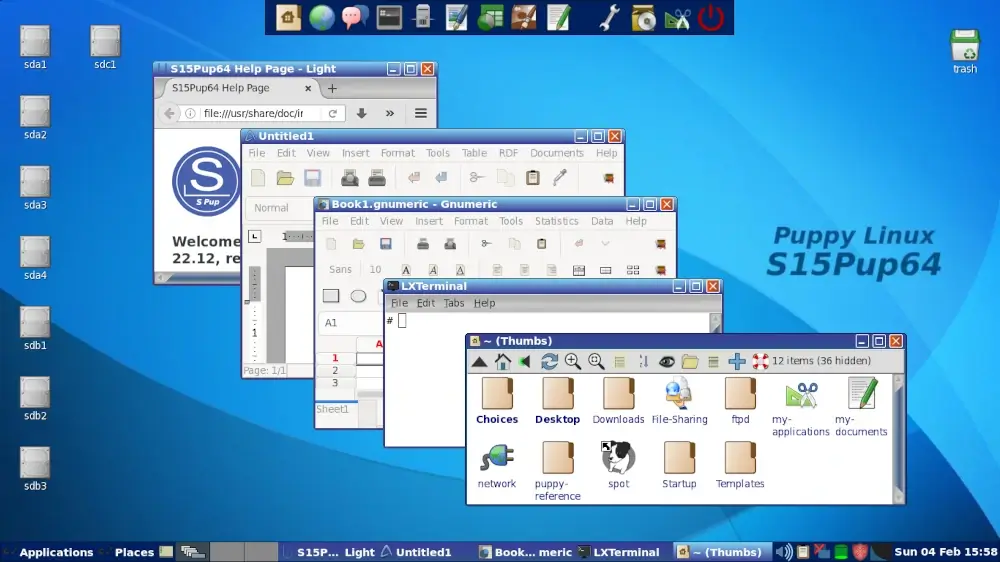
Puppy is available for download for 32-bit and 64-bit architectures, and even ARM. It’s ideal for installing on miniature devices such as Raspberry Pi devices.
It is perfect for obsolete PCs that lack modern specifications to run contemporary Linux distributions, which often place heavy demands on memory and CPU utilization.
Out of the box, Puppy Linux provides a minimalistic GUI desktop with essential applications such as a web browser, Mplayer, AbiWord (Word processor), Gnumeric (Spreadsheet), MtPaint (Graphics editor), and Fotox (Image viewer), among others.
Puppy Linux runs well in systems with less than 1G RAM and ships with the Puppy Package Manager, which supports .rpm, .deb, and native PET packages.
Puppy Linux Requirements
Puppy Linux requires the following minimum requirements for installation:
- 300 MB of RAM
- Pentium 900 MHz
- Hard drive (Optional, as it can run quite well on any USB drive).
2. Tiny Core
If you thought Puppy Linux had the smallest memory footprint, wait until you bump into Tiny Core, which was developed by the Core project.
Tiny Core is a 16 MB Linux desktop. Yes, you read it right, 16MB! If I’m not wrong, it’s probably the smallest and most lightweight distro there is at the time of writing this article.
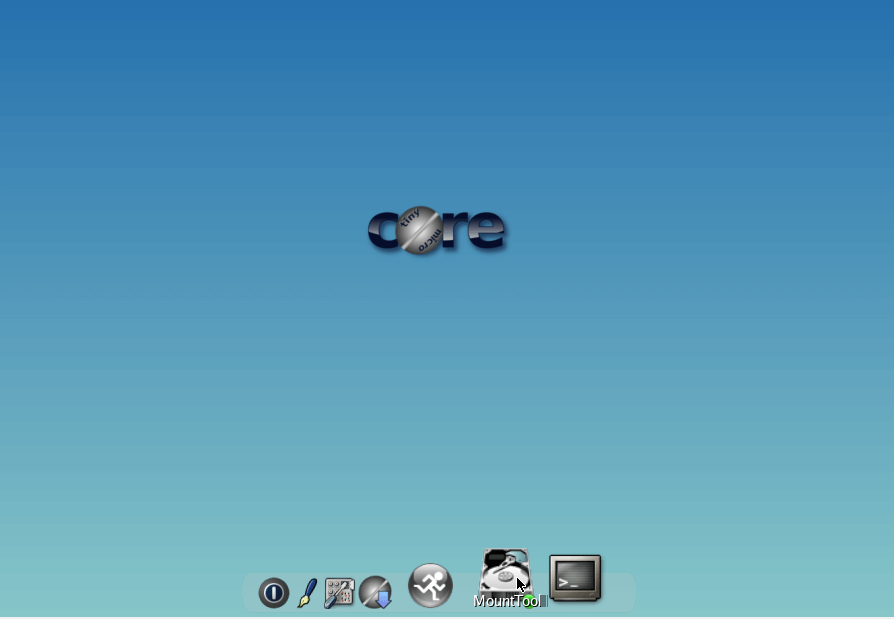
Tiny Core version 16.2 is the latest and was released in September 2025, and ships with major improvements and updates such as Kernel 6.12, modern libraries, and system extension repositories with support for contemporary hardware.
Tiny Core is essentially a minimal desktop GUI that runs entirely on RAM and ships with the FLTK/FLWM desktop and comes completely stripped down. You get only the core required to bring up a minimal X desktop.
Due to its lean architecture, it is blazing fast with impressive booting speeds. It’s available in both 32-bit and 64-bit architectures (Core64), making it suitable for a wide range of hardware.
Tiny Core Linux Requirements
Tiny Core requires the following minimum requirements for installation:
- 64 MB of RAM (128 Mb is recommended).
- i486DX CPU (Pentium 2 CPU and later recommended).
3. Linux Lite
Another top contender for old machines is Linux Lite, which is a popular and lightweight distro to breathe life into your old PC.
Linux Lite is a Linux distro based on Debian & Ubuntu and ships with a simple and easy-to-use XFCE desktop environment.
Since it is based on Ubuntu, you can enjoy installing software packages from the package-rich and diverse Ubuntu repository.
Linux Lite is ideal for newbies transitioning from Windows to Linux, as it gives them just what they need to get started.
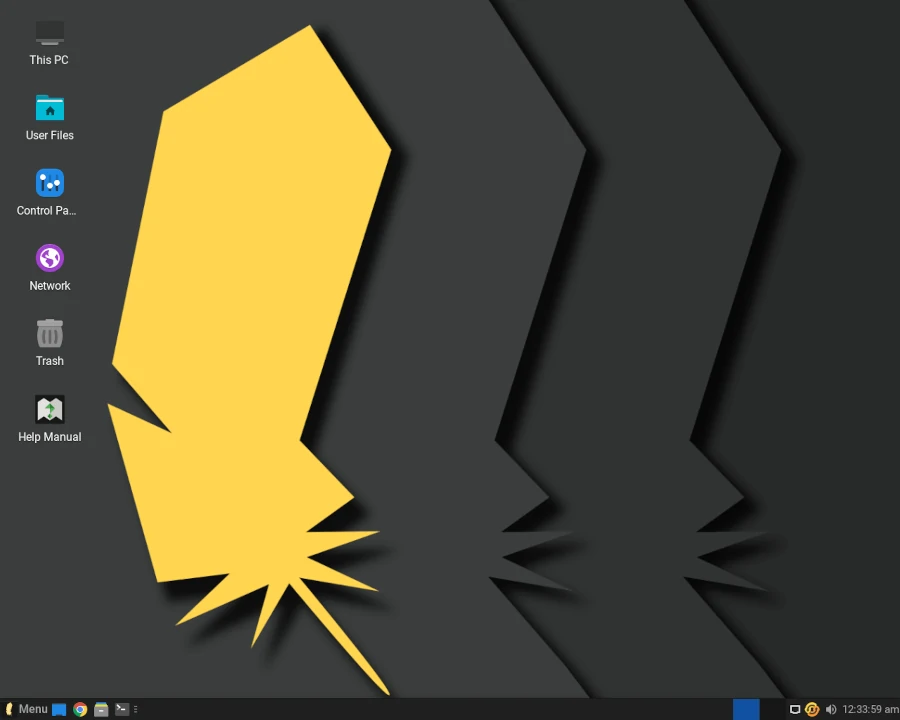
Part of the software applications that ship with Linux Lite include LibreOffice, GIMP, VLC media player, Firefox browser, and Thunderbird email client.
The current version is which is built on top of Ubuntu 24.04.3 LTS and ships with numerous improvements, including language support for 22 languages, new wallpapers, new icon sets, the latest software versions, bug fixes, and enhancements.
Note that 32-bit ISO images are no longer available from Linux Lite 4.4 onwards.
Linux Lite Requirements
Minimum installation requirements:
- 1 GHz Intel/AMD CPU
- 768 MB of RAM
- At least 8 GB of hard disk space
- USB port / DVD ROM for installation
- Monitor resolution 1024 X 768
As you can see, you can slap Linux Lite on a PC older than a decade and be sure it will run smoothly.
4. AntiX Linux
AntiX is a fast and lightweight Linux distribution based on Debian stable, and it uses the icewm window manager, which is easy on the underlying PC resources and allows you to run it on low-end hardware.
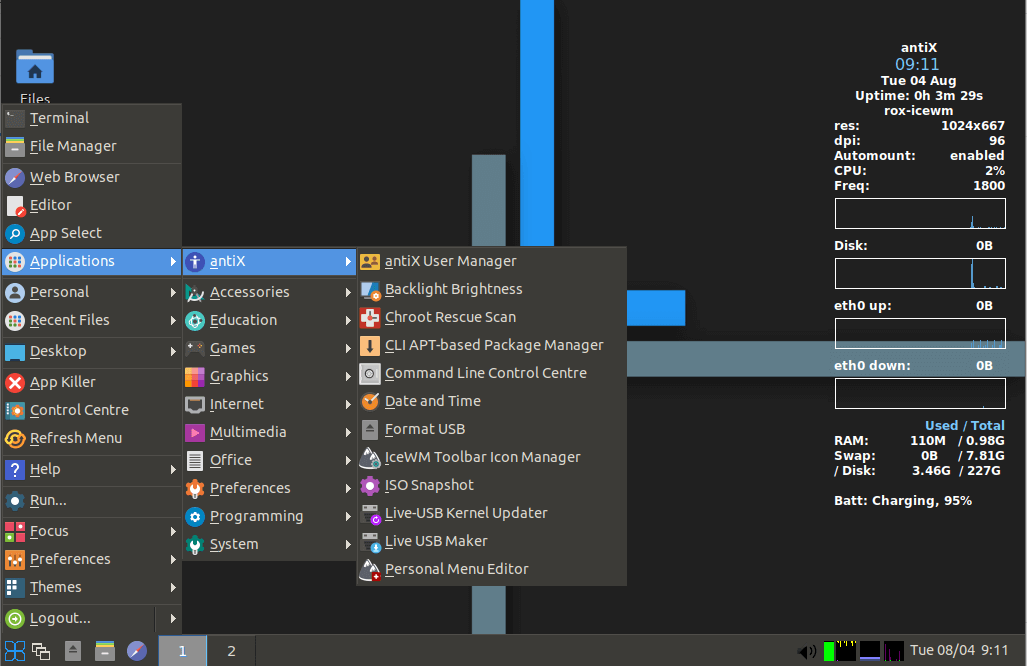
AntiX aims to provide a lean, minimalistic, fully functional, flexible operating system ideal for novices and seasoned users. It should comfortably run on most PCs, especially older systems with 512MB RAM.
As a cherry on the cake, AntiX can also be used as a rescue CD to fast-boot into a system with a corrupt Linux filesystem. You can also seamlessly run it as a “live” system on a USB stick.
The latest version of AntiX is version 23.2 and was released in October 2024.
AntiX Linux Requirements
Minimum requirements for running AntiX include:
- 512 MB of RAM
- 1 GHz Intel/AMD CPU
- 7 GB Hard disk drive
5. Sparky Linux
Also based on Debian, Sparky Linux is a full-featured and lightweight Linux operating system available in two main flavors: a stable line (currently version 7.7 “Orion’s Belt” based on Debian Bookworm) and a semi-rolling line (version 2025.12 “Tiamat” based on Debian Testing/Forky).
The latest stable release, Sparky 8.0 “The Seven Sisters” launched in August 2025, while the semi-rolling line receives updates 3-4 times annually, with the most recent being December 2025.
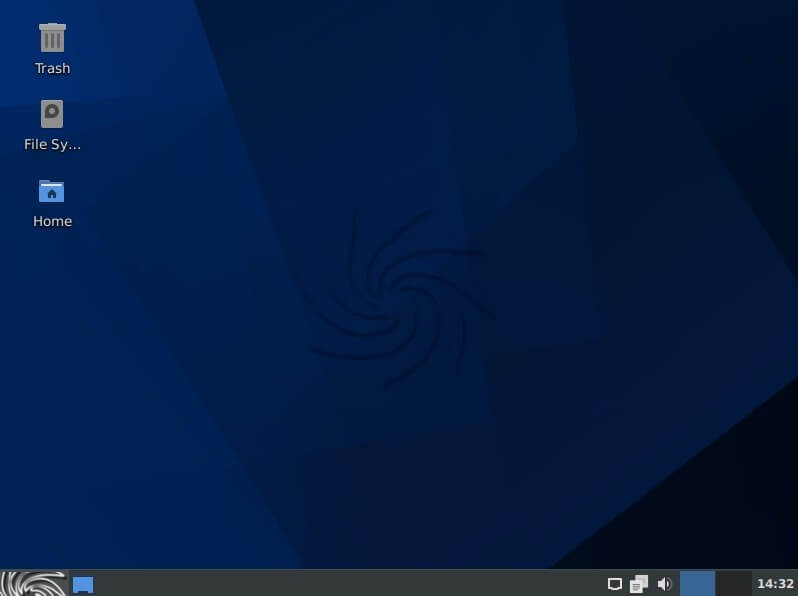
Sparky comes in 3 editions for performing different tasks.
- GameOver: Comes with the Xfce desktop environment and is ideal for games.
- Multimedia: Ideal for audio and video support. Also ships with Xfce.
- Rescue: This is primarily used for fixing a broken system and comes with a minimal installation without any X server.
Beyond the special editions, Sparky offers exceptional versatility with support for multiple desktop environments, including Xfce, LXQt, MATE, KDE Plasma, and Openbox, giving you complete freedom to customize your desktop experience.
There’s also a MinimalCLI text-mode version for advanced users.
Sparky Linux Requirements
Minimum installation requirements:
- i686 (32bit) or amd64 (64bit) Pentium 4 or AMD Athlon CPU.
- 128 MB of RAM for CLI edition, 256 MB for LXDE & LXQt, and 512MB for Xfce.
- 2GB of hard disk drive for the CLI edition, 10GB for the home edition, and 20GB for the Gameover & Multimedia edition.
6. Peppermint OS
Peppermint is a fast and lightweight Linux desktop OS designed to be user-friendly and optimized for older low-spec hardware, and it follows a minimalist philosophy of “everything you need, nothing you don’t“.
It features the XFCE 4.20 desktop environment with Thunar File Manager configured by default.
What sets Peppermint apart is its unique approach – the OS includes only essential packages out of the box, letting you build your ideal system through the intuitive “Suggested Packages” interface, which uses simple toggle switches to install or skip applications without requiring terminal commands.
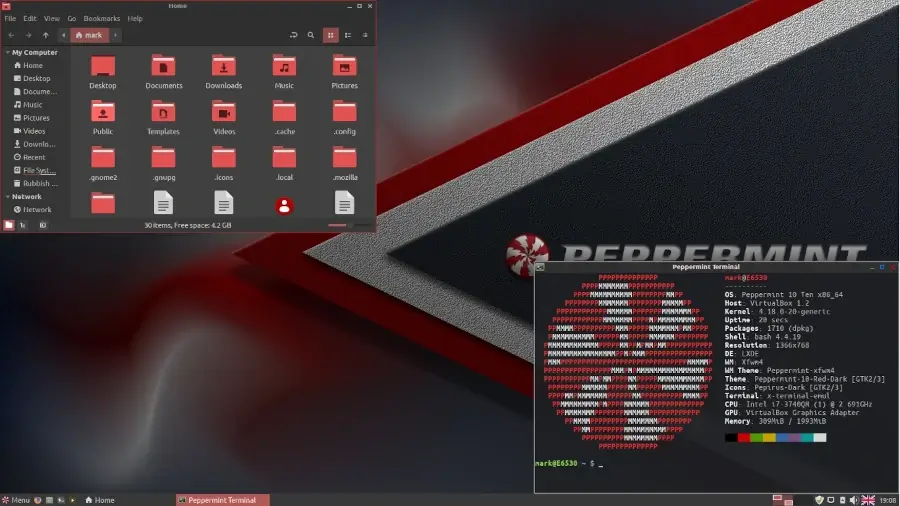
The latest release is Peppermint OS Flagship, based on Debian 13 “Trixie” (released October 2025), powered by Linux kernel 6.12 LTS.
Three editions are available:
- Peppermint OS Flagship: Minimal XFCE desktop where you choose which packages to install, keeping your system clean and efficient.
- Peppermint OS Fully Loaded: Pre-populated XFCE edition ideal for new and novice users who want a complete system ready to use.
- Peppermint OS Mini: Network installer similar to Debian’s netinstall for users who prefer custom installations.
Additionally, Peppermint offers Devuan-based versions for users who prefer a systemd-free environment with alternative init systems like SysV init, OpenRC, or runit.
The distribution features the Calamares installer (upgraded to Qt6 and QML6), LibreWolf as the default web browser (since October 2024), and continues to use the Thunar file manager.
With updates to the package manager and system settings, Peppermint maintains its reputation for speed and responsiveness while staying current with modern Linux development.
Peppermint OS Requirements
To install and run Peppermint OS, ensure that your system meets the following requirements:
- 1 GB RAM (2GB recommended)
- 1 GHz Intel/AMD CPU (32-bit/64-bit)
- 10 GB Hard disk drive
7. Trisquel Mini
Trisquel Mini is another lightweight and stable Linux distro that is based on Ubuntu. Just like PepperMint OS, it ships with the resource-friendly LXDE environment and a lightweight X Windows system instead of the heavy and resource-intensive GNOME environment.
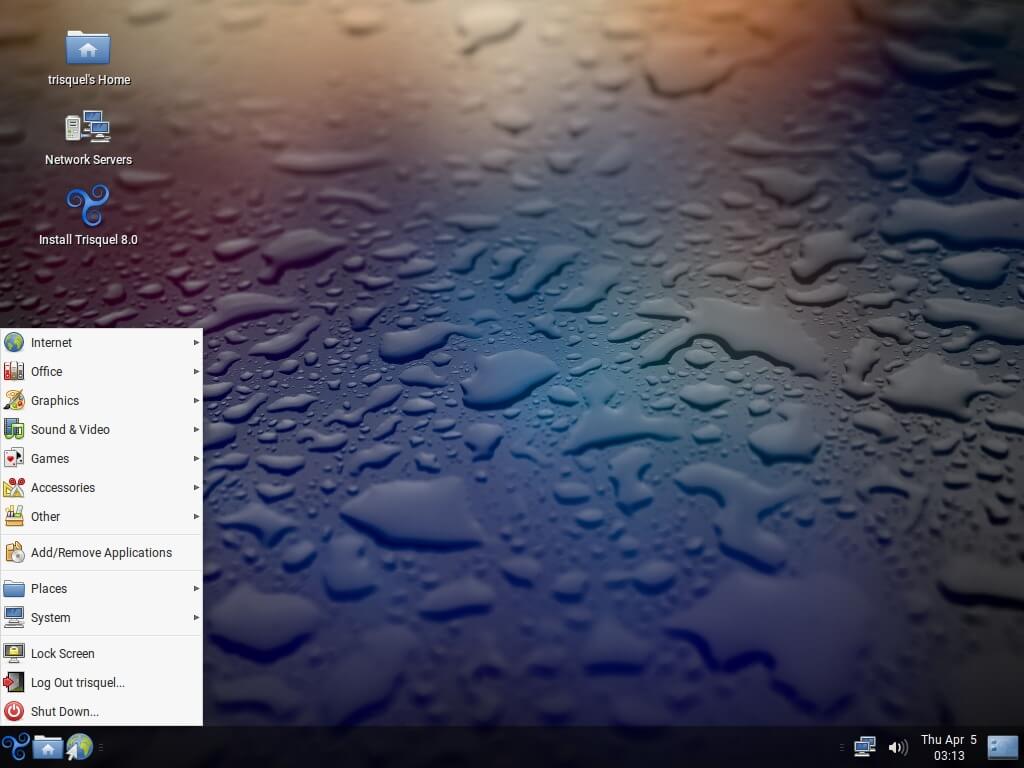
Out of the box, you get basic applications and utilities for almost every category: office, graphics, accessories, internet, system tools, etc. For example, it includes an AbiWord Word processor, A browser (web browser), Xfburn (CD burning GUI), a Document scanner, etc.
Trisquel 11.0 “Aramo” is the latest release, based on Ubuntu 22.04 LTS, and Trisquel Mini continues to be available as a lightweight option runningthe LXDE desktop environment.
Trisquel Mini Linux Requirements
Minimum installation requirements:
- 1GB RAM
- 15GB of hard disk space
- 1 GHz Processor (Intel/AMD)
8. Bodhi Linux
Bodhi Linux is a lightweight distribution built on the philosophy of providing a minimal base system that empowers users with the freedom and flexibility to install only the software they need.
Based on Ubuntu 22.04 LTS “Jammy Jellyfish“, it features the Moksha desktop environment – a fork of Enlightenment DR17 that delivers beautiful desktop effects and animations without requiring high-end hardware.
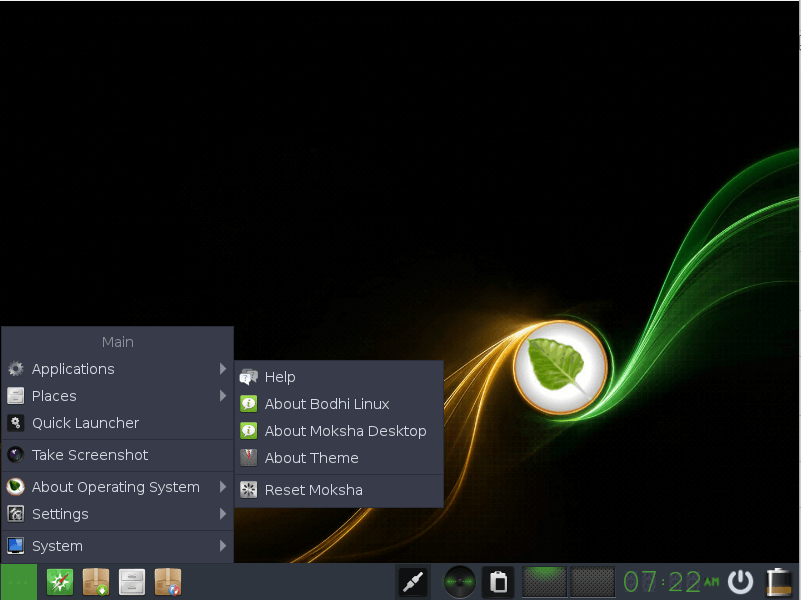
The distribution ships with only essential software to get you started, including the Chromium web browser, Thunar file manager, and Terminology terminal emulator.
This minimalist approach keeps the system lean while allowing you to customize it precisely to your needs through the Bodhi AppCenter – a browser-based software store that makes installing additional applications effortless.
The current stable release is Bodhi Linux 7.0.0, released in August 2023, which brought Moksha 0.3.4, Linux kernel 5.15, and includes support for ZFS and UEFI.
Bodhi follows a “semi-rolling” release cycle, with major releases every two years following Ubuntu LTS updates.
With Bodhi 8 currently in development (based on Ubuntu 24.04 LTS), the project continues to refine its elegant approach to lightweight computing.
The upcoming release will feature the new Zenithal theme with rounded window edges, restored Moksha modules like Moon and Wallscape, and enhanced ARM device support.
Bodhi Linux Requirements
Minimum installation requirements:
- 768 MB of RAM (1GB recommended).
- 64-bit 1 GHz Intel/AMD processor
- 10 GB of hard disk space
9. MX Linux
MX Linux is a midweight Linux distribution that combines stability, high performance, simplicity, and elegance to deliver a reliable operating system that works out of the box.
Built through a cooperative venture between the antiX and MX Linux communities, it comes pre-installed with essential applications including VLC media player, Firefox web browser, LibreOffice suite, and Thunderbird email client.
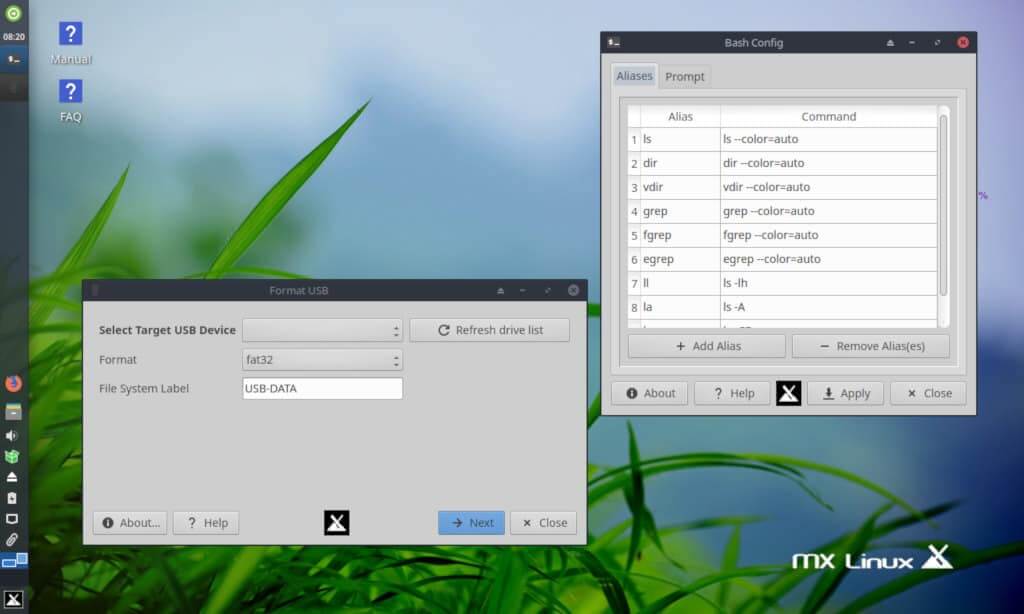
The latest release is MX Linux 25 “Infinity“, released on November 9, 2025, and built on Debian 13 “Trixie“.
Available in multiple desktop environments, the distribution offers Xfce 4.20 as the flagship desktop, alongside KDE Plasma 6.3.6 and Fluxbox 1.3.7.
A significant change in MX 25 is that systemd is now the default init system across all editions, though SysVinit variants remain available for Xfce and Fluxbox users who prefer traditional init systems.
MX Linux 25.1 beta reintroduces dual-init capability, allowing both systemd and SysVinit on the same ISO.
MX Linux Requirements
Minimum installation requirements:
- 1 GB RAM for i686 and AMD64 architectures.
- A modern i686 Intel or AMD processor.
- 8.5 GB hard disk space
10. SliTaz
SliTaz is an independent, ultra-lightweight Linux distribution designed to run on minimal hardware, making it perfect for breathing new life into old computers.
The name stands for “Simple, Light, Incredible, Temporary Autonomous Zone and the distribution is remarkably compact, so that the core rolling ISO is approximately 43-50 MB, making it one of the smallest fully-functional Linux distributions available.
It can run entirely in RAM from a USB drive or Live CD, delivering exceptional speed and performance even on ancient hardware.
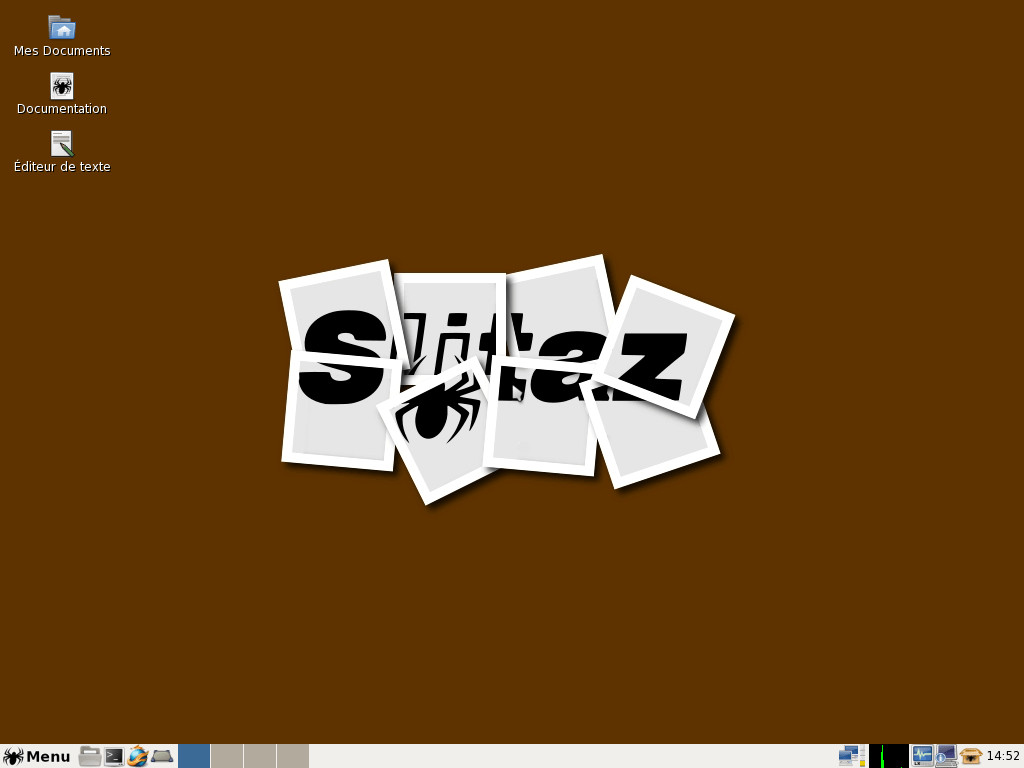
SliTaz is now a rolling release distribution with two branches: a stable version (5.0) for production use and a cooking (development) version for testing the latest improvements.
The distribution uses the lightweight Openbox window manager alongside LXPanel, which significantly boosts performance on older systems.
Package management is handled through tazpkg, SliTaz’s custom package manager, though it can also convert and use packages from other distributions like Debian.
SliTaz Requirements
Minimum installation requirements:
- Minimum 256MB RAM
- 500 MB hard disk space
11. Lubuntu
Lubuntu is one of the most popular lightweight Linux distributions designed for older PCs and systems with limited resources.
As an official Ubuntu flavor, it’s fully supported by the Ubuntu community and provides a complete desktop experience without the resource overhead of mainstream distributions.
Important Change: Lubuntu transitioned from LXDE to LXQt as its default desktop environment starting with version 18.10.
LXQt is a lightweight Qt-based desktop that delivers excellent performance while providing a modern, user-friendly interface.
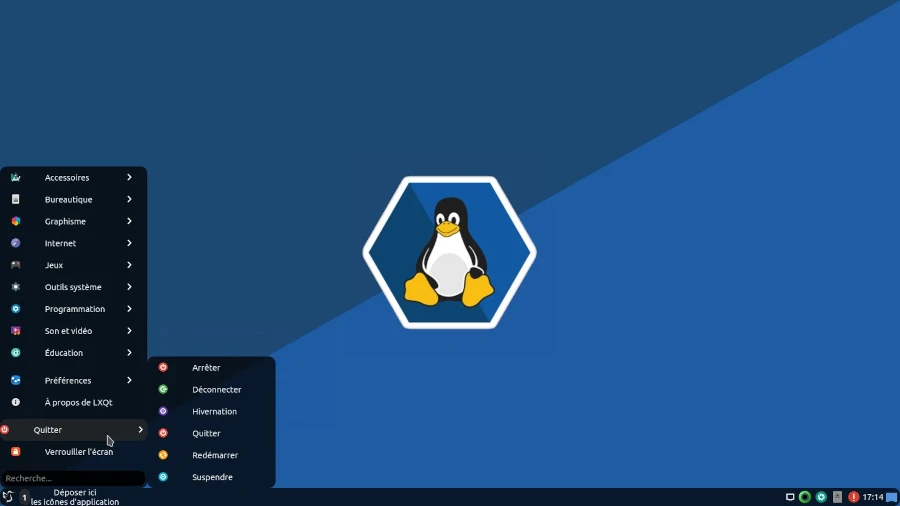
The latest releases include Lubuntu 24.04 LTS “Noble Numbat” (released April 25, 2024, supported until April 2027) and Lubuntu 25.10 “Questing Quokka” (released October 9, 2025, supported until July 2026).
A significant milestone occurred with Lubuntu 24.10, which became the first release to ship with a primarily Qt 6-based environment, moving away from the legacy Qt 5 framework.
Lubuntu Requirements
Minimum installation requirements:
- 512 MB of RAM (1 GB recommended)
- Pentium 4, Pentium M, 700MHz Single Core processor
- 12 GB hard disk space
12. Q4OS
Q4OS is a lean and lightweight Linux distribution based on Debian that focuses on providing a stable, efficient desktop experience with minimal bloat.
The distribution eliminates unnecessary applications and provides just the essential utilities needed, including a web browser and productivity tools.
Thanks to its minimalistic approach and low resource consumption, Q4OS delivers optimal performance and runs exceptionally fast, making it ideal for revitalizing older hardware.
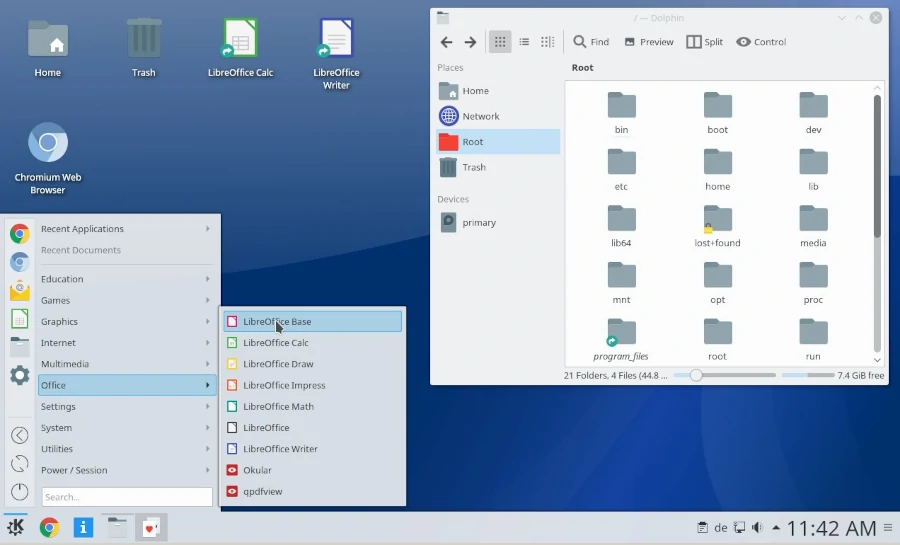
The latest release is Q4OS 6.1 “Andromeda“, released on September 12, 2025, based on Debian 13 “Trixie” and powered by Linux kernel 6.12 LTS.
This is a Long-Term Support (LTS) release that will receive free security patches and software updates for at least five years (until August 2030 minimum), with the possibility of extending to 10 years with commercial support following Debian’s upstream model.
Q4OS comes in two desktop variants: KDE Plasma 6.3.6 for a modern, feature-rich experience, and Trinity Desktop Environment (TDE) 14.1.5 – a fork of KDE 3 that’s extremely lightweight and perfect for older hardware.
Q4OS System Requirements
Below are the minimum requirements for each variant.
Plasma Desktop:
- CPU: 1 GHz processor
- RAM: 2 GB
- Storage: 8 GB of disk space
- Architecture: 64-bit only (for Andromeda 6.1)
Trinity Desktop:
- CPU: 500 MHz processor
- RAM: 512 MB
- Storage: 6 GB of disk space
- Architecture: 64-bit (Andromeda 6.1) or 32-bit (Aquarius 5.8)
13. Slax
Slax is an ultra-compact and arguably one of the most popular portable Linux operating systems, designed specifically to run on external storage media such as USB flash drives, CD/DVDs, and even SD cards.
With its remarkably small footprint and modular architecture, Slax eliminates bloatware while delivering a fast, efficient computing experience that you can literally carry in your pocket and run on any compatible PC.
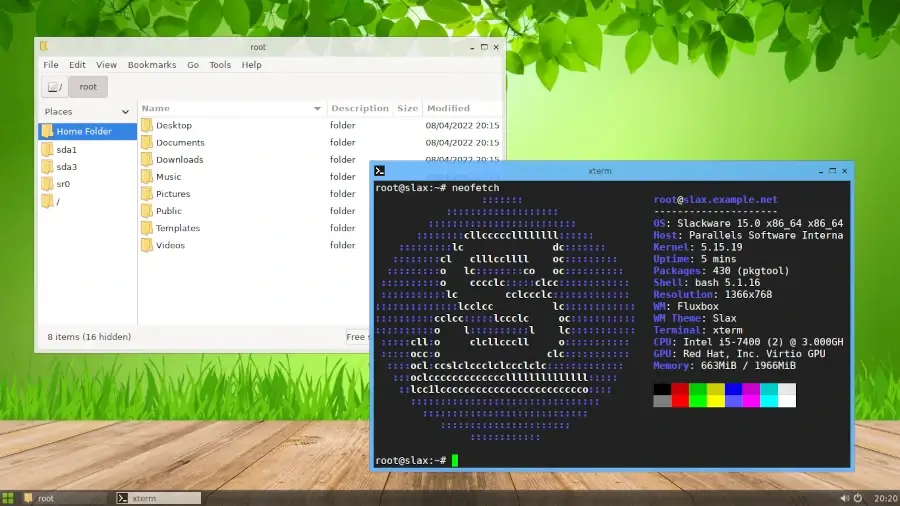
Currently maintained by Czech developer Tomáš Matějíček, Slax is available in two distinct variants: Slax 15.0.4 based on Slackware-current and Slax 12.2.0 based on Debian 12.2 “Bookworm“.
Both versions feature the same lightweight Fluxbox window manager with xLunch launcher, providing an appealing and elegant graphical interface despite their minimal size.
Slax System Requirements
Both the Debian-based and Slackware-based variants share similar minimal requirements:
- i686 or newer CPUs for both Intel and AMD
- 128MB RAM
- USB / CD drive to boot from
14. Zorin OS Lite
Zorin is a popular desktop Linux distribution designed as the perfect alternative to Windows and macOS. Created by Irish developers Artyom and Kyrill Zorin.
It focuses on providing a familiar and intuitive experience for users migrating from other operating systems. With its polished interface, Windows-like layout options, and extensive customization features, Zorin OS has become one of the most downloaded Linux distributions worldwide.
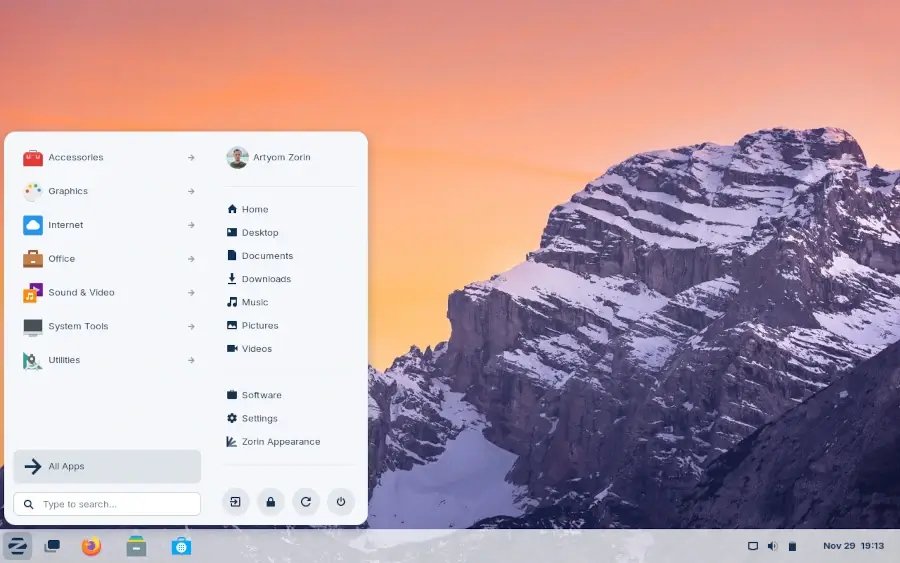
The latest release is Zorin OS 18, launched on October 14, 2025, strategically timed with Windows 10‘s end-of-life to offer users a modern, supported alternative.
Based on Ubuntu 24.04.3 LTS and powered by Linux kernel 6.14, Zorin OS 18 features a heavily customized GNOME Shell 46 desktop environment with a redesigned floating panel, window tiling capabilities, and Windows-reminiscent workflow.
Zorin OS Editions:
- Core (Free): The standard edition with essential features for everyday computing.
- Pro ($47.99): Premium edition with additional desktop layouts, creative software suite, and advanced support.
- Education: Free for educational institutions such as schools and colleges with educational software pre-installed.
- Lite (Free): Lightweight edition featuring Xfce 4.18 desktop, specifically optimized for older computers and low-spec hardware.
Zorin OS Lite is currently available in versions 17.3 (released April 2024) and will be available in version 18.
However, the developers have announced that the Lite edition will be discontinued from Zorin OS 19 onwards (expected after 2029).
Zorin OS System Requirements
To run Zorin OS Lite, your PC needs to meet the following requirements:
- 1 GB RAM
- 1 GHz single-core Processor (Intel/AMD processor)
- 10 GB Hard disk space
15. Xubuntu
Xubuntu is an official Ubuntu derivative and a popular, lightweight Linux distribution renowned for its elegance, stability, and ease of use.
It ships with the Xfce desktop environment – a fast, lightweight, and highly configurable desktop that’s perfect for breathing new life into old PCs and running smoothly on systems with modest hardware specifications.
The distribution maintains Ubuntu’s rock-solid foundation while delivering a snappier, more responsive experience through careful optimization and minimal resource consumption.
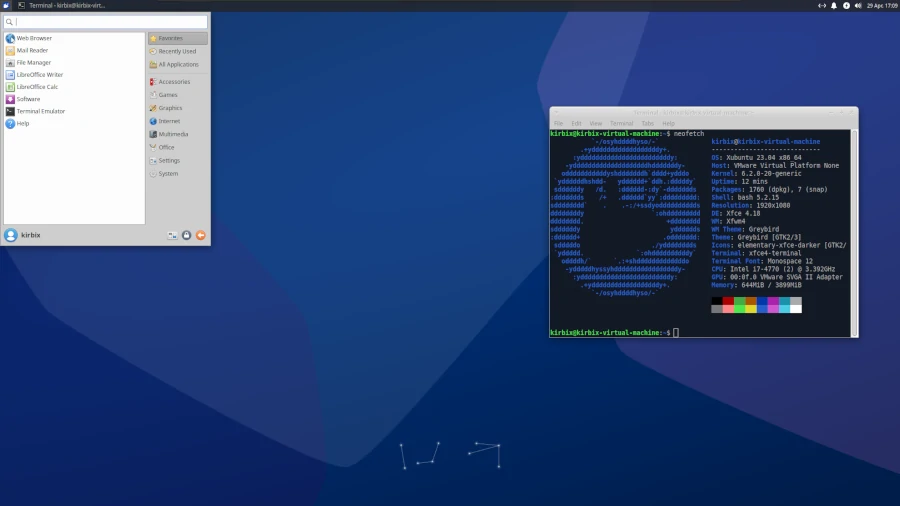
The latest releases are Xubuntu 25.10 “Questing Quokka” (released October 9, 2025, regular release supported until July 2026) and Xubuntu 24.04 LTS “Noble Numbat” (released April 25, 2024, Long-Term Support until April 2027).
Both versions feature the modern Xfce 4.20 desktop environment (24.04 LTS uses Xfce 4.18), providing enhanced Wayland support, stability improvements, and a polished user experience.
Xubuntu System Requirements
Your PC needs to meet the following minimum requirements to run Xubuntu.
- 1 GB RAM
- 1 GHz single-core Processor (Intel/AMD processor)
- 8 GB Hard disk space
16. Porteus
Porteus is a fast, portable, and modular Linux distribution built on Slackware and is designed to run from removable media like USB drives or CDs, and can operate entirely from RAM.
Porteus comes in multiple desktop environments, including XFCE, KDE, Cinnamon, and MATE. What makes Porteus special is its modular approac,h where software comes in compressed modules that can be easily added or removed without rebooting.
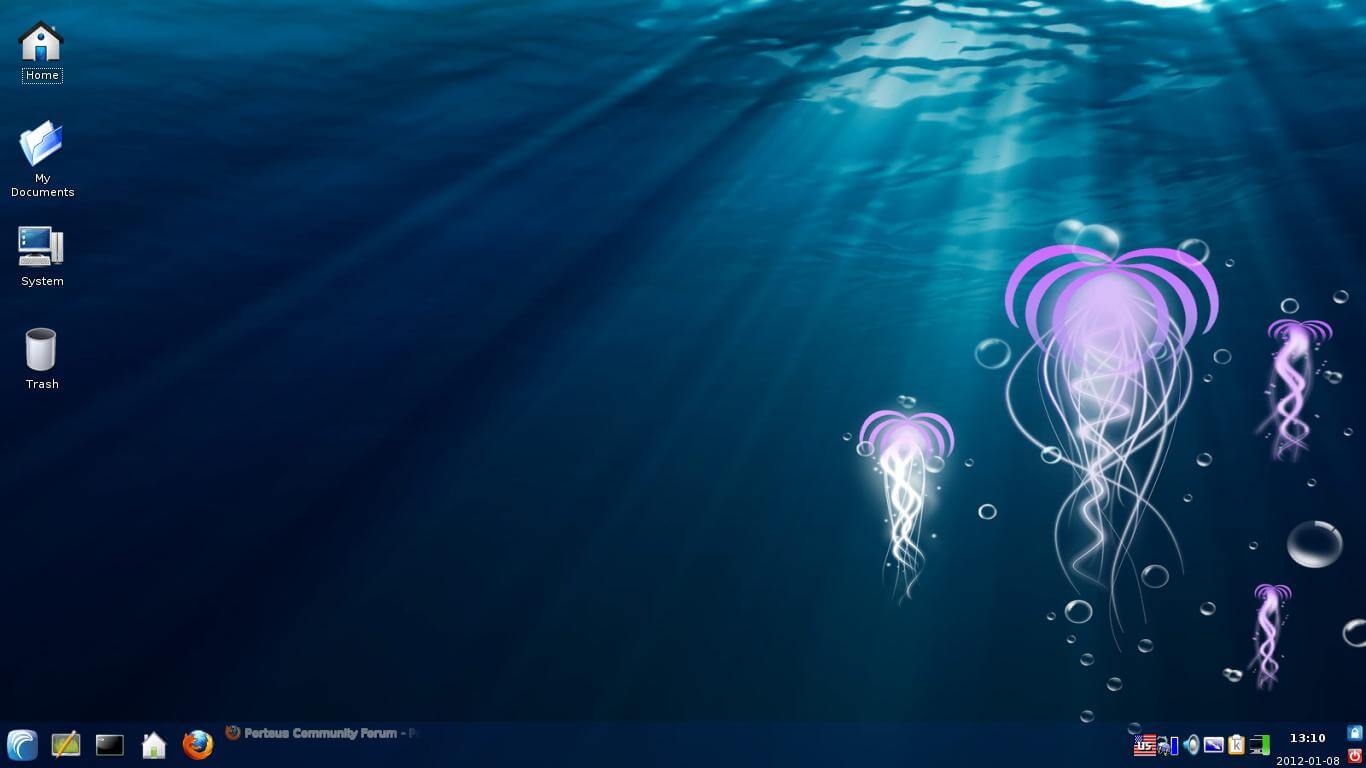
The distribution boots incredibly fast and uses minimal resources, making it perfect for older hardware or as a portable system you can carry on a USB stick.
Porteus Requirements
Minimum installation requirements:
- i686 or x86_64 CPU
- 512 MB RAM
- 512 MB storage space
Conclusion
Breathing new life into your old PC doesn’t require expensive hardware upgrades. With these lightweight Linux distributions, you can transform that dusty laptop or desktop into a fully functional machine capable of handling everyday tasks like web browsing, document editing, and media playback.
Whether you choose the ultra-minimal Tiny Core, the versatile Puppy Linux, or the beginner-friendly Linux Lite, there’s a distribution on this list perfectly suited for your aging hardware.
The beauty of Linux is that it gives you options; you can pick a distro based on your technical expertise, hardware specifications, and preferred desktop environment.
Do you know of any that we might have left out? Do let us know in the comments section.



As a Puppy user, I believe wattOS is the best vanilla and modular distro. There is no such thing as ‘one size fits all’, so just install what you need.
Lubuntu doesn’t have a Program Manager, you have to install it using command line.
Linux Lite and Bodhi are the same.
Correct Lubuntu site is https://lubuntu.me not https://lubuntu.net
@com,
Thanks corrected the link in the article…
iLinux OS
https://ilinuxos.comis ideal for OLD Computers without sacrificing Effects and User Experience!Older machines are not. Puppy does not support older CPUs, Linux lite the same…
The title reads Linux for old machines and has some typos on the RAM requirements. Please edit.
Example: Bodhi Linux requires 256 GB RAM?
@Karthik,
Yes, you can check the requirements in official site at https://www.bodhilinux.com/w/system-requirements/
Minimum:
256 MB of RAM not 256 GB of RAM
@Quasimodo,
Corrected in the article…
Thanks
Antix is great. I think it would have been nice if you mentioned instruction sets requirements since that can be a big deal when using machines this old. I personally have a PC with an Athlon XP 2500+ this CPU lacks the SSE2 instruction set, making it unable to run most software.
Luckily, Antix is aimed at these processors, and it’s repos have almost exclusively non-SSE2 software. That is a great thing to have. Also, I should mention, Antix 19 is too slow for my PC, but Antix 17 is amazingly fast.
It consumes 70MB of RAM on idle and it feels super fast and responsive. I’ve been using it for more than a month on the daily since my notebook broke, and I never expected to have such a great experience with such old hardware.
super Antix rule!
The nice discovering distros! But you forgotted Calculate Linux. It’s perfect distro for old PC. Based on Gentoo.
Of course I do not use win 95, I us win 98SE [ old games and dos games ] love the list, because new browsers do not run on these older systems [ in case i want to hit the net with out going to another comp.]
Sorry all I got was Failed to load grub-pc in an alert box with some small writing saying failed with error 1 and nothing else worked.
I tried a couple more times after a format and still got nowhere so I put Linux Mint on and that worked straight from the .iso burned to a disk. Thanks for looking.
@Peter,
Appreciate for your patience and efforts in trying out different distributions, yes I must say Linux Mint works well on all laptops and it is one of the best stable and fastest growing distribution in Linux community..
I’m not a Linux expert I have been using Xubuntu on a laptop for about a year now and it has tried to update to 16.04 but keeps failing with a message that grub-pc has failed to load and leaves the laptop with no operating system when it starts back up.
The laptop is an Advent Roma 1001 which ran fine on 15.10. Is there a simple fix for someone who just wants to use the laptop rather than program.
@Peter,
Could you share the exact error message while doing a upgrade, it will help us to give better solution.
In the apartment, I’ve set up seven systems. One main server for myself, one for my partner, a server for our lessor, an FTP server, (our personal ‘cloud’), a file server that backs up all of our systems automatically, and three laptops.
Except for our lessor whom refuses to use anything but Windows (rolls eyes) all our systems runs pure Linux, from different distros. My, and my partners servers run Debian 8/KDE 4 and both of ours is 4ghz, 4 – 12g memory.
The FTP server is running puppy lupu ran as a pure live CD for protection, and even on that old IBM Aptivia (500mhz/512 mgs memory) it runs reasonably well. Throw on EMACS/terminal, Midnight commander and other terminal based programs and it works very well.
My 10 year old Asus Eee 1000HA (2 ghz/2g memory) has had several distros on it, including Debian 6, 7, 8/Openbox, and even Xubuntu. But by far the best in terns of pure speed has to be Puppy Lupu. It takes about 40 seconds to boot to use, and even Chrome runs astonishing fast, after it starts. That’s the only slow part of it however. It can take around 40 – 60 seconds to start. But with tweaks you can find over the net, it runs as fast as my main server.
The file server is similar; although it’s a 1ghz 2g ‘frankenputer’ cobbled together from parts given to me as I serviced other systems, also runs Puppy lupu.
My other laptop, a Lenovo X201 that runs Debian 8/LXDE and it works just fine as a modern system. I paid only $150 for it, with a huge 9 hour battery. Aside from occasional overheating problems it’s just as good as my Asus.
I fully agree with others about economics. I cannot afford a brand new system, especially laptops. (And I certainly wouldn’t throw $150 on a brand-new Acer from Walmart!). So I buy reconditioned, but /good quality laptops/, and keep what I do have until they die (my last laptop, an IBM Thinkpad T23 900mhz/512 megs memory was running Debian 6/XFCE after I had it for 12 years before something gave in the motherboard.)
So instead of those overpriced ‘smartphones’, I take my Asus everywhere; classes, stores, and the like. I write on it, send my files to my FTP server when I can get free wi-fi and just happy as a clam(AV — giggles, sorry)
Thank you for these articles. This site has been a major help for me in the past year.
Hell ya..i use Neowere Eon…300cpu. 16mb ram..pupy just flying there…is with me since 92…hell ya..LIVE LONG LINUX..
I run WattOS on a 300MHz PIII with 256Mb RAM. I have set it up for autologin. Takes about 90s from switch on to being ready. This is the same boot time as W95. WXP takes about 75s and chugs for another 30 before it becomes usable. I’m still on version 6 (I think it is currently on version 9). It is quite useless for internet browsing: midori just crashes, firefox grabs all available memory. For my purposes, which is just running experiments on small programs in gcc/g++/gfortran/fltk just using vim or geany, it is adequate. Most of the time it acts as the server while I’m developing the client on another machine.
I had to fiddle with the xrandr settings to get it to work on a 800×600 screen – it was defaulting to 1024×768 so a lot of the useful stuff was off the screen.
I’ve also managed to run Slitaz and AntiX on the same machine but I just liked WattOS for its simplicity.
You may also want to check out Q4OS — http://www.q4os.org It’s very similar to Windows and works really fast on old hardware.
WE have 60 Lenovo IBM pc with UBUNTU 12.04 LST
Memory 993.01 MIB
Processor Intel Pentium D Cpu 3.00 GHZ x 2
os Type 32 Bit
Disk 78 GB
Now the problem is that machine with same configuration in different Lab works fine and in one lab machine with above configuration work fine but when students are doing programming the machine sometimes got hang. as problem occur randomly we track the record and we think that we must get some expert advice from some expert.
Now our problem is that our machines are hanging.
So can you please suggest the solution we are college with 120 pc
60 windows xp
60 UBUNTU
the problem is with UBUNTU lab.
is there any solution
the students are doing programming in c
HTML and some OS subject like shell script.
SO can you suggest us which version is best for OLD machines ? or slow machines ? or our machines are ok there is problem with the version of UBUNTU os version . we during googling found that some specific versions are best for OLD machines .
sometimes students surf the net
that all our requirement .
can you suggest any solution for this problems.
we cant spend more money for INFRASTRUCTURE or any hardware purchase .
we require some creative or innovative solution with what ever resource in our hand
Thanks and reagrds
MIT
Only one suggestion, go with Linux Mint or Fedora, as these distros are very stable, whereas Ubuntu is a bug factory….
With many folks facing tight economic times this topic is VERY important.
If I am to follow the advice of the proprietary closed source OS sellers
I’m to trash anything that doesn’t run “Aero”….and a ton of bloat-ware.
Why should I toss my almost new Thinkpad R60 just because it has
a Celeron M and 2 gigs of ram? Have had good luck with both Antix
and also Crunchbang but recommend the newest releases of
AntiX.
For God’s sake, learn how to use apostrophes. It’s really distracting!
“Its”, possessive, has no apostrophe.
Dear Charles, you are living in the past. The new generation have been to school, where they learned to be PC, not about mental arithmetic, spelling, or the correct use of apostrophes. sigh, and they are running the world.
I have been using LXLE for some time on two computers. One old and one new, but only 1 GB of RAM. Ubuntu is on my newer Win 7 computer with full resources. The way things look, all my computers will be switched to LXLE. I have not had a single problem with it, which I can’t say for Ubuntu.
LXLE is fast on the most obsolete computers as well as the Win 7, 4 & 6 core. Sorry to say, but I have no excuse for buying a new computer! Possibly one of the reasons being I do most of my work on the Google Cloud.
Razdc is a small addc replacement. I have the alpha version running on an atom CPU with 512 mb of memory.
Tiny Core is NOT a fork of Damn Small Linux.
You would be correct, however, if you noted that Robert Shingledecker, the guy who wrote most of DSL’s code, is the boss at TC.
(He got tired of DSL’s sticking to an ancient kernel.)
Robert also got Linux into city government last century in Garden Grove, California.
http://www.angelfire.com/linux/dsl0/gghistory/sec3/15.html
Hello.
Distrowatch is the source for that Information, you can take a look here:
http://distrowatch.com/table.php?distribution=tinycore
Thanks.
…very positive experience with Antix 13.1(2) “Luddite” (Debian GNU Whizzy 7 stable), with only 55-70 MB c0re in RAM…check comparison table at the end of a 1.st link… \o/ :) <(") …distro aimed for min. Pentium2, 64-256 MB RAM…
http://mylinuxexplore.blogspot.com/2013/07/antix-131-luddite-review-superb.html
http://www.everydaylinuxuser.com/2013/12/give-that-old-computer-boost-with-antix.html
http://www.linuxzasve.com/antix-13-1-luddite-ne-unistavajmo-stari-hardver