How to Install Security Updates in Ubuntu

Take Your Linux Skills to the Next Level All courses, certifications, ad-free articles & community — from $8/mo
Join Root →
Ad-free access to all premium articles
Access to all courses: Learn Linux, AI for Linux, Bash Scripting, Ubuntu Handbook, Golang and more.
Access to Linux certifications (RHCSA, RHCE, LFCS and LFCA)
Access new courses on release
Get access to weekly newsletter
Priority help in comments
Private Telegram community
Connect with the Linux community
From $8/mo · or $59/yr billed annually · Cancel anytime

One of the easiest ways to protect your Ubuntu systems is by keeping up to date software on them. Therefore applying updates frequently is an important part of maintaining secure systems. In this article, we will show how to install security updates in Ubuntu and Linux Mint systems.

Intalling Security Updates on Ubuntu

If your system has the update-notifier-common package installed, Ubuntu will alert you about pending updates via the message of the day (motd) upon console or remote login.

Once you have logged into your Ubuntu system, you can check for new updates using the following apt command.

$ sudo apt update
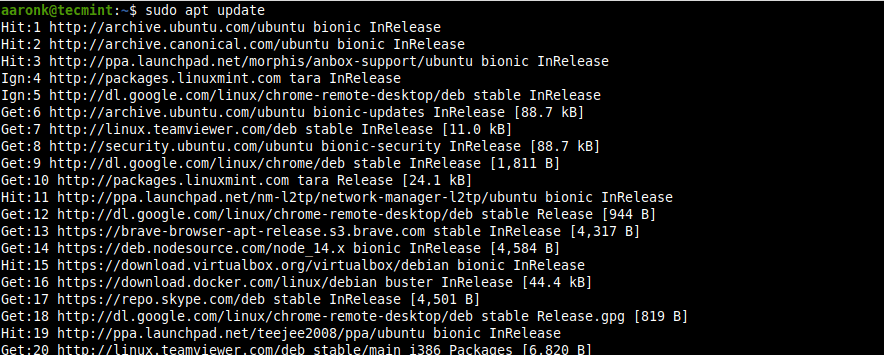
Install Security Updates on Ubuntu

Updating a Single Package on Ubuntu

To check and update a single package, for example, a package called php, after updating your system’s package cache, then update the required package as follows. If the php package already installed it will try to update to the latest version available:

$ sudo apt-get install php
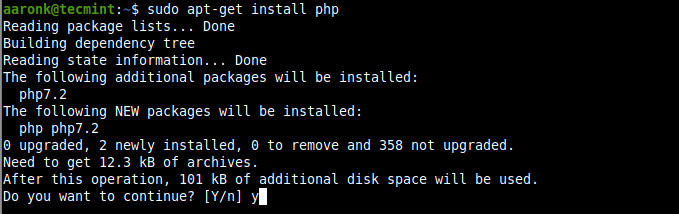
Update a Package on Ubuntu

Upgrading a Ubuntu System

To list all the newly available updates for your Ubuntu system, run:

$ sudo apt list --upgradable
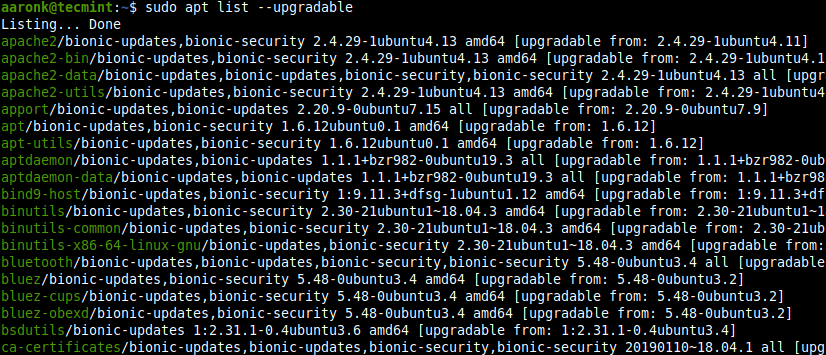
List Ubuntu Upgrades

To install all updates, run:

$ sudo apt-get dist-upgrade

Installing Latest Security Updates Automatically on Ubuntu

You can use the unattended-upgrades package to keep the Ubuntu system with the latest security (and other) updates automatically. To install the unattended-upgrades package if it isn’t already installed, run the following command:

$ sudo apt-get install unattended-upgrades
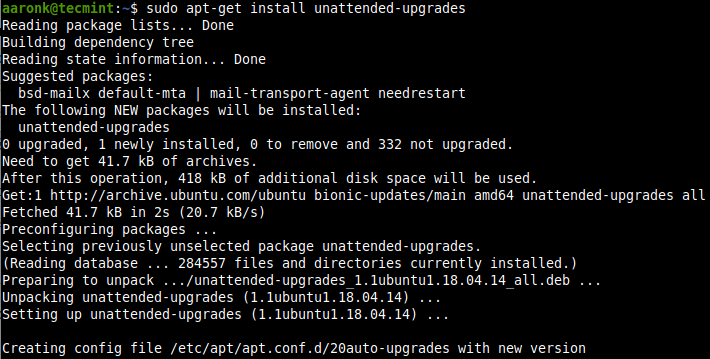
Install Unattended Upgrades on Ubuntu

To enable automatic updates, run:

$ sudo dpkg-reconfigure unattended-upgrades

Then configure the package to install automatic updates by selecting yes from the interface below.
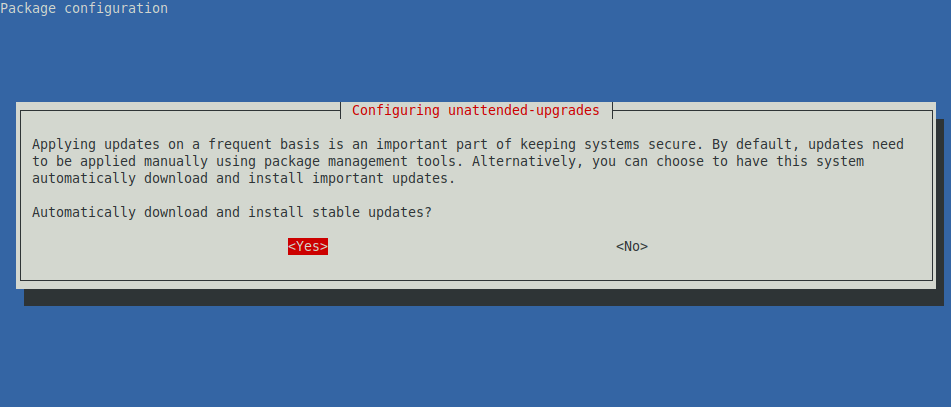
Enable Automatic Updates on Ubuntu

Attention: Please note that updates may restart services on your server, so applying updates automatically may not be appropriate for all environments particularly servers.

You can run unattended-upgrades manually also:

$ sudo unattended-upgrade

Or add the -d flag to enable debugging mode:

$ sudo unattended-upgrade -d

Running Unattended Upgrades Manually

That’s all for now. For any queries or comments, you would like to share with us, use the comment section below.

Root Plan
Premium Linux Education for Serious Learners

Take Your Linux Skills to the Next Level

Root members get full access to every course, certification prep track, and a growing library of hands-on Linux content — with new courses added every month.

What You Get
Ad-free access to all premium articles
Access to all courses: Learn Linux, AI for Linux, Bash Scripting, Ubuntu Handbook, Golang and more.
Access to Linux certifications (RHCSA, RHCE, LFCS and LFCA)
Access new courses on release
Get access to weekly newsletter
Priority help in comments
Private Telegram community
Connect with the Linux community
Aaron Kili
Aaron Kili is a Linux and F.O.S.S enthusiast, an upcoming Linux SysAdmin, web developer, and currently a content creator for TecMint who loves working with computers and strongly believes in sharing knowledge.

Each tutorial at TecMint is created by a team of experienced Linux system administrators so that it meets our high-quality standards.

Join the TecMint Weekly Newsletter (More Than 156,129 Linux Enthusiasts Have Subscribed)
Was this article helpful? Please add a comment or buy me a coffee to show your appreciation.

3 Comments

Leave a Reply
  1. Hi there,

    I run both these commands below but in the next login, there are as many updates available as before. Would you please guide me? what can I do?

    $ sudo unattended-upgrade -d (output: 0 upgraded, 0 newly installed, 0 to remove, and 6 not upgraded)

    $ sudo apt install unattended-upgrades (output: No packages found that can be upgraded unattended and no pending auto-removals)

    Reply

Got Something to Say? Join the Discussion...

Thank you for taking the time to share your thoughts with us. We appreciate your decision to leave a comment and value your contribution to the discussion. It's important to note that we moderate all comments in accordance with our comment policy to ensure a respectful and constructive conversation.

Rest assured that your email address will remain private and will not be published or shared with anyone. We prioritize the privacy and security of our users.

Root Plan Premium Linux Education for Serious Learners

Before You Go - Upgrade Your Linux Skills

Root members get everything in one place, with new courses added every month.

What You Get
Ad-free access to all premium articles
Access to all courses: Learn Linux, AI for Linux, Bash Scripting, Ubuntu Handbook, Golang and more.
Linux certifications: RHCSA, RHCE, LFCS and LFCA
Access new courses on release
Weekly newsletter, priority support & Telegram community
Join Root Today and Start Learning Linux the Right Way
Structured courses, certification prep, and a community of Linux professionals - all in one membership.
Join Root Plan →
$8/mo · or $59/yr billed annually