
Suplemon is an open source, modern, powerful, intuitive and feature-rich command-line text editor with multi cursor support; it replicates Sublime Text like functionality in the terminal with the use of Nano. It is highly extensible and customizable; allows you to create and use your own extensions.

Suplemon Features:
- Supports proper multi cursor editing.
- Syntax highlighting with text mate themes.
- Supports autocomplete (based on words in the files that are open).
- Offers easy Undo/Redo functionality.
- Supports copy and paste, with multi line support (and native clipboard support on X11 / Unix-based systems).
- Supports multiple files in tabs.
- Has a powerful Go To feature for jumping to files and lines.
- Offers Find, Find next and Find all functionality.
- Supports custom keyboard shortcuts (and easy-to-use defaults).
- Also has mouse support.
- Can restore cursor and scroll positions when reopening files and more.
How to Install Suplemon Text Editor in Linux Systems
To install Suplemon Text Editor, you just need to clone the repository and install it as shown.
$ git clone https://github.com/richrd/suplemon.git
$ cd suplemon
$ python3 suplemon.py
You can also install the latest version of Suplemon Text Editor on system wide using PIP utility as shown.
$ sudo pip3 install suplemon
$ sudo python3 setup.py install
How to Use Suplemon Text Editor in Linux Systems
Once you have Suplemon Text Editor installed, the suplemon configuration file is stored at ~/.config/suplemon/suplemon-config.json and you can use it like any other terminal text editor, like this.
$ suplemon filename  #in current directory
$ suplemon /path/to/filename
To enable system clipboard support, install xsel or pbcopy or xclip package on your system.
$ sudo apt install xclip	 #Debian/Ubuntu
# yum install xclip	         #RHEL/CentOS
# dnf install xclip	         #Fedora 22+
Now try to edit any files using suplemon text editor as shown.
$ suplemon topprocs.sh
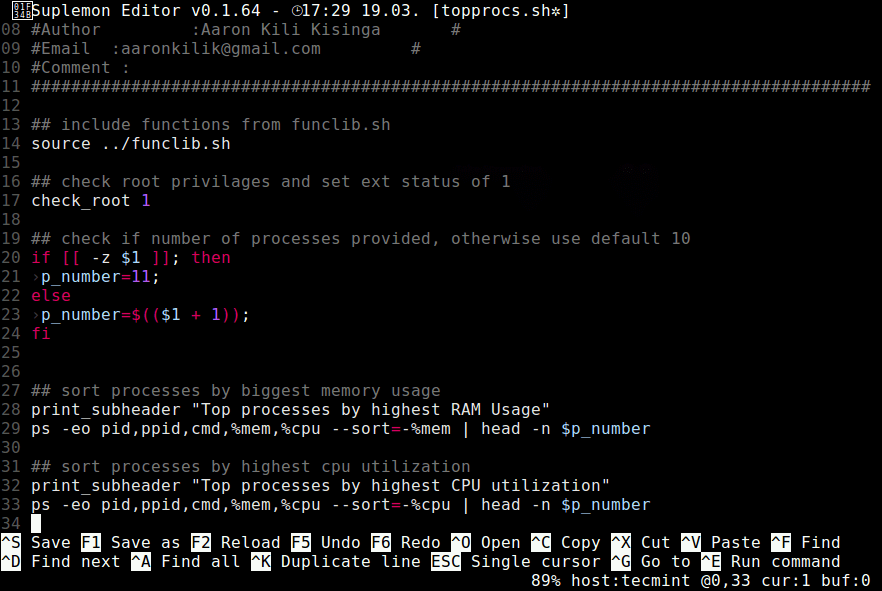
Following are a few basic Keymap Configs used by suplemon. They can be edited by running the keymap command. To view the default keymap file run keymap default.
- Exit – Ctrl+Q
- Copy line(s) to buffer – Ctrl+C
- Cut line(s) to buffer – Ctrl+X
- Save current file – Ctrl+S
- Search for a string or regular expression (configurable) – Ctrl+F
- Run commands – Ctrl+E
Note: The recommended way to edit the configuration file is to run the config command, it will automatically reload the configuration when you save the file. And you can view the default configuration and see what options are available by running config defaults command.
To get more help hit [Ctrl+H] in the editor. You can also find more information such as keymap configs, mouse shortcuts as well as commands from the Suplemon Github repository.
Suplemon is a modern, powerful, intuitive, highly extensible and customizable console text editor. Try it out and use the comment form below to share with us, your thoughts about it.


For the lovers of the black-screen (terminal), I think micro is the best choice (https://micro-editor.github.io/). No python, easiest possible installation (just download and run the executable or store it somewhere in the path), configurable, Lua programmable, etc. I prefer Atom and Code Lite, though, which are GUI applications.
@Julian
Okay, many thanks for sharing this with us, we will check out Micro.
You guys post some cool stuff, but the insane amount of ads keeps me from reposting.
@TheOuterLinux,
The ads are only displayed on right sidebar to make content readable, and we’ve never received complaints about our ad placement…