How to Configure Network Services to Auto Start on Boot

Take Your Linux Skills to the Next Level All courses, certifications, ad-free articles & community — from $8/mo
Join Root →
Ad-free access to all premium articles
Access to all courses: Learn Linux, AI for Linux, Bash Scripting, Ubuntu Handbook, Golang and more.
Access to Linux certifications (RHCSA, RHCE, LFCS and LFCA)
Access new courses on release
Get access to weekly newsletter
Priority help in comments
Private Telegram community
Connect with the Linux community
From $8/mo · or $59/yr billed annually · Cancel anytime

It’s usually a good idea to configure essential network services to automatically start on boot. This saves you the hassle of starting them manually upon a reboot and also, the resulting havoc caused in case you forget to do so. Some of the crucial network services include SSH, NTP, and httpd.

You can confirm what is your system service manager by running the following command.

# ps --pid 1
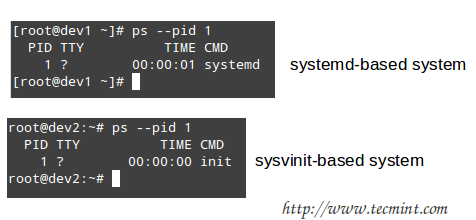
Check Linux Service Manager

Based on the output of the above command, you will use one of the following commands to configure whether each service should start automatically on boot or not:

On systemd-based
----------- Enable Service to Start at Boot -----------
# systemctl enable [service]
----------- Prevent Service from Starting at Boot -----------
# systemctl disable [service] # prevent [service] from starting at boot
On sysvinit-based
----------- Start Service at Boot in Runlevels A and B -----------
# chkconfig --level AB [service] on 
-----------  Don’t Start Service at boot in Runlevels C and D -----------
# chkconfig --level CD service off 

On a systemd system like CentOS 8, RHEL 8 and Fedora 30+, the systemctl command is used for managing services. For example, to have a view of the disabled services, run the command:

$ sudo systemctl list-unit-files --state=disabled
$ sudo chkconfig --list     [On sysvinit-based]

The output below prints out all the disabled services and as you can see, the httpd service is listed, implying that it is not configured to start on boot.
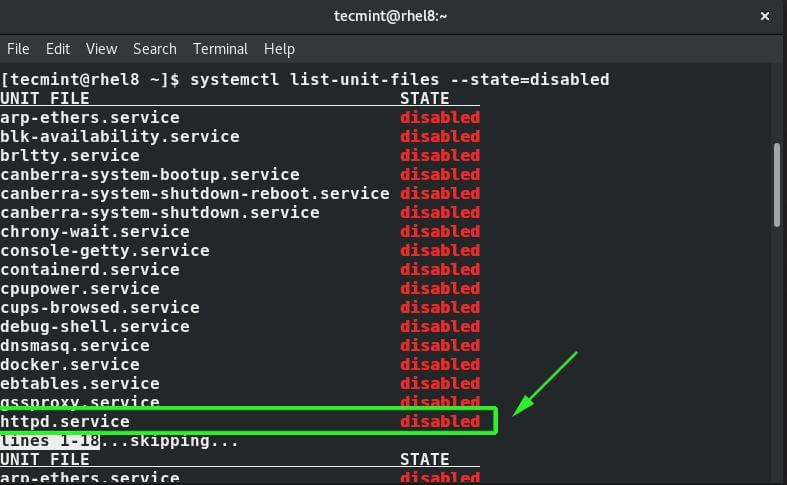
List Disabled Network Services

To enable a service to start on boot, use the syntax:

$ sudo systemctl enable service-name
$ sudo chkconfig service_name on     [On sysvinit-based] 

For example, to enable httpd service on boot execution.

$ sudo systemctl enable httpd
$ sudo chkconfig httpd on     [On sysvinit-based] 

To confirm that the httpd service has been enabled, list all the enabled services by executing the command:

$ sudo systemctl list-unit-files --state=enabled
$ sudo chkconfig --list | grep 3:on     [On sysvinit-based] 
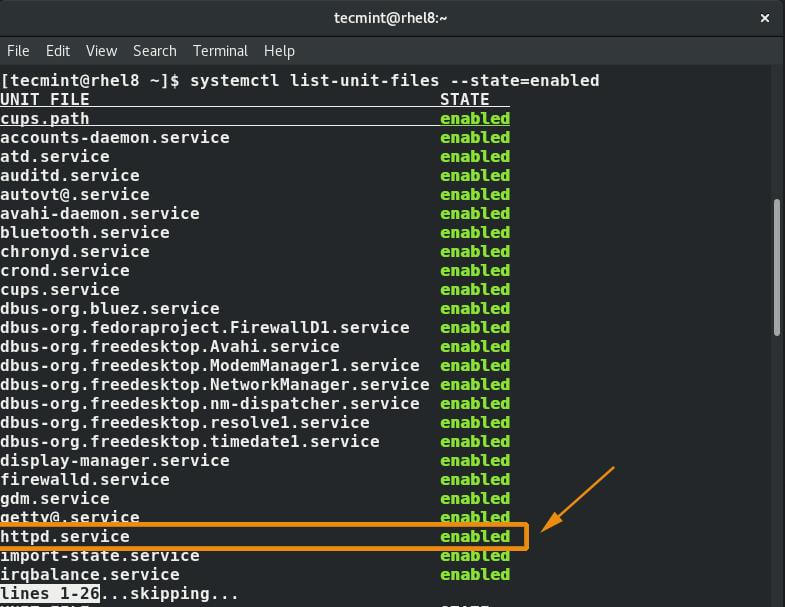
List Enabled Network Services

From the output above, we can clearly see that the httpd service now appears in the list of enabled services.

To learn more about systemctl and chkconfig commands, read these following articles:

Root Plan
Premium Linux Education for Serious Learners

Take Your Linux Skills to the Next Level

Root members get full access to every course, certification prep track, and a growing library of hands-on Linux content — with new courses added every month.

What You Get
Ad-free access to all premium articles
Access to all courses: Learn Linux, AI for Linux, Bash Scripting, Ubuntu Handbook, Golang and more.
Access to Linux certifications (RHCSA, RHCE, LFCS and LFCA)
Access new courses on release
Get access to weekly newsletter
Priority help in comments
Private Telegram community
Connect with the Linux community
Ravi Saive
I'm Ravi Saive, an award-winning entrepreneur and founder of several successful 5-figure online businesses, including TecMint.com, GeeksMint.com, UbuntuMint.com, and the premium learning hub Pro.Tecmint.com.

Each tutorial at TecMint is created by a team of experienced Linux system administrators so that it meets our high-quality standards.

Join the TecMint Weekly Newsletter (More Than 156,129 Linux Enthusiasts Have Subscribed)
Was this article helpful? Please add a comment or buy me a coffee to show your appreciation.

Got Something to Say? Join the Discussion...

Thank you for taking the time to share your thoughts with us. We appreciate your decision to leave a comment and value your contribution to the discussion. It's important to note that we moderate all comments in accordance with our comment policy to ensure a respectful and constructive conversation.

Rest assured that your email address will remain private and will not be published or shared with anyone. We prioritize the privacy and security of our users.