Linux desktop environments provide users with a flexible and customizable workspace. One of the key features that enables users to streamline their workflow is the creation of desktop launchers or shortcuts.
Launchers are shortcuts that give you easy access to your favorite applications, making it easy to open them without navigating through menus. In this guide, we will walk you through the simple process of creating launchers on a Linux desktop.
Create Launchers on Linux Desktop
Linux provides a variety of desktop environments, such as GNOME, KDE, XFCE, and more. The process of creating launchers can slightly differ based on the desktop environment you are using.
For this guide, we will focus on GNOME, which is the default desktop environment for many popular distributions like Ubuntu.
Create a Desktop Shortcut Launcher from Existing Application
Before creating a launcher, identify the application’s executable file you want to launch. Most applications are stored in the “/usr/share/applications/” directory, and their corresponding launcher files have a ".desktop" extension.
To list detailed information about files in the “/usr/share/applications” directory, including file permissions, owner, group, file size, modification time, and the filename, use following ls command as shown.
ls -l /usr/share/applications
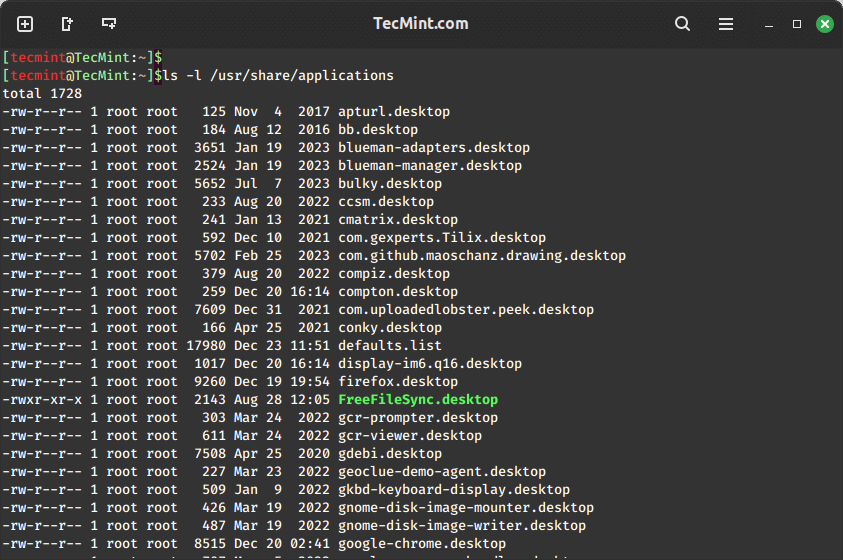
To create a desktop shortcut launcher for your existing .desktop file, you can open your file manager, navigate to “/usr/share/applications/“, and then copy and paste the .desktop file onto the Desktop.
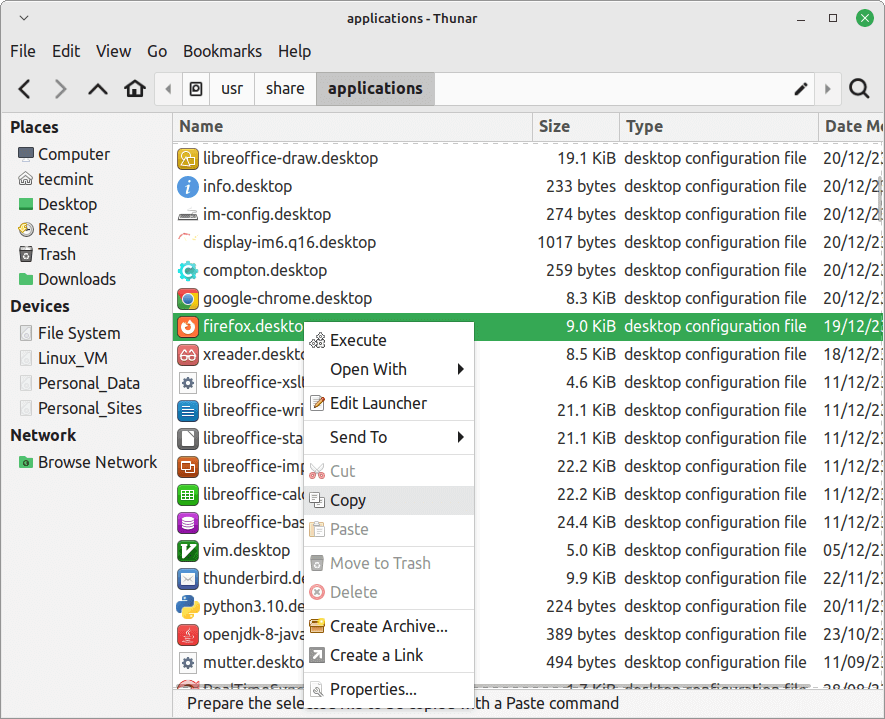
Now that you have a Firefox launcher on your desktop, double-click on the Firefox launcher icon to launch it.
Create a Desktop Shortcut Launcher Manually
If you can’t find the desktop shortcut for your application in the /usr/share/applications/ directory, you have the option to manually create the Desktop launcher. In this example, we’ll create a desktop application shortcut for Gimp AppImage.
To create a launcher for the Gimp on the desktop, you need to create a file called gimp.desktop on your desktop using your favourite text editor.
nano /usr/share/applications/gimp.desktop
Then, add the following code to the Desktop entry file.
[Desktop Entry]
Name=Gimp
Exec=/home/tecmint/GIMP_AppImage-git-2.10.25-20210401-withplugins-x86_64
Icon=/home/tecmint/Downloads/gimp.png
Comment=gimp
Type=Application
Terminal=false
Encoding=UTF-8
Categories=Utility;
Make sure to replace the actual path to the directory containing your GIMP AppImage, and specify the correct icon path.
Next, make your launcher executable by setting the execute permission as shown.
chmod +x /usr/share/applications/gimp.desktop
Now, you should see GIMP in your application launcher, and you can also place the shortcut on your desktop for easy access.
Conclusion
Creating launchers on a Linux desktop is a simple yet powerful way to enhance your productivity. Whether you are a seasoned Linux user or just getting started, customizing your desktop environment with personalized launchers can make your computing experience more efficient and enjoyable.
Try experimenting with different desktop environments and enjoy the freedom to tailor your Linux experience to suit your needs.