
One of the most important uses of a network is for file sharing purposes, and there are multiple ways Linux, Windows, and Mac OS X users on a network can share files with each other.
In this article, we’ll cover LocalSend, a modern, cross-platform, open-source application that makes file sharing across your local network incredibly simple.
Update Note: This article originally covered NitroShare, which was a great tool in its time. However, NitroShare development has been dormant since 2018, with only minimal activity in recent years.
LocalSend has emerged as the superior modern alternative, offering better cross-platform support (including mobile devices), active development, and a more polished user experience.
LocalSend Features
LocalSend comes packed with features that make it the go-to solution for local file sharing:
- Runs on Linux, Windows, Mac OS X, Android, iOS, and even Apple TV.
- Instantly finds all devices running LocalSend on your local network.
- All transfers are encrypted using HTTPS with TLS/SSL certificates.
- Takes full advantage of your network speed with no bandwidth limits.
- No internet connection needed, everything happens on your local network.
- Transfer anything from small documents to massive video files.
- No tracking, no ads, no data collection, completely open source.
- Get alerts about sent files, connected devices, and transfer progress.
The latest version of LocalSend is actively developed and maintained by a vibrant open-source community with over 8 million downloads worldwide. Unlike older solutions, LocalSend is built with modern technologies and receives regular updates with new features and improvements.
How To Install LocalSend on Linux Systems
LocalSend is designed to run on a wide variety of modern Linux distributions and desktop environments.
Let me break down the installation methods for you.
Install LocalSend on Ubuntu and Debian
The easiest way to install LocalSend on Ubuntu is through Snap, which comes pre-installed on most Ubuntu systems:
sudo snap install localsend
Alternatively, you can use Flatpak if that’s your preferred package manager:
flatpak install flathub org.localsend.localsend_app
You can also download the .deb package directly from the official LocalSend website and install it with:
sudo dpkg -i LocalSend-*.deb
Install LocalSend on Fedora Linux
On Fedora, you can install LocalSend using Flatpak:
flatpak install flathub org.localsend.localsend_app
Install LocalSend on Arch Linux
For Arch Linux users, LocalSend is available in the AUR:
yay -S localsend-bin
Or if you prefer building from source:
yay -S localsend
Install LocalSend Using AppImage
LocalSend also provides an AppImage that works on any Linux distribution; download the AppImage from the official website, make it executable and then run it.
chmod +x LocalSend-*.AppImage
./LocalSend-*.AppImage
How to Use LocalSend on Linux
Note: All devices that you wish to share files with must be connected to the same local network and have LocalSend installed and running.
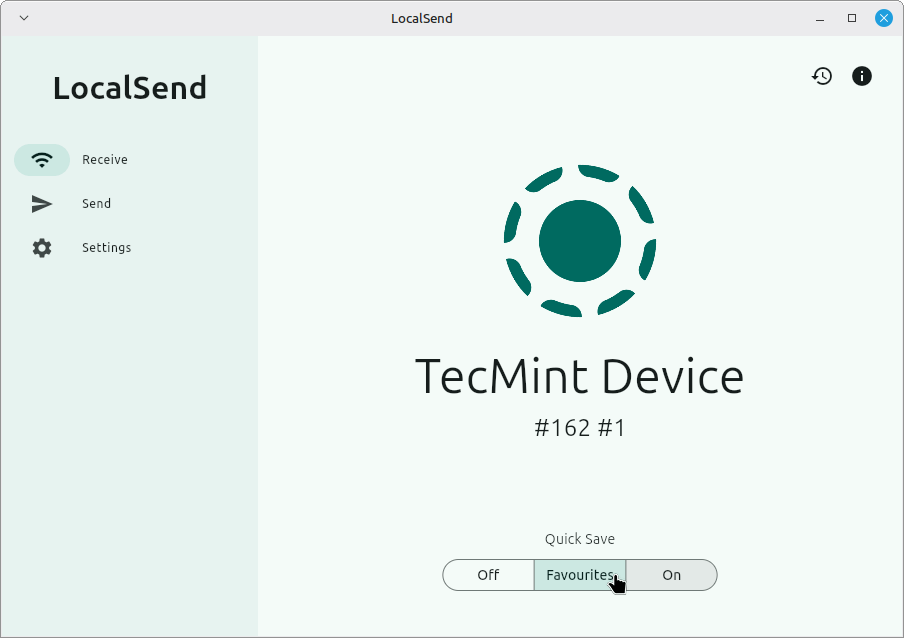
After successfully installing LocalSend, search for it in your application menu and launch it, you’ll see a clean interface with three main sections in the left sidebar:
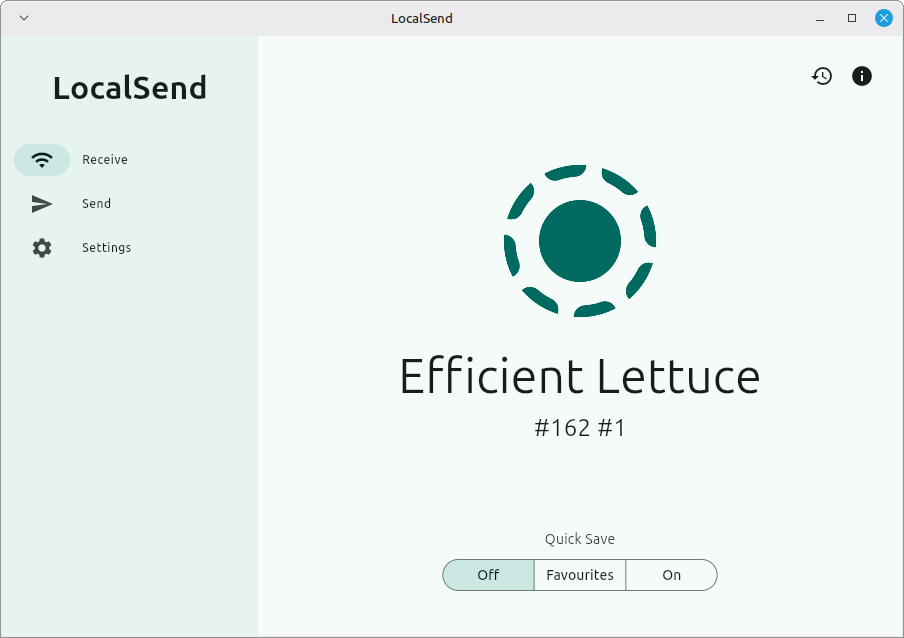
The LocalSend‘s interface is beautifully simple with three tabs:
- Receive – Where you’ll see incoming file transfers and your transfer history.
- Send – Where you initiate file transfers to other devices.
- Settings – Where you can customize LocalSend’s behavior.
Your device will be assigned a random name (like “Efficient Lettuce” in the screenshot) along with an identifier number, but you can change this in the Settings if you prefer something more recognizable.

Sending Files
Open LocalSend on both the sending and receiving devices, then on the sending device, click the Send tab from the left sidebar, where you will see four options at the top under “Selection“.
- File – Select one or multiple files to send.
- Folder – Send an entire directory with all its contents.
- Text – Type and share text messages or notes.
- Paste – Send whatever you’ve copied to your clipboard.
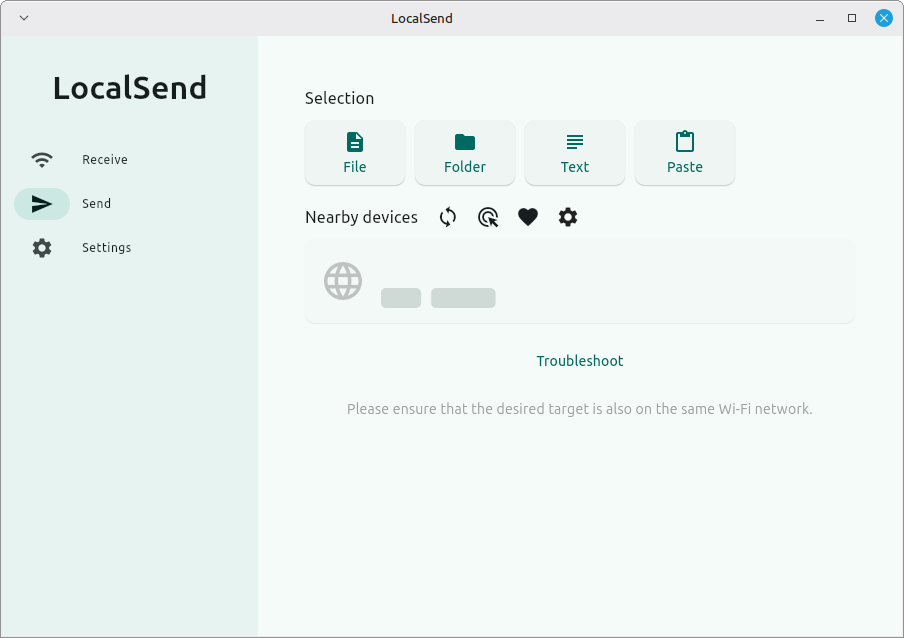
After selecting what you want to send, LocalSend displays all available devices under “Nearby devices“.
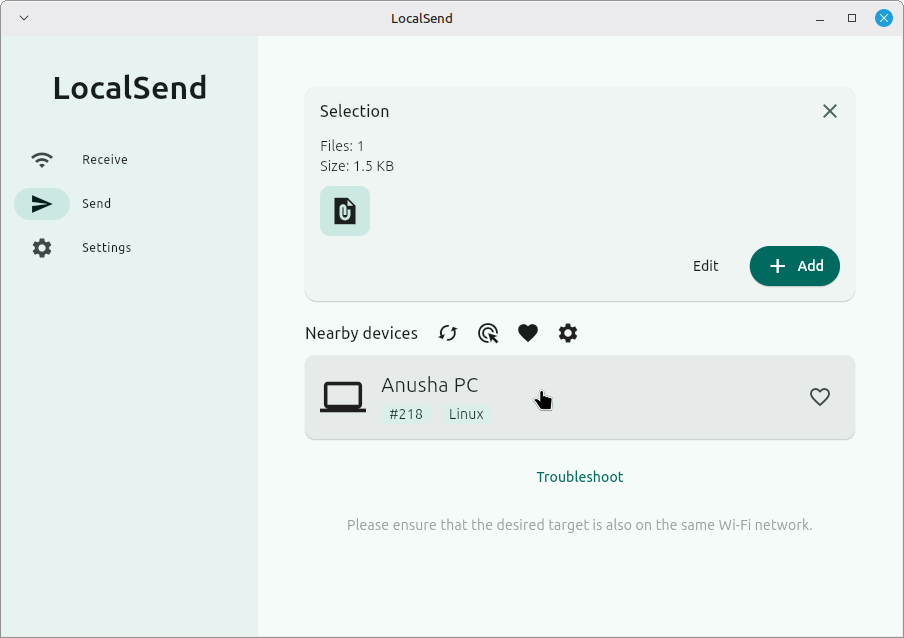
After selecting the destination device from the list, the receiving device is notified and can accept or decline the transfer, and once accepted, the transfer begins immediately with a progress bar displaying the status.
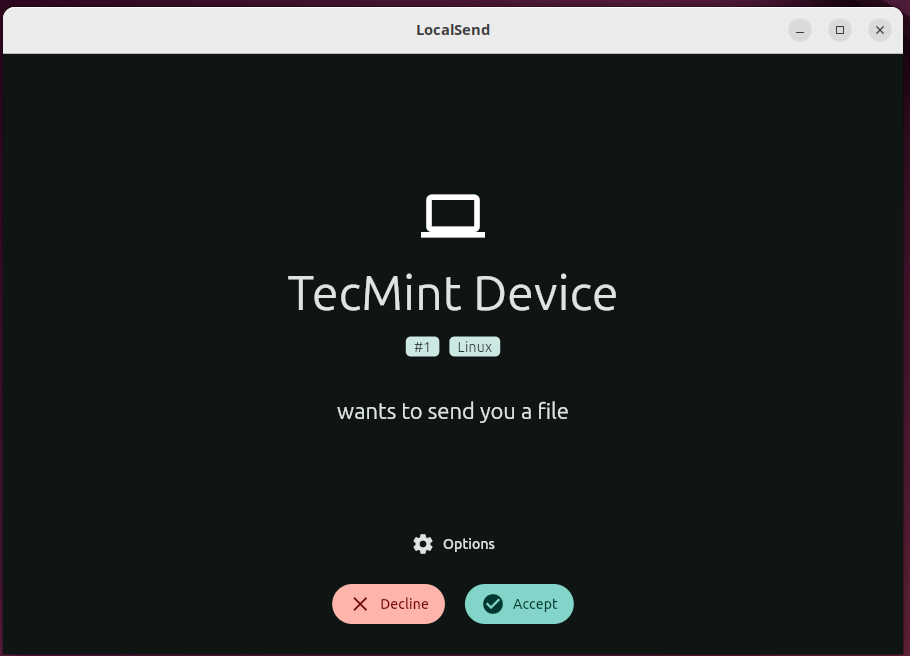
Once accepted, the transfer begins instantly with a progress bar showing the status.
Receiving Files
Similarly, keep the app open with the Receive tab active so that when someone sends you files you receive a notification, can preview the incoming files before accepting them.
Once accepted, the files are saved to your Downloads folder, which can be customized in settings; you can also enable Quick Save in the Receive tab to automatically accept transfers without confirmation, and use the Favourites toggle to mark trusted devices for automatic acceptance.
Settings and Customization
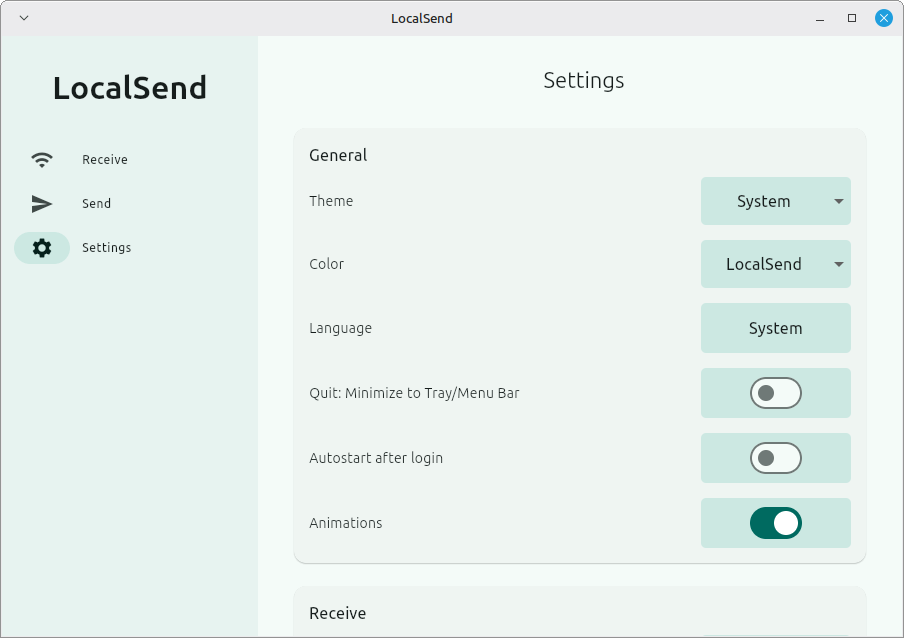
Click on the “Settings” tab to access various options:
- Device Name – Change your device’s display name from the randomly generated one.
- Download Location – Specify where received files should be saved.
- Port Settings – Advanced users can modify the default port (53317).
- Quick Save – Toggle automatic file acceptance on/off.
- Network Interface – Select which network interface to use if you have multiple connections.
- Theme – Switch between light and dark mode.
Troubleshooting Tips
If devices are not discovering each other on your Linux system, ensure all devices are connected to the same Wi-Fi network and verify that your firewall is not blocking LocalSend by allowing port 53317 using:
sudo ufw allow 53317
Alternative Options
While LocalSend is our top recommendation, but here are a few other options worth mentioning:
- Warpinator – Great for Linux Mint users, now with broader platform support.
- Snapdrop/PairDrop – Browser-based solutions that require zero installation.
Final Thoughts
LocalSend represents everything that modern file sharing should be – fast, secure, simple, and truly cross-platform. Whether you’re sharing files between your Ubuntu laptop and Windows desktop, or transferring documents from your Arch workstation to a Fedora server, LocalSend makes it effortless.
The fact that it’s open source, respects your privacy, and works completely offline makes it even more appealing. No more uploading files to the cloud just to download them on another device in the same room!
That’s it for now! If you have any questions about LocalSend or experience any issues, drop a comment below. Have you found any other excellent cross-platform file sharing tools? Let us know, and as always, stay connected to TecMint!




Been using a similar cross-platform app called Dukto. It runs on Android as well as the others, it also can send text and clipboard. Another neat feature is that the portable option can be downloaded to try without installing.
I installed NitroShare through the “Software Center” on my Kubuntu laptop. When I try to start it I get a dialog box that says “unable to listen on port 40818.” What is going on?
@Larry
Check if the port in question is being used by another service:
No output means no other service is using the port. If a service is using it either stop that service or configure Nitroshare to use another port.
Has anyone had a case where after installing, you cannot right click the left most pane of the file manager in Windows 10. The software worked great and was able to send files between Windows 10 and Antergos but I noticed that my right click stop working in file manager (Whenever I would right click in the left most pane, it would clock for a second and state no response on the title bar of the file manager and then completely close/crash file manager… was able to right click in the right pane but not left).
I know that this was tied to Nitroshare as it was the last app installed and once I removed NItroshare, I was able to start right clicking again in the left most pane. Added as an issue to the git page (just wanted to see if anyone else has seen this issue.
@tsreb0
Many thanks for sharing this with us, on Linux operating systems(Ubuntu, Linux Mint and CentOS ), i did not experience such.
You must open two ports on each machine 40816 and 40818.
From AUR
yaourt -S nitroshare
Unfortunately I haven’t been able to get it to work with VMware workstation 12 using Windows 10 as the host and Windows 7 as the guest.
Works fine between Windows 10 hosts though.
@Greg,
I haven’t tested with VMware workstations, yes but I do tested with VirtualBox guest (Linux Mint 18) with my Ubuntu 16.04, worked great for me..
Do you know what this ‘nitroshare’ is and how it works?
@Dan
That has been described fully in the article, you can read carefully around the introductory parts to answer your question.