
If you’ve ever reinstalled Ubuntu, you know the pain of setting everything up again, such as finding apps, adding PPAs, and reinstalling software one by one.
Back in the day, tools like Aptik helped automate this, but since Aptik is no longer maintained, you don’t need to rely on it, Ubuntu already comes with the dpkg package manager, which can handle the job on its own.
In this tutorial, I’ll show you how to back up your installed packages and restore them later using dpkg commands.
Step 1: Back Up Installed Packages
The very first thing we need to do is generate a list of all the packages currently installed on your Ubuntu system.
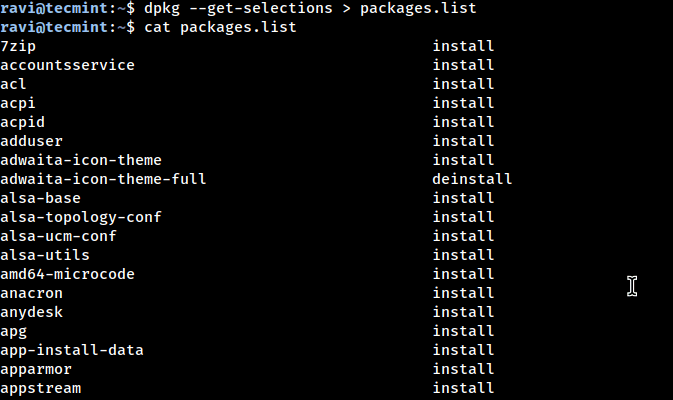
dpkg --get-selections > packages.list
When the command finishes, you’ll have a file called packages.list in your current directory.
cat packages.list
Pro Tip: You can copy this file to a USB stick, external drive, or cloud storage for safekeeping.
Step 2: Back Up Your Software Repositories (Optional)
The package list you created above is useful, but it only tells Ubuntu which apps you had installed; it doesn’t remember where some of them came from.
Many popular apps, such as Google Chrome, VirtualBox, Spotify, or VS Code, are installed via PPAs (Personal Package Archives) or third-party repositories.
If you don’t back up these sources, Ubuntu won’t know where to find those apps when you restore your package list.
sudo cp -r /etc/apt/sources.list* ~/sources-backup/
sudo cp -r /etc/apt/trusted.gpg* ~/sources-backup/
Here’s what these commands do:
/etc/apt/sources.list→ The main file containing Ubuntu’s default repositories./etc/apt/sources.list.d/→ Additional PPAs and third-party sources you’ve added./etc/apt/trusted.gpg*→ Security keys that verify packages from those repositories.cp -r … ~/sources-backup/→ Copies everything into a new folder called sources-backup inside your home directory.
Step 3: Restore Installed Packages
Once you’ve reinstalled Ubuntu (or set up a fresh system), it’s time to restore all your previously installed apps using the backup you created in Step 1.
Copy your packages.list file back to your home directory on the new system and run.
sudo dpkg --set-selections < packages.list
sudo apt update
sudo apt dselect-upgrade
What’s happening here:
dpkg --set-selections < packages.list→ Reads your backup list and tells Ubuntu which packages should be installed.sudo apt update→ Updates Ubuntu’s package index so it knows what versions are available from the repositories.sudo apt dselect-upgrade→ Installs everything from your list by going through each package and fetching it from the repositories.
Depending on how many apps you have installed, this process might take a few minutes.
Step 4: Restore Your Repositories (If Needed)
If you followed Step 2 and backed up your PPAs and repository keys, the final step is to restore them so Ubuntu can find all your third-party apps and ensure that programs like Google Chrome, VirtualBox, Spotify, or VS Code will reinstall correctly.
Copy the backup folder back to the system’s sources directory:
sudo cp -r ~/sources-backup/* /etc/apt/
Update Ubuntu’s package index to recognize these repositories:
sudo apt update
If you ever want to double-check which PPAs and third-party sources are currently active, run:
ls /etc/apt/sources.list.d/
Conclusion
Backing up and restoring your installed packages in Ubuntu doesn’t have to be a headache. While tools like Aptik were once popular, they are no longer maintained, and with dpkg, Ubuntu already provides a reliable, built-in solution.
By following these steps, you can quickly recreate your software environment after a reinstall or on a new system, saving time and avoiding the frustration of reinstalling apps one by one. Remember to also back up your repositories if you rely on third-party PPAs, so nothing gets left behind.


Hi,
I am trying to restore an Aptik backup from the Host to the Guest Virtualbox machine, and I receive this error message:
“Failed to read backup
Failed to read backup repository
Section: Home Directory Data-[BORG_ERROR]
E:Failed to create/acquire the lock /media/nancy/625c4c26-4300-446d-ac44-5fb4b8994d04/lock.exclusive (time out).”
I never have heard of Borg or locks, and I have only been using Linux Mint user for a couple of years, just reading terminal commands to get by from a list I have gathered over time. Otherwise, I don’t know what I am doing and am just faking it.
With that in mind, can you offer some specific terminal commands I can use to resolve this?
Thanks so much.
Nancy
Thank you very much for that as it is exactly what I needed for the Mint 20.04 backup tool… Tried Deja Dup, Backintime, and Timeshift and really didn’t want all that for backup!
But, I did the…
This is what I got in the last step of the terminal install steps above with the:
I Get…
Cannot find the file adtik-gtj
And can’t figure out why as I tried…
also and got some…
Cannot find the file adtik-gtj
I’m stumped!
But thank you for your great “how-to!”
I tried to install aptik-gui on kubuntu 14.04 following all published commands, result: Unable to locate package aptik-gtk.
Shame since aptik-gui sounds just what I want to migrate from 14.04 on my old machine to 18.04 on new machine.
@Tobiz,
I never used Kubuntu 14.04, so no idea what this package isn’t avaiable to install. Also just to confirm, have you added the following PPA to system?
If yes, could you do a quick search for the package aptik using following command.
Just installed Aptik on Mint 18.3. However, no GUI application appears in the list of apps. Command line works.
How do get the GUI version?
@Ove,
Run the aptik command from the terminal to launch GUI version of Aptik.
Thanks, but when I run the aptik command in terminal, I just get the help output. No GUI.
@Ove,
It seems, the developer recently split the Aptik app into two packages.
Thanks @Ravi !
I should’ve known better than to rely on a 4 year old blog post …
Oh, i also did notice on applications settings i had to go through and manually do that for each user, but when it comes to restoring them individually it says directory not there, although it is?
Hi
This won’t seems to work for me, some of the stuff has gone across, but a lot of it hasn’t, for example my firefox and chrome data, hasn’t as well as some bittorrent files, data is there but it’s not drawn across the settings/ d/l list to the program.
Now i suspect I might know what the problem is, as I was restoring i noticed some files whizzing by that ended amd64.deb. Now as I’m restoring to an Intel based system from and AMD system, could this be the problem/ why it not working for me? :-(
I Installed it on Mint 18.2 works great. thanks
Ravi Saive,
Thank for your prompt reply. I am yet to succeed in backing up the partitions needed to retain the original functionality of the application in the old Ubuntu 8.04 server. Redo application was stubbornly picking folder mnt for backup destination. But this folder could not afford me the write permission to create the Backup folder in this folder.
Please i need your guidance. My external drive could not be mounted. Also the aptik does not seem working on Ubuntu 8.04 server. Please I need your help. I am very new to Linux/Ubuntu operating system.
Thanks very much for your readily available assistance. More grease to your elbow.
@Samuel,
Check out these open source backup tools..
https://www.tecmint.com/linux-disk-cloning-tools/
Else, better solution is to backup the application and restore it to new server by installing required application dependencies..
I just found this tool and it is excellent. Really fills a need. I will donate.
Yet another reason to not trust the cloud… You mention that Aptik is not included (and it should be not only included but mentioned PROMINENTLY in the installation instructions) in the ubuntu release because Canonical does the same through the cloud and Ubuntu One.
Not liking the cloud myself — it’s my data and my life, why should I trust someone else to keep it — I still decided to look up Ubuntu One. Turns out Canonical has discontinued the whole service. So rather than providing this service with a piece of software with willing support engineers, they create an complex, expensive-to-run service that they can’t continue to offer.
BTW, I found the migrating of users to be especially useful. Perhaps this could have been done by just copying the user directories into the new installation but I didn’t want to try.
Craig
Wow! I wish I knew this after my first reinstall. Would have made my days go by a lot easier!
To be absolutely honest… This is probably my 10th reinstall?
Heard about this on UBUNTU PODCAST.
But not working in 14.04 distro’s except in command line.
As stated above why does the gui not work ?
Using xubuntu XFCE-4.12 desktop.
Is it a GTK problem ?
@Steeeve,
Any error you getting in GUI version? can you post here, so that we can help you out..
Wonderful. I was looking exactly for this as I was wondering how people keep on upgrading Ubuntu new versions considering the hassle to download and install every software package again. Gr8 help from this article.
For some reason Aptik’s GUI does not work in KDE 4. Luckily the application works by means of CLI. I have tried to contact the owner (Tony George) of APTIK to relay, but have not gotten any feedback.
I use it and really like it. Should I run it in every user or would it carry over all users?
It will backup overall PPA’s, not user wise and there is no such thing….
This is great. I recently read (somewhere on Stack Overflow) and backed-up my PPAs, but completely forgot where the docs were and how to restore them.
Aptik worked out wonderfully. I upgraded from 12.04 to 14.04. I have a bit more verification to do, but this worked out exactly as I needed it to.
I didn’t have any obvious issues running on 14.04. Perhaps it was updated since the April 23rd response.
I installed aptik on Ubuntu 14.04. The install seemed to go well and the terminal version works. However, I have no icon in Applications and no way to use a GUI. I may be doing something really dumb–I’m relatively new to Linux, but I think I folowed your install suggestions perfectly. Any Ideas?
Thanks