
It has been said before -and I couldn’t agree more- that some of the best system administrators are those who seem (note the use of the word seem here) to be lazy all the time.
While that may sound somewhat paradoxical, I bet it must be true in most cases – not because they are not doing the job they are supposed to be doing, but rather because they have automated most of it.
One of the critical needs of a Linux system is to be kept up to date with the latest security patches available for the corresponding distribution.
In this article we will explain how to set up your Debian and Ubuntu system to auto install (or update) essential security packages or patches automatically when needed.
Other Linux distributions such as CentOS/RHEL configured to install security updates automatically.
Needless to say, you will need superuser privileges in order to perform the tasks outlined in this article.
Configure Automatic Security Updates On Debian/Ubuntu
To begin, install the following packages:
# aptitude update -y && aptitude install unattended-upgrades apt-listchanges -y
where apt-listchanges will report what has been changed during an upgrade.
Next, open /etc/apt/apt.conf.d/50unattended-upgrades with your preferred text editor and add this line inside the Unattended-Upgrade::Origins-Pattern block:
Unattended-Upgrade::Mail "root";
Finally, use the following command to create and populated the required configuration file (/etc/apt/apt.conf.d/20auto-upgrades) to activate the unattended updates:
# dpkg-reconfigure -plow unattended-upgrades
Choose Yes when prompted to install unattended upgrades:

then check that the following two lines have been added to /etc/apt/apt.conf.d/20auto-upgrades:
APT::Periodic::Update-Package-Lists "1";
APT::Periodic::Unattended-Upgrade "1";
And add this line to make reports verbose:
APT::Periodic::Verbose "2";
Last, inspect /etc/apt/listchanges.conf to make sure notifications will be sent to root.
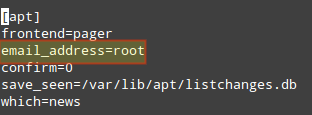
In this post we have explained how to make sure your system is updated regularly with the latest security patches. Additionally, you learned how to set up notifications in order to keep yourself informed when patches are applied.
Do you have any questions about this article? Feel free to drop us a note using the comment form below. We look forward to hearing from you.



Thanks.
A thing that would make the post even better would be adding a short sentence to each step explaining why we are doing this and what effect it has.
What a legend. Thank you for an awesome post just set my little VPS up to auto update.
Hi, I have the same questions about the notifications as Mr. Mossmann. How and when is the notification displayed or do I need to fetch them myself from where?
Thanks
it uses cron.daily
Hi, thanks for your howto, very useful! Does cron start unattended-upgrade?
It is possible de run this command with noninteractive mode ? :
dpkg-reconfigure -plow unattended-upgrades
because I have a lot a server to configure a Security Updates Automatically …
THANKS FOR ANSWERS
Famous !
question : we don’t have to use CRON to periodic check when security update is available ?
how that run ?
Thanks
Is it possible to notify ANOTHER user, e.g. my regular user login? Also, how are the notifications displayed?