If you’re looking to get started with Docker, understanding how to work with its command-line interface is crucial for managing your containers and images effectively.
Docker has become the go-to solution for containerizing applications, and this guide takes you through the essential commands you need to know to control your Docker environment.
Getting Started with Docker Commands
Before diving into specific commands, it’s important to understand that Docker commands follow a simple structure and most commands start with docker followed by the action you want to perform and any additional options or arguments.
The first commands you should familiarize yourself with are the help and version commands, which are useful for any command-line utility, and Docker is no exception.
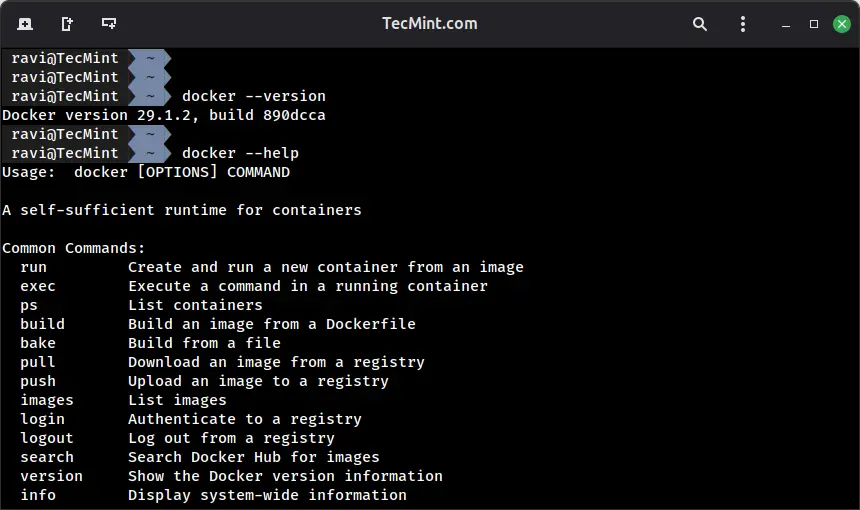
To check your Docker version, simply run:
docker --version
When you need help with any Docker command, the built-in help system becomes your first point of reference, where you can access general help information by running the following command:
docker --help
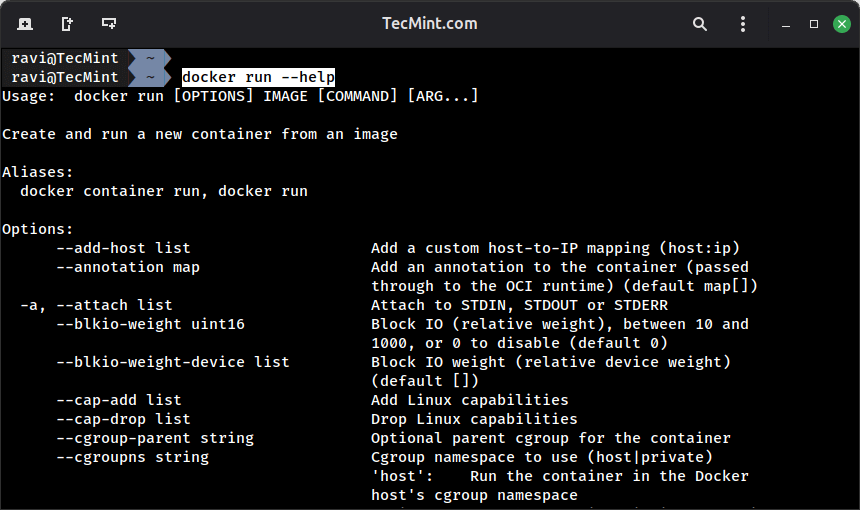
You can also get specific help for any particular command you want to understand better, which will display all the available options and flags for that specific command.
docker run --help
Working with Docker Images
Docker images form the foundation of your containers, as they contain everything needed to run an application, which includes the code, runtime, libraries, and dependencies.
The following commands take you through how to work with Docker images effectively.
Searching for Docker Images
Before you can use an image, you first need to find it in the Docker Hub, which serves as the default registry where thousands of pre-built images are available for you to use.
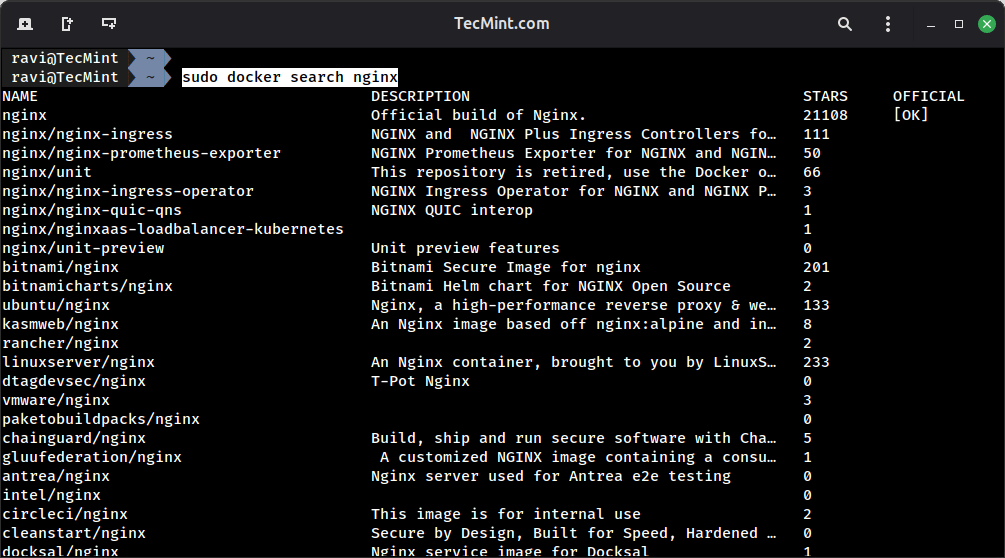
To search for a specific image, you can run the following command, which will display a list of available nginx images along with their descriptions and star ratings, helping you identify the most popular and well-maintained options.
sudo docker search nginx
Pulling Docker Images
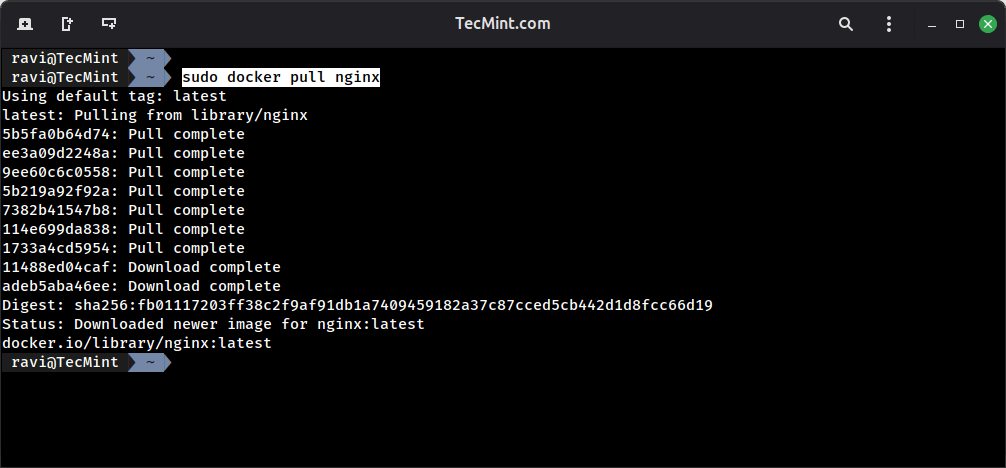
Once you’ve found the image you need, you can download it to your local system using the pull command, which will pull the latest version:
sudo docker pull nginx
If you need a specific version, you can specify the tag:
sudo docker pull nginx:1.25.3
Listing Local Docker Images
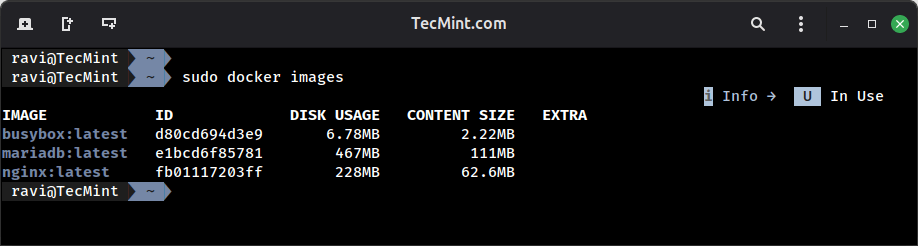
To see all the images you have stored locally, use the following command, which will display a table showing the repository name, tag, image ID, creation date, and size of each image on your system.
sudo docker images
Building Custom Docker Images
When you need to create your own custom image from a Dockerfile, you first need to create the Dockerfile itself in your current directory with the following content:
FROM ubuntu:24.04
RUN apt update && apt install -y nginx
EXPOSE 80
CMD ["nginx", "-g", "daemon off;"]
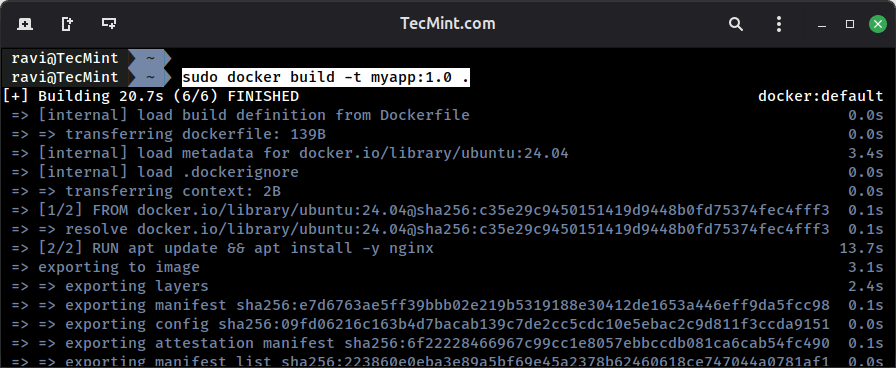
The above Dockerfile creates a simple web server image based on Ubuntu 24.04 that installs and runs Nginx. Once you have a Dockerfile in place, you can then build your custom image using the build command:
sudo docker build -t myapp:1.0 .
The -t flag allows you to tag your image with a name and version for easy identification, in this example, myapp is the image name and 1.0 is the version tag. The . (dot) at the end indicates that the build context is your current directory, where Docker will look for the Dockerfile you just created.
Removing Docker Images
When you need to remove an image that you no longer need from your system, you can use the following command:
sudo docker rmi nginx:latest
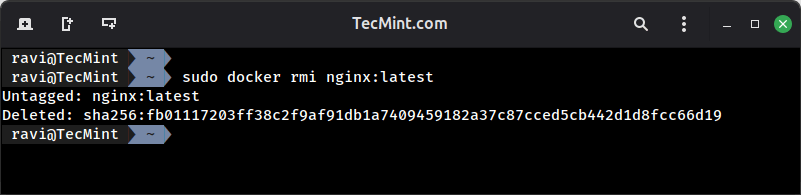
However, if the image is currently being used by a running or stopped container, Docker will prevent you from removing it. In such cases, you’ll need to remove the container first before deleting the image, or alternatively, you can force the removal by adding the -f flag to the command.
docker rm container_name
docker rmi -f nginx:latest
Managing Docker Containers
The next section takes you through managing containers, which are the running instances of your Docker images. Understanding how to manage and control these containers is essential for working with Docker effectively in your day-to-day operations.
Running Docker Containers
The most basic way to run a container from an image is by using the following command.
sudo docker run nginx
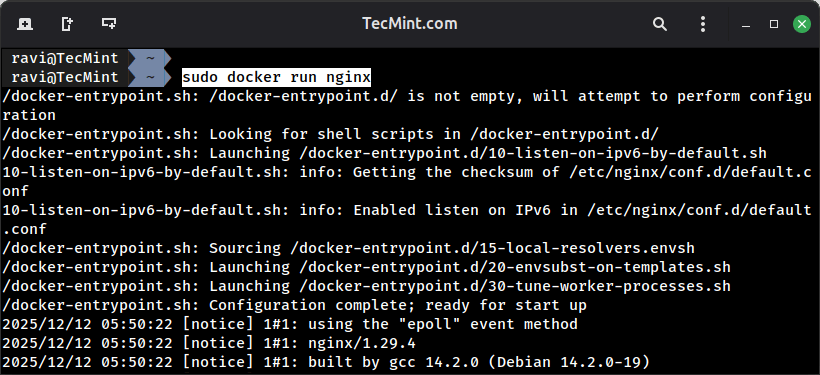
However, the above command runs the container in the foreground, which ties up your terminal. For practical use in real-world scenarios, you’ll want to run your containers in detached mode instead:
sudo docker run -d nginx
You can also map ports and assign names to your containers for easier management and identification:
sudo docker run -d -p 8080:80 --name my-webserver nginx
The above command runs an nginx container in the background using the -d flag, maps port 8080 on your host machine to port 80 inside the container using the -p flag, and assigns it the name "my-webserver" with the --name flag.
Listing Docker Containers
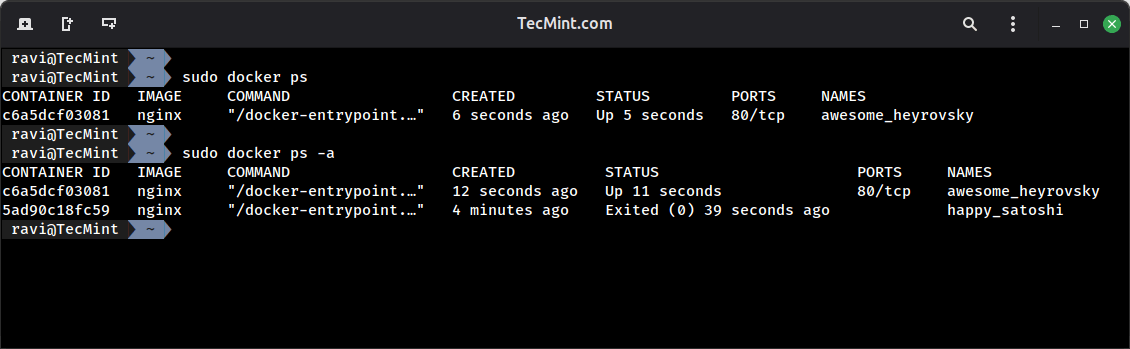
To see all the containers that are currently running on your system, you can use the following command:
sudo docker ps
However, if you want to see all containers on your system, including the stopped ones, you can add the -a flag to the command:
sudo docker ps -a
Starting and Stopping Docker Containers
Before you can stop, start, or restart a container, you first need to know what containers exist on your system.
sudo docker ps -a
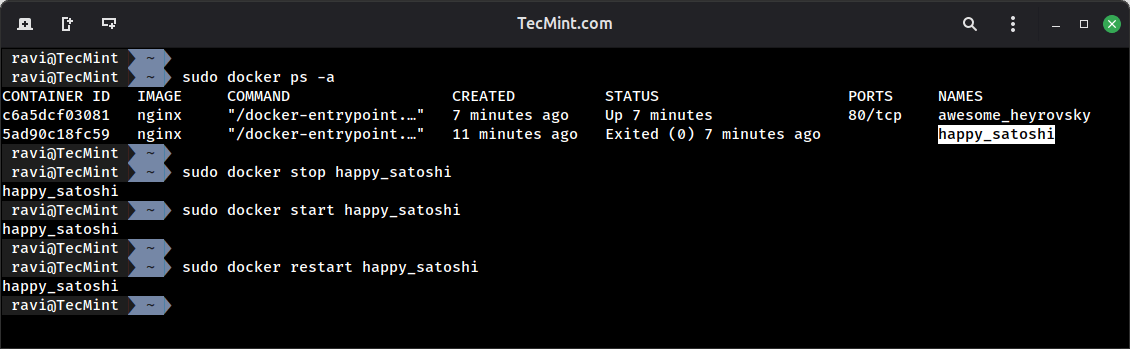
Once you know the container names, you can then stop a container that’s currently running using the stop command:
sudo docker stop my-webserver
To start a container that has been stopped previously, you can use the start command:
sudo docker start my-webserver
If you need to restart a container, which stops it and then starts it again, you can use the restart command:
sudo docker restart my-webserver
Removing Docker Containers
When you no longer need a container, you can remove it from your system to free up space using the rm command:
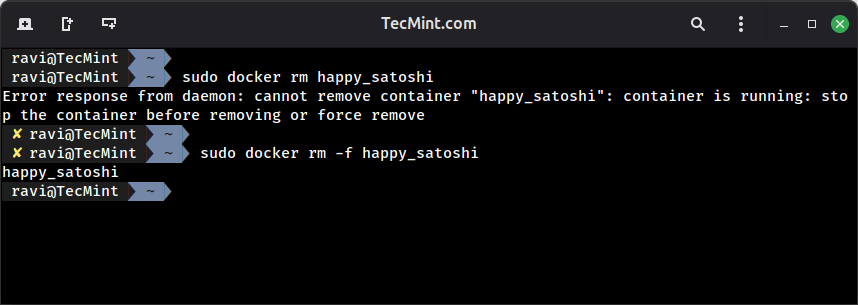
sudo docker rm happy_satoshi
However, if you try to remove a container that’s currently running, Docker will prevent the removal and show an error. In such cases, you have two options – you can either stop the container first and then remove it, or you can force the removal using the -f flag:
sudo docker rm -f happy_satoshi
The force flag allows you to remove a running container without stopping it first, though you should use this option carefully as it immediately terminates the container without a graceful shutdown.
Monitoring and Debugging Docker Containers
Understanding what’s happening inside your containers is crucial for troubleshooting issues and maintaining healthy applications. The following sections take you through the essential commands for monitoring and debugging your Docker containers.
Viewing Container Logs
To check the logs generated by a container, you can use the logs command:
sudo docker logs awesome_heyrovsky
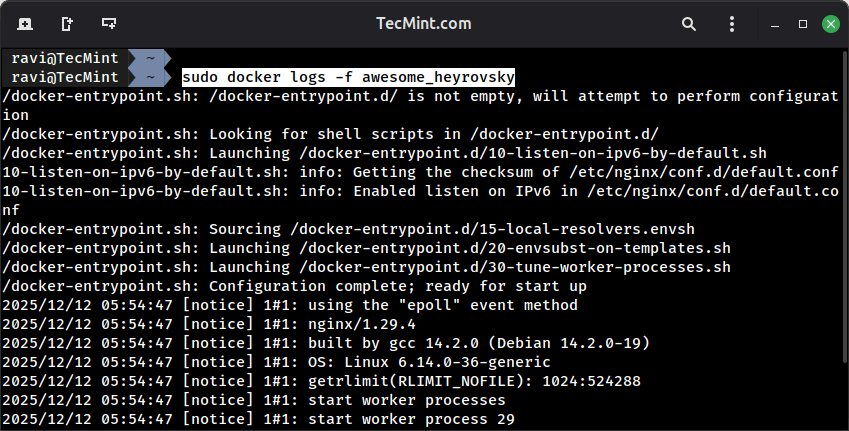
If you want to follow the logs in real-time as they’re generated, similar to using tail -f on a log file, you can add the -f flag:
sudo docker logs -f awesome_heyrovsky
Executing Commands Inside Containers
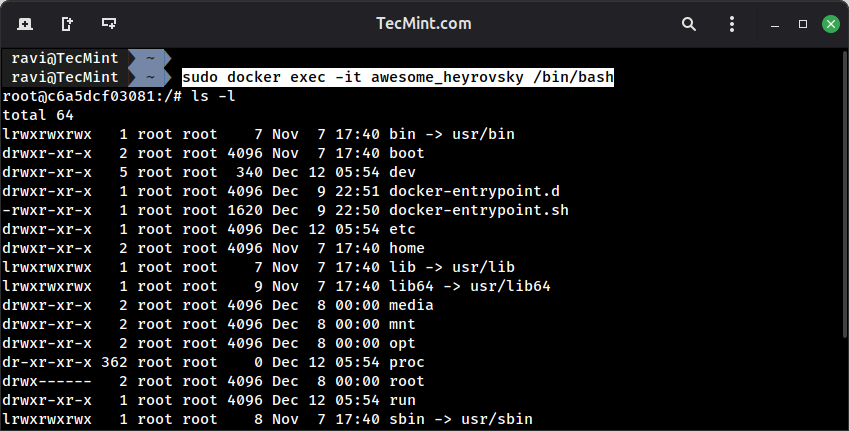
One of the most powerful features Docker provides is the ability to execute commands inside running containers, which allows you to access the container’s shell and explore its environment:
sudo docker exec -it awesome_heyrovsky /bin/bash
The above command opens an interactive shell inside the container using the -it flags (interactive terminal), which lets you run commands, check files, and debug issues directly within the container’s environment.
Inspecting Container Details
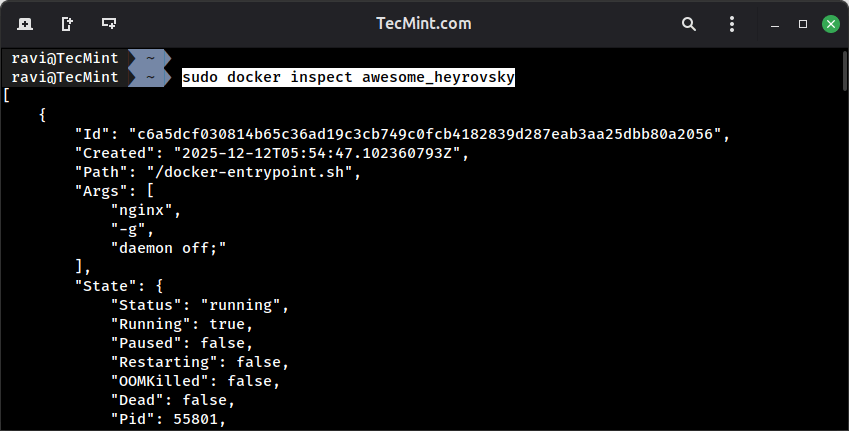
When you need detailed information about a container’s configuration, network settings, and state, you can use the inspect command:
sudo docker inspect awesome_heyrovsky
The above command returns comprehensive JSON-formatted data about the container, including its configuration, network settings, mounted volumes, and environment variables.
Monitoring Resource Usage
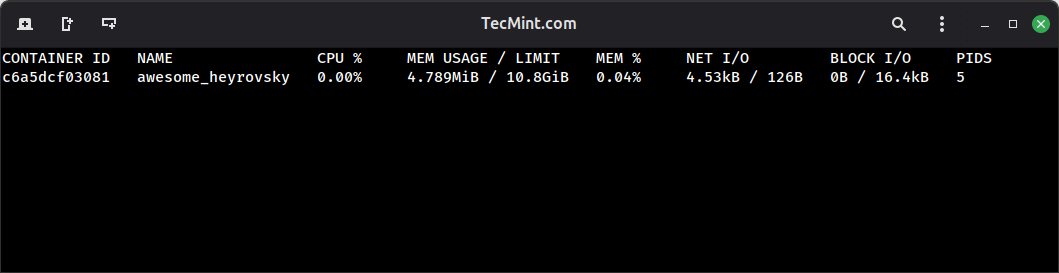
To view real-time resource usage for all running containers on your system, you can use the stats command, which will displays a live stream of CPU usage, memory consumption, network I/O, and disk usage for each running container:
sudo docker stats
Docker Cleanup and Maintenance
Over time, Docker accumulates unused images, containers, networks, and other resources on your system, so regular cleanup becomes important to free up disk space and keep your Docker environment organized.
To remove all stopped containers from your system in one command, you can use:
sudo docker container prune
If you want to remove unused images that are no longer being referenced by any containers, use:
sudo docker image prune
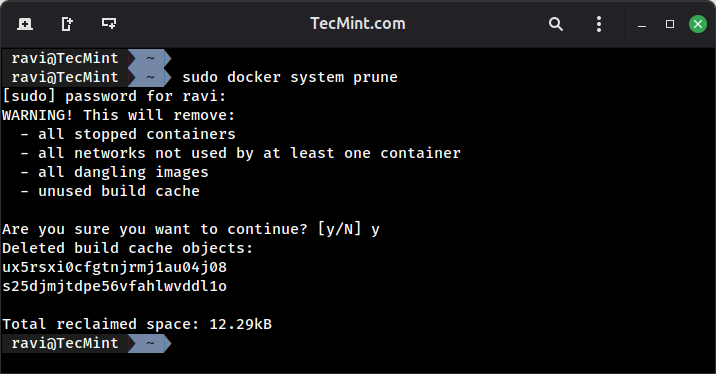
For a more comprehensive cleanup that tackles multiple types of unused resources at once, you can use the system prune command:
sudo docker system prune
Docker Commands Cheat Sheet
Here’s a handy reference table of the most commonly used Docker commands for quick access:
| Command | Description | Example |
|---|---|---|
docker --version |
Check Docker version | docker --version |
docker pull |
Download an image | docker pull nginx |
docker images |
List local images | docker images |
docker run |
Create and start container | docker run -d nginx |
docker ps |
List running containers | docker ps |
docker ps -a |
List all containers | docker ps -a |
docker stop |
Stop a container | docker stop my-container |
docker start |
Start a container | docker start my-container |
docker restart |
Restart a container | docker restart my-container |
docker rm |
Remove a container | docker rm my-container |
docker rmi |
Remove an image | docker rmi nginx |
docker logs |
View container logs | docker logs my-container |
docker exec |
Execute command in container | docker exec -it my-container bash |
docker inspect |
View detailed info | docker inspect my-container |
docker stats |
Monitor resource usage | docker stats |
docker system prune |
Clean up unused resources | docker system prune |
Conclusion
This guide has walked you through the essential Docker commands you need to know to manage containers and images effectively in your environment.
You’ve learned how to search for and pull images from Docker Hub, run and manage containers with various options, monitor their performance and logs, and keep your Docker environment clean through regular maintenance.
Have you found any Docker commands particularly useful? Or do you have tips and tricks that make working with Docker easier? Feel free to share your experience in the comments below, your insights could help other readers on their Docker journey!