

One of the easiest ways to boost the readability and context of the text in a configuration file or your source code for various programing languages, is by using a text editor that supports “syntax highlighting”.
Syntax highlighting is a simple but useful component in most if not all text editors that are used for programming, scripting, or markup languages, which enables for displaying colored text, notably source code, in different colors (and possibly fonts) corresponding to the category of terms.
Read Also: 10 Reasons Why You Should Use Vi/Vim Text Editor in Linux
In this article, we will show how to turn on syntax highlighting temporarily or permanently in Vi/Vim text editor.
VIM is an alternative and advanced version of VI editor that enables Syntax highlighting feature in VI. Syntax highlighting means it can show some parts of text in another fonts and colors. VIM doesn’t show whole file but have some limitations in highlighting particular keywords or text matching a pattern in a file. By default VIM works on all Linux terminals, but some terminals have minimal highlighting capabilities to run.
VIM has another great feature that enable us to Turn Off or Turn On syntax highlighting using option syntax on and syntax off.
How to Install VIM
Most of the Linux system already included VIM package, if not then install it using YUM tool.
# yum -y install vim-enhanced
How to Enable Syntax Highlighting in VI and VIM
To enable Syntax Highlighting feature in VI editor, open the file called /etc/profile.
# vi /etc/profile
Add the alias function to VI by pointing to VIM in /etc/profile file. This file is used to set alias functions globally.
alias vi=vim
If you would like to set user specific aliases and functions, then you need to open the file .bashrc under user directory.
# vi /home/tecmint/.bashrc
Add the alias function. For example we set alias for tecmint user.
alias vi=vim
After making changes to file you need to reset the changes by executing following command.
# source /etc/profile
OR
# source /home/tecmint/.bashrc
Test Syntax Highlighting in Vi Editor
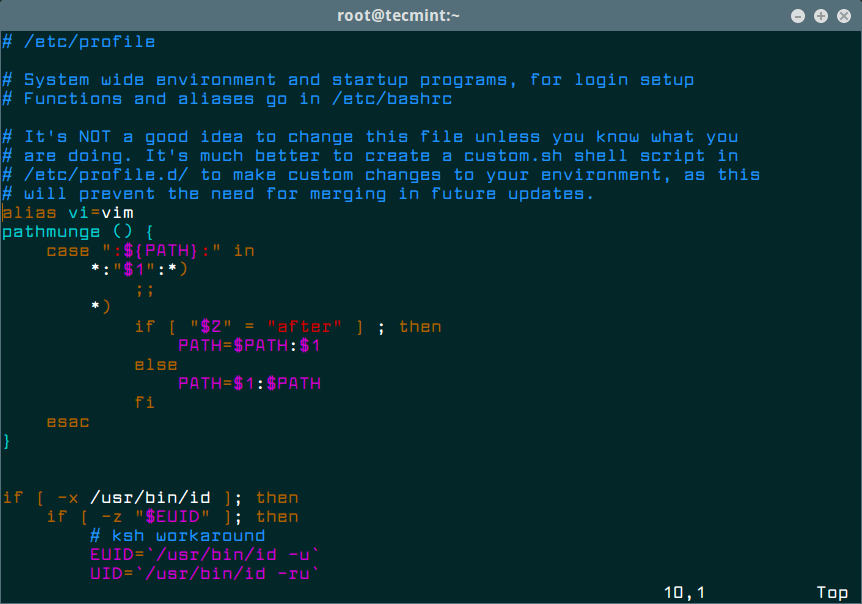
Open any example code of file with vi editor. By default Syntax Highlighting is automatically turned on in /etc/vimrc file.
Example of Syntax Highlighting in VI
Turn On or Turn Off Syntax Highlighting in VI
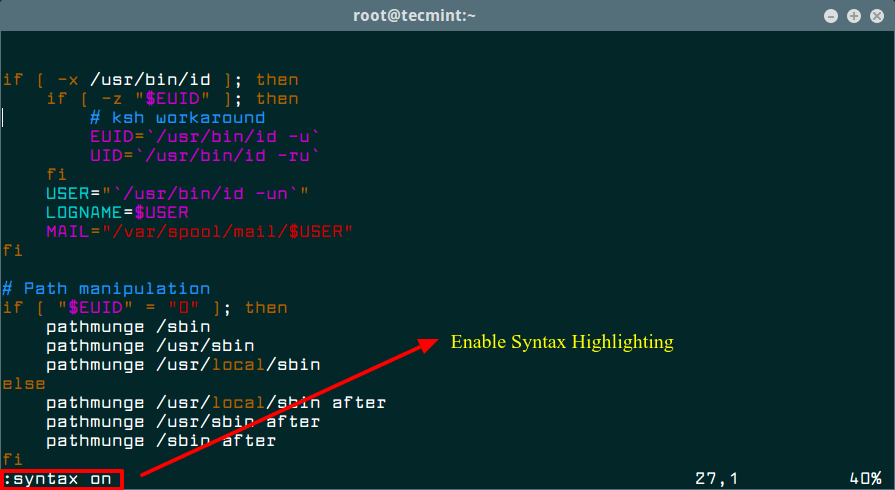
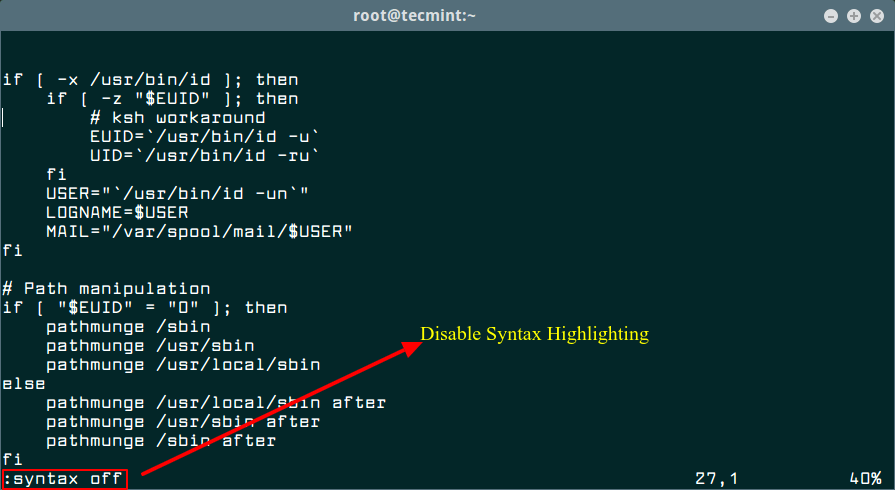
You can Turn On or Turn Off syntax highlighting by pressing ESC button and use command as :syntax on and :syntax off in Vi editor. Refer example screenshots.
Turn On Syntax Highlighting in VI
Turn Off Syntax Highlighting in VI
If you are new to vi/vim, you will find the following guides useful:
- Learn Vi/Vim as a Full Text Editor in Linux
- Learn Useful Vi/Vim Editor Tricks and Tips in Linux
- 8 Interesting Vi/Vim Editor Tricks for Every Linux User
- How to Password Protect a Vim File in Linux
You can share with us any other useful vi/vim tips or tricks you have come across, via the comment form below.

This is great – thanks! BTW, what is the font that you are using in your shell? It looks fantastic!!!
Renato, do not thank ;)
site: www 1001fonts com
Larabiefont Font
Larabiefont Rg-Regular
i use centos use follow this but not working
:set syntax! will toggle the highlighting on and off.
:set syntax? will let you know if syntax highlighting is off or on.
vi is a symbolic link to vim if you have vim installed.
Can’t you just type ‘vim’? I realise it’s an extra letter, and everything, but…