

Sometimes, while trying to connect to remote systems via SSH, you may encounter the error “Received disconnect from x.x.x.x port 22:2: Too many authentication failures”. In this short article, I will explain how to fix this error in a few simple steps.
Read Also: 4 Ways to Speed Up SSH Connections in Linux
Following is a screenshot of the error I encountered, while using the ssh client.

I discovered that this resulted from existence of many ssh identity keys on my machine, and each time I run the ssh client, it would try all my ssh keys known by the ssh-agent and all other keys, when attempting to connect to the remote server (vps2 as shown in the above screenshot). This is the default behavior of ssh.
Since ssh server (sshd) on the remote server expects a particular identity key, the server rejects the connection and ssh client aborts with the above error.
To fix this error, you need to add the IdentitiesOnly with a value of yes, which instructs ssh to only use the authentication identity files specified on the command line or the configured in the ssh_config file(s), even if ssh-agent offers additional identities.
For example:
$ ssh -o IdentitiesOnly=yes vps2

Alternatively, if you want this to work for all ssh client connections, you can configure it in your ~/.ssh/config file.
$ vim ~/.ssh/config
Add the following configuration in the file, under the Host * section as shown in the screesnhot.
Host *
       	IdentitiesOnly=yes
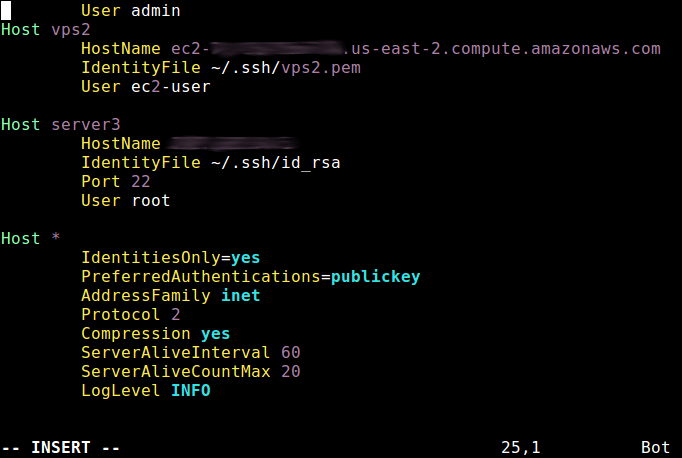
Save the changes in the file and exit it. Now you should be able to run ssh without specifying the option -o IdentitiesOnly=yes on the command line as shown.
$ ssh vps2

For more information, see the ssh-config man page.
$ man ssh-config
You might find followng SSH related articles useful.
In this short article, I showed how to easily fix the “Received disconnect from x.x.x.x port 22:2: Too many authentication failures” in ssh. If you have any questions, use the comment form below to reach us.

Awesome find! Thanks for this. I really thought it has something to do with my IP address.
Thanks, man really helped me to fix the SSH issue…
This saved my day, Thank you very much for this wonderful doc.
Great! Thanks a lot!
Saved my life bro, thanks.
Thanks this has been much helpful.
Thank you, this helped.
Give this a try:
this “fixed” the problem so that i don’t had to use the option any more
Thank you so much.