

The root account is often the most targeted account by crackers via SSH under Linux. An enabled SSH root account on a Linux server exposed to a network or, worse, exposed in Internet can pose a high degree of security concern by system administrators.
The SSH root account should be disabled in all cases in Linux in order to harden your server security. You should login via SSH on a remote server only with a normal user account and, then, change privileges to root account via sudo or su command.
In order to disable SSH root account, first log in to your server console with a normal account with root privileges by issuing the below commands.
$ su tecmint
$ sudo su -   # Drop privileges to root account
After you’ve logged in to console, open the main SSH configuration file for editing with your favorite text editor by issuing the below command. The SSH main configuration file is usually located in /etc/ssh/ directory in most of Linux distributions.
# vi /etc/ssh/sshd_config
In this file, search for the line “PermitRootLogin” and update the line to look like in the below file excerpt. On some Linux distributions, the “PermitRootLogin” line is preceded by the hashtag sign (#) meaning that the line is commented. In this case uncomment the line by removing the hashtag sign and set the line to no.
PermitRootLogin no
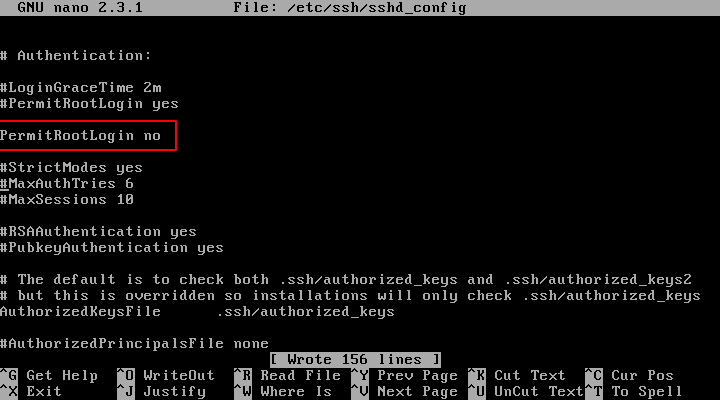
After you’ve made the above changes, save and close the file and restart the SSH daemon to apply changes by issuing one of the below commands, specific to your Linux distribution.
# systemctl restart sshd
# service sshd restart
# /etc/init.d/ssh restart
In order to test if the new configuration has been successfully applied, try to login with root account to the server via SSH from a remote system by issuing the below command.
The remote SSH login process for root account should be automatically denied by our SSH server, as illustrated in the below screenshot.
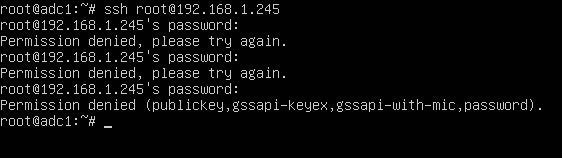
That’s all! You shouldn’t be able remotely login to SSH server with root account via password or via public key authentication mechanisms.

I really can’t understand it, I’ve tried to access another machine using ssh, and it required the machine password I added it and that’s it, now I made
PermitRootLogin no, saved it and restarted the ssh, and tried to log in with root again: added the password and I connected just as if nothing changed ….and it worked just fine without any problems!Additioonally, you can edit the /etc/security/access.conf file.
disallows all remote logins, but allows local (console) logins.