

SHELLNGN offers a cloud-based solution for remotely accessing and managing your servers and network devices. It comes in two main flavors: SHELLNGN Cloud (free) and SHELLNGN Pro (paid subscription).
In this article, we will review and explore the features, how they work, and any downsides of both options that will help you figure out which one suits you best.
SHELLNGN Cloud (Free) Features
SHELLNGN Cloud offers a free tier that provides a good starting point for basic remote server access and management.
Here’s a breakdown of its key features:
- Secure Shell (SSH) – Access your servers remotely using a web-based terminal emulator.
- File Management – Browse, upload, download, and manage files and folders on your server directly from your web browser.
- Secure File Transfer (SFTP) – Transfer files securely between your local machine and server using the SFTP protocol.
- Multiple Session Management – Manage and switch between multiple SSH sessions simultaneously within the web interface.
- Basic Device Management – View basic information about connected devices and perform some management tasks.
Note: It lacks features such as remote desktop access, server monitoring, or advanced security options, which are available in the Pro version.
SHELLNGN Cloud is a good option for individual users or small teams who need basic remote server access, file management, and secure file transfer functionalities. It’s also a great way to test the platform before upgrading to a paid plan.
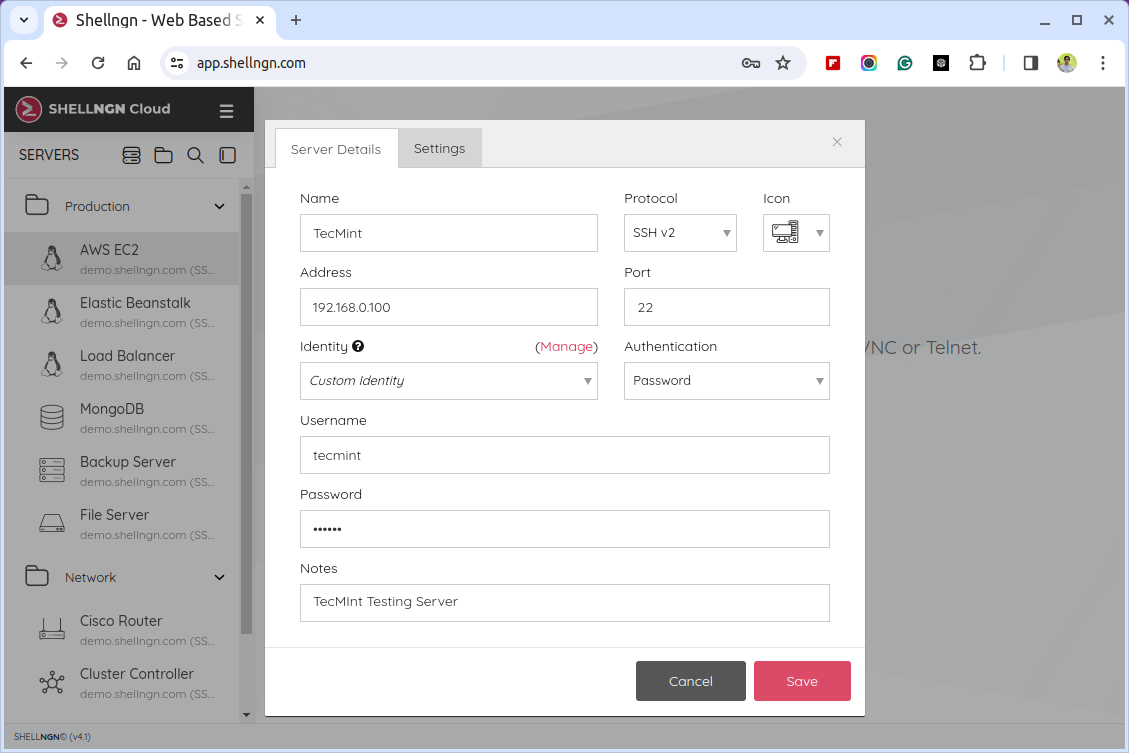
SHELLNGN Pro Features
SHELLNGN Pro builds upon the foundation of SHELLNGN Cloud and offers a comprehensive set of features for advanced server management.
Here’s a breakdown of the key functionalities you’ll find in the paid subscription in addition to Cloud features:
- Remote Desktop – Take control of your remote servers using the RDP (Remote Desktop) or VNC.
- Server Monitoring – Monitor server health and performance things like how much CPU it’s using, its memory usage, and network activity.
- Advanced Security – Two-factor authentication and additional security measures for enhanced protection.
- Team Management – Grant access and manage user permissions for collaboration on server management tasks.
- Docker Integration – Manage and deploy Docker containers within the SHELLNGN platform.
- Mobile Support – Full keyboard, command snippets, sftp browser, and file editor.
SHELLNGN Pro caters to professional users, system administrators, and teams who manage multiple servers and require advanced functionalities like remote desktop access, server monitoring, and collaborative management options.
The paid subscription unlocks the full potential of the platform for a more robust server management experience.
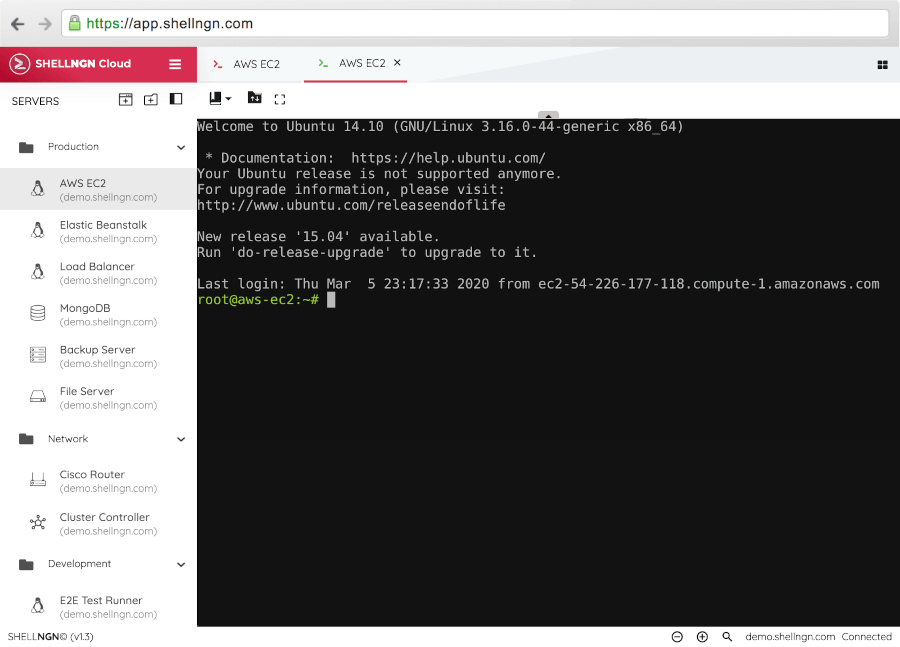
How to Install SHELLNGN Pro in Linux
SHELLNGN Pro operates through Docker containers, so you’ll need Docker installed and running on your server before you can proceed.
If you do not have Docker installed, you can find instructions for installing Docker on different Linux distributions in the official Docker documentation.
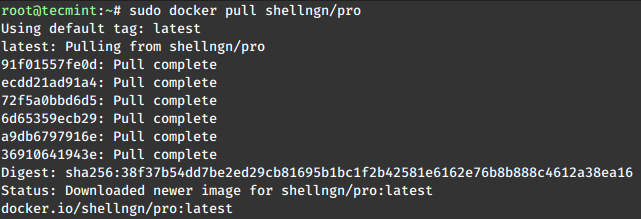
Once Docker is installed, you can use the following command to pull the latest SHELLNGN Pro Docker image from Docker Hub.
sudo docker pull shellngn/pro
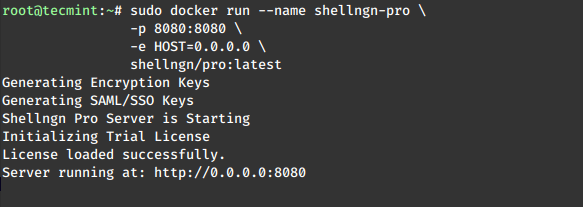
Next, run the SHELLNGN Pro container.
sudo docker run --name shellngn-pro \
                -p 8080:8080 \
                -e HOST=0.0.0.0 \
                shellngn/pro:latest
Open a web browser and navigate to http://your_server_ip:8080 (replace “your_server_ip” with your server’s IP address). You should see the SHELLNGN Pro login page.
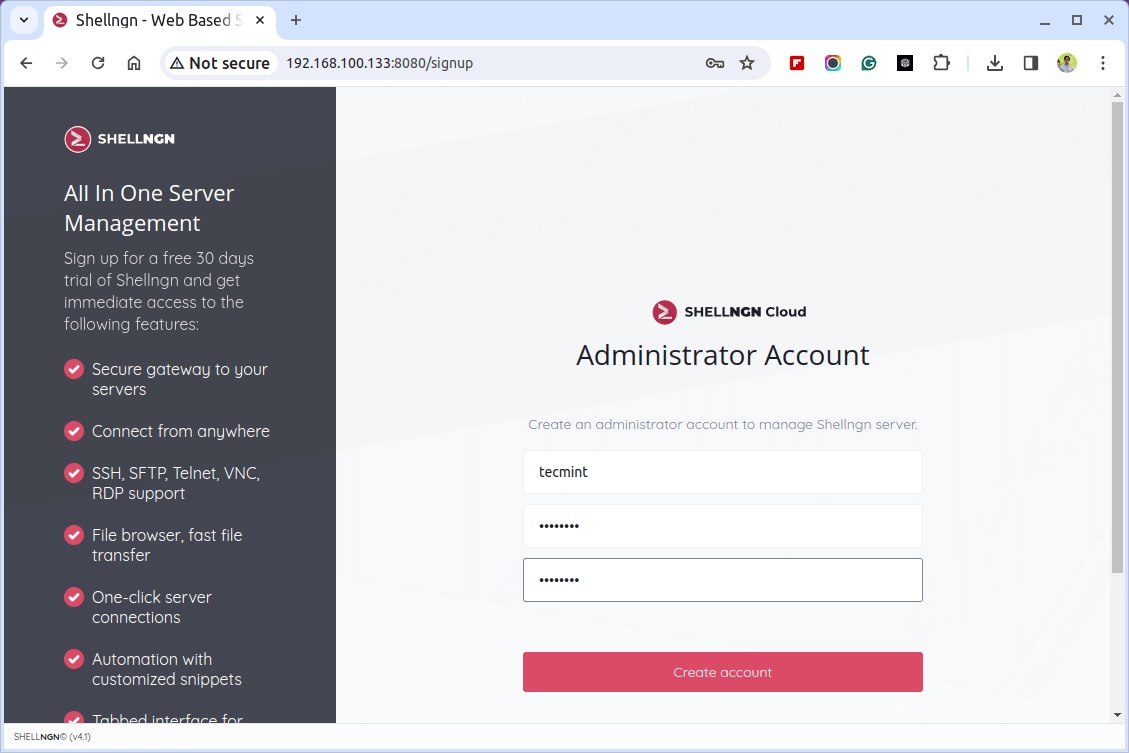
Follow the on-screen instructions to complete the setup process, which might involve creating an account, linking your server, and potentially configuring additional settings based on your needs.

You didn’t mention any open-source alternatives, so here’s one: Apache Guacamole.
Really great article… Thanks for posting a valuable article.
Also is there any way to pass username and password in the url (ssh://ipaddress).
@Kiran,
No there isn’t any option to specify username and password with URL itself, and I don’t think this option ever will be included, due to security…
Thank you, this is very useful. I am trying the same for chrome by entering the ssh://ipaddress in address bar but it is going to google search as default or other If i choose other option in the dropdown it is opening in mac terminal. Though i have chrome firessh extension it is still going to mac terminal. Am I missing something here?
Any idea on this why chrome is not taking me to login page?
any idea when this addon will be made compatabile to work with firefox v24?
Can firessh be launched via a javascript? If so, can you post an example of how to do it?
i have more than 200 putty session saved in my pc. how to import them in firessh. i didn’t find any link for that. if not possible then it is a real problem for me to save one by one . please help.
Please use Export to export your current list of SSH sessions and import them in your home computer.
It is works for me…………….
I prefer Secure Shell extension on google chrome
https://chrome.google.com/webstore/detail/secure-shell/pnhechapfaindjhompbnflcldabbghjo?hl=en
Really wonderful article.. Thanks for posting valuable article … indeed…
HI ,
Great, it works for me .,, Is there any possibilities of hacking when using this method ?