

Most Linux system administrators and engineers are required to know some basic programming to help them in their daily tasks. If they want to go one step further into the development area as well (either as kernel or application programmers), then C or C++ is the best place to start.

Read Also: Install C, C++, and Development Tools in RHEL/CentOS/Fedora
In this article, we will explain how to install C and C++ compilers and its Development Tools (build-essential) related packages such as make, libc-dev, dpkg-dev, etc. in Debian and derivatives such as Ubuntu and Linux Mint.
The build-essential software contains an informational list of software’s which are treated as important for building Debian packages including gcc compiler, make and other needed tools.
What is a Compiler?
Simply put, a compiler is a software program that processes instructions written in a programming language and creates a binary file that the machine’s CPU can understand and execute.
In Debian-based distributions, the most well-known C and C++ compilers are gcc and g++, respectively. Both programs were developed and are still maintained by the Free Software Foundation through the GNU project.
Installing C, C++ Compiler and Development Tools (build-essential)
If your system doesn’t have the build-essential package installed in your system by default, you can install the latest available version from the default distribution repositories as follows:
# apt-get update && apt-get install build-essential
OR
$ sudo apt-get update && sudo apt-get install build-essential
Now we’re ready to start typing C or C++ code… or almost. We’re about to show you yet another tool to boost your development toolset.
Speeding Up C and C++ Compilations
When you know you’ll need to compile a program, make changes, then recompile again it’s great to have a tool like ccache, which as you will probably guess based on its name, is a compiler cache.
It speeds up recompilation by caching previous compilations and detecting when the same compilation is being done again. Besides C and C++, it also supports Objective-C and Objective-C++. The only limitations are:
- Only supports caching the compilation of a single C/C++/Objective-C/Objective-C++ file. For other types of compilations (multi-file compilation, linking, to name a few examples), the process will end up running the real compiler.
- Some compiler flags may not be supported. If such a flag is detected, ccache will silently fall back to running the real compiler.
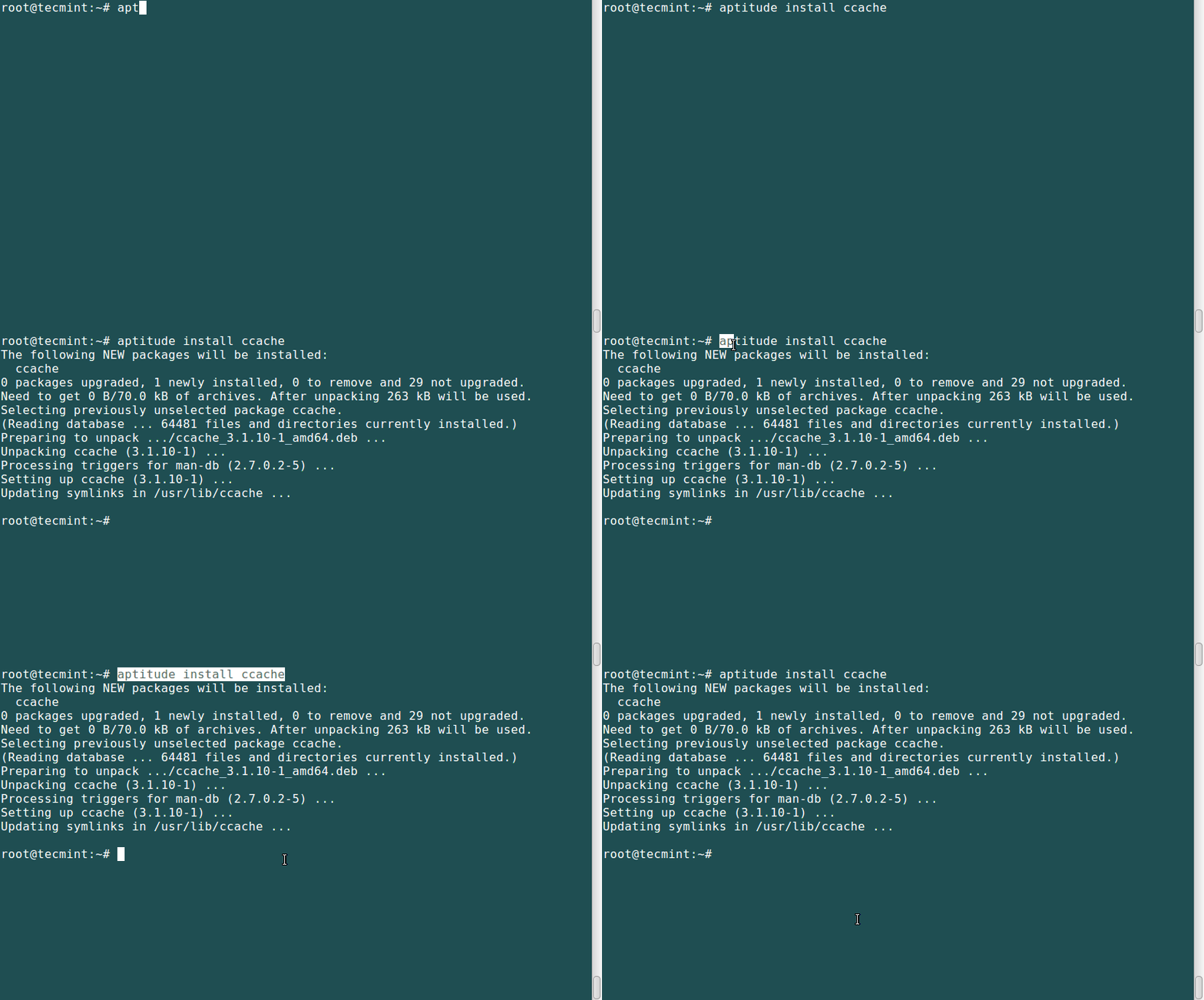
Let’s install this tool:
# aptitude install ccache
In the next section, we will see some examples of C and C++ code compilation with and without ccache.
Testing C and C++ with a sample Program
Let’s use the classical example of a very basic C program that adds two numbers. Open your favorite text editor and enter the following code, then save it as sum.c:
#include<stdio.h>
int main()
{
   int a, b, c;
   printf("Enter two numbers to add, separated by a space: ");
   scanf("%d%d",&a,&b);
   c = a + b;
   printf("The sum of equals %d\n",c);
   return 0;
}
To compile the above code into an executable named sum in the current working directory use the -o switch with gcc:
# gcc sum.c -o sum
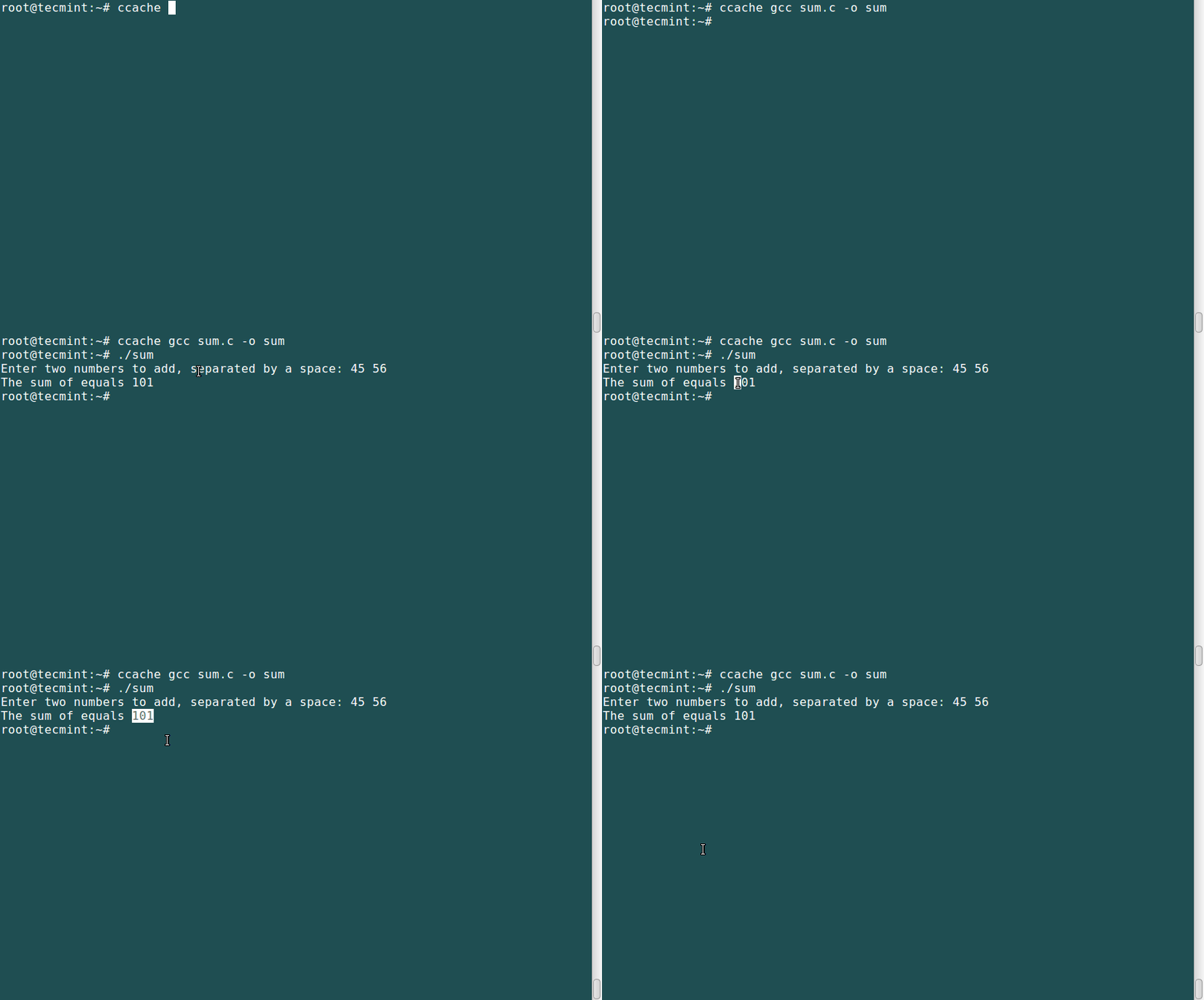
If you want to take advantage of ccache, just prepend the above command with ccache, as follows:
# ccache gcc sum.c -o sum
Then run the binary:
# ./sum
While this basic example does not allow us to see the full power of ccache, for larger programs you’ll quickly realize what a great tool it is. The same applies to C++ programs as well.
Summary
In this guide, we have shown how to install and use the GNU compilers for C and C++ in Debian and derivatives. In addition, we explained how to use a compiler cache to speed up recompilations of the same code. While you can refer to the online man pages for gcc and g++ for further options and examples, don’t hesitate to drop us a note using the form below If you have any questions or comments.

Instruction is wrong, should read:
Friend,
you know let me know because the terminal is returning me the following error at compile time:
gcc: error: sum .: File or directory not found
gcc: Fatal error: the input files
compilation terminated.
@Rodrigo,
What does the following command return in your system?
which gcc