

Built on Chrome’s V8 engine, Node.JS is open-source, and event-driven Javascript runtime that is designed to build scalable applications and backend APIs. NodeJS is lightweight and efficient, thanks to its non-blocking I/O model and event-driven architecture. This makes it a perfect choice for handling data-intensive real-time applications. It is cross-platform and totally free to download and use.
NPM is an acronym for Node Package Manager, which is the default package manager for Node.JS and the richest repository for Node.JS packages.
[ You might also like: 3 Top Node.js Package Managers for Linux ]
In this article, we focus on how to install NodeJS & NPM on Rocky Linux 8.
There are two main ways of installing NodeJS on Rocky Linux 8.
- Installing from the default Rocky Linux AppStream repository.
- Installing from Node.JS binary distributions supported by Nodesource.
Let’s have a look at each of these methods.
Install Node.JS from Rocky Linux AppStream Repositories
Rocky Linux AppStream repositories provide Node.JS as a module called nodejs. Therefore, there’s no need to add or enable any third-party repositories. The downside is that the versions provided are not up to date, but will nonetheless get the job done.
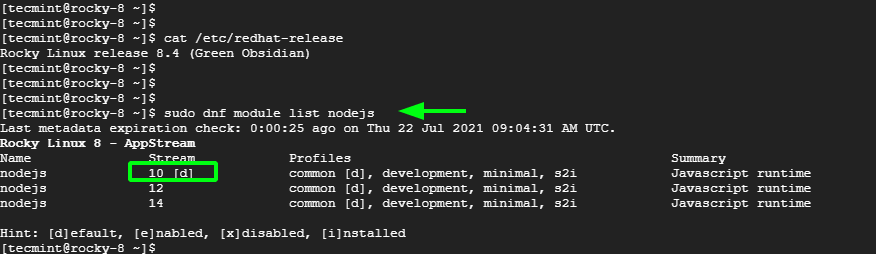
To check out the available versions provided, run the command:
$ sudo dnf module list nodejs
From the output, the latest stream is NodeJS 14. However, the default module stream is nodejs 10.
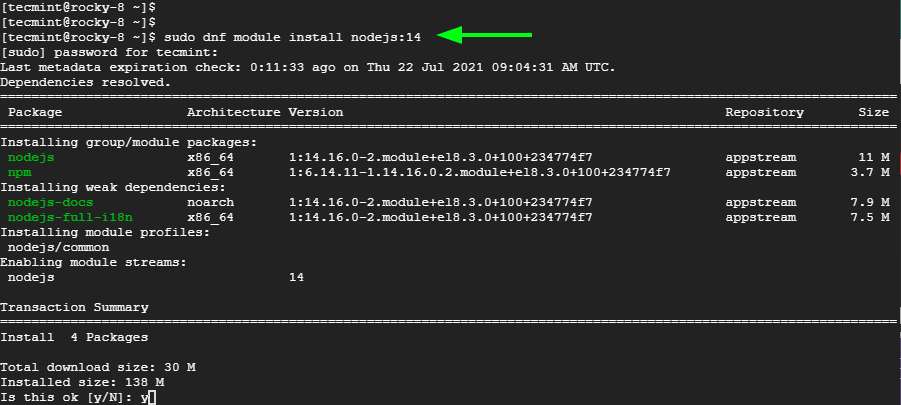
To enable the latest NodeJS stream, run the command:
$ sudo dnf module install nodejs:14
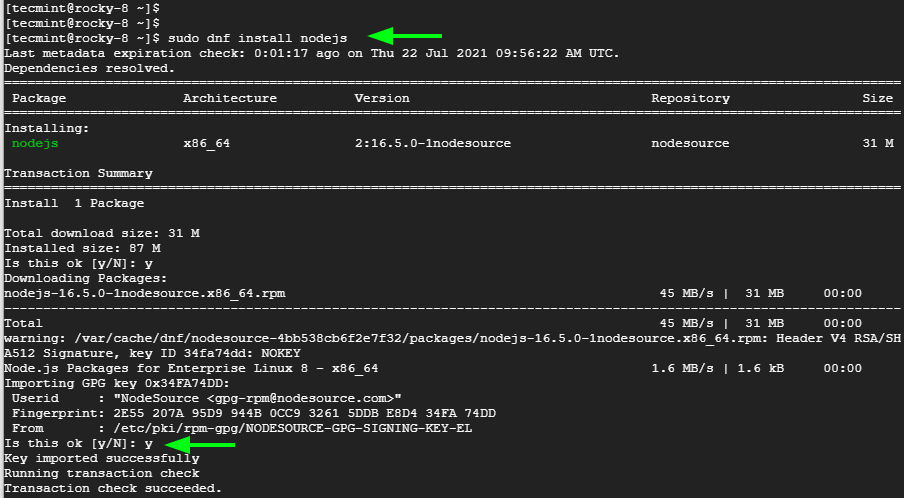
Then install NodeJS using the DNF package manager as shown.
$ sudo dnf install nodejs
Once installed, verify the version of Node.JS installed as follows.
$ node -v
OR
$ node ---version

v14.16.0
To check the version of NPM, run:
$ npm -v
OR
$ npm ---version
Install Node.JS from Nodesource Repositories
The second option is to install Node.JS from the Node.JS binary package which is provided by nodesource. This provides the latest version of Node.JS which, at the time of writing this guide, is Node.JS v16.5.
So, grab the setup script and run it as shown using curl command.
$ curl -fsSL https://rpm.nodesource.com/setup_16.x | sudo -E bash -

Then install Node.JS.
$ sudo dnf install nodejs
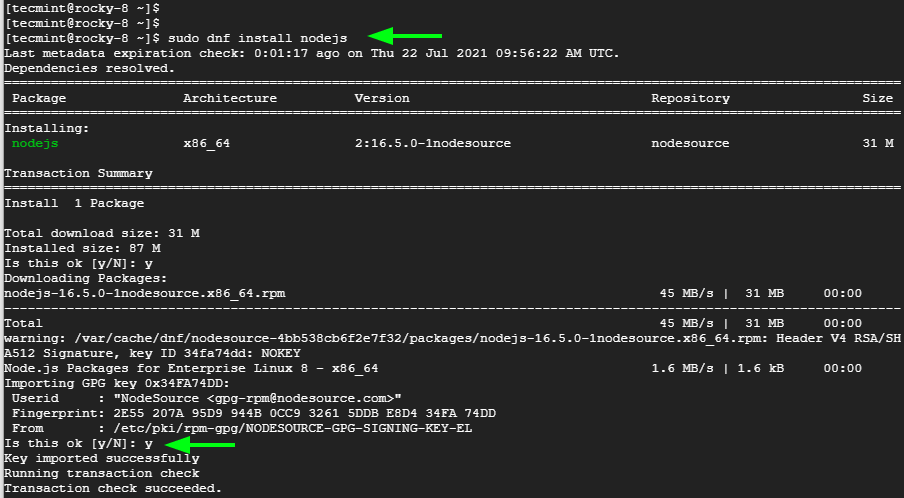
Once again, verify the installation of Node.JS as shown.
$ node -v
OR
$ node ---version

v16.5.0
And NPM as well.
$ npm -v

7.19.1
Conclusion
In this tutorial, we have highlighted two ways of installing Node.JS & NPM on Rocky Linux – installation from Rocky Linux repositories and from the Nodesource repository. We do hope that this guide was helpful and that you can now proceed with creating your applications.

Hi,
curl -fsSL https://deb.nodesource.com/setup_16.x | sudo -E bash -should actually be:
curl -fsSL https://rpm.nodesource.com/setup_16.x | sudo -E bash -Thanks
@Rebatov,
Thanks, corrected the command in the article…