

Wget is a popular, non-interactive and widely used network downloader which supports protocols such as HTTP, HTTPS, and FTP, and retrieval via HTTP proxies. By default, wget downloads files in the current working directory where it is run.
Read Also: How to Rename File While Downloading with Wget in Linux
In this article, we will show how to download files to a specific directory without moving into that directory. This guide is useful, if, for example, you are using wget in a script, and want to automate downloads which should be stored in different directories.
In addition, wget being non-interactive (can work in the background) by design makes it easy to use for automating downloads via shell scripts. You can actually initiate a download and disconnect from the system, letting wget complete the job.
Wget’s -P or --directory-prefix option is used to set the directory prefix where all retrieved files and subdirectories will be saved to.
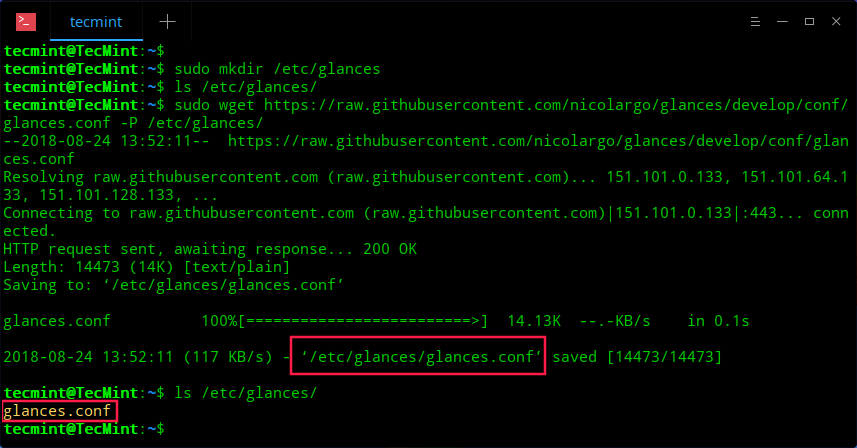
In this example, we will demonstrate how to download the glances config template and store it under /etc/glances/ directory.
$ sudo mkdir /etc/glances
$ ls /etc/glances/
$ sudo wget https://raw.githubusercontent.com/nicolargo/glances/develop/conf/glances.conf -P /etc/glances/
$ ls /etc/glances/
If you are downloading a heavy file, you may want to add the -c or --continue flag, which means continue getting a partially-downloaded file. With it, you don’t have to start the download afresh.
This option helps you to resume downloading a file started by a previous instance of wget, or by another program or one that you had paused. It is also useful in case of any network failure. For example,
$ wget -c https://tenet.dl.sourceforge.net/project/parrotsecurity/iso/4.1/Parrot-security-4.1_amd64.iso
For more information, see the wget man page.
$ man wget
You might also like to read these following related articles.
- How to Download and Extract Tar Files with One Command
- 5 Linux Command Line Based Tools for Downloading Files and Browsing Websites
- 15 Tips On How to Use ‘Curl’ Command in Linux
That’s all! In this short article, we have explained how to download files to a specific directory without moving into that directory, using wget. You can share your thoughts with us in the comments.
