
Updated: This article has been refreshed to cover the most popular Linux console file managers, highlighting their features, benefits, and why they are widely used.
Linux console file managers can be very helpful in day-to-day tasks, when managing files on a local machine, or when connected to a remote one. The visual console representation of the directory helps us quickly perform file/folder operations and saves us some time.
In this article, we’re going to review some of the most frequently used Linux console (command-line or terminal) file managers and their features and benefits.
1. Yazi – Blazing Fast Terminal File Manager
If you’re looking for the fastest terminal file manager available today, Yazi is your answer. Written in Rust and powered by asynchronous I/O, it delivers a smooth and responsive experience that puts older file managers to shame.
What makes Yazi special is its excellent image preview support. It works with multiple protocols including Kitty, Konsole, iTerm2, and Mintty, allowing you to view images directly in your terminal.
It also includes built-in code highlighting and image decoding, which significantly speeds up file loading.
The plugin system lets you customize its behavior and add new features, making it a powerful and flexible tool for managing files from the command line.
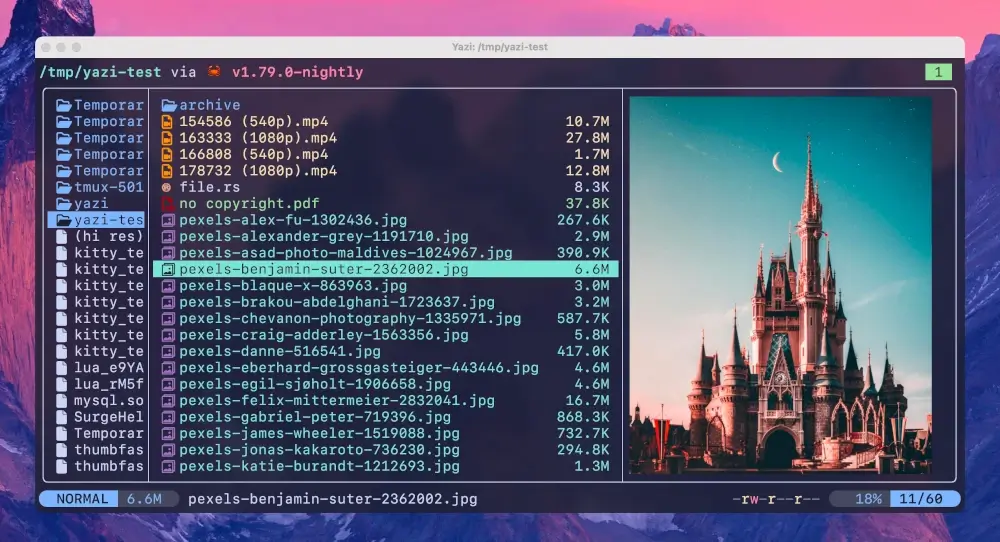
To install Yazi, you’ll need to download the pre-compiled binary from the Yazi releases page. A nerd font is recommended for the best visual experience.
For detailed installation methods including using Rust cargo, check the official Yazi documentation.
2. GNU Midnight Commander
Midnight Commander, often referred to simply as mc, remains one of the most popular file managers in this category. While it’s been around for decades, it’s still actively maintained and widely used.
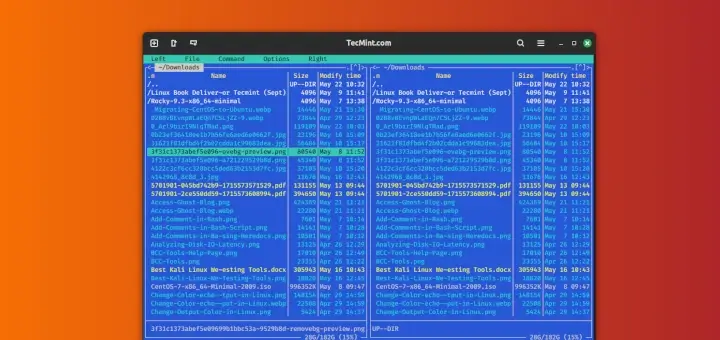
Mc comes with all kinds of useful features – aside from copying, moving, deleting, and creating files and directories, you can change permissions and ownership, review archives, use it as an FTP client, and much more.
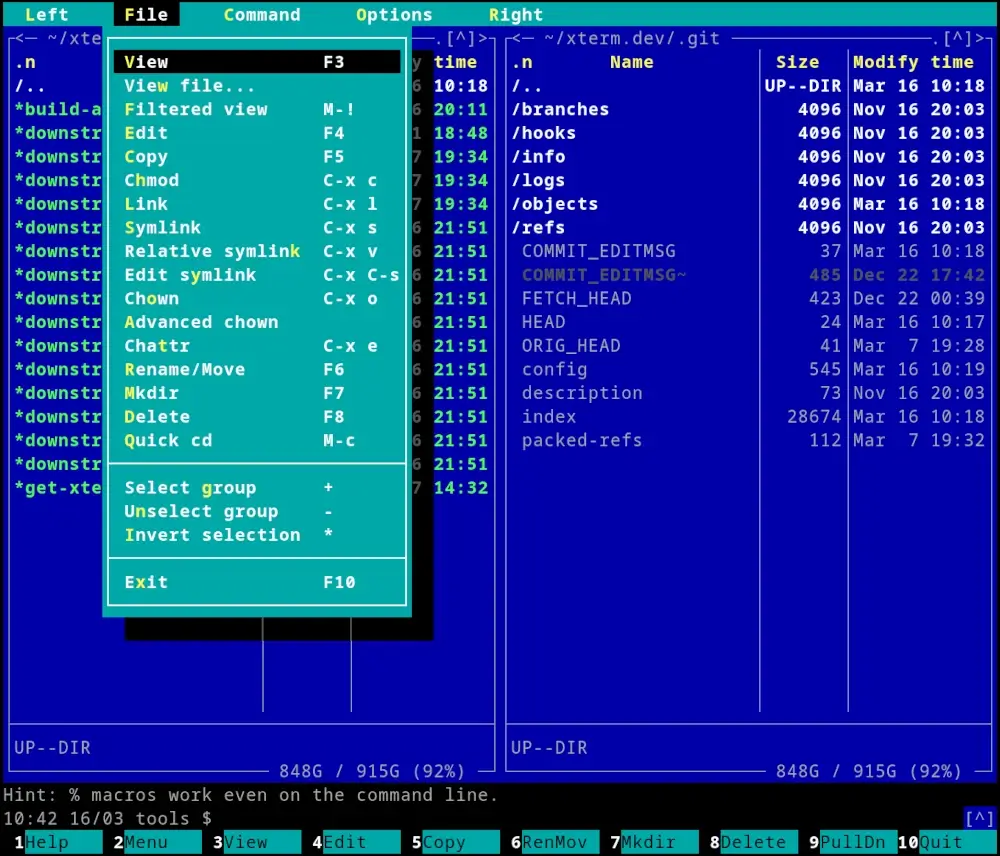
The best part? It’s incredibly beginner-friendly with function key shortcuts (F1-F10) clearly labeled at the bottom of the screen.
You can find our full review on how to install and use Midnight Commander console-based file manager at Midnight Commander – The Best Console File Manager for Linux.
To install Midnight Commander you can use the following commands:
sudo apt install mc         [On Debian, Ubuntu and Mint]
sudo yum install mc         [On RHEL/CentOS/Fedora and Rocky/AlmaLinux]
sudo emerge -a sys-apps/mc  [On Gentoo Linux]
sudo apk add mc             [On Alpine Linux]
sudo pacman -S mc           [On Arch Linux]
sudo zypper install mc      [On OpenSUSE]
3. Ranger Console File Manager
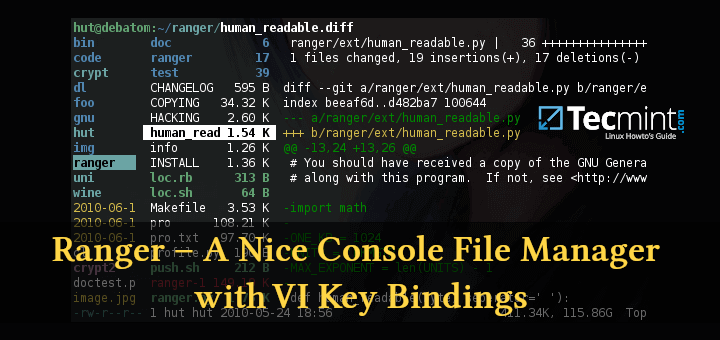
Ranger is another top choice when looking for a console file manager, especially if you’re a Vim user.
It has a vim-like interface with a unique three-column layout that shows your current directory in the middle, parent directory on the left, and a preview of the selected file on the right.
The preview feature is particularly impressive – it can display text files, images (via w3m), PDFs, and even videos.
It also supports bookmarks, mouse support, and tabbed view for working with multiple directories simultaneously.
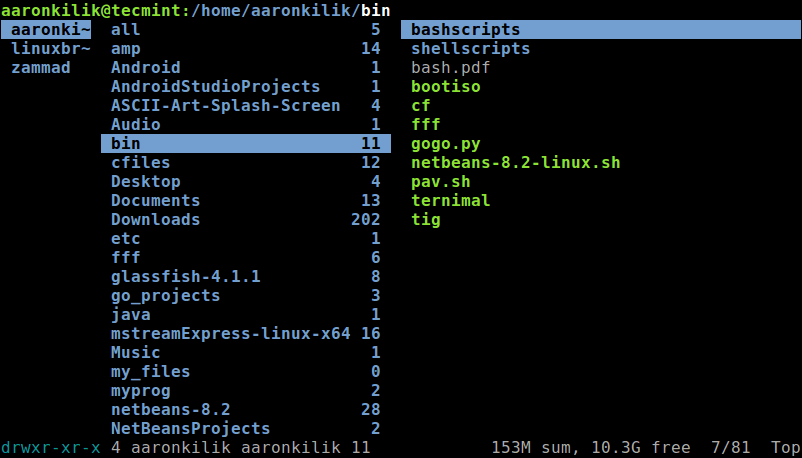
To install Ranger you can use the following commands:
sudo apt install ranger         [On Debian, Ubuntu and Mint]
sudo yum install ranger         [On RHEL/CentOS/Fedora and Rocky/AlmaLinux]
sudo emerge -a sys-apps/ranger  [On Gentoo Linux]
sudo apk add ranger             [On Alpine Linux]
sudo pacman -S ranger           [On Arch Linux]
sudo zypper install ranger      [On OpenSUSE]
You can find our full review on how to install and use Ranger terimanl-based file manager at Ranger – A Nice Console File Manager with VI Key Bindings.
4. Nnn – Terminal File Browser
Nnn (n³) is one of the fastest and most lightweight console file managers available. Don’t let its minimalist appearance fool you – this thing is incredibly powerful and works on virtually any platform including Linux, macOS, BSD, and even Android via Termux.
The interaction is simple and intuitive, which makes it easy for new users to get comfortable with terminal-based file management.
It uses familiar shortcuts, supports plugins, and offers features like fuzzy search and instant filtering with search-as-you-type.
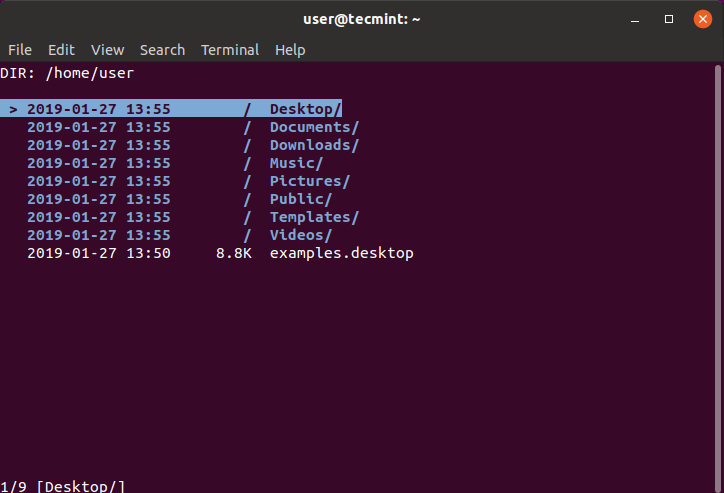
What’s impressive is its low memory footprint, which is designed to work efficiently even on low-power, resource-limited devices while still being perfectly capable on regular desktops.
To install nnn, you can use the following command:
sudo apt install nnn         [On Debian, Ubuntu and Mint]
sudo yum install nnn         [On RHEL/CentOS/Fedora and Rocky/AlmaLinux]
sudo emerge -a sys-apps/nnn  [On Gentoo Linux]
sudo apk add nnn             [On Alpine Linux]
sudo pacman -S nnn           [On Arch Linux]
sudo zypper install nnn      [On OpenSUSE]
5. Joshuto – Modern Ranger Alternative
Joshuto is a ranger-like terminal file manager written in Rust that brings modern performance and features to the familiar Ranger workflow.
If you love Ranger but want something faster with async operations, Joshuto is worth checking out.
What sets Joshuto apart is its asynchronous file I/O operations like cut, copy, and paste run in the background, so you can continue working without waiting.
It also includes features like tab support for managing multiple locations, trash support (instead of permanent deletion), and devicons for visual file type indicators.
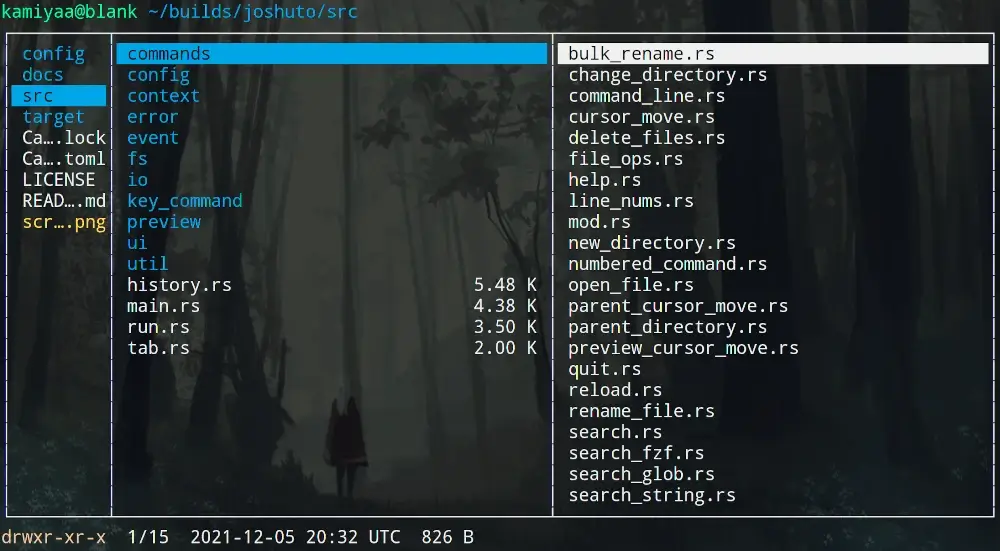
The visual mode (borrowed from Vim) makes it easy to select ranges of files, and the fuzzy search integration via fzf helps you locate files quickly in large directories.
To install Joshuto, you can use the installation script:
bash <(curl -s https://raw.githubusercontent.com/kamiyaa/joshuto/master/utils/install.sh)
Or install via package managers:
sudo dnf copr enable atim/joshuto -y    [On Fedora]
sudo dnf install joshuto
cargo install --git https://github.com/kamiyaa/joshuto.git    [Using Rust Cargo]
For more installation options, check the Joshuto GitHub repository.
6. Broot – Tree-Based File Navigator
Broot takes a completely different approach to file management. Instead of traditional panels, it shows you a tree view of your directory structure with powerful fuzzy search and filtering capabilities.
Think of it as a combination of the tree command, find, and a file manager all rolled into one.
Here’s what makes Broot special, as you type, it filters the tree view in real-time, showing you only relevant files and directories.
The Git integration displays file status right in the tree, and the “whale spotting” mode helps you identify large files eating up disk space.
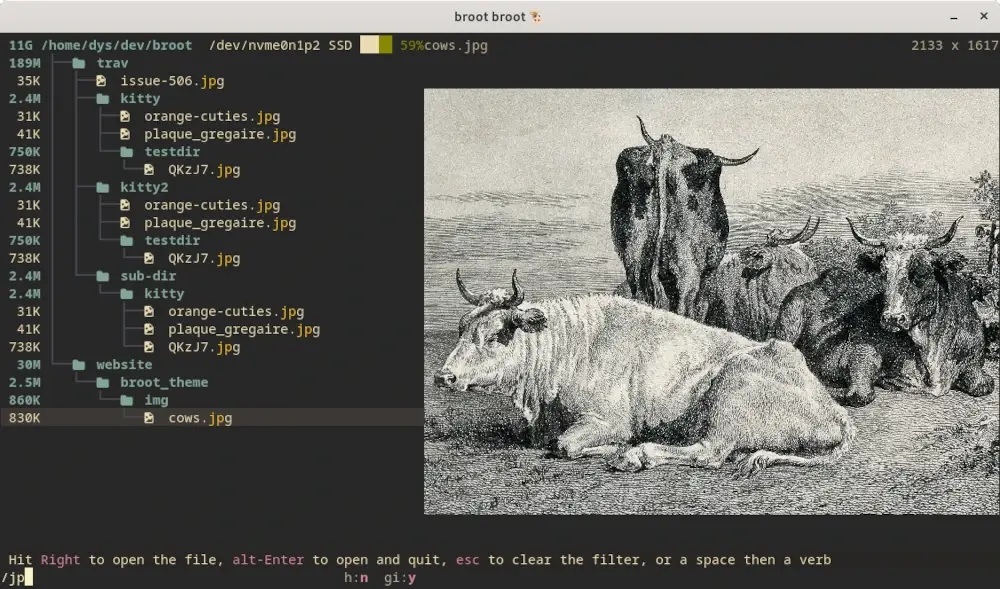
The :cmd command mode is incredibly powerful, letting you perform batch operations, sort files, check permissions, and more without leaving the interface.
You can even open side-by-side panels to compare directories, and when you find the right location, Broot can CD your shell into that directory.
To install Broot, download the binary from the Broot download page:
curl -o broot -L https://dystroy.org/broot/download/x86_64-linux/broot
sudo mv broot /usr/local/bin/
sudo chmod +x /usr/local/bin/broot
You can also install via package managers:
cargo install broot             [Using Rust Cargo]
sudo pacman -S broot            [On Arch Linux]
For detailed installation instructions, visit the Broot installation page.
7. lf – List Files
Lf (which stands for “List files“) is a command-line file manager written in Go, originally inspired by Ranger and was created to fill the gaps of missing features in ranger while maintaining a similar workflow.
Here’s what makes lf stand out:
- Cross-platform – Works on Linux, macOS, BSD, and partially on Windows.
- Single binary – No runtime dependencies required.
- Low memory footprint – Extremely lightweight.
- Configuration with shell commands – Highly customizable.
- Customizable keybindings – Make it work your way.
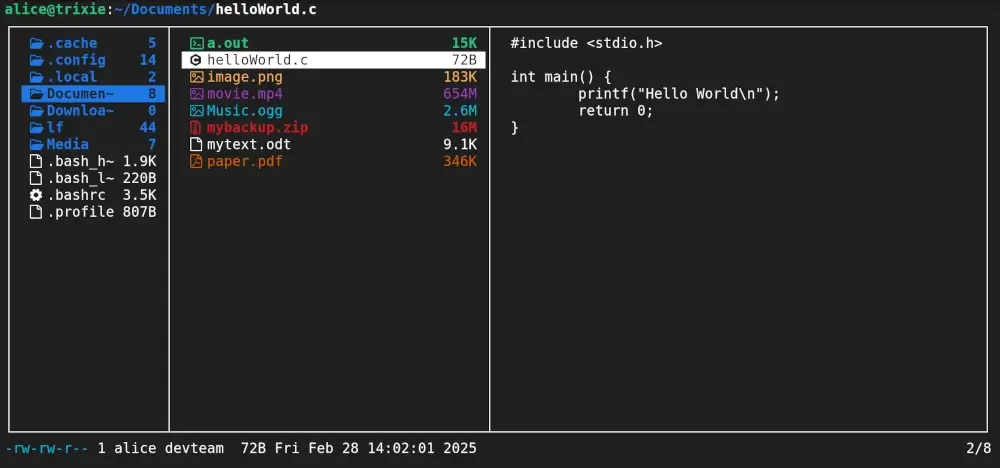
To install lf, simply download the binary for your operating system from the lf releases page.
7. Vifm – Console File Manager
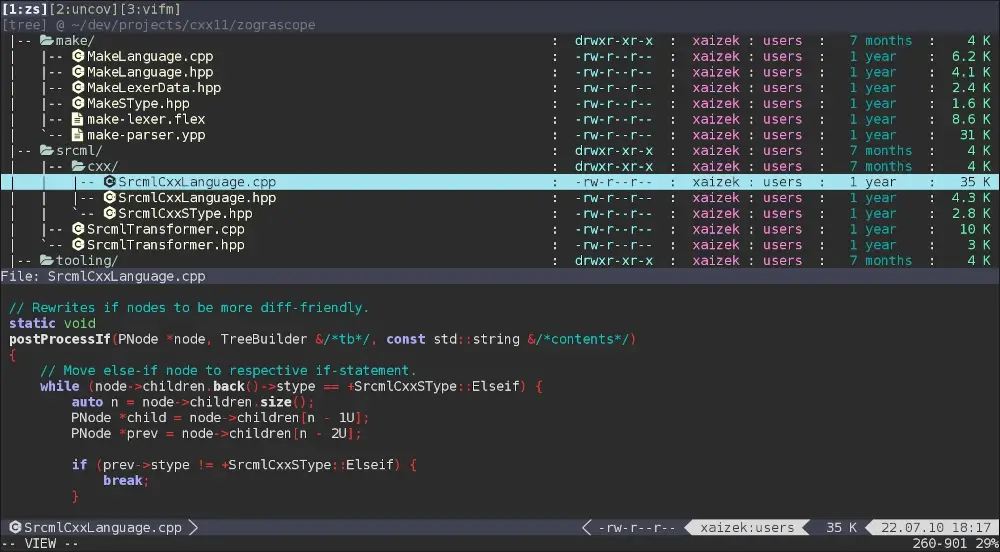
Vifm is another command-line-based file manager that uses a curses interface. If you’re a Vim user, you won’t need to learn a new set of commands to work with vifm, as it uses the same keybindings you’re already familiar with.
It features a dual-pane layout with auto-completion support and various view options for comparing file trees. You can also execute remote commands and even integrate it with Vim as a powerful file picker using the vifm.vim plugin.
To install Vifm you can use the following commands:
sudo apt install vifm         [On Debian, Ubuntu and Mint]
sudo yum install vifm         [On RHEL/CentOS/Fedora and Rocky/AlmaLinux]
sudo emerge -a sys-apps/vifm  [On Gentoo Linux]
sudo apk add vifm             [On Alpine Linux]
sudo pacman -S vifm           [On Arch Linux]
sudo zypper install vifm      [On OpenSUSE]
A more detailed review of vifm can be seen at Vifm command line-based file manager for Linux.
9. xplr – Hackable Terminal File Manager
xplr takes a different approach compared to traditional terminal file managers. At first glance, it looks more like a terminal dashboard than a file manager, with multiple panels displaying file tables, logs, sort and filter options, selected files, and even a cheatsheet with keybindings.
Navigation is Vim-inspired, but with a unique modal system. You press a hotkey to enter a specific “mode“, which contains related actions like creating files or copying and pasting.
This layered approach might take some getting used to, but it becomes incredibly efficient once you master it.
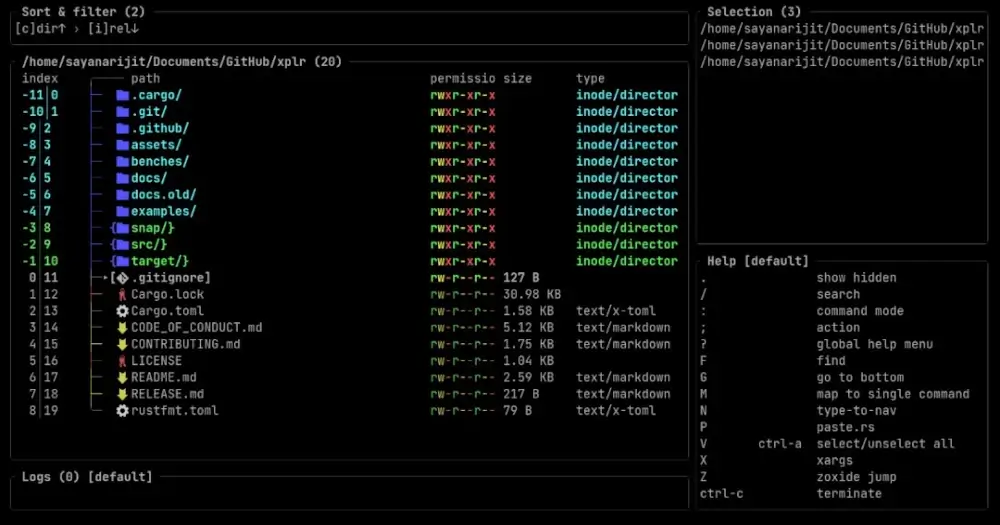
The real power of xplr lies in its customization capabilities, where you have complete control over both the interface and your workflow.
To install xplr, download the binary from the xplr releases page or check the installation documentation.
10. Superfile – Modern Terminal File Manager
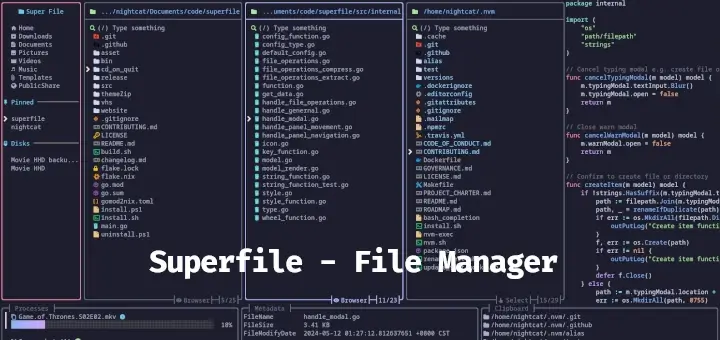
Superfile is a relatively new addition to the terminal file manager ecosystem, bringing a modern and stylish interface designed specifically for developers and system administrators.
Its simple yet powerful interface allows you to browse, copy, move, and edit files directly from the command line.
Superfile offers a range of convenient features including customizable key bindings, tabbed browsing, multiple panels, and support for various file operations.
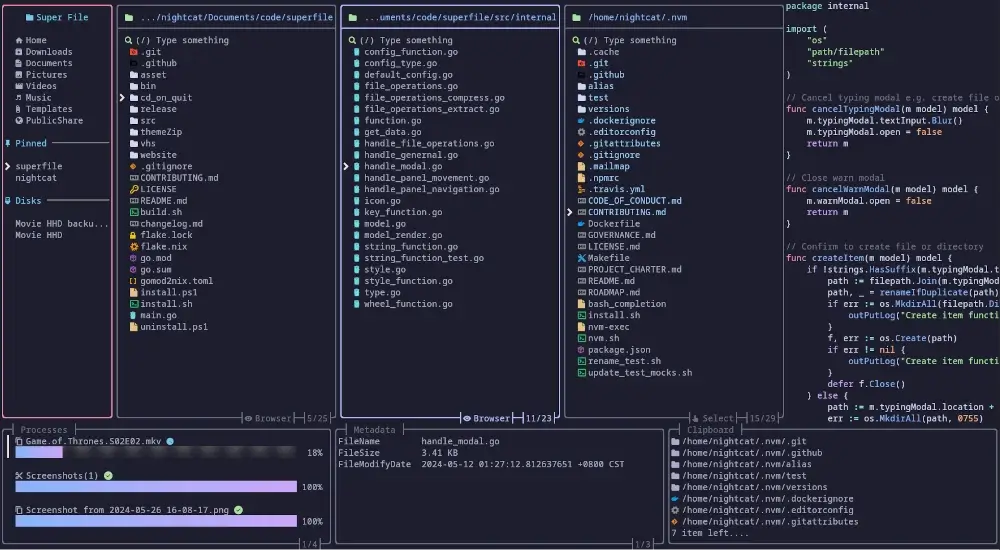
Whether you’re managing local files or remote servers, superfile’s efficiency and flexibility make it an ideal choice for anyone seeking a reliable file management solution.
To install Superfile, visit the official installation guide.
11. Clifm – Fast Command-Line File Manager
Clifm takes a unique approach – instead of using a traditional TUI (Text User Interface), it operates like a shell, allowing you to interact with your file system using familiar commands.
Unlike file managers like Midnight Commander or Ranger that rely on menus and navigation panels, Clifm streamlines the experience by enabling direct command input.
This makes it ideal for those who are already comfortable with the command line and want faster file management without switching contexts.
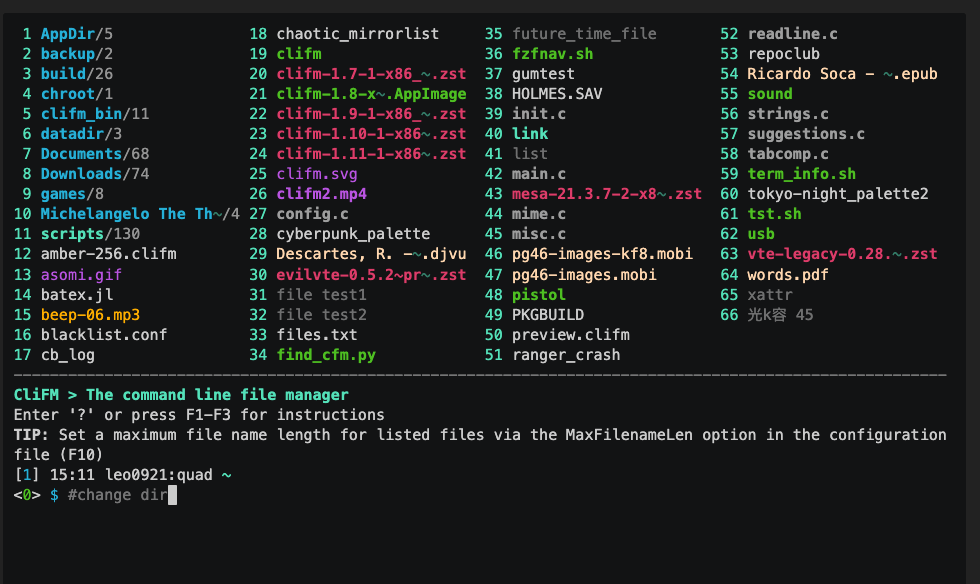
It’s lightning-fast and works great on kernel consoles, SSH sessions, or any remote environment.
To install Clifm, check the installation instructions.
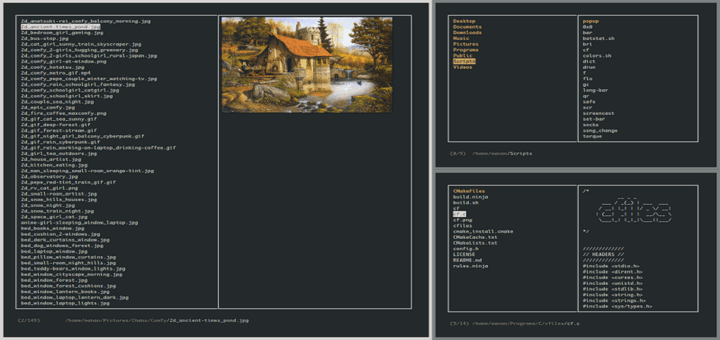
12. Cfiles Fast Terminal File Manager
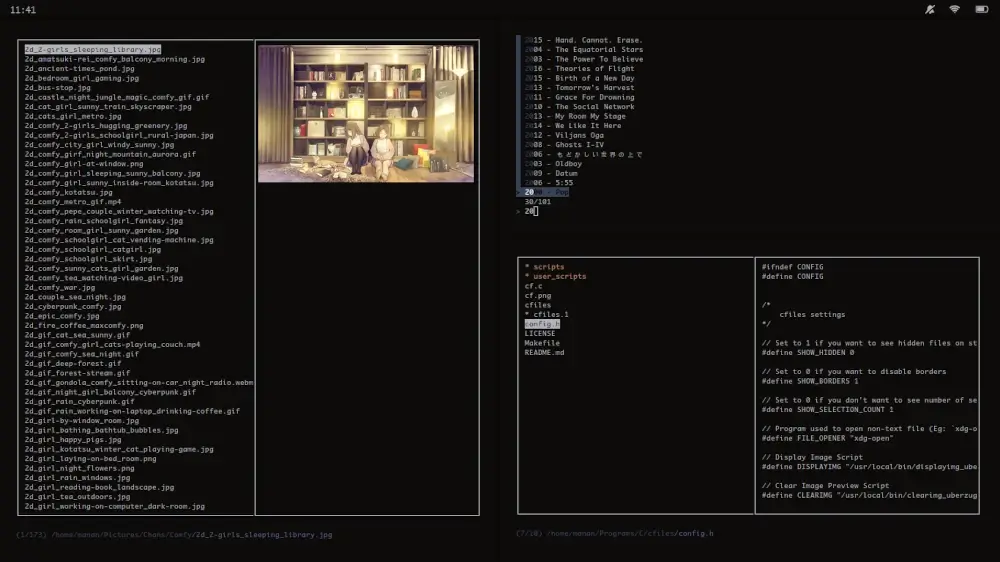
Cfiles is a fast terminal file manager written in C and uses ncurses and it is dmilar to ranger, but uses vi keybindings, making it familiar for Vim users.
It has a few dependencies such as cp, mv, fzf, xdg-open, and others.
While it is lightweight, its installation requires a few more steps than other file managers.
To install cfiles, first install development tools:
sudo apt install build-essential          [On Debian/Ubuntu]
sudo yum groupinstall 'Development Tools' [On CentOS/RHEL]
Next, clone the cfiles repository and install it:
git clone https://github.com/mananapr/cfiles.git
cd cfiles
gcc cf.c -lncurses -o cf
sudo cp cf /usr/bin/
A more detailed review of cfiles can be found here: cfiles – A Fast Terminal File Manager with Vim Keybindings
13. Lfm – Last File Manager
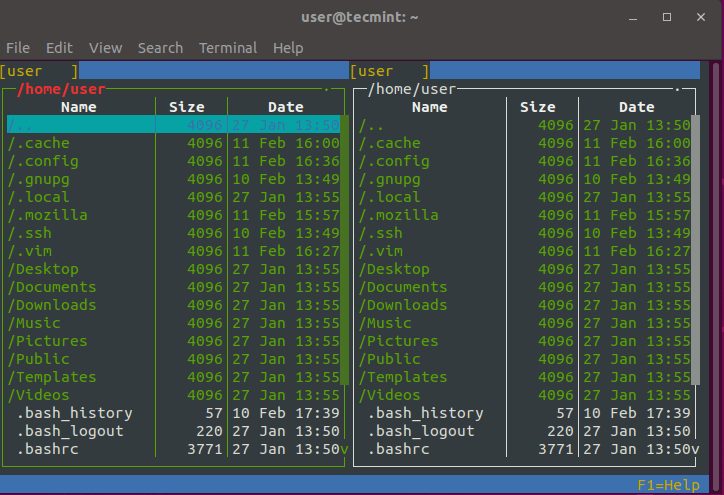
Lfm shortened for Last File Manager is a curses-based console file manager written in Python that can be used with 1 or 2 panes and includes useful features such as filters, bookmarks, history, VFS for compressed files, tree view, and direct integration with common tools like find command, grep utility, df command, and other tools.
To install Lfm, you can use the following command:
sudo apt install lfm         [On Debian, Ubuntu and Mint]
sudo yum install lfm         [On RHEL/CentOS/Fedora and Rocky/AlmaLinux]
sudo emerge -a sys-apps/lfm  [On Gentoo Linux]
sudo apk add lfm             [On Alpine Linux]
sudo pacman -S lfm           [On Arch Linux]
sudo zypper install lfm      [On OpenSUSE]
You can also install lfm using the pip command:
sudo pip install lfm
14. Walk Terminal File Manager
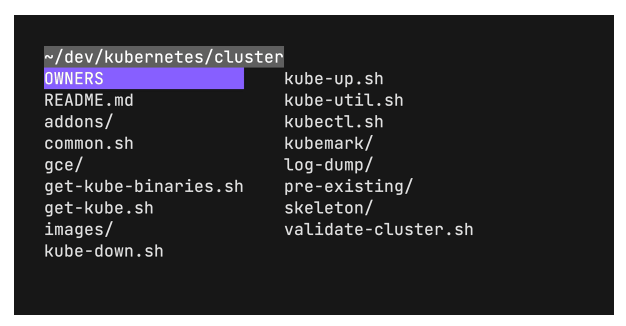
Walk is a terminal-based navigator that serves as an alternative to the traditional ls and cd commands.
It allows for quick navigation using fuzzy searching, cd integration is quite simple, and you can open Vim directly from the walk.
To install Walk Terminal, simply download the binary-related build for your OS from the releases page.
Conclusion
The terminal file manager landscape has evolved significantly, with modern tools like Yazi, Joshuto, and Broot bringing impressive performance improvements while maintaining the efficiency that makes terminal-based file management so appealing.
Whether you’re looking for speed (Yazi, nnn), a modern Ranger alternative (Joshuto), unique tree-based navigation (Broot), Vim integration (Ranger, Vifm), or beginner-friendliness (Midnight Commander), there’s a terminal file manager that fits your workflow.
The Rust-based file managers (Yazi, Joshuto, Broot) represent the latest generation of tools, offering blazing-fast performance and modern features like async I/O and advanced customization.
Meanwhile, classic options like Midnight Commander and Ranger continue to serve users who prefer their tried-and-tested workflows.
If you think we’ve missed one or have a favorite you’d like to share, please let us know in the comment section below.

The editors Vim and GNU Emacs can be used for file management. E.g., `vim` manages the current directory. In Emacs, `M-x dired` does this.
I use console tools because I hate mice, icons, and window decorations. They require too much dexterity and thinking in pictures.
Great article! Have you ever considered Clifm (https://github.com/leo-arch/clifm): A totally different approach to CLI file managers.
@Leo,
Thank you! Yes, I’ve tested Clifm and found it very useful. I’ve added it to the article listing, and I’ve also written a separate article on it here – https://www.tecmint.com/clifm-fast-commandline-file-manager/
Thank you very much!
What about Walk file manager https://github.com/antonmedv/walk?
@Anton,
Thank you for pointing that out! ‘Walk‘ is indeed a noteworthy terminal file manager. We’ll consider adding it to the list in our next update.
Your feedback is appreciated!
I just brew’d ranger into osx and it seems helpful, thanks!
I know if I want to shell in remotely and not fiddle with the inadequacies in vnc/etc from a slower connection that this is pretty great. Haters gonna h8. :D
Hi,
CLI file managers or using mostly terminal doesn’t mean to go back in time. I can just “gh” to go to my home directory in LF and using FZF with C-f to quickly jump to a file or directory. I can do all of these in milliseconds. You can’t compare this speed with mouse clicks and try to get the right name to click on the screen.
By the way, the article has to be updated because nnn and lf got serious updates.
Thanks.
I have been using Double Commander on Ubuntu but it does not have vim key bindings and I am limited in how much I can customize it.
So now I am experimenting with Ranger and, maybe, I will try something else from the list.
I would not mind using only GUI applications but, for Linux, Double Commander seemed to be the best option and, as I just mentioned, I am outgrowing it.
I assume this also depends on what things do you find important. If you are a novice Linux user, probably you should not bother with these things. But for me, organizing my notes and files is a key thing.
So when you reach your limits with your current tools you might want something which serves you better and which you can shape onto your needs. Perhaps a good metaphor would be cooking your own food instead of having a ready-made meal. If you are fine with the latter, great. But if you have special needs or you want to optimize your nutrition intake you might want to cook yourself or buy in some personalized diet service. You can imagine similar examples in medicine, clothing, manufacturing, mental health, education, etc.
In each case, when you personalize, you need to go near to the core functionality to measure and modify things there. With food, this would mean looking at the individual ingredients, where they came from, how they were produced, etc. In writing, coding, or file management, the core is on the level of text. If we would be talking about image editing, of course, this would not apply that much as we would emphasize more on the GUI. Still, it would be relevant even there because of a second reason.
This second reason is that even in the case of an image editor we are still talking about software. Software is literally “written” as text so when you want to change or alter or personalize it, you will be able to do it better on the next level. Most of the time, you will have sooner a working text-only version than a text-and-gui version (and perhaps never a gui-only version).
Finally, most of the people who use Linux are sysadmins, DevOps, programmers, and such. For them, file management is an everyday tool that they use in relatively advanced ways so they are better off with customization possibilities. They also can script, so they actually can make use of the customizations that CLI tools offer. So for them, this is more natural.
In my specific case, using applications with non-vim bindings is actually painful (and I learned to use Vim less than a year ago). Also, Ranger is written in Python and can accept custom scripts as extensions. I might also be able to connect it with VIM and other tools through bash scripts. To be honest, I would not want to customize my tools because I am actually not that experienced with bash and vim, so I would be happier if they would just work as I please. But they do not, and I want to try to improve them.
Actually, I have read this reddit post where people are scoffing at Ranger because they find it bloated and prefer to work on CLI:
https://www.reddit.com/r/vim/comments/3haml4/which_file_manager_do_you_folks_use/. Well, I am not that brave, but maybe you could just skip the file managers and go straight to the real thing. ;-)Maybe in the future, you will be able to buy personalized text editors and file managers or you will be able to interact with the computer only via voice. But today you cannot do that and probably neither you will in the near future. And even when you will, but when you will want to go further with your specifications, you will still need to look into the code.
Now I can try to be really futuristic and imagine scenarios in which software is not written by typing text (but by machines to whom you can speak to) or that file and note management stops to be a thing entirely but, at least for now, we do not seem to be there yet. :)
So, this is why.
There is also one cross-platform alternative called cdir, which is designed to be a faster alternative to cd and dir/ls commands.
It can be simply installed with:
and supports bash, Powershell, and command prompt.
WCM/wcmcommander is not actually CLI only… most of these arent, and require x-11.
So thanks for nothing
“That said, regardless of whether or not you have to, there are plenty of reasons why you might *want* to.”
So far, no one has answered my question or why I might want to use a CLI File Manager. Everyone, including you, offers a nebulous “there’s plenty of reasons” but nobody will name a specific one. And please do not tell me about black and white photographs, silent movies or Bash as they are irrelevant to the discussion of a CLI File Manager. Bash has more capabilities than a GUI. What specific capabilities does a CLI File Manger offer that a GUI File manager does not?
I can think of a reason why! All of these CLI file managers would work GREAT on Windows Subsystem for Linux, which doesn’t support x-windows!
nnn is unbelievably cool! Tons of useful features too!
While it has less features compared to other file managers
Not true anymore. nnn now has tons of features.
Yep, my personal favourite
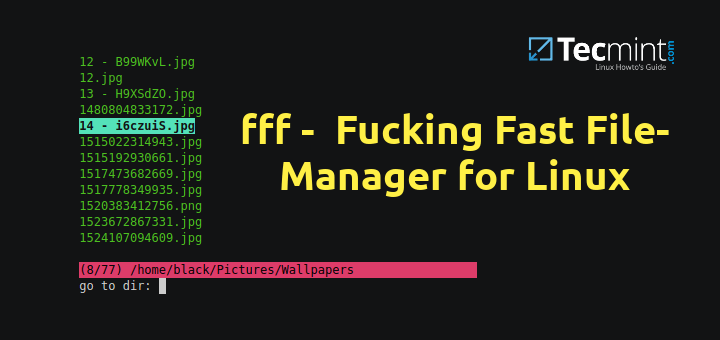
I’ve been playing with fff:
https://github.com/dylanaraps/fff
In the entire article there isn’t one word about WHY I might want use a console file manager rather than a GUI file manager,
The concept of “best” is relative and based on personal opinions. What I is “best” in my opinion, others might think of as garbage. Bill Gates considers Windows the best O/S in existence. Others have a different opinion.
It is interesting that Linux proponents always insist that Linux can be used perfectly well without ever resorting to the command line but then continue to write articles about CLI, sending mixed messages to Linux novices. Which is it? Can you or can you not use Linux with GUI only?
Hello,
Console file managers are mostly used when you don’t have graphical ones. A simple scenarios is when you are sshed to remote server and want to make some file changes.
The concept for best is indeed relative. What is meant here is that those are performing better and have more features, compared to other such software in the same category.
As for Linux being used wtihout cli – yes that is absolutely achievable. You can use distros such as Ubuntu, Linux Mint, Debian with GUI only. There are others as well that you can use without the need of cli. However the reason people are always writing about cli is that you can do much more over command line compared to graphical interface. When using a Linux distro is not necessary to always use the command line, but it definitely can improve your productivity. It’s a matter of personal choice.
A sensible comment, but using a cli file manager instead of a GUI one, no matter the better features or increased productivity, is similar of going back from color tv to b&w tv. I downloaded and installed one of your recommendations, it was like going back to the era of DOS.
I don’t want to go back in time, only forward, I am waiting for the time I can have a normal oral conversation with a computer and do all my input by voice.
Great article! And WCM Commander is really a pleasant surprise! Thanks!
P.S. Please don’t waste your time answering silly comments from silly persons. Really?? “[I] installed one of your recommendations, it was like going back to the era of DOS. I don’t want to go back in time, only forward”??
Sheer foolishness :-/
Along with CLI File Manager, do you use machine language to write programs to control various aspects of your computers? Why don’t you join the 20th century and upgrade to the new marvel of a language called Assembler.
No. I don’t.
However, when I go golfing, I don’t use junior clubs. I use professional grade gear. Junior clubs are easier to use, and great for starting with, but my professional gear allow me to do things you can never do with junior clubs. Junior clubs are great though and as your skill improves you can level up.
I use professional clubs because I have honed the skill over decades to use them to maximum effect even if they are harder to work with at first. I don’t look down on those that still using junior clubs and would be happy to help with their “golf swing” if they want to improve, but not everyone has to be a pro golfer to have fun with it. To each his own.
I’ve seen well measured responses from others here to your questions that are sincere, well mannered and courteous. You could learn something from that.
A professional “golfer”.
“In the entire article there isn’t one word about WHY I might want use a console file manager rather than a GUI file manager”
No need. You should know if you need one or not.
“It is interesting that Linux proponents always insist that Linux can be used perfectly well without ever resorting to the command line but then continue to write articles about CLI, sending mixed messages to Linux novices. Which is it?”
What’s your point? That every Linux user is a novice? No mixed messages in this article. Stop making a fool of yourself.
With your attitude, you are the perfect proof of Microsoft’s FUD that Linux is only for the members of a techie priesthood privy to the secrets of command language.
If the shows I want to watch are in black and white, I am not going to forgo watching them just because of that. Hell, I frequently go a lot further back in time and read books! The content is more important than how many colors can be seen on the screen I am watching. If you want to use Linux without the CLI, that is perfectly fine. You can do so. You can also watch some bad color TV if you like. Just don’t force me to give up my really good book so I can go watch those color TV shows with you.
Also, I take issue with the notion that the CLI is old or outdated. Lots of professional photographers still take black and white pictures, and I remember a silent movie winning the Oscar a few years ago. New and exciting still happens in supposedly dated scenarios.
I am a big fan of the CLI: It is a programming language which is built into the operating system itself, so I can use it to get my computer to do pretty much ANYTHING. For instance, If I want to tell my computer “please wait exactly 3 hours, then copy these files over here, compress this folder and email it to this address, all without interrupting me while I am on a date with a pretty girl” I can do so on the fly. CLI looks old, but looks can be deceiving. You say you look forward to the day you can just talk to your computer . . . If you learn its language, you can pretty much can do exactly that right now. The CLI is difficult to use, which is the reason why it is completely optional. That said, regardless of whether or not you have to, there are plenty of reasons why you might *want* to.
You forget Vshnu – File manager
Good article! Please add yazi
https://yazi-rs.github.io/, which has lots of features, sane defaults and very active development.Thanks