
Updated: This guide has been refreshed with modern troubleshooting steps, safer alternatives, and production-ready practices.
Like any other operating system, GNU/Linux has implemented memory management efficiently and even more than that. However, if any process is eating away your memory and you want to clear it, Linux provides a way to flush or clear the RAM cache.
In this article, we will show you how to clear RAM memory cache, buffer, and swap space on a Linux system, along with when you should (and shouldn’t) do it.
Table of Contents
- Understanding RAM Memory Cache, Buffer, and Swap Space
- Should You Clear RAM Cache? (Quick Decision Guide)
- Check Memory Usage Before Clearing
- How to Clear RAM Cache in Linux
- How to Clear Swap Space in Linux
- Verify Your Changes
- Better Alternatives to Manual Cache Clearing
- Troubleshooting Common Memory Issues
- Frequently Asked Questions
Understanding RAM Memory Cache, Buffer, and Swap Space
Before we jump into clearing memory, let’s understand what these terms mean and how they work on your Linux system.
RAM Memory Cache
The RAM memory cache is a mechanism used by the Linux kernel to store frequently accessed data in memory. When you read a file from your hard disk, the kernel keeps a copy in RAM so that the next time you need it, it can be retrieved much faster.
This speeds up your system significantly. However, in some rare cases, an overloaded cache might hold outdated data that’s no longer needed.
Buffer
Buffers work similarly to cache but serve a different purpose. Buffers temporarily hold data that’s being transferred between different parts of your system, like between your CPU and hard disk.
Think of it as a waiting area where data sits before being written to disk or after being read from disk. While buffers improve performance, too much buffered data can sometimes slow things down.
Swap Space
Swap space is a designated area on your hard disk that acts as virtual memory when your physical RAM runs out. When your RAM is full, the Linux kernel moves less-used data from RAM to swap space to free up memory for active processes.
While swap prevents your system from crashing due to low memory, relying too heavily on swap can slow down your system because hard disks are much slower than RAM.
Should You Clear RAM Cache? (Quick Decision Guide)
Here’s the thing, before you rush to clear your RAM cache, you need to understand when it’s actually necessary. The Linux kernel is designed to manage memory efficiently, and high cache usage is usually a good thing, not a problem.
When You SHOULD Clear Cache
You might need to clear cache in these situations:
- Testing and Benchmarking: You need a clean starting point to measure performance accurately.
- Memory Leak Troubleshooting: A specific application has a known memory leak and you need a temporary fix.
- Development Environment: You’re testing how your application behaves with cold cache.
When You Should NOT Clear Cache
Don’t clear cache in these situations:
- High Cache Usage: Seeing high cache in the
freecommand is normal and beneficial. - Production Servers: Never schedule automatic cache clearing on live servers.
- Before Diagnosis: You haven’t identified what’s actually causing memory issues.
- Low “Free” Memory: Check “available” memory instead, that’s what matters.
Important: The Linux kernel automatically releases cache when applications need memory. Empty RAM is wasted RAM, so the kernel uses it for caching.
Check Memory Usage Before Clearing
Before clearing any cache or buffer, you should always check your current memory status, which will helps you understand if clearing cache will actually help or if there’s a different problem.
Check Current Memory Status
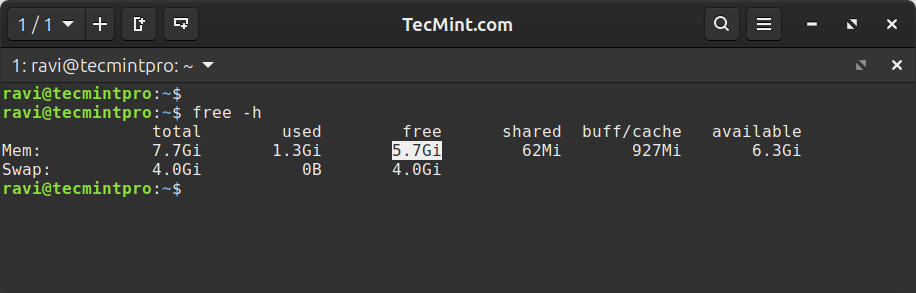
Use the free command to see memory usage in human-readable format (GB/MB) and pay attention to the “available” column that shows how much memory is actually available for new applications, not the “free” column.
free -h
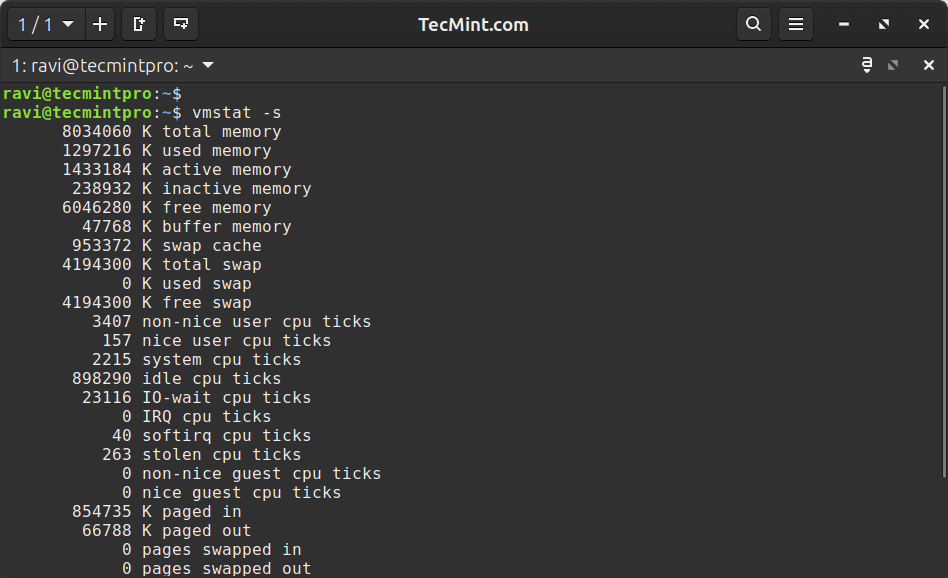
For more detailed statistics, use vmstat command:
vmstat -s
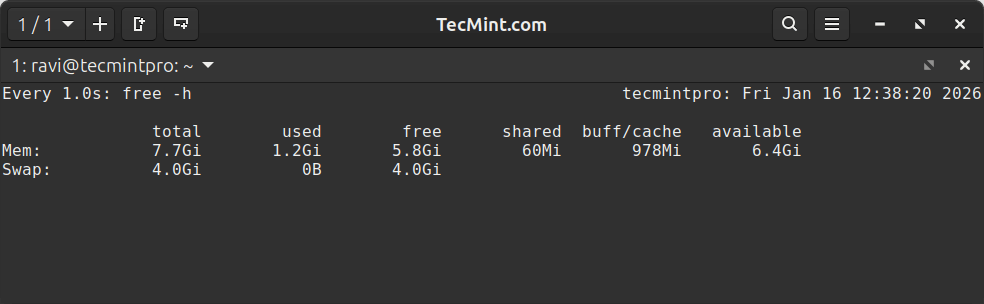
To monitor memory in real-time, use the watch command, which will updates the display every second so you can see memory changes as they happen
watch -n 1 free -h
Find Memory-Hungry Processes
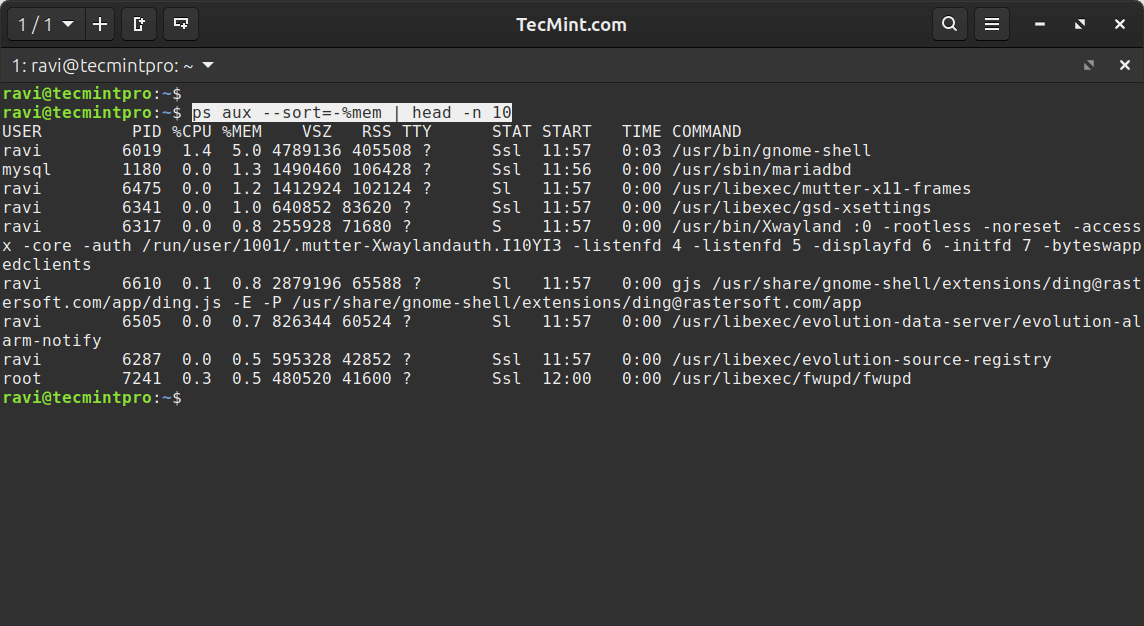
Before clearing cache, identify which processes are actually using your memory using the ps command, which will show your top 10 memory-consuming processes and nine times out of ten, you’ve got a runaway process that needs attention, not a cache that needs clearing.:
ps aux --sort=-%mem | head -n 10
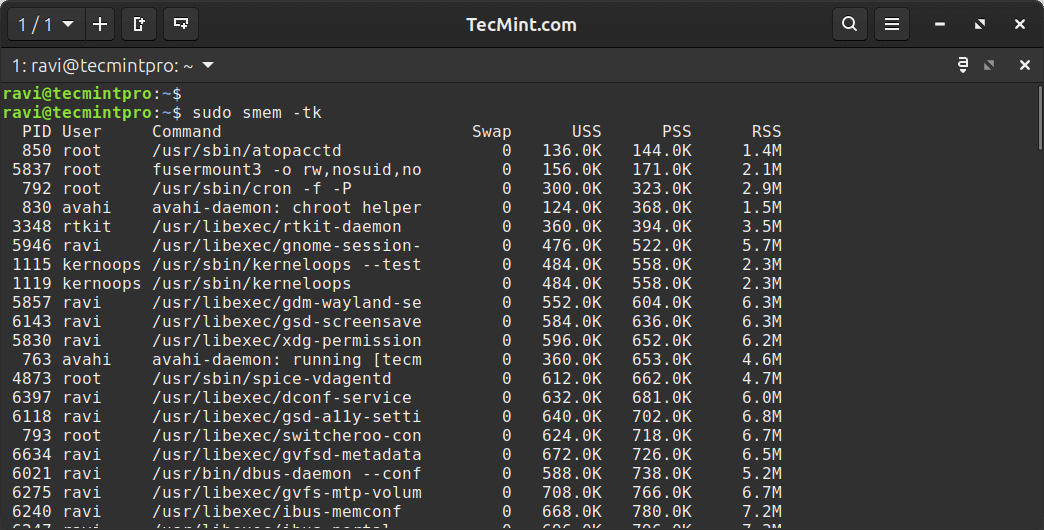
For more detailed memory analysis, install and use smem command:
sudo apt install smem          # Ubuntu/Debian
sudo yum install smem          # RHEL/CentOS
Then run:
sudo smem -tk
Take a Snapshot for Comparison
It’s a good practice to save memory statistics before making changes:
free -h > /tmp/memory-before.txt
vmstat -s > /tmp/vmstat-before.txt
After clearing cache, you can compare the results to see what actually changed.
How to Clear RAM Cache in Linux
Now let’s look at how to clear different types of cache in Linux using the three options privded by the Linux kernel through the /proc/sys/vm/drop_caches file.
Important: Run the sync command first to write any pending data to disk, which ensures no data is lost when you clear the cache.
Method 1: Clear PageCache Only
The PageCache stores recently accessed files and to clear only the PageCache, run:
sudo sync; echo 1 > /proc/sys/vm/drop_caches
If the above command gives a permission error, use this alternative:
echo 1 | sudo tee /proc/sys/vm/drop_caches
This is the safest method for production and enterprise environments because it only clears the file cache without affecting other kernel data structures.
Method 2: Clear Dentries and Inodes
Dentries and inodes are data structures that store information about directories and files.
To clear only dentries and inodes:
sudo sync; echo 2 > /proc/sys/vm/drop_caches
This frees up memory used by directory and file metadata but keeps the actual file cache intact.
Method 3: Clear PageCache, Dentries, and Inodes
To clear everything at once:
sudo sync; echo 3 > /proc/sys/vm/drop_caches
If you get a permission error:
echo 3 | sudo tee /proc/sys/vm/drop_caches
Warning: This is the most aggressive option and don’t use this in production unless you know exactly what you’re doing and why.
Let’s break down what each part does:
sudo: Runs the command with administrator privileges.sync: Writes all pending data from memory to disk.;: Separates multiple commands on the same line.echo 1/2/3: Writes a number to the drop_caches file.> /proc/sys/vm/drop_caches: Sends the output to the kernel’s cache control file.
The /proc/sys/vm/drop_caches file accepts three values:
1: Clears only PageCache (safest).2: Clears only dentries and inodes.3: Clears PageCache, dentries, and inodes (most aggressive).
After clearing cache, check memory usage again:
free -h
You should see an increase in the “available” memory and a decrease in the “buff/cache” column.
Important Notes
According to the Linux kernel documentation:
- Writing to
drop_cachescleans the cache without killing any applications or services. - The cache will start rebuilding immediately as you use your system.
- This is a non-destructive operation – your files are safe.
- Cache clearing is temporary – the kernel will refill the cache as needed.
How to Clear Swap Space in Linux
Swap space can fill up when your system runs low on physical memory. If you’ve freed up RAM and want to move data from swap back to memory, you can clear swap space.
Clear and Re-enable Swap
First, turn off all swap partitions, which will move data from swap back to RAM if there’s enough space available.
sudo swapoff -a
Then, turn swap back on, which will re-enables all swap partitions that are listed in /etc/fstab.
sudo swapon -a
Clearing swap makes sense when:
- You’ve resolved a memory shortage and want to move swapped data back to RAM.
- You’re resizing or reconfiguring swap partitions.
- You’ve added more physical RAM and want everything running from memory.
Important Warning: Never clear swap if your system is low on memory; before doing so, always ensure that you have sufficient available RAM to handle running processes:
free -h | grep Mem | awk '{print "Available: " $7 " / Swap Used: " $3}'
If your available RAM is less than your current swap usage, clearing swap will cause the Out of Memory (OOM) killer to terminate applications, which can crash important services.
Verify Your Changes Actually Helped
After clearing cache or swap, you should verify that it made a positive difference.
Compare Memory Statistics
Check memory after clearing:
free -h
Compare with the snapshot you took earlier:
diff /tmp/memory-before.txt <(free -h)
Look at what changed in the “buff/cache” and “available” columns.
Monitor Memory for a Few Minutes
Watch how your system rebuilds cache:
watch -n 2 'free -h && echo "---" && ps aux --sort=-%mem | head -5'
This updates every 2 seconds and shows you:
- Current memory usage
- Top 5 memory-consuming processes
The cache will start filling up again, which is normal and expected.
Test System Responsiveness
Here’s a simple test to see if cache affects performance:
time ls -lR /usr > /dev/null
Run this command three times:
- Before clearing cache (data is cached).
- Immediately after clearing cache (data not cached).
- Five minutes after clearing cache (cache rebuilt).
Expected results:
- First run: Fast (uses cache)
- Second run: Slower (reads from disk)
- Third run: Fast again (cache rebuilt)
If all three runs are similar, cache wasn’t your problem.
Check Detailed Memory Information
For more details, run the following command, which will shows specific memory values including cached memory, buffers, and available memory.
cat /proc/meminfo | grep -E 'Cached|Buffers|MemAvailable'
Better Alternatives to Manual Cache Clearing
Instead of manually clearing cache (especially on a schedule), consider these smarter approaches that work with the kernel instead of against it.
1. Adjust Swappiness
Swappiness controls how aggressively the kernel moves data to swap. Lower values make the kernel prefer RAM over swap.
Check current swappiness, which will show the default value i.e. 60:
cat /proc/sys/vm/swappiness
For servers, a lower value (10-20) often works better:
sudo sysctl vm.swappiness=10
To make this permanent:
echo "vm.swappiness=10" | sudo tee -a /etc/sysctl.conf
What this does: Tells the kernel to keep more data in RAM and use swap less aggressively.
2. Set Up Proper Memory Monitoring
Instead of guessing when memory is a problem, set up monitoring system with the help of atop tool which provides detailed memory logging.
sudo apt install atop       # Ubuntu/Debian
sudo yum install atop       # RHEL/CentOS
View historical memory usage:
atop -r
Create a simple monitoring script:
#!/bin/bash
AVAILABLE=$(free -m | awk 'NR==2{print $7}')
THRESHOLD=500

if [ $AVAILABLE -lt $THRESHOLD ]; then
    echo "Low memory: ${AVAILABLE}MB available" | mail -s "Memory Alert" [email protected]
fi
Save this as /usr/local/bin/check-memory.sh, make it executable, and add to cron for regular checks by editing your crontab with crontab -e and inserting an entry such as the following to run it every 5 minutes.
*/5 * * * * /usr/local/bin/check-memory.sh
Adjust the schedule as needed to match how frequently you want memory checks to run.
3. Configure Memory Limits for Applications
Prevent applications from using too much memory using systemd with the help of systemctl command, which will limits the httpd service to 2GB of RAM.
sudo systemctl set-property httpd.service MemoryMax=2G
For Docker containers:
docker run -m 2g your-image
4. Tune the OOM Killer
The Out of Memory (OOM) killer terminates processes when system memory becomes critically low, and you can protect important processes by checking and adjusting the OOM score for a given process.
cat /proc/[PID]/oom_score
Protect critical processes (lower score = less likely to be killed):
echo -1000 | sudo tee /proc/[PID]/oom_score_adj
5. Increase Minimum Free Memory
Tell the kernel to keep more memory free with the following command, whih will reserves approximately 64MB of free memory, which helps prevent memory fragmentation.
echo 65536 | sudo tee /proc/sys/vm/min_free_kbytes
Troubleshooting Common Memory Issues in Linux
Instead of blindly clearing cache, diagnose and fix the actual problem with the help of followoing common memory issues and their solutions.
Issue 1: “Out of Memory” Errors Despite Available Memory
Symptoms include applications crashing with OOM errors even though free -h shows available memory, and the correct diagnosis in this situation is to check for memory fragmentation.
cat /proc/buddyinfo
grep -i hugepages /proc/meminfo
The solution is that your system might need large contiguous memory blocks, so you can address this by enabling transparent huge pages.
echo always | sudo tee /sys/kernel/mm/transparent_hugepage/enabled
Issue 2: System Using Swap Despite Available RAM
Symptoms include high swap usage even though free RAM is available, and the diagnosis involves finding what’s in swap using a command.
for file in /proc/*/status ; do
    awk '/VmSwap|Name/{printf $2 " " $3}END{print ""}' $file
done | sort -k 2 -n -r | head
The solution being to lower swappiness (as covered in the alternatives section above) or clear swap space if enough RAM has been freed.
Issue 3: Specific Application Memory Leak
Symptoms include a single process steadily increasing in memory usage over time, and the diagnosis involves monitoring the suspect process.
watch -n 5 'ps aux | grep process-name'
The solution is to restart the application if possible, report the bug to the developers, set memory limits for the application, and use tools like valgrind to identify the leak during development.
Issue 4: Cache Never Gets Released
Symptoms include the cache continuously growing and seemingly never freeing memory, and the diagnosis is that this is usually normal behavior, so you should first verify that there is an actual problem.
free -h
You should check the “available” memory, and if it’s adequate for your needs, there’s no problem, but if you genuinely need more free memory, the solution is to identify and limit memory-hungry applications, add more physical RAM, or adjust kernel memory management parameters.
Issue 5: Page Allocation Failures
Symptoms include system logs showing allocation failures, and the diagnosis involves checking kernel messages.
dmesg | grep -i "page allocation failure"
The solution is that this situation indicates memory fragmentation.
# Increase minimum free memory
echo 65536 | sudo tee /proc/sys/vm/min_free_kbytes

# Enable compaction
echo 1 | sudo tee /proc/sys/vm/compact_memory
If the problem persists, consider rebooting to defragment memory.
Automating Cache Clearing (Not Recommended)
You can automate cache clearing with cron jobs, but this is generally not recommended for production systems. I’m including this section for educational purposes only.
Set Up a Cron Job
Open the crontab editor:
crontab -e
Add one of these lines to clear cache daily at midnight:
# Clear PageCache only (safest if you must automate)
0 0 * * * sync && echo 1 | sudo tee /proc/sys/vm/drop_caches > /dev/null

# Clear everything (not recommended)
0 0 * * * sync && echo 3 | sudo tee /proc/sys/vm/drop_caches > /dev/null
Why This Is a Bad Idea
Scheduling automatic cache clearing can be a bad idea; for example, if you set a script to clear cache at 2 AM and unexpectedly high traffic occurs at that time, all users must fetch data from slower disk storage instead of fast RAM cache, potentially causing server crashes, database corruption, and frustrated users.
So a better approach is to monitor memory, set up alerts, and clear cache manually only when actually needed after proper diagnosis
Is It Safe to Clear Cache on Production Servers?
Short answer: No, don’t do it automatically.
The Linux kernel is designed to manage memory efficiently, automatically deciding when to release cache and when to retain it, so interfering with this process can create more problems than it solves.
Frequently Asked Questions
Will clearing cache delete my files?
No, cache is just a copy of data that already exists on your disk, so clearing it forces the system to re-read from disk the next time that data is needed, but your actual files remain untouched.
How often should I clear RAM cache?
In most cases, you should never clear cache because the Linux kernel manages it automatically and efficiently, and it should only be cleared when troubleshooting specific issues or before running benchmarking tests.
Can clearing cache crash my system?
Clearing cache by itself won’t crash your system, but clearing swap on a memory-constrained system can trigger the OOM killer, which may terminate running applications.
Why does cache fill up again immediately?
This is normal and expected behavior because the kernel caches frequently accessed files to speed up your system, and empty cache would waste RAM, so the kernel uses available memory for caching.
My server has 32GB RAM but only 2GB is “free”. Is this bad?
No, this is actually good because Linux uses “free” RAM for caching since unused RAM is wasted RAM, and you should check the “available” column instead, as that reflects memory available for new applications.
Does clearing cache improve performance?
Usually, no; clearing cache temporarily slows things down because the cache needs to rebuild, and while you might see a brief improvement if the cache held obsolete data, the kernel normally manages this automatically.
What’s the difference between cache and buffer?
Cache stores copies of files read from disk for faster future access. Buffer holds data temporarily during transfer between components (like CPU and disk). Both improve performance, but they serve different purposes.
Is clearing cache the same as clearing browser cache?
No. Browser cache is application-specific data stored by your web browser. System cache (covered in this article) is managed by the Linux kernel and stores file system data for all applications.
Conclusion
Efficient memory management is crucial for a smoothly running Linux system. Regularly clearing the RAM memory cache, buffer, and swap space can significantly enhance system performance. By understanding these mechanisms and employing the provided commands, you can keep your Linux system running at its best.
If you found this guide helpful, share your experience in the comments below. Let us know your thoughts on memory management best practices, especially in production and enterprise environments.
Have memory issues not covered here? Drop a comment and let’s troubleshoot together.

These commands are incorrect.
You cannot directly echo to /proc/sys/vm/drop_caches as a regular user.
The correct command should be:
This ensures you have the necessary permissions to modify the cache settings.
@Urostor,
Thanks for the correction! I’ll use the proper command with ‘sudo‘ and ‘tee‘ to ensure the necessary permissions are applied when modifying cache settings.
To clear RAM cache, buffer, and swap space on Linux, use the following commands:
Clear PageCache:
Clear Dentries and Inodes:
Clear PageCache, Dentries, and Inodes:
Clear Swap Space:
Always use sync to avoid data loss. These commands help free up system memory without impacting performance.
I use:
# echo 3 > /proc/sys/vm/drop_caches && swapoff -a && swapon -a && printf ‘\n%s\n’ ‘Ram-cache and Swap Cleared’
(Note: dphys-swapfile swapon)
Second: It also kills zram so you need to (re)start zram again.
It will result in a server crash and corrupt the database.
Can you please explain this? Why could clearing the cache crash the server and corrupt the database?
because it contains necessary files that run the program at the current time.
@Kushagra,
Exactly. Clearing the cache while programs are running can remove essential files, leading to crashes and data corruption.
@Gollum53,
Clearing the cache abruptly can cause the server to crash if it’s actively using cached data, leading to incomplete transactions or corrupted data in the database.
To avoid these issues, always ensure minimal activity or scheduled maintenance when performing such operations.
The following command, giving me permission denied, even with sudo:
Same here. You first need to drop into a root shell (hence the “#” in the article) via “sudo su”, and only then will it work.
$ sync; echo 1 | sudo tee /proc/sys/vm/drop_caches
You need to add sudo like so:
This is only really useful for benchmarking and flushing things after upsetting the usual pattern.
For instance, if you and a bunch of co-workers have been reviewing and refreshing a 12GB log file in production, then flushing the caches might make sense so then the system will cache more useful data.
Apart from that, Linux will take care of things by itself.
It could also be useful for cases where garbage collection isn’t functioning properly in certain apps, and the RAM isn’t reclaimed on time, as I had found out on my system.
I want to ask? is it safe to clean cached memory on a Linux mail server, will this process interfere with sending/receiving emails on the user?
@Ahmad,
Yes, it is safe to remove cached memory buffer to free up memory space…
The reason to drop caches like this is for benchmarking disk performance and is the only reason it exists.
When running an I/O-intensive benchmark, you want to be sure that the various settings you try are all actually doing disk I/O, so Linux allows you to drop caches rather than do a full reboot.
https://serverfault.com/questions/597115/why-drop-caches-in-linuxThank you.
What is this with echo? echo “echo 3 > /proc/sys/vm/drop_caches“. You should just use echo 3 > /proc/sys/vm/drop_caches, or echo 3 | sudo tee /proc/sys/vm/drop_caches.
The remark that ‘3’ should not be used in production systems is ridiculous and invalid. It is fully supported and stable for decades. drop_caches is usually only useful when doing benchmarks and timing tests of file systems and block devices, or network attached storage or file systems. You shouldn’t use any drop_cache in the first place in any real production system. It is only for testing and debugging.
echoing the echoed echo, echo.
Exactly, Witold. I second you. The author of this article “heard the song but got it wrong”.
It may be necessary to go back to normal operation after this settings. See the following document from kernel.org.
Returning system back to normal requires user to write “4” into drop_caches
https://www.kernel.org/doc/Documentation/sysctl/vm.txt
Zeki, no there is no need to write 4. Documentation says it clearly. 4 (bit 2), is only to disable the dmesg / kernel log messages when the drop_caches is issued. writing 1, 2 or 3 is one time thing, and immediately after (or even during) the page cache and other caches will start to be populated back according to system usage.
I hardly see to ever need to use 4. It might be useful if you do it like every few minutes for some strange reasons, and want to avoid polluting the kernel log (dmesg) by spam of it. But it is just one line, and if you do it sporadically, there is zero reason to use 4.
You can’t use “echo 4” to release memories, because centos system just has 1, 2, or 3 options.
This is on a personal device that I’m only running one app on that’s not critical but want to make sure the performance is as good as it can be.
The command to clear the caches doesn’t run until I add sudo. I get access denied without it. Would this be proper?
sync; echo 3 > sudo /proc/sys/vm/drop_caches@Steve,
Sometimes you need superuser privileges to run commands..Nothing to worry..
What I’m asking is WHERE I put the sudo command because it didn’t work in front of sync or echo and I didn’t realize drop-caches was an executable command that would respond to sudo. It seems to work there but I’m just making sure that’s a proper use of sudo in that syntax.
Actually found something that seems to work much better than what I last tried:
sync; sudo sh -c "echo 3 > /proc/sys/vm/drop_caches"The buff/cache column on
free -hdropped from 340MB to 97MB and the free column went from 78MB to 217MB. Bigger difference than before.su -c "echo 3 >'/proc/sys/vm/drop_caches' && swapoff -a && swapon -a && printf '\n%s\n' 'Ram-cache and Swap Cleared'" rootIs there a password for this after hitting enter ??? if not why does it ask me?
and could this be applied for the home desktops too ???
You might want to correct
to
When are we going to stop talking about cron, and start talking about systemd timers? It’s time, guys.
Well, not everybody is in love with systemd.
If you are in love with systemd OK go ahead and use timers but don’t pretend that every body is agree with you.
Exactly! I literally went out of my way to comment specifically on this. Why does systemd even need a timer? It’s _supposed_ to be an init system.
When are we going to stop talking about systemd and move to openRC? It’s time, guys. Long, long past time in fact.
What is the tool you used to generate the Screenshot Gif
To generate screenshot animated GIFs, have a look at ‘”peek”, available from the GitHub repository.
How can i create swap size in already running server?
Hope this article will help you out – How To Create a Linux Swap File
This worked a treat for me.. thanks guys
Bizarre. Am the only one for whom none of the listed commands works? Is this space between the terms?
Because if I copy the first command, either: “sync; echo 1> / proc / sys / vm / drop_caches ”
I get: “bash: /: is a folder” and that’s it!
Thank you for correcting me.
Sincerely, Dan.
Definitely no spaces after first forward slash. I would probably put a space between 1> , but not sure it is required.
echo
"echo 3 > /proc/sys/vm/drop_caches"not sure about this commandBefore going to shut down or reboot production server , what are the required steps before to perform. Could you please explain with commands with examples.
Very useful… Thank you very much!!
Quote from the Article:
> At the same time scheduled script run and clears everything in cache.
> Now all the user are fetching data from disk. It will result in server crash and corrupt the database.
WHAT??? If this were a true statement, then you would get server crashes and corrupted databases upon first boot or reboot of the server. This obviously is not the case. Worst case you’ll have increased response times, or server timeouts. This untrue statement unfortunately detracts from an otherwise informative article.
How can I stop or remove the echo 1 because its running
I think restart your device will do so.
Hi,
When i try to create
.shfile with given contents, its showing error as bash: ./clearcacahe.sh: /bin/bash^M: bad interpreter: No such file or directoryUse file format use command dos2unix as above file is in DOS format.
@Mandar,
Seems like you have a dos line ending file. The clue is the
^M.You need to save the file using Unix line endings, for example – open your script with vi/vim editor and then hit (key
ESC) and type this:If you have a dos2unix command line program that will also do this for you.
Thanks Ravi for your help
Thanks to provide such a great article.
I am having one doubt about
echo 3if I use"echo 3"in my production environment to clean buffer cache. Any impact of above command in os RAM ? Will it delete useful data of physical RAM ?@Mdsameer,
It will not delete any data on the drive, just clears the cache or buffer cache from the RAM that’s it.
Thanks !
but only clear it when the load is very low like 4am etc. I do it every Sunday.
Gernally I used to clear cache in business hour.
Thanks
Hello, i have centos 7.4 with cpanel 68.0.27 at my server (with HD drive).
I see at “/var/log/cron” the command “sync; echo 3 > /proc/sys/vm/drop_caches” run every hour.
How can i change it?
I check it with “crontab -e” but i didn’t find there…
@Tanasis,
Must be cron set for that command, please check all contab entries and files carefully, like cron.hourly file under /etc directory.
I found it at /etc/cron.d/sync.
I asked hosting company and suggest me to change the “echo 3 > …” line to “echo 1 > ..” in order to only free the page cache instead of also freeing dentries and inodes.
Before i removed the “echo 3 > …” i checked my RAM. It had:
After 5 hours i have (i had removed “echo 3 > …“) :
Am I OK, What do you suggest?
@Tenasis,
Yes, it’s now perfect the command now only erasing page cache and I think which is fine for you..
Ravi, i didn’t change the “echo 3” to “echo 1”.
I had removed it…
So,
– the memory status when i had the “echo 3” was
Mem30717040 total, 25,244,176 free, 2631884 used, 2840980 buff/cache
After half day
– the memory status without any “echo x” was
Mem : 30717040 total, 244400 free, 2790844 used, 27681796 buff/cache
The swap was 0
It is OK?
Shall i have to set “echo 1” every hour or leave is without “echo xxx” ?
@Tanasis,
For now, leave it as it is, and monitor for 2-3 days and see how it works, if it’s clear page cache every hour that’s fine else set echo with option.
I tried with “echo 1 > ..”
I have high CPU for 2-3 minutes because cron clear the buff/cache.
I think, I will set “echo 3 > ..” every 4:00am.
When i didn’t have the “echo” my free RAM was low (244400 free, 2790844 used, 27681796 buff/cache), but buff/cache was high and the swap was zero. Also avail Mem was high too.
@Tanasis,
It’s because I think the system in process of deleting Buffer/Cache from the system, during the process may be some RAM is used, once the cache is cleared all comes to normal..
I think Linux was hungry so that ate the RAM..:)
Thanks for your useful posts.
Unfortunately your web is not available in my country (Iran), so we have to use proxy for reading your great posts.
@Ali,
Could you tell us, what error you getting while accessing our website? it will be more helpful us to find why the site is getting blocked..
@Stephanie
Yes, very useful.
You are getting permission denied because you are running sudo sync, semicolon, this means followed by the echo 1. So you’re running echo not as sudo anymore.
How about a sudo -i followed by the command.
I used ‘sync; echo 3 > /proc/sys/vm/drop_caches‘ in my Linux (RHEL5) and taking more time to execute and come out, also i can see in top command bash process utilization is high of cpu.
What to do next in this case or shall i kill the process ? can some one help me on it.
Hi there, I am working on my site, hence I have been given this code to clear the cache /serverscripts/clear_cache.sh and now the problem is whenever there is a new article published on site the new article doesn’t appear on site unless I go to putty and go with that command /serverscripts/clear_cache.sh
so please help me in this, as used some cache plugin but didn’t worked well even some plugin loaded my site RAM, so help me!
Not useful.
“permission denied”
Even when root or using sudo.
On my Ubuntu 16.04 only the root user can write to /proc/sys/vm/drop_caches and a sudoer user cannot.
On top of that, even the root user cannot grant write permission on this file.
I ran into the same issue, you can sudo a shell command and it should work (does for me Ubuntu 16.04 and Bodhi).
E.g:
When you talk about clearing swap space you say after considering the risk.
Can you please elaborate more what are the risks in clearing swap space?
this helped me a lot.. Great work dude !!
Frankly I am amazed. Above you wrote up the one reason why anyone would do such a thing as cleaning the cache on Linux: testing – especially benchmarking. Then you go ahead and explain how to set up a cron job that cleans the cache every night.
what is the point of that? Any newbie reading this will think that cleaning the cache (or even reconnecting the swap partition) is a good thing to do for administration purposes, like you would do when you clean the disk cache for Internet Explorer on a Windows machine.
It isn’t. The explanation why it is not is in your article, but the way how it is mentioned embedded in instructions on how to do it anyway seems to be misleading to newbies so please allow me to explain.
Yes, there are some applications around that hog memory so bad that the system memory may be eaten up and the system starts migrating memory pages onto the swap partition. Firefox comes to mind as it can become a problem when running with only 2GB of system memory.
Even if you close tabs of especially memory hungry web pages (ebay is a really bad offender here) not all the code in memory will be released as it should be. Keep in mind here that this is a problem of the application and not Linux though. This means you won’t get that memory back by fiddling with the os, like dropping the cache anyway. The intervention required would be to do something about Firefox.
The only way I know of to get the memory back is to terminate the offending process i.e. Firefox. A notable exception to this are databases that can seem to hog memory if they are not properly configured (opposed to poor memory management within the application) but even then you’ll need to look at your database first (while keeping in mind that ‘Database Administrator’ is a job description for a reason. Whatever you do, purging the cache won’t help).
So yes, what I am saying is that the preposition in the second sentence of this article is false. If you have a process that is eating up your memory then purging the cache won’t even touch it, while the process is running.
Terminating the process will release the memory. Sometimes you can even observe how the kernel decides to discard most of the memory claimed by such a terminated process itself, i.e. it doesn’t even keep it in the cache.
If the process claimed enough memory, it may have displaced a lot of essential code from the memory into the swap space causing the computer to run slower for a little while longer until that memory code is retrieved. Now if you are on your desktop at home you may want to follow the instructions above and say ‘swapoff -a && swapon -a‘ and get a cup of tea and when you are back your computer will be fast again.
If you don’t like tea you may just want to continue what you have been doing without reconnecting your swap as it probably won’t take long for the memory to migrate back anyway. NOT reconnecting swap will have the advantage that only the code that is actually needed will be placed back into memory (my preferred choice). So: reconnecting swap will consume more system resources overall than letting the kernel deal with it.
Do not reconnect swap on a live production system unless you really think you know what you are doing. But then I shouldn’t have to say this as you would find out about this anyway while doing your research / testing as you should when doing this kind of stuff on a live production system.
Here is another thought. Maybe the cache-drop fallacy comes from the way memory usage is traditionally accounted for on Linux systems. Par example if you open ‘top‘ in a terminal and look at the row where it says ‘Mem‘, there are entries ‘free‘ and ‘used‘ memory.
Now the stats for used memory always includes the memory used for caching and buffering. The free memory is the memory that is not used at all. So if you want to know the memory used for os and applications subtract buffer and cache values from the used memory and you’ll get the footprint of all the residual memory used for applications.
If you don’t know that and only looked at the amount of free memory you may have thought you were actually running out of physical memory, but as long as there is plenty of memory used by the cache this is not true. If you drop the cache as described above, top will report all that memory as free memory but this is really not what you thought you wanted – unless you are testing or benchmarking (see Ole Tanges post here for an example).
Now the policy of the Linux kernel is to use as much of the memory as it can for something useful. First priority obviously goes to os / application code. All the rest is used for buffer/cache (more on that here: http://stackoverflow.com/questions/6345020/linux-memory-buffer-vs-cache).
It’s written above in the article but I’ll say it here again: the data in the cache are copies of files stored on your main drive. It’s kept there just in case it’s needed again, so it’s there a lot quicker than having to read it from the drive again.
This is good and you want to keep it that way on any kind of Linux installation. Unless you are testing (in a test environment). Or just playing around and learning something new, and for that your article is brilliant!
P.S.: I noticed some people here trying to flush the cache while they are obviously having problems with limited memory. As I said before this is something to look at at application level rather than os level.
A good first step at finding out what is causing the memory bottleneck is to use ‘top‘. Enter this at the command line and press Shift+m (or M if you like). This will sort the list of processes running on your system by their residual memory footprint. The column you need to look at is ‘RES‘ for residual memory (that is memory actually allocated within the virtual memory space).
You’ll soon see which process is causing most problems. There is not one answer to what to do next. A process like Firefox may be restarted. If the memory problem is caused by virtual machines the host memory is probably over committed, i.e. the combined allocated memory of all vms exceeds the total amount of physical memory on the host or at least doesn’t leave it any space to run itself.
If this is a real problem on your box you could try to reduce the allocatable memory for each vm. If that is not an option the cheapest and easiest way to solve this problem is usually to stick some more memory into the box (if running KVM, a good start is reading this: http://www.linux-kvm.org/page/Memory).
It could be the application you are running has a bug in memory management (try up or downgrading, consider filing a bug report). It could be the application just requires more memory than you have installed (image/video editing apps come to mind, where the amount of required memory depends on the size of the files you are working on).
Again, if this is an ongoing issue you won’t get around upgrading your memory. Enterprise grade databases Oracle etc. are harder to advise on here. As they can do their own cache management you won’t necessarily see what’s really going on with top and just throwing ‘more tin’ at it, i.e. just installing more memory may do only very little difference.
Read an introduction about profiling for the specific db you are running, if you don’t have one already: set up a test machine (with hardware as similar as reasonably possible to the production one), copy the configuration and data set from your production box over and set up test scenarios that hopefully replicate some of the peak use cases and take it from there. Distributed apps like apache, enterprise grade accounting software, you name it have their own specific requirements.
Whatever else you do, look at the documentation of the app.
Once you understand what’s going on there are a few (advanced) things that can be done on os level. One example is setting up cgroups to control the ‘swappiness‘ of certain sets of applications (read http://unix.stackexchange.com/questions/10214/how-to-set-per-process-swapiness-for-linux/10227#10227).
If you consider setting this up on a production system you do want to set it up in a test environment first and make sure it does what you want it to do. You have been warned.
Hey there,
Is it okay for SSD server to clear pagecache only on hourly cron?
Thanks
Clearing the cache is definitely useless..
The cache you sees there is just direct memory content of disk files ( ext2-3-4 basic speed enhancement of accesses ). The goal is to enhance the access to common used files WHEN memory is available ( RAM not used ).
So, Linux automatically release this “cache” when a process need memory, what you do by “resetting” the cache content is to remove those files content inside the ram and ask your system to use the disk content instead ( you know that disk accesses are slower and then your application’s performances will be less effective, it’s for performances that Linux EXT FS does so )
Then for me this is useless ( is automatically managed by the OS ) and even could lead to performances issues on high load applications …
Hey I have working servers on VM’s but after some days it got slow. So I have to reboot every 7 days or whenever we face error..
There is no user login after 11-am so can I use eco 3? with ram and swap clearing on and off ?
@Prashant,
Yes, you can use echo 3 command to clear your RAM cache and buffer to free up some space to function server properly..
@Ravi
i tried and checked and worked fine echo but some VMs start using Swap memory i.e “swapoff -a && swapon -a” gave some error regarding volume group.
I will post that when i will get same error and any way thanks cause mainly i use echo 1 but still i need some vms to restart.
lets see if this echo 3 can fix that issue
This is not working fine for us. So could you provide some alternate for this.
When you would use this:
When measuring performance it can be important to do that in a reproducible way. Caches can often mess up these results.
So one of the situations where you would drop all caches, is if you have more ways to do the same thing, and are trying to figure out which way is the fastest:
Very clear explanation. Thank you.
Oh, that was fun. I like getting 10GB of RAM back in one command…!
Are you sure that it can corrupt the database? I think that database can be pretty slow but no file should be corrupted.
@Pavel,
No it will not corrupt database, its just clears the Cache and Buffer in Linux.
Hi Avishek,
Great article. Just a little correction maybe on the crontab entry. Is it really 2pm? Cheers! :)
@Viril,
Thanks for pointing out, yes that was typo it should be 2pm, corrected in the writeup..
It should be 2am and not 2pm.
@Pavel,
Thanks for notifying, yes it is 2am, corrected in the writeup..
Unfortunately swapoff -a && swapon -a doesn’t work for me. I know some tricks but I can’t clear swap completely.
sync command is not needed, it internally synch’s the dirty pages.
Great articles. Very usefull.
Many thanks.
when I wan manipulate proc folder my system was crash
what can I do
my is is Ubuntu mate 14.10
thanks a lot for this benefit post
I am sorry Kamrad1372,
but i could not understand you.
Will be be a little more clear.
Also post your Input and Output, very Clearly.
nothing happen my system stop working when edit process folder I don’t know
Excuse me, but why would anyone want to clear the caches? That makes no sense at all.
Okay, you do mention system tests – benchmarking, I guess? This is actually the *only* use case I can think of. Otherwise you shouldn’t do this!
Dear Mr. Evil,
As already suggested by me in the post itself, that ram-cache cleaning is not a good idea and one should take extra-precaution specially in production. And yes i mentioned I/O benchmarking when this can be very useful. For most of the other thing Linux Kernel Memory Management is intelligent enough.
Nice post, I searched some months ago about that topic but didnt find any helpful stuff. Now you cleared some things up for me. Great! Hope a lot of good articles are in queue :-)
Tecmint is the best site Ive found so far!
Dear Kay,
I feel happy to help you specially when you were searching for this, very recently. Keep Connected for more such posts.
Thanks for the compliment by-the-way.
Hello ,, article is good and useful .. When i have to execute/use the following command? May be if system is hanged state or at what instance i have to use this commands ..please let me know .Thank you
on a general system you probably don’t need it. and it is strictly not recommended in production. If you are dealing with I/O benchmark-ing, this is for you. I would suggest you to go through the post once again.
thanks your post, it’s helpful for me
Welcome ccame,
Keep Connected for more such posts.
# LANG=C echo 1 > /proc/sys/vm/drop_cache
bash: /proc/sys/vm/drop_cache: No such file or directory
# uname -r
4.0.4-303.fc22.i686
Fedora 22.
Ooops, sorry, echo 1 > /proc/sys/vm/drop_caches works :)
The first 3 exampleas are incorrect – /proc/sys/vm/drop_cache instead of /proc/sys/vm/drop_caches
@Nerijus,
Sorry for that mistake, we’ve corrected in the write up..
I am having some issues you will find the commands and error messages:
david@david-XFX-nForce-780i-3-Way-SLI:~$ sync; echo 3 > /proc/sys/vm/drop_cache
bash: /proc/sys/vm/drop_cache: No such file or directory
david@david-XFX-nForce-780i-3-Way-SLI:~$ echo 3 > /proc/sys/vm/drop_caches && swapoff -a && swapon -a && printf ‘\n%s\n’ ‘Ram-cache and Swap Cleared’
bash: /proc/sys/vm/drop_caches: Permission denied
david@david-XFX-nForce-780i-3-Way-SLI:~$ su -c ‘echo 3 >/proc/sys/vm/drop_caches’ && swapoff -a && swapon -a && printf ‘\n%s\n’ ‘Ram-cache and Swap Cleared’
Password:
su: Authentication failure
david@david-XFX-nForce-780i-3-Way-SLI:~$ sudo -c ‘echo 3 >/proc/sys/vm/drop_caches’ && swapoff -a && swapon -a && printf ‘\n%s\n’ ‘Ram-cache and Swap Cleared’
usage: sudo -h | -K | -k | -V
usage: sudo -v [-AknS] [-g group] [-h host] [-p prompt] [-u user]
usage: sudo -l [-AknS] [-g group] [-h host] [-p prompt] [-U user] [-u user] [command]
usage: sudo [-AbEHknPS] [-r role] [-t type] [-C num] [-g group] [-h host] [-p prompt] [-u
user] [VAR=value] [-i|-s] []
usage: sudo -e [-AknS] [-r role] [-t type] [-C num] [-g group] [-h host] [-p prompt] [-u
user] file …
david@david-XFX-nForce-780i-3-Way-SLI:~$
I am not sure what I am doing wrong, but any help would be much appreciated.
Dear David Armstrong,
I apologize for the inconvenience. Actually it was an error on my side.
The commands should be
$ sync; echo 3 > /proc/sys/vm/drop_caches
Notice it is drop_caches and not drop_cache
for the next part
# echo 3 > /proc/sys/vm/drop_caches && swapoff -a && swapon -a && printf ‘\n%s\n’ ‘Ram-cache and Swap Cleared’
This should essentially be run as root and not user. User don’t have permission to edit file – /proc/sys/vm/drop_caches
Also check the article for the updated third command. All your problem should be fixed now.