

People often need to copy or share files over the network. Many of us are used to using tools such as rsync or scp to transfer files between machines. In this tutorial, we are going to review another tool that can help you copy files between hosts in a network – Dat Copy (dcp).
Dcp does not require SSH to be used or configured in order to copy your files. Furthermore it does not require any configuration to securely copy your files.
Dcp Use Cases
Dcp can be used in multiple scenarios. For example, you can easily send files to multiple colleagues by simply providing them with the generated key. You can also sync data between two machines without the need of setting SSH keys. Copy files to remote machine or share files between Linux, MacOS, Windows.
How Dcp Works
Dcp creates a dat archive for the list of files you have specified to be copied over. Then, using the generated public key it allows you to download the files from another host. The copied data is encrypted using the public key for the dat archive.
How to Install Dcp in Linux Systems
Installation of dcp can be completed with npm package manager. However if you don’t wish to use npm, you can download the latest release of the dcp package from the release page.
To install the package with npm, you must have NPM installed on your Linux system and then use the following command to install it.
# npm i -g dat-cp
If you prefer to use the zip archives, you can download them with wget command.
# wget https://github.com/tom-james-watson/dat-cp/releases/download/0.7.4/dcp-0.7.4-linux-x64.zip
Then move the dcp and node-64.node binaries to a path by your choice, preferably a path that is included in your PATH variable. For example /usr/local/bin/:
# mv dcp-0.7.4-linux-x64/dcp dcp-0.7.4-linux-x64/node-64.node /usr/local/bin
How to Use Dcp in Linux Systems
Usage of dcp is simple and as mentioned earlier does not require any extra configuration. Simply choose the files that you wish to copy and run:
Send file from source host:
# dcp file
Run the command below on the target host.
# dcp <generated public key>
It may look a little strange at first, but it is actually very easy. For the purpose of this tutorial, I have two hosts – temcint_1 and tecmint_2. I will send file called video.mp4 from tecmint_1 to tecmint_2.
Sending the file from tecmint_1:
# dcp video.mp4
In the end of the output, you will see a blue line, which will be dcp <generated public key>:
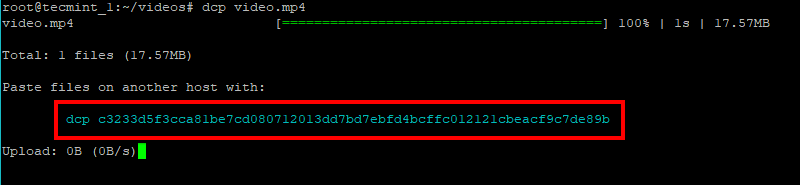
You can then use the following command to obtain the file from another host. In the below example, I will download the file from tecmint_2:
# dcp c3233d5f3cca81be7cd080712013dd77bd7ebfd4bcffcQ12121cbeacf9c7de89b

That’s it, the file has been downloaded.
Dcp has some extra options you can run it with:
-r, --recursive– recursively copy directories.-n, --dry-run– show what files would have been copied.--skip-prompt– automatically download without a prompt.-v, --verbose– verbose mode – prints extra debugging messages.
Conclusion
Dcp is very simply and easy to use tool, that helps you copy or share files between hosts. If you like the project, you can further review the dcp git page.

Great question, Jordi. I was curious about exactly the same configuration-related characteristics.
Does dcp uses any particular TCP port it relies on?
If it does not require ssh. What protocol does it rely on?
Jordi, dcp (dat-cp) uses DAT protocol. Usually you will need to have port 3282 opened to use dat