How to Find openSUSE Linux Version

Take Your Linux Skills to the Next Level All courses, certifications, ad-free articles & community — from $8/mo
Join Root →
Ad-free access to all premium articles
Access to all courses: Learn Linux, AI for Linux, Bash Scripting, Ubuntu Handbook, Golang and more.
Access to Linux certifications (RHCSA, RHCE, LFCS and LFCA)
Access new courses on release
Get access to weekly newsletter
Priority help in comments
Private Telegram community
Connect with the Linux community
From $8/mo · or $59/yr billed annually · Cancel anytime

In this article, we will explain how to find out which version of openSUSE Linux distribution installed and running on a computer. The /etc/os-release and /usr/lib/os-release files include all openSUSE version information and you can view openSUSE Version information in these two files using your favorite text editor from the graphical user interface (GUI) or from the command line interface (CLI) as shown below.

From the GUI, simply open the /etc/os-release and /usr/lib/os-release files using your favorite text editor. For example using Kate text editor, which contain operating system identification data.
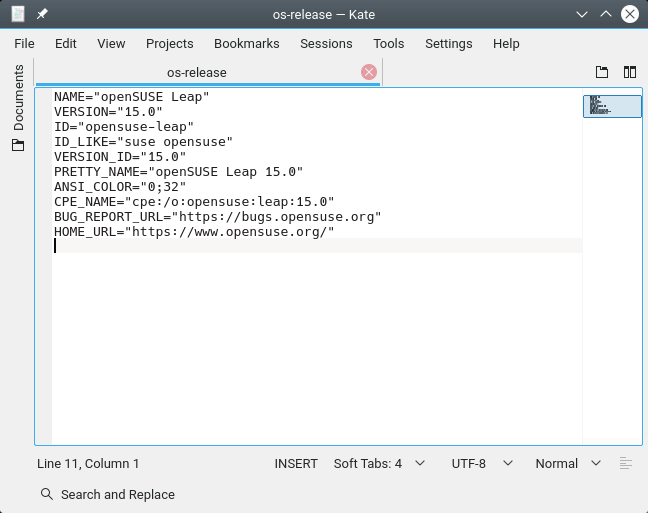
Find openSUSE Version in GUI

Alternatively, open the terminal and use the cat utility to view contents of /etc/os-release and /usr/lib/os-release as shown.

$ cat /etc/os-release 
OR
$ cat /usr/lib/os-release file 
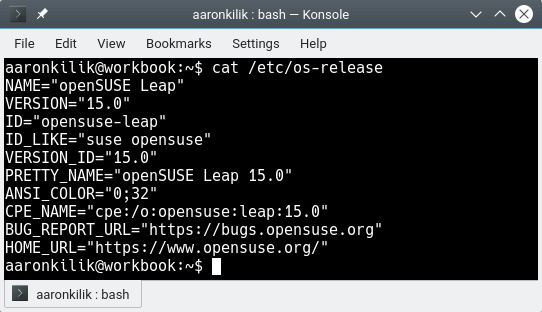
Find openSUSE Version

Some of the important fields in the file are explained below:

  • NAME: A human-friendly name of the distribution, without the version number. example “openSUSE Leap“.
  • PRETTY_NAME: A human-friendly name of the distribution, with a version number. example “openSUSE Leap 15.0“.
  • VERSION: A human-friendly version of the distribution. example “15.0“.
  • ID: A computer-friendly name of the distribution, without the version number. example “opensuse-leap“. This field should be safe for parsing in scripts.
  • ID_LIKE: A space divided list of IDs for equivalent operating systems with common behavior to ID=. example “opensuse suse“. Note that the entry of “suse” means all openSUSE, SUSE, SUSE Linux Enterprise distributions and derivatives such as “opensuse” represents only openSUSE distributions and derivatives.
  • VERSION_ID: A computer-friendly version of the distribution. example “15.0” or “20180530“.

Another Alternative way is to use the lsb_release command to find the version of your currently running OpenSuSE Linux as shown.

$ lsb_release -a

Note: Your system must have lsb-release package installed, if not, install it using zypper command as shown.

$ sudo zypper install lsb-release

That’s all! In this short article, we have described instructions on how to find which version of openSUSE you are running via the Graphical and Command-line way. If you have any questions or thoughts to share concerning this topic, reach us via the comment form below.

Root Plan
Premium Linux Education for Serious Learners

Take Your Linux Skills to the Next Level

Root members get full access to every course, certification prep track, and a growing library of hands-on Linux content — with new courses added every month.

What You Get
Ad-free access to all premium articles
Access to all courses: Learn Linux, AI for Linux, Bash Scripting, Ubuntu Handbook, Golang and more.
Access to Linux certifications (RHCSA, RHCE, LFCS and LFCA)
Access new courses on release
Get access to weekly newsletter
Priority help in comments
Private Telegram community
Connect with the Linux community
Aaron Kili
Aaron Kili is a Linux and F.O.S.S enthusiast, an upcoming Linux SysAdmin, web developer, and currently a content creator for TecMint who loves working with computers and strongly believes in sharing knowledge.

Each tutorial at TecMint is created by a team of experienced Linux system administrators so that it meets our high-quality standards.

Join the TecMint Weekly Newsletter (More Than 156,129 Linux Enthusiasts Have Subscribed)
Was this article helpful? Please add a comment or buy me a coffee to show your appreciation.

4 Comments

Leave a Reply

Got Something to Say? Join the Discussion...

Thank you for taking the time to share your thoughts with us. We appreciate your decision to leave a comment and value your contribution to the discussion. It's important to note that we moderate all comments in accordance with our comment policy to ensure a respectful and constructive conversation.

Rest assured that your email address will remain private and will not be published or shared with anyone. We prioritize the privacy and security of our users.

Root Plan Premium Linux Education for Serious Learners

Before You Go - Upgrade Your Linux Skills

Root members get everything in one place, with new courses added every month.

What You Get
Ad-free access to all premium articles
Access to all courses: Learn Linux, AI for Linux, Bash Scripting, Ubuntu Handbook, Golang and more.
Linux certifications: RHCSA, RHCE, LFCS and LFCA
Access new courses on release
Weekly newsletter, priority support & Telegram community
Join Root Today and Start Learning Linux the Right Way
Structured courses, certification prep, and a community of Linux professionals - all in one membership.
Join Root Plan →
$8/mo · or $59/yr billed annually