

Vim is a great tool for editing text or configuration files in Linux. One of the lesser-known Vim tricks is clearing or deleting all text or lines in a file. Although, this is not a frequently used operation, its a good practice to know or learn it.
In this article, we will describe steps on how to delete, remove or clear all text in a file using a Vim editor in different vim modes.
Read Also: 5 Ways to Empty or Delete a Large File Content in Linux
The first option is to remove, clear or delete the all lines in a file in the normal mode (note that Vim starts in “normal” mode by default). Immediately after opening a file, type “gg” to move the cursor to the first line of the file, assuming it is not already there. Then type dG to delete all the lines or text in it.
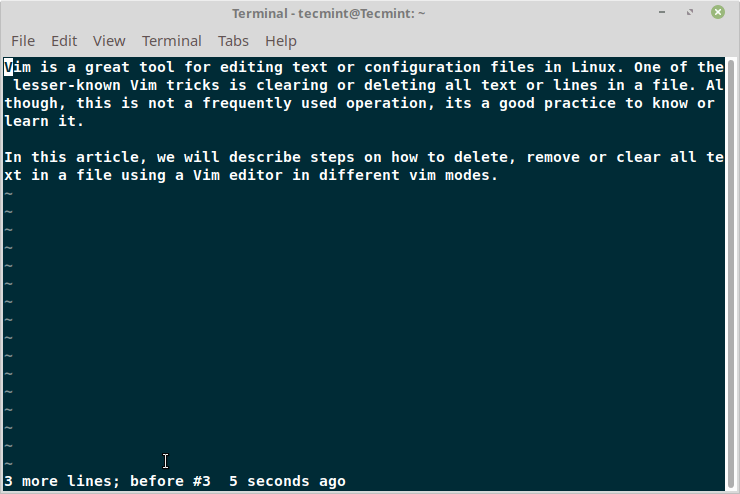
If Vim is in another mode, for example, insert mode, you can access normal mode by pressing Esc or <C-[>.
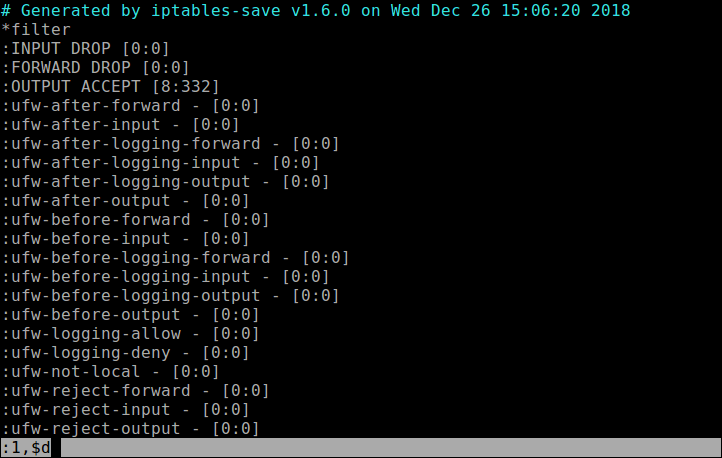
Alternatively, you can also clear all lines or text in Vi/Vim in command mode by running the following command.
:1,$d
Last but not least, here is a list of Vim articles that you will find useful:
- 10 Reasons Why You Should Use Vi/Vim Text Editor in Linux
- Learn Useful ‘Vi/Vim’ Editor Tips and Tricks to Enhance Your Skills
- How to Enable Syntax Highlighting in Vi/Vim Editor
- How to Password Protect a Vim File in Linux
- 6 Best Vi/Vim-Inspired Code Editors for Linux
- PacVim – A Game That Teaches You Vim Commands
In this article, we have explained how to clear or delete all lines or text in a file using Vi/Vim editor. Remember to share your thoughts with us or ask questions using the comment form below.

1,$is equal to%, hence:%ddoes do job with less keystrokes.In insert mode, you can type
%dto clear the text.@Jiaowen
Many thanks for sharing.
Wouldn’t it be simpler to just delete and then recreate the file using the file manager?
I know that CLI is generally faster and more efficient than GUI but in this case you are just unnecessarily complicating things by using CLI.
@Dragonmouth
This article is intended to show users that Vim supports the explained option, especially after opening a file. Thanks for the feedback.