

In this article, we will explain how to find out which version of openSUSE Linux distribution installed and running on a computer. The /etc/os-release and /usr/lib/os-release files include all openSUSE version information and you can view openSUSE Version information in these two files using your favorite text editor from the graphical user interface (GUI) or from the command line interface (CLI) as shown below.
From the GUI, simply open the /etc/os-release and /usr/lib/os-release files using your favorite text editor. For example using Kate text editor, which contain operating system identification data.
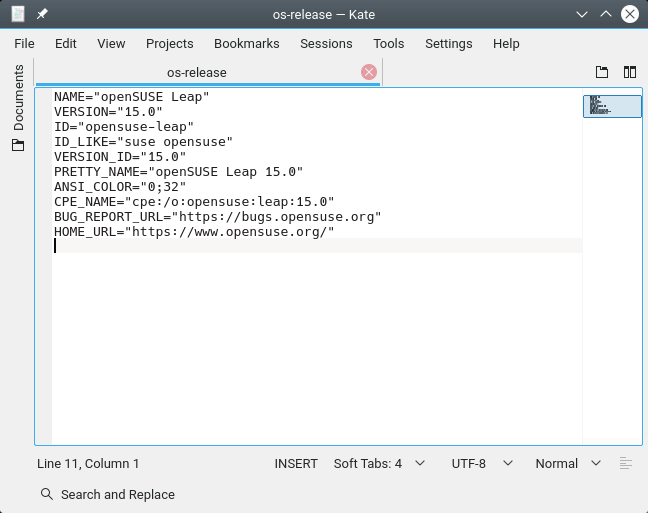
Alternatively, open the terminal and use the cat utility to view contents of /etc/os-release and /usr/lib/os-release as shown.
$ cat /etc/os-release
OR
$ cat /usr/lib/os-release file
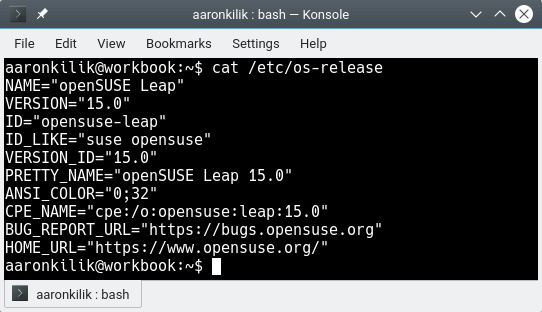
Some of the important fields in the file are explained below:
- NAME: A human-friendly name of the distribution, without the version number. example “openSUSE Leap“.
- PRETTY_NAME: A human-friendly name of the distribution, with a version number. example “openSUSE Leap 15.0“.
- VERSION: A human-friendly version of the distribution. example “15.0“.
- ID: A computer-friendly name of the distribution, without the version number. example “opensuse-leap“. This field should be safe for parsing in scripts.
- ID_LIKE: A space divided list of IDs for equivalent operating systems with common behavior to ID=. example “opensuse suse“. Note that the entry of “suse” means all openSUSE, SUSE, SUSE Linux Enterprise distributions and derivatives such as “opensuse” represents only openSUSE distributions and derivatives.
- VERSION_ID: A computer-friendly version of the distribution. example “15.0” or “20180530“.
Another Alternative way is to use the lsb_release command to find the version of your currently running OpenSuSE Linux as shown.
$ lsb_release -a
Note: Your system must have lsb-release package installed, if not, install it using zypper command as shown.
$ sudo zypper install lsb-release
That’s all! In this short article, we have described instructions on how to find which version of openSUSE you are running via the Graphical and Command-line way. If you have any questions or thoughts to share concerning this topic, reach us via the comment form below.

You did not mention the most obvious and simplest command – ‘
uname -a‘.@Dragonmouth
Ooops, how did i forget it! Many thanks for sharing.
Well this doesn’t show opensuse version, os-release does? i got to this article after doing
uname -amyself on Tumbleweed and it just shows Linux kernel version i think.@ULI
True, ‘uname -a’ doesn’t show opensuse version.