

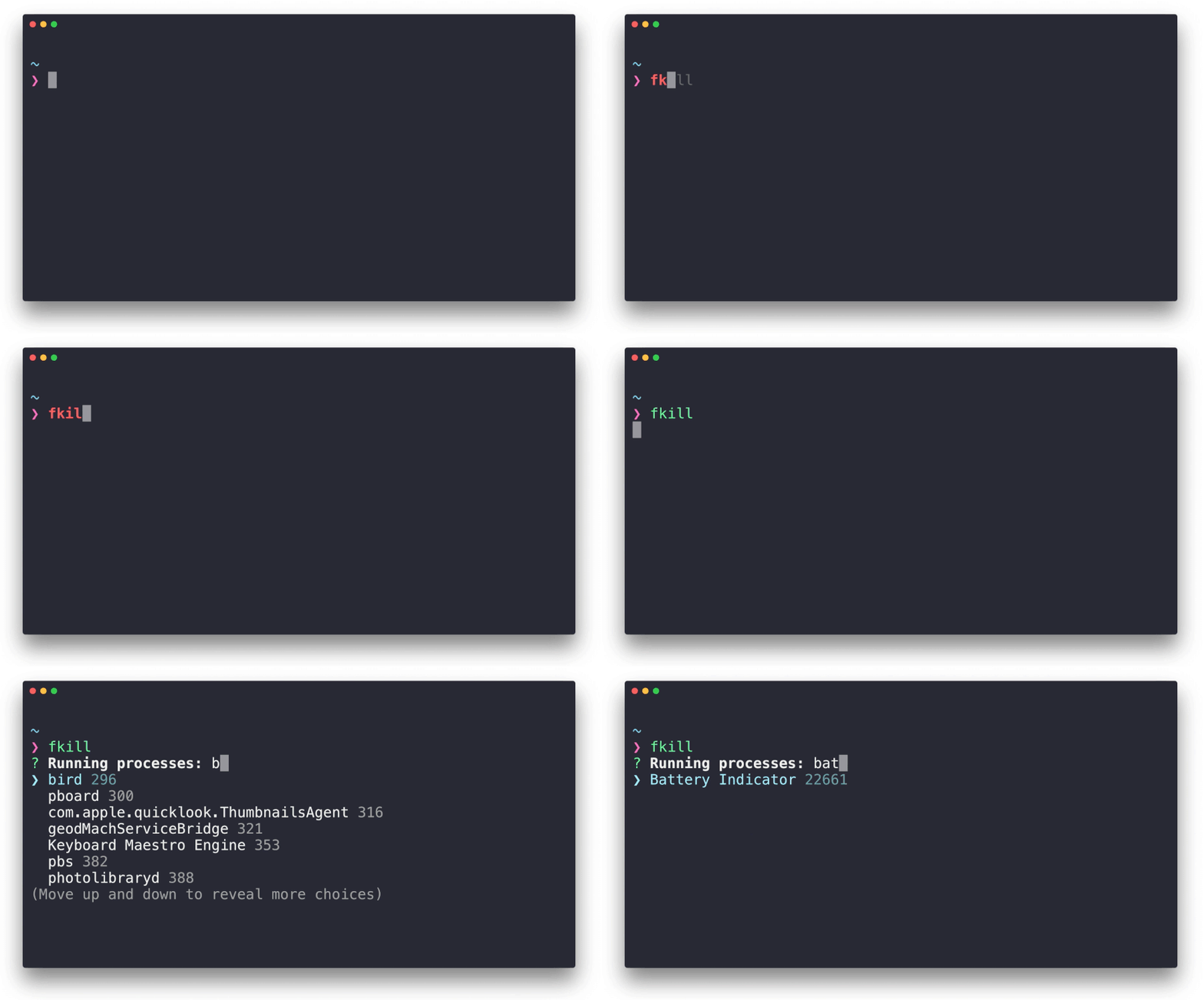
Fkill-cli is a free open source, simple and cross-platform command line tool designed to interactively kill processes in Linux, developed using Nodejs. It also runs on Windows and MacOS X operating systems. It requires a process ID (PID) or process name to kill it.
Requirements:
In this article, we will explain how to install and use fkill to interactively kill processes in Linux systems.
How to Install fkill-cli in Linux Systems
To install fkill-cli tool, first you need to install required packages Nodejs and NPM on your Linux distributions using following commands.
Install Nojejs and NPM in Debian/Ubuntu
--------------- Install Noje.js 8 ---------------
$ curl -sL https://deb.nodesource.com/setup_8.x | sudo -E bash -
$ sudo apt install -y nodejs

--------------- or Install Noje.js 10 ---------------
$ curl -sL https://deb.nodesource.com/setup_10.x | sudo -E bash -
$ sudo apt install -y nodejs
Install Nojejs and NPM in CentOS/RHEL & Fedora
--------------- Install Noje.js 8 ---------------
$ curl --silent --location https://rpm.nodesource.com/setup_8.x | sudo bash -
$ sudo yum -y install nodejs

--------------- or Install Noje.js 10 ---------------
$ curl --silent --location https://rpm.nodesource.com/setup_10.x | sudo bash -
$ sudo yum -y install nodejs
Once Nodejs and NPM packages are installed, now you can install fkill-cli package using npm command using the -g option, which enables installing it globally.
$ sudo npm install -g fkill-cli
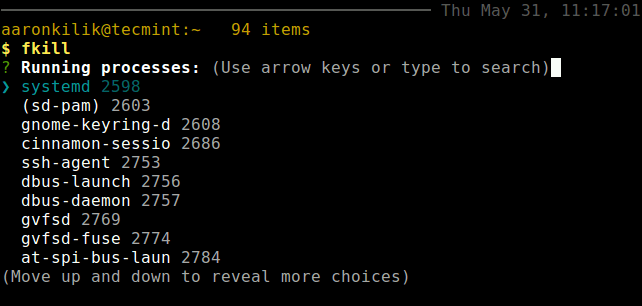
Once you have installed fkill-cli on your system, use the fkill command to launch it in interactive mode by running it without any arguments. Once you have select the process you want to kill, press Enter.
$ fkill
You can also provide a PID or process name from the command line, the process name is case insensitive, here are some examples.
$ fkill 1337
$ fkill firefox
To kill a port, prefix it with a colon, for example: :19999.
$ fkill :19999
You can use the -f flag to force an operation and -v allows for displaying process arguments.
$ fkill -f 1337
$ fkill -v firefox
To view the fkill help message, use the following command.
$ fkill --help
Also check out examples of how to kill processes using traditional Linux tools such as kill, pkill and killall:
- A Guide to Kill, Pkill and Killall Commands to Terminate a Process in Linux
- How to Find and Kill Running Processes in Linux
- How to Kill Linux Processes/Unresponsive Applications Using ‘xkill’ Command
Fkill-cli Github repository: https://github.com/sindresorhus/fkill-cli
That’s it! In this article, we have explained how to install and use fkill-cli tool in Linux with examples. Use the comment form below to ask any questions, or share your thoughts about it.

NodeJS bloated crap just to kill a process?
Ever heard about htop? More functionalities and less boatware…
But if I want to get out of Fkill deciding not to terminate processes??? I’m missing key
@xzj8b3
You can use Ctrl + X to terminate the program.
Ctrl-d Fedora 28
@xzj8b3
Okay, thanks for sharing this useful tip.
How is fkill better than pkill?
@Jim
It allows you to kill processes interactively, you can get a full list of processes, and use UP or Down arrow keys to select processes, then press enter to kill a process.
Easy alternative using fzf (does not require nodejs).
# ps -eaf | fzf | awk '{print $2}' | xargs kill@Jo
Many thanks for sharing this useful tip.
THIS IS PERFECT, my goto way to kill within neovim
@xmonader
Thanks for the addition, i should really try it out. It looks to be effective and reliable.
Thanks for this great tip.
Just PERFECT!
Also on ArchLinux/Manjaro in AUR repositories:
@ʟ·ɪɴᴀᴅᴀᴩᴛé
Many thanks for sharing this.