ARM (Advanced RISC Machine) is a RISC (Reduced Instruction Set Computing) instruction-set architecture developed by ARM Holdings, which is increasingly used in Linux devices, primarily due to its energy efficiency and suitability for everyday use.
Therefore, every day more and more applications from various fields are trying to offer versions dedicated specifically to this architecture, such as Calligra Suite, Gnumeric, AbiWord, etc.
One of these applications is also ONLYOFFICE Desktop Editors, which is a free and open-source desktop application for editing text documents, spreadsheets, presentations, PDF files, and fillable forms, which now natively supports Linux ARM64 systems.
Therefore, in this article, you will find a step-by-step installation process for ONLYOFFICE Desktop Editors on Linux ARM64 devices, with a primary focus on Ubuntu ARM64, providing a clear and practical guide for everyone.
Minimum Requirements
One of the steps you should take before starting to install the application is to make sure that your system meets the following three requirements:
- A Linux operating system with ARM64 architecture (e.g., Ubuntu for ARM).
- Administrator rights (sudo).
- Enough disk space for installation.
Once you have made sure that everything is in order, you can immediately start installing it.
Installing ONLYOFFICE Desktop Editors on Ubuntu ARM64
It is worth mentioning that installing ONLYOFFICE Desktop Editors on Ubuntu ARM64 is simple, fast, and suitable for ARM64 devices without the need for emulation, and the only thing you need to do is follow the steps very correctly.
The first step is to install the appropriate version for your system, and to do this, you need to:
- Visit the official ONLYOFFICE Desktop Editors website.
- In the ONLYOFFICE Desktop Editors for Linux section, select the ARM64
(.deb)package for your Ubuntu. - And finally, save the file to your computer.
You can also add the ONLYOFFICE repository to your system using this official guide.
One of the recommended installation methods is to use the apt command, which automatically manages dependencies, but of course, this is not the only one:
sudo apt install onlyoffice-desktopeditors_arm64.deb
The second installation method is using the dpkg command:
sudo dpkg -i onlyoffice-desktopeditors_arm64.deb
But be careful, don’t forget that if during the installation you get errors about unmet dependencies, they can be fixed with:
sudo apt -f install
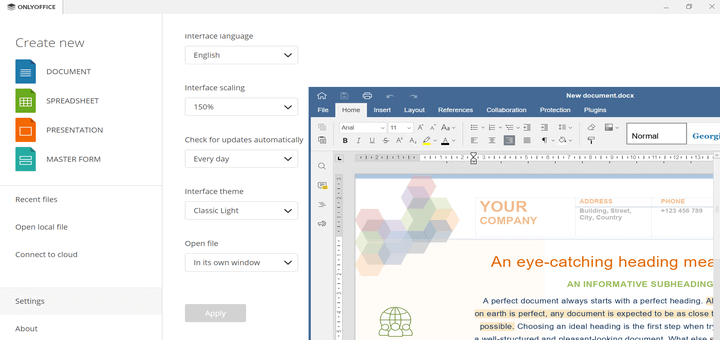
That’s it, congratulations! Your installation was successful. You can find and open the application from the application menu by searching for ONLYOFFICE Desktop Editors.
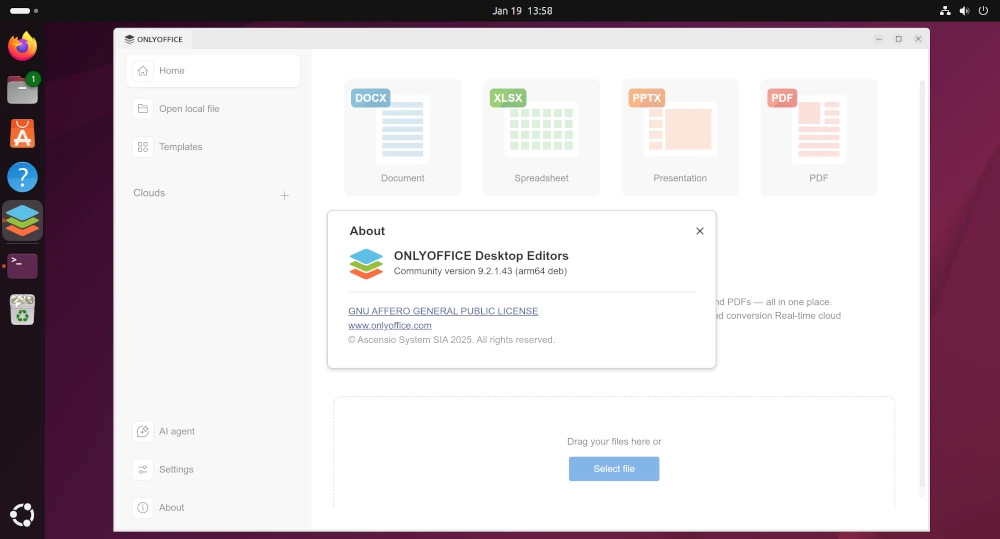
Main Functionalities on Linux ARM64
ONLYOFFICE Desktop Editors on Linux ARM64 offers the same basic functions as on other platforms, which means that users do not have to worry at all, as they will be able to work professionally and fully, without losing any essential features such as:
- editing documents, spreadsheets, and presentations.
- viewing and editing PDF files.
- viewing diagrams.
- using plugins.
- support for offline work.
- possibility of integration with cloud services, according to the user’s needs.
- digital signatures.
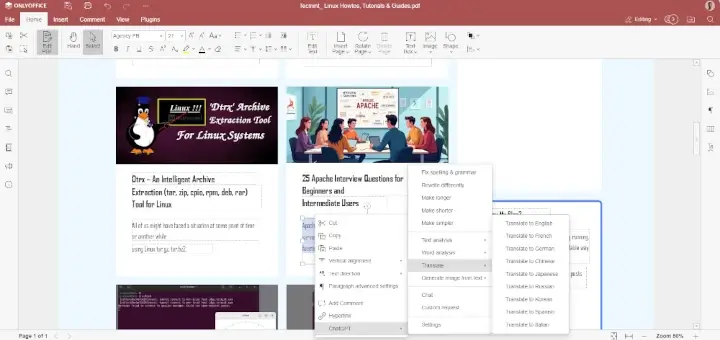
- AI integration via third-party services, such as GPT4ALL and LocalAI.
- document generation via AI agents.
- macros for better automation and more.
Conclusion
And to close, installing ONLYOFFICE Desktop Editors on Linux ARM64 devices is a very simple and straightforward process that does not require advanced technical knowledge.
This makes ONLYOFFICE Desktop Editors one of the best choices for users looking for a functional and easy solution for working with documents on Linux ARM64 devices.