

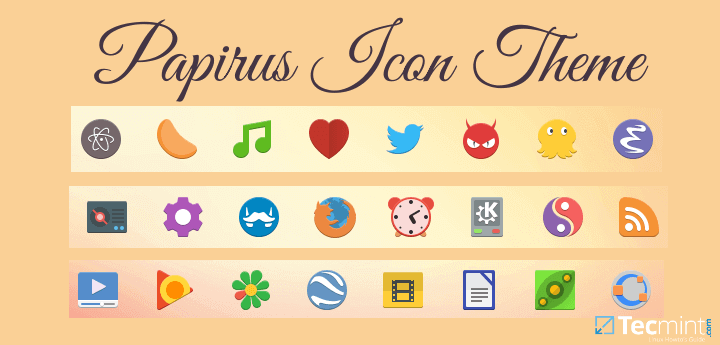
Are you tired of the default icons for Ubuntu or Linux Mint? Do you think those icons look kinda of plain? Well try out Papirus Icons. They have icons for all default icons and your favorites apps. Papirus have more then 1000 icons, which will make your desktop look different from everyone else.
Installing Papirus Icon Theme in Ubuntu and Mint
First, we need to add the Papirus Repository or PPA to Ubuntu/Linux Mint using apt package manger tool is the default package manger for Ubuntu/Linux Mint.
$ sudo add-apt-repository ppa:varlesh-l/papirus-pack
Next, we will need to update the system source list, type:
$ sudo apt update
Lastly, we are going to use apt to install Papirus as shown.
$ sudo apt install papirus-gtk-icon-theme
Setting up Papirus on Ubuntu 16.04
Setting up Papirus on Ubuntu can be tricky so we are going install Unity Tweak Tool from the Ubuntu Repository. Unity Tweak tool is a great and simple way to customize Unity.
$ sudo apt install unity-tweak-tool
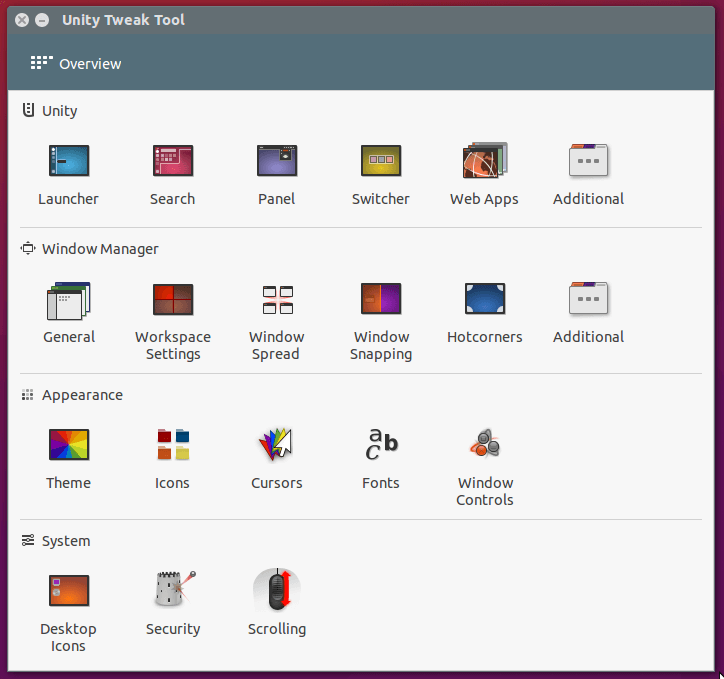
Now that we have Unity Tweak Tool installed. We are going to open it and search for “Icons”.
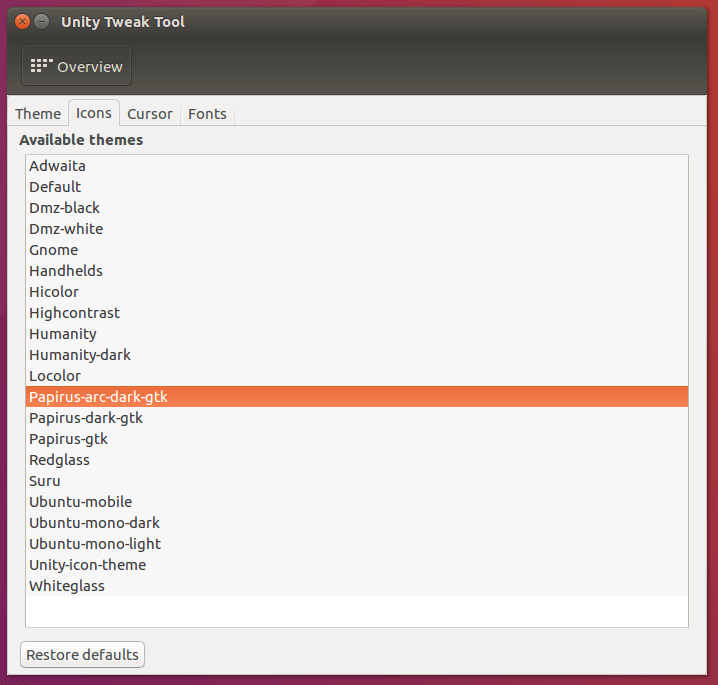
After clicking “Icons” you will see “Papirus-arc-dark-gtk” and “Papirus-gtk”. Using any one of these choices will change all your Ubuntu Icons to Papirus.
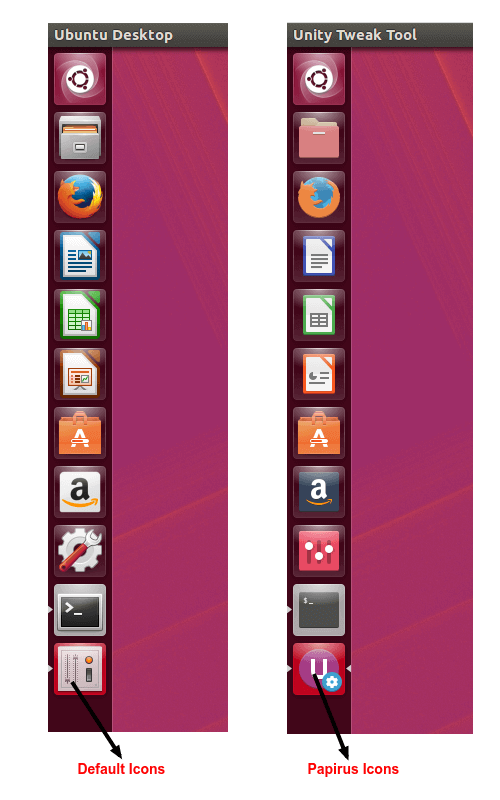
Now, you have Papirus icon theme installed, here is a before and after preview of the Unity Dock on Ubuntu.
Setting up Papirus on Linux Mint 18
Setting up Papirus on Linux Mint is a lot easier then Ubuntu with the Control Center under Linux Mint start menu.
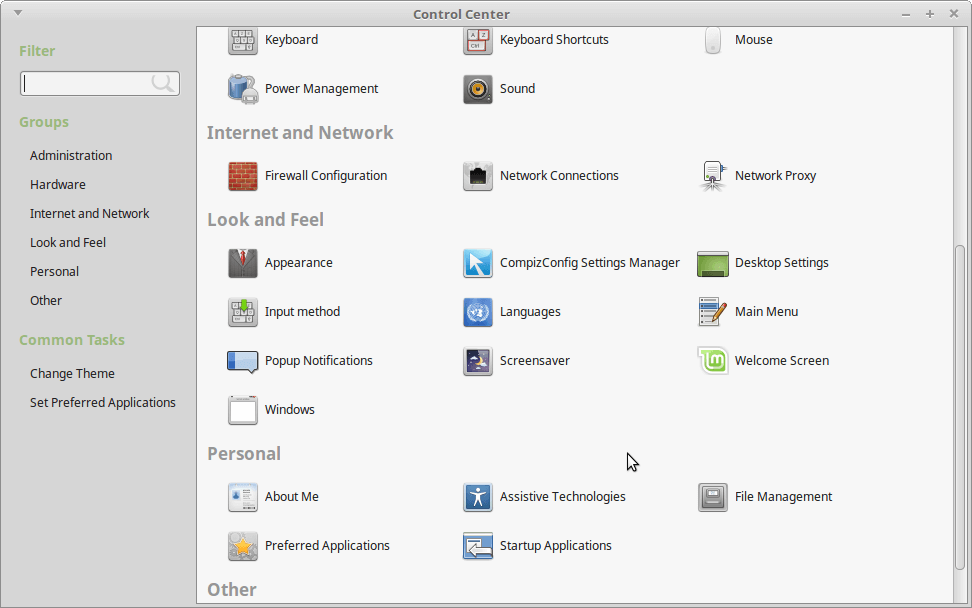
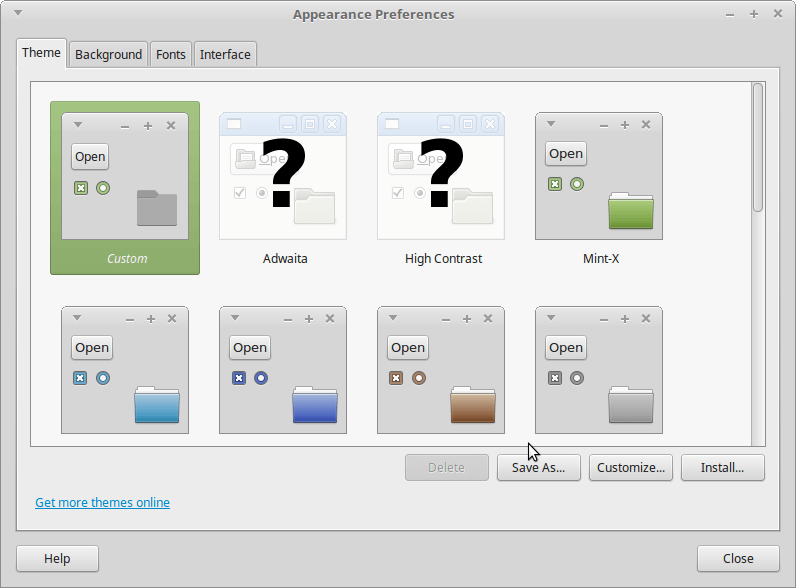
In the Control Center, click Appearance –> Customize.
A small window will pop up called “Customize Theme”, click on “Icons” and scroll down till you see Papirus.
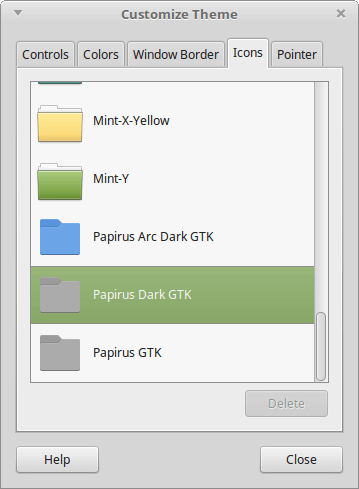
As in the image above, you will have three sections for Papirus, click any one and apply Papirus Icons.
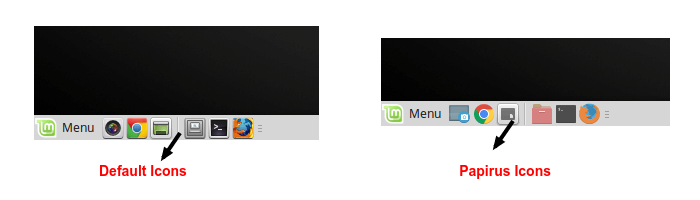
Papirus has icons for all my favorite apps and default apps and I really like how Papirus changes the icons for my favorite apps like, Atom text editor, vlc and LibreOffice. After using Papirus every icon will change and wont have any regular or default icons. Which is nice, because when you see a default icon on a new icon theme it stands out.

Hello,
Thanks for the wonderful post. This is what I was looking for.
I’m using Linux Mint 18 Cinnamon. I cannot find the ‘Control Center‘ under Start Menu. In System Settings, under Appearance, there is no ‘Customize‘ option.
I’m using Numix Circle Icon theme and I want to change the Folder color. I believe customizing it like you have said is the solution.
Any suggestion or trick is welcome.
I’m using Linux Mint MATE for this article.
For Linux Mint Cinnamon just go under Preferences –> Theme. Then click Icon, this will change the folder color.
Hope this helps
When you write “Papiurs” do you mean “Papirus”?
Yes, I mean Papirus. Thanks for the correction.
I like both firefox icons.
Interesting alternatives but their Firefox icon is outshone by the original