

SSL Certificates fall into two broad categories: 1) Self-Signed Certificate which is an identity certificate that is signed by the same entity whose identity it certifies-on signed with its own private key, and 2) Certificates that are signed by a CA (Certificate Authority) such as Let’s Encrypt, Comodo and many other companies.
Self-Signed Certificates are commonly used in test environments for LAN services or applications. They can be generated for free using OpenSSL or any related tool. On the other hand, for sensitive, public-facing production services, applications or websites, it is highly recommended to use a certificate issued and verified by a trusted CA.
The first step towards acquiring an SSL certificate issued and verified by a CA is generating a CSR (short for Certificate Signing Request).
In this article, we will demonstrate how to create a CSR (Certificate Signing Request) on a Linux system.
Creating a CSR – Certificate Signing Request in Linux
To create a CSR, you need the OpenSSL command line utility installed on your system, otherwise, run the following command to install it.
$ sudo apt install openssl  [On Debian/Ubuntu]
$ sudo yum install openssl  [On CentOS/RHEL]
$ sudo dnf install openssl  [On Fedora]
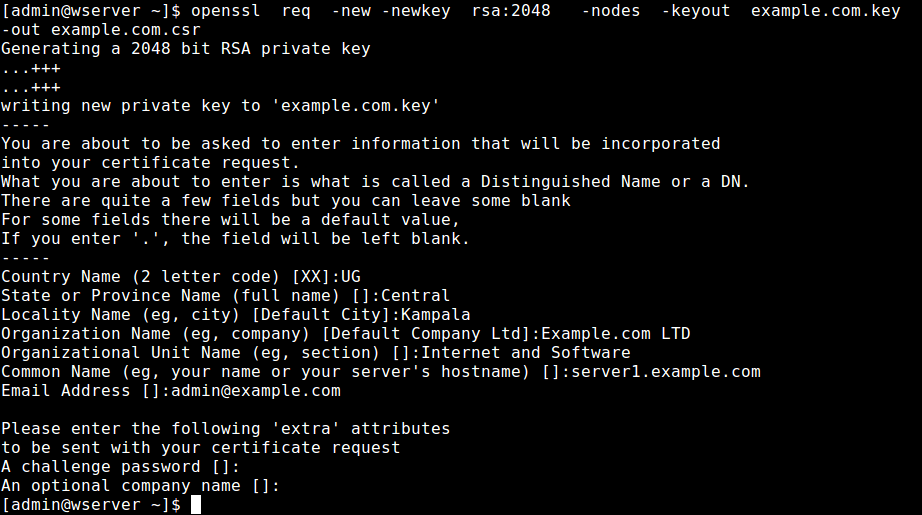
Then issue the following command to generate a CSR and the key that will protect your certificate.
$ openssl req -new -newkey rsa:2048 -nodes -keyout example.com.key -out example.com.csr
where:
- req enables the part of OpenSSL that handles certificate requests signing.
- -newkey rsa:2048 creates a 2048-bit RSA key.
- -nodes means “don’t encrypt the key”.
- -keyout example.com.key specifies the filename to write on the created private key.
- -out example.com.csr specifies the filename to write the CSR to.
Answer correctly, the questions you will be asked. Note that your answers should match information in legal documents regarding the registration of your company. This information is critically checked by the CA before issuing your certificate.
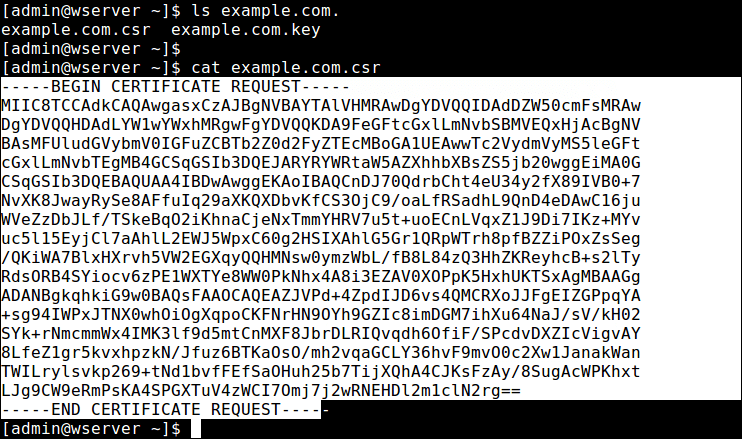
After creating your CSR, view the contents of the file using a cat utility, select it and copy it.
$ cat example.com.csr
Then go back to your CA’s website, log in, go to the page will contain the SSL certificate you purchased, and activate it. Then in a window such as the one below, paste your CSR in the correct input field.
In this example, we created a CSR for a multiple domain certificate purchased from Namecheap.
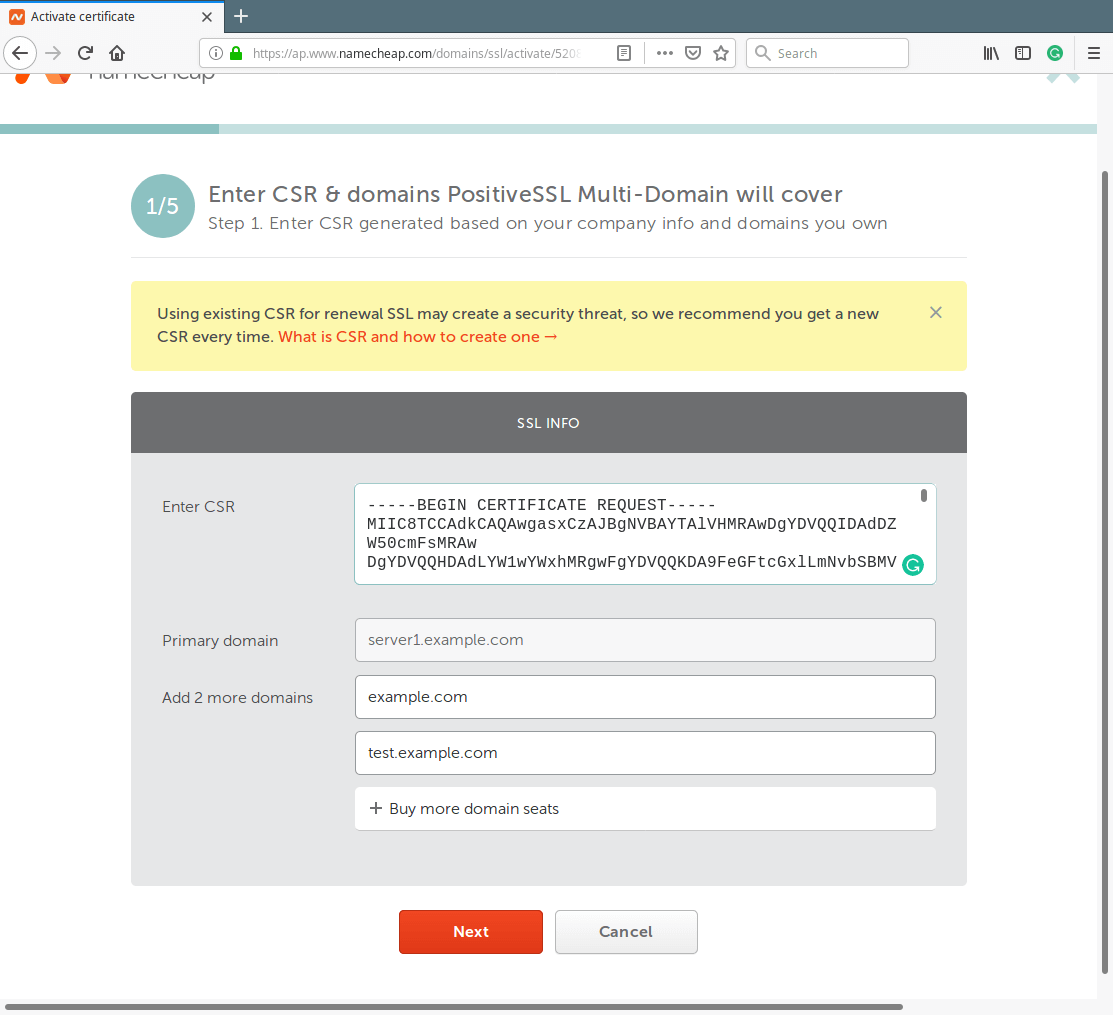
Then follow the rest of the instructions to initiate activation of your SSL certificate. For more information about OpenSSL command, see its man page:
$ man openssl
That’s all for now! Always remember that the first step to getting your own SSL certificate from a CA is to generate a CSR. Use the feedback form below to ask any questions or share your comments with us.

Great Linux Blog!