

Java is a cross-platform, object-oriented, and multipurpose programming language that is primarily used for creating mobile, web, and cloud applications. Additionally, you can use Java to create games, chatbots, enterprise applications, and a whole lot more.
To develop Java applications, you need to install an IDE (Integrated Development Environment). IntelliJ IDEA is a perfect example of an IDE that is designed specifically for the development of Java applications. However, you need to have Java installed beforehand. This can be provided by either the OpenJDK (Open Java Development Kit) or Oracle JDK (Oracle Development Kit).
[ You might also like: 27 Best IDEs for C/C++ Programming or Source Code Editors on Linux ]
OpenJDK is an open-source implementation of the Java SE. It’s a development environment that was initially created by Sun Microsystems and is currently sponsored and maintained by Oracle. OpenJDK constitutes the Java compiler, Java Runtime Environment (JRE), Java Virtual Machine (JVM), and Java class library.
At the time of writing this guide, the latest version of Java is Java 16, which is provided by OpenJDK 16. Join us as we examine how you can install Java 16 on Rocky Linux 8 (also works on AlmaLinux 8).
Installing Java (OpenJDK) in Rocky Linux
To get started, we need to confirm that Java is not yet installed by running the following command.
$ java --version

bash: java: command not found...
Next, we are going to download the OpenJDK 16 binary file which comes as a tarball file using the following curl command.
$ curl -O https://download.java.net/java/GA/jdk16.0.2/d4a915d82b4c4fbb9bde534da945d746/7/GPL/openjdk-16.0.2_linux-x64_bin.tar.gz
Once the download is complete, extract the compressed binary file.
$ tar -xvf openjdk-16.0.2_linux-x64_bin.tar.gz
Then move the decompressed folder to the /opt directory as shown.
$ sudo mv jdk-16.0.2 /opt
Thereafter, set the environment variables as shown.
$ export JAVA_HOME=/opt/jdk-16.0.2
$ export PATH=$PATH:$JAVA_HOME/bin
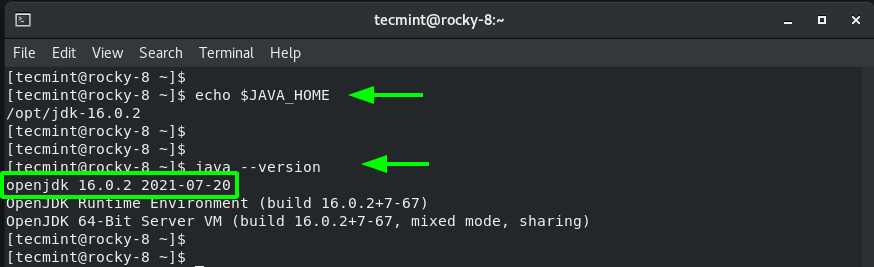
Java is now installed. To confirm the version installed, run the following commands:
$ echo $JAVA_HOME
$ java --version
Testing Java (OpenJDK) in Rocky Linux
To test if Java was correctly installed and working, we will code a simple Java program that adds two integers as follows.
$ sudo vim Hello.java
Paste the following lines of code and save the file.
public class Hello {

    public static void main(String[] args) {
        // Adds two numbers
        int x = 45;
        int y = 100;
        int z = x + y;
        System.out.println("Hello, the sum of the two numbers is: " +z);
    }

}
Compile the Java code;
$ javac Hello.java
Then run the Java code
$ java Hello
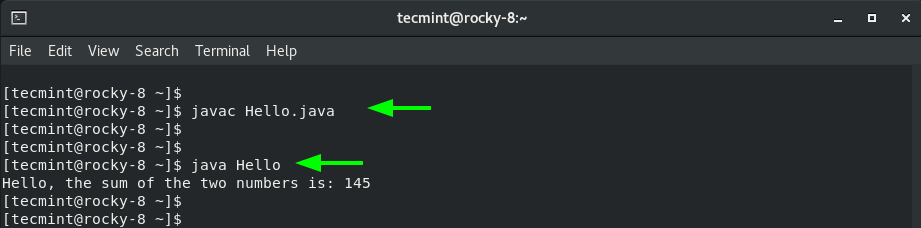
Great, all seems fine. We have successfully installed OpenJDK 16 and tested it by compiling and running a simple Java program in Rocky Linux.
