

This tutorial describes how to join an Ubuntu machine into a Samba4 Active Directory domain in order to authenticate AD accounts with local ACL for files and directories or to create and map volume shares for domain controller users (act a as file server).
Requirements:
Step 1: Initial Configurations to Join Ubuntu to Samba4 AD
1. Before starting to join an Ubuntu host into an Active Directory DC you need to assure that some services are configured properly on local machine.
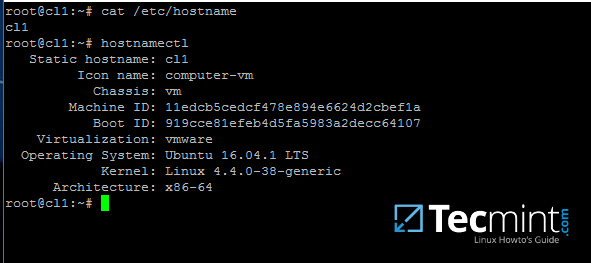
An important aspect of your machine represents the hostname. Setup a proper machine name before joining the domain with the help of hostnamectl command or by manually editing /etc/hostname file.
# hostnamectl set-hostname your_machine_short_name
# cat /etc/hostname
# hostnamectl
2. On the next step, open and manually edit your machine network settings with the proper IP configurations. The most important settings here are the DNS IP addresses which points back to your domain controller.
Edit /etc/network/interfaces file and add dns-nameservers statement with your proper AD IP addresses and domain name as illustrated on the below screenshot.

Also, make sure that the same DNS IP addresses and the domain name are added to /etc/resolv.conf file.
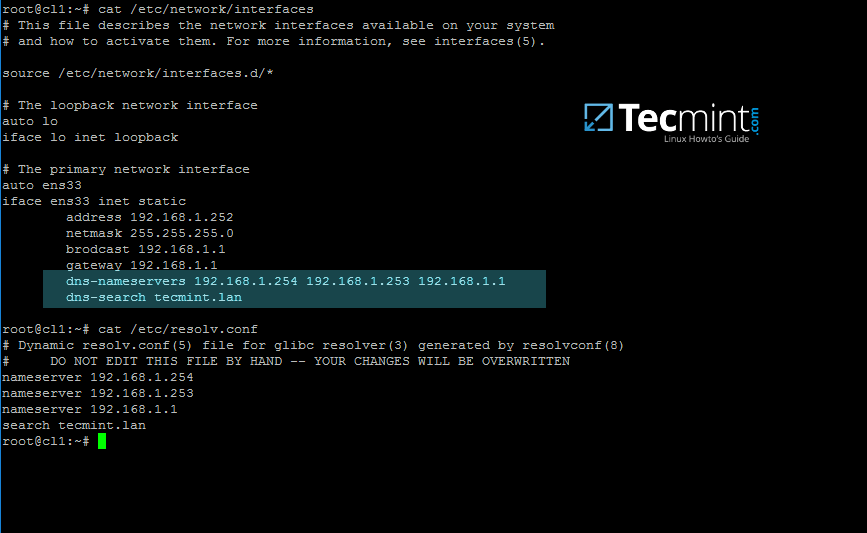
On the above screenshot, 192.168.1.254 and 192.168.1.253 are the IP addresses of the Samba4 AD DC and Tecmint.lan represents the name of the AD domain which will be queried by all machines integrated into realm.
3. Restart the network services or reboot the machine in order to apply the new network configurations. Issue a ping command against your domain name in order to test if DNS resolution is working as expected.
The AD DC should replay with its FQDN. In case you have configured a DHCP server in your network to automatically assign IP settings for your LAN hosts, make sure you add AD DC IP addresses to the DHCP server DNS configurations.
# systemctl restart networking.service
# ping -c2 your_domain_name
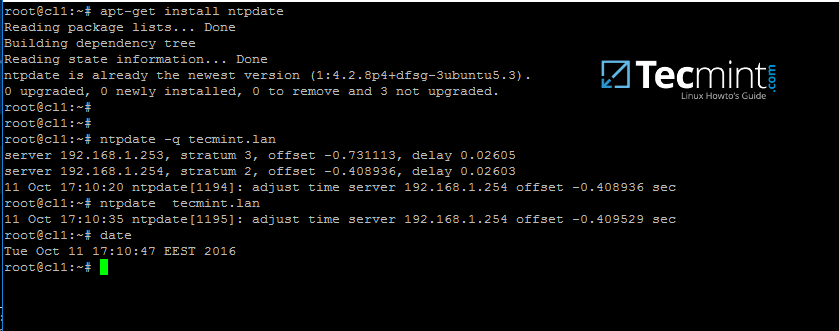
4. The last important configuration required is represented by time synchronization. Install ntpdate package, query and sync time with the AD DC by issuing the below commands.
$ sudo apt-get install ntpdate
$ sudo ntpdate -q your_domain_name
$ sudo ntpdate your_domain_name
5. On the next step install the software required by Ubuntu machine to be fully integrated into the domain by running the below command.
$ sudo apt-get install samba krb5-config krb5-user winbind libpam-winbind libnss-winbind

While the Kerberos packages are installing you should be asked to enter the name of your default realm. Use the name of your domain with uppercases and press Enter key to continue the installation.

6. After all packages finish installing, test Kerberos authentication against an AD administrative account and list the ticket by issuing the below commands.
# kinit ad_admin_user
# klist

Step 2: Join Ubuntu to Samba4 AD DC
7. The first step in integrating the Ubuntu machine into the Samba4 Active Directory domain is to edit Samba configuration file.
Backup the default configuration file of Samba, provided by the package manager, in order to start with a clean configuration by running the following commands.
# mv /etc/samba/smb.conf /etc/samba/smb.conf.initial
# nano /etc/samba/smb.conf
On the new Samba configuration file add the below lines:
[global]
        workgroup = TECMINT
        realm = TECMINT.LAN
        netbios name = ubuntu
        security = ADS
        dns forwarder = 192.168.1.1

idmap config * : backend = tdb
idmap config *:range = 50000-1000000

   template homedir = /home/%D/%U
   template shell = /bin/bash
   winbind use default domain = true
   winbind offline logon = false
   winbind nss info = rfc2307
   winbind enum users = yes
   winbind enum groups = yes

  vfs objects = acl_xattr
  map acl inherit = Yes
  store dos attributes = Yes
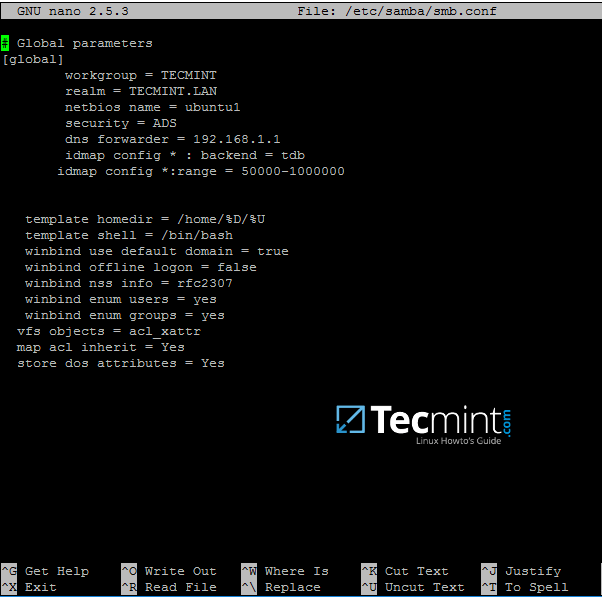
Replace workgroup, realm, netbios name and dns forwarder variables with your own custom settings.
The winbind use default domain parameter causes winbind service to treat any unqualified AD usernames as users of the AD. You should omit this parameter if you have local system accounts names which overlap AD accounts.
8. Now you should restart all samba daemons and stop and remove unnecessary services and enable samba services system-wide by issuing the below commands.
$ sudo systemctl restart smbd nmbd winbind
$ sudo systemctl stop samba-ad-dc
$ sudo systemctl enable smbd nmbd winbind
9. Join Ubuntu machine to Samba4 AD DC by issuing the following command. Use the name of an AD DC account with administrator privileges in order for the binding to realm to work as expected.
$ sudo net ads join -U ad_admin_user
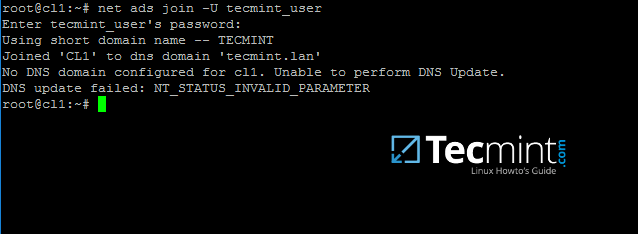
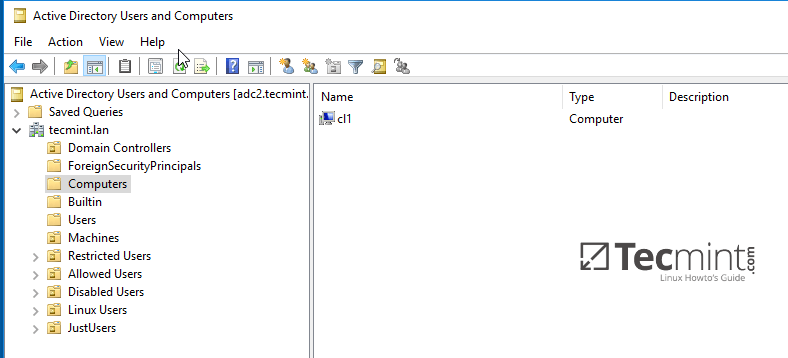
10. From a Windows machine with RSAT tools installed you can open AD UC and navigate to Computers container. Here, your Ubuntu joined machine should be listed.
Step 3: Configure AD Accounts Authentication
11. In order to perform authentication for AD accounts on the local machine, you need to modify some services and files on the local machine.
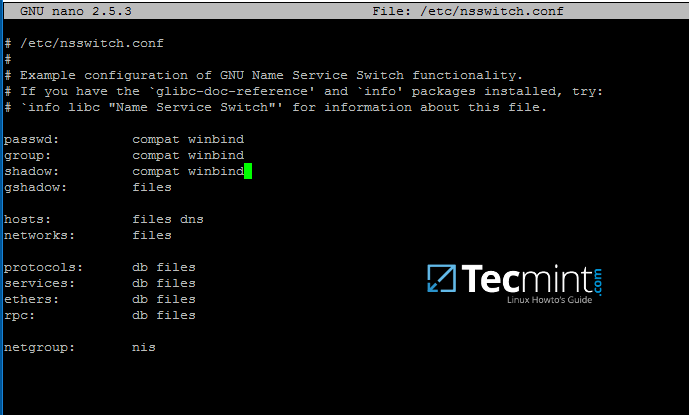
First, open and edit The Name Service Switch (NSS) configuration file.
$ sudo nano /etc/nsswitch.conf
Next append winbind value for passwd and group lines as illustrated on the below excerpt.
passwd:         compat winbind
group:          compat winbind
12. In order to test if the Ubuntu machine was successfully integrated to realm run wbinfo command to list domain accounts and groups.
$ wbinfo -u
$ wbinfo -g

13. Also, check Winbind nsswitch module by issuing the getent command and pipe the results through a filter such as grep to narrow the output only for specific domain users or groups.
$ sudo getent passwd| grep your_domain_user
$ sudo getent group|grep 'domain admins'

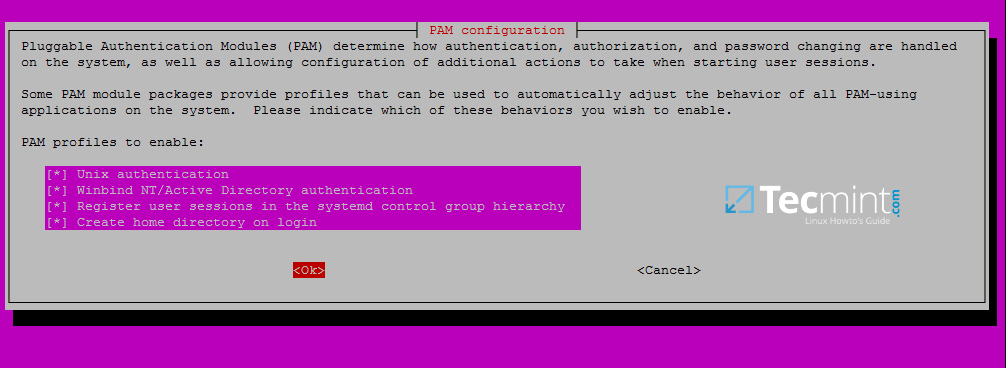
14. In order to authenticate on Ubuntu machine with domain accounts you need to run pam-auth-update command with root privileges and add all the entries required for winbind service and to automatically create home directories for each domain account at the first login.
Check all entries by pressing [space] key and hit ok to apply configuration.
$ sudo pam-auth-update
15. On Debian systems you need to manually edit /etc/pam.d/common-account file and the following line in order to automatically create homes for authenticated domain users.
session required pam_mkhomedir.so skel=/etc/skel/ umask=0022
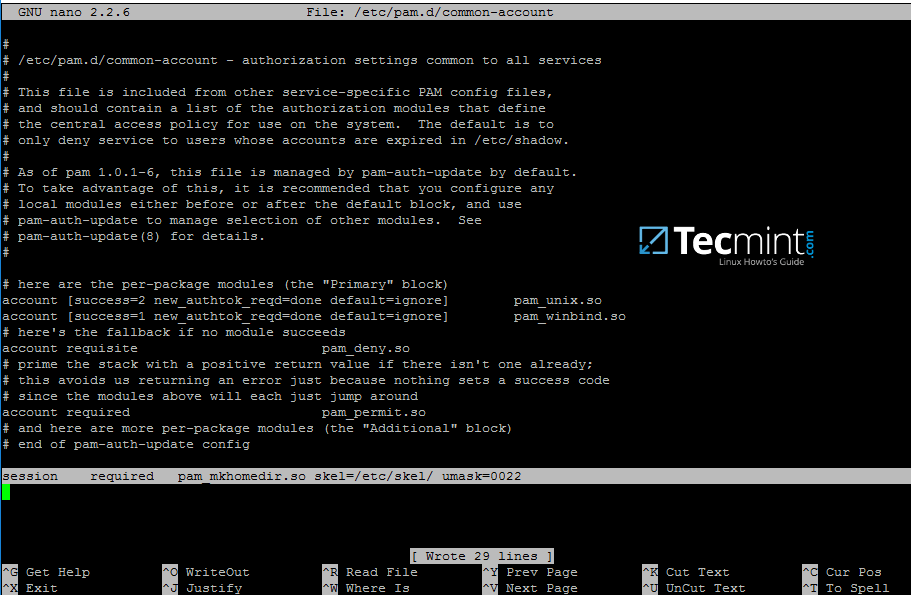
16. In order for Active Directory users to be able to change password from command line in Linux open /etc/pam.d/common-password file and remove the use_authtok statement from password line to finally look as on the below excerpt.
password [success=1 default=ignore] pam_winbind.so try_first_pass

17. To authenticate on Ubuntu host with a Samba4 AD account use the domain username parameter after su – command. Run id command to get extra info about the AD account.
$ su - your_ad_user

Use pwd command to see your domain user current directory and passwd command if you want to change password.
18. To use a domain account with root privileges on your Ubuntu machine, you need to add the AD username to the sudo system group by issuing the below command:
$ sudo usermod -aG sudo your_domain_user
Login to Ubuntu with the domain account and update your system by running apt-get update command to check if the domain user has root privileges.

19. To add root privileges for a domain group, open end edit /etc/sudoers file using visudo command and add the following line as illustrated on the below screenshot.
%YOUR_DOMAIN\\your_domain\ group ALL=(ALL:ALL) ALL

Use backslashes to escape spaces contained into your domain group name or to escape the first backslash. In the above example the domain group for TECMINT realm is named “domain admins”.
The preceding percent sign (%) symbol indicates that we are referring to a group, not a username.
20. In case you are running the graphical version of Ubuntu and you want to login on the system with a domain user, you need to modify LightDM display manager by editing /usr/share/lightdm/lightdm.conf.d/50-ubuntu.conf file, add the following lines and reboot the machine to reflect changes.
greeter-show-manual-login=true
greeter-hide-users=true
It should now be able to perform logins on Ubuntu Desktop with a domain account using either your_domain_username or your_domain_username@your_domain.tld or your_domain\your_domain_username format.







Hi, thanks for sharing the articles.
I have followed the instructions, and it failed to join the samba4 domain.
Error is kinit succeeded but ads_sasl_spnego_gensec_bind(KRB5) failed: Invalid credentials
Failed to join domain: failed to connect to AD: Invalid credentials
In wireshark, client requests with LDAP bindrequest SASL and server replied BindResponse :
bindResponse(4) invalidCredentials (SASL:[GSS-SPNEGO]: NT_STATUS_LOGON_FAILURE)
Do you have any ideas why it failed? thanks in advance!
El
There is a bug in this tutorial.
If you change /etc/nsswitch.conf same as on the picture you can lose root control on your ubuntu.
Hi,
Thanks for sharing this useful information. My question is, if ubuntu or Linux machine is using SSH keys (Public / Private keys) to access the ubuntu machine, instead of a password, then how do we authenticate or integrate Ubuntu machine into a windows Ad server.
Regards;
Manoj Gupta
Thanks for such a great tutorial!
I have a question that bothers me a lot and I haven’t found anything clear about it – how to force Samba to automatically update DNS records of my client Ubuntu machines? I get DNS_UPDATE_FAILED when trying to join a machine with DHCP address, but join works fine if I set up information in /etc/hosts where I set “ip_address fqdn” of a machine.
But if I change the IP address of a client machine, Samba doesn’t know anything about it, until I add new A record manually through “samba-tool dns update“.
Hello, I have followed this article, but facing a problem,
The ubuntu gets joined to the domain,
wbinfo -uandwbinfo -gdoesn’t return any results, I learned that this is a known bug.My issue is, now I can’t log in to my ubuntu machine, every time I try, It gives an error, “Sorry, that didn’t work, please try again”.
Hi Ahmed Majid
thanks for info
Thanks Matei for the great tutorial, when i reached step 12 and try to run the following
wbinfo -uandwbinfo -gto retrieve the AD domain users and groups the commands won’t run and i received an error instead, the solution to this problem is that you need to restart the winbind service with the following command:and run the following command to check if the service is running:
it took 30 seconds to be restarted on my system so be patient.
hope this will help someone :)
Hello, Please i need help..
I followed this tutorial and have successfully added twenty machines running Ubuntu 16.04 to my ad domain and users in the domain can now login to these machines using their ad credentials. The problem now is that the domain user folders (Documents, Desktop, Downloads,…) are not synched across these machines.
For example, if ad\userA logged in to the first machine and created a folder named Folder1 in his Documents folder, then logged in to the second machine he won’t find Folder1 in his Documents folder.
So I wonder how I the domain user account folders can be automatically synched when a user login to any of the other domain connected machines? Any advice please?
All these steps just to add a machine to a domain? One error along the way and its a down a rabbit hole. Keep in mind we all have different distro. This is really frustrating. A part from Linux being free, whats the point of having a domain controlled network if i have to figure 60 computers manually, with all the errors associated?
I have successfully managed to add a windows machine to a Ubuntu domain server yet i cant do the same to a Linux machine. I have looked around and still cant a find a good GUI to use.
I’ve given up. I’d rather buy windows and make life easier than this constant medieval way.
So I got the packages on Step 5 to install but I never get the screen for the Kerberos Realm Configuration. Is there a way to re-run it?
Hi Thanks for this amazing Tutorial. It worked perfectly. I have a small issue though i can’t reset the user password. I am getting below error. I have try thousand passwords.
manoj@testuser1:~$ passwd
Changing password for manoj
(current) NT password:
Enter new NT password:
Retype new NT password:
The password of this user is too recent to change
Your password must be at least 7 characters; cannot repeat any of your previous 24 passwords; must contain capitals, numerals or punctuation; and cannot contain your account or full name; Please type a different password. Type a password which meets these requirements in both text boxes.
passwd: Authentication token manipulation error
passwd: password unchanged
manoj@testuser1:~$
I’ve got the same problem, is there any solution ?
It works successfully and users can login to their AD accounts but then when they try to open Firefox they get this error message “your firefox profile cannot be loaded. it may be missing or inaccessible” any advice?
Followed instructions on Linux Mint 18.1 and I’m able to su to a domain user and authenticate with the domain password and user is created, but no home directory is created.
I added the suggested line to /etc/pam.d/common-account. This is the only thing that doesn’t seem to work, I can see all the AD users and groups, but the lack of a home dir causes other problems. Any ideas why no home dir creation?
Thank you for the instructions! Everything works.
I can’t start the winbind after configuring the smb.confg, need help please..
TOPOLOGY: 192.168.1.21 [ lab.mis ] [ testing(ubununt18) ] 172.16.1.231 smb.conf: [global] workgroup = LAB realm = LAB.MIS netbios name = testing security = ADS dns forwarder = 192.168.1.254 # idmap config * : backend = tdb idmap config *:range = 50000-1000000 template homedir = /home/%D/%U template shell = /bin/bash winbind use default domain = true winbind offline logon = false winbind nss info = rfc2307 winbind enum users = yes winbind enum groups = yes vfs objects = acl_xattr map acl inherit = Yes store dos attributes = Yes ____________________________________________________________ winbind status ● winbind.service - Samba Winbind Daemon Loaded: loaded (/lib/systemd/system/winbind.service; enabled; vendor preset: enabled) Active: failed (Result: exit-code) since Thu 2018-09-20 13:37:12 +08; 9min ago Docs: man:winbindd(8) man:samba(7) man:smb.conf(5) Process: 2217 ExecStart=/usr/sbin/winbindd --foreground --no-process-group $WINBINDOPTIONS (code=exited, status=1/FAILURE) Main PID: 2217 (code=exited, status=1/FAILURE) Sep 20 13:37:11 testing systemd[1]: Starting Samba Winbind Daemon... Sep 20 13:37:12 testing winbindd[2217]: [2018/09/20 13:37:12.021429, 0] ../source3/winbindd/winbindd_cache.c:3170(initialize_winbindd_cache) Sep 20 13:37:12 testing winbindd[2217]: initialize_winbindd_cache: clearing cache and re-creating with version number 2 Sep 20 13:37:12 testing winbindd[2217]: [2018/09/20 13:37:12.023319, 0] ../source3/winbindd/winbindd_util.c:891(init_domain_list) Sep 20 13:37:12 testing winbindd[2217]: Could not fetch our SID - did we join? Sep 20 13:37:12 testing winbindd[2217]: [2018/09/20 13:37:12.023620, 0] ../source3/winbindd/winbindd.c:1366(winbindd_register_handlers) Sep 20 13:37:12 testing winbindd[2217]: unable to initialize domain list Sep 20 13:37:12 testing systemd[1]: winbind.service: Main process exited, code=exited, status=1/FAILURE Sep 20 13:37:12 testing systemd[1]: winbind.service: Failed with result 'exit-code'. Sep 20 13:37:12 testing systemd[1]: Failed to start Samba Winbind Daemon.Hi,
I reinstalled libnss and libpam and winbind packages. from then on the ownership permissions are changed instead of domain users it shows “rtcarchivingdomainservices“. Could anyone please help me on this?
Or do let me know how to unjoin from domain without affecting the permissions for previous users in that machine.
Thanks,
Shiva
When I attempt to
suto a domain user I get an Authentication failure. Everything else up to that point works with no issues. Even went back through everything and still have the same errorI have three possibilities.
1) same user name local and Active Directory. I had issues when I tried to do that when I had jcompton as a local and AD user, with different passwords; PAM got confused, I think.
2) pam.d configuration issue. Either the common-password file or the pam-auth-update would be my guess.
3) restart services (or reboot) and see if that works.
Hi!
Thank you very much for this tutorial! It was helped me a LOT! (sorry English is not my native language).
I do everything what you writes here, but i have a little problem.
When i log in an AD user in Ubuntu (16.04) i have this error message:
tesztelek@UbuntoAD:/etc$ su – tesztelek
Password:
groups: cannot find name for 50011 groupID (it’s not the original message because I’m using different language than English, but something similar)
Then is run getent group command:
Then i got a list all the groups and IDs (Linux and AD as well)
The 50011 Group is missing, But 50010 and 50012 is on the list. What is it 50011 Group? And how can i figure out how to repair it?
It’s seems everything is working well except this group…
50011 would be a group in Active Directory (that is what this line means: idmap config *:range = 50000-1000000) The fact that you are able to get the list of all groups and that group is not shown means that your user is listed as a member of an AD group that is no longer there.
My advice to you would be to check your user’s group membership in Active Directory vs. all available groups (that list you get from getent group command) and remove that particular group from your user’s membership; assuming that group truly IS no longer there.
Cheers!
I got an error when I edited /etc/sudoers as %TEST\\domain\ admins ALL=(ALL:ALL) ALL.
linuxadmin is not in the sudoers file. This incident will be reported.
Then i ran getent group | grep -i admin
Then I added the entry as:
It resolved the error.
Hi,
The guide seems pretty useful.
But I am not able to connect my Ubuntu 16.04 machine and 18.04 machine to the samba ad.
I am have made the changes in the network ip4 connections with dns server as my domain controller and also set the domain search
But i am not able to ping my domain using ping -c2 my_domain
Can you please help me with the same.
Hi,
I am able to resolve the above issue.
Followed the following link :
https://askubuntu.com/questions/507649/ubuntu-can-not-ping-host-name-but-can-ping-ip
Needed to install libnss-winbind, and thereafter made the changes in /etc/nsswitch.conf.
I am able to complete the process for registering the machine with the SAMBA AD.
But at the end I am not able to login with command su – domain_user_id.
I am now getting error as:
I think this is the last step remaining for me to successfully login with SAMBA AD domain controller.
Can any body please help me in this regard.
Thanks a ton in advance.
Abhinav Aggarwal
Abhinav,
I have been adding member workstations on mint (Ubuntu 16.04 based) by, instead of changing the interfaces file just adding dns info into network manager (with GUI) and rebooting. If that is your set up as well, that might work better for you.
I just got done adding another Mint machine to the network, and had a devil of a time because it kept saying it couldn’t find /usr/lib/x86_64-linux-gnu/samba/ldb when trying to join the domain.
I finally found (Thank you SAMBA Mail list!) that it is missing the samba-dsdb-modules. They need installed apt install samba-dsdb-modules. If you need the VFS modules, apt install samba-vfs-modules. Apparently this was a packaging bug at Debian? This may have been fixed since then, but it hadn’t trickled downstream to Mint yet.
I thought I was going crazy because I’d added several to the domain, and then suddenly it stopped working.
As a side note, this works pretty well on Linux Mint, but the lightdm information needs to be in /etc/lightdm/lightdm.conf.
Here’s mine:
Thanks again for putting this up, Matei!
Hi, This works all except that when i try getent doesn’t show AD users.
Do i need to change something else.
Thanks
Regards
Same problem here, does anyone has a solution ?
I first checked nsswitch.conf to make sure I didn’t screw anything up, shut down, and restarted the next day (it was quitting time). Worked well after that. I figure if you restart and re-enable various samba services the same thing would probably work. I just needed to head home and that was a great stopping point. LOL
Same here,
worked really well :)
Hi, nice job, but i’m getting trouble with GID and UID, not the same as the AD, and that generates that AD Shared folders have wrong permissions.
Try to add the below lines in samba server and on clients:
You need to generate the SSH key on the client and copy the public key on the server with ssh-copy-id command. But only if your AD user has permissions to authenticate on the domain server. Is there any reason why a AD user must authenticate on server-side via SSH? The scope of a AD central authentication server is to provide and verify the credentials required by a account to login on the local box.
If there is any way to achieve ssh public key authentication between AD and the Ubuntu, I have followed your tutorial and it is great but it achieves only password authentication, not by public keys stored on AD.
Sorry for my poor English.
I followed the article, and everything is right. I success to join my AD and can use AD account as Ubuntu account. But when I want to share a folder, I can see the folder but I can’t connect to the folder.
On Windows, it gets ERROR 53「The network path was not found」.
On ubuntu, it gets 「 NT_STATUS_BAD_NETWORK_NAME」.
Here is my smb.conf configuration.
Sorry, I find what is wrong and now it’s work. Thanks.
Hi, I am not able to get this samba folder work.
Here is my smb.conf
Be aware that Linux is case sensitive. BACKUP and backup are different names through filesystem.
This was freakin awesome! Thank you!
It worked well up to the net ads join, which came back with not having a record in my windows Server 2008r2 DNS server. It refused to dynamically update. Finally, I created an A record for the linux box, and it ran like a champ!
I’ve been looking for how to do this for ages, and finally a step by step that I can use out of the box.
I have the Linux machine added to AD and everything up till step 17 was flawless, but for whatever reason I get:
I do not know where to go from here. Any assistance would be appreciated.
The Linux machine was not correctly added into samba realm. Verify DNS resolution also to see if you can reach the domain controller and firewall rules.
Hi,
When I am trying to test if machine was integrated to realm with wbinfo command I get:
could not obtain winbind interface details: WBC_ERR_WINBIND_NOT_AVAILABLE
could not obtain winbind domain name!
Error looking up domain users
Hello, problem in step 9:
Error:
# net ads join -U Administrator
Enter Administrator’s password:
kinit succeeded but ads_sasl_spnego_gensec_bind (KRB5) failed: Invalid credentials
Failed to join domain: failed to connect to AD: Invalid credentials
The Administrator password in AD is correct. On windows it works correctly. Has anyone had this problem? How can I solve. I noticed that it can be pane in my AD (Samba 4).
Hi – very comprehensive, clear and useful/usable instructions, appreciate the time and effort going in to this.
I have a query on password which I’d appreciate some help on if it’s appropriate in this forum (if not, could someone point me in the right direction please?):
I’m setting up a UBUNTU 16.04LTS server system running a database app and I want users to connect from their desktops using PuTTY in SSH mode using their windows ADS credentials. I can tell PuTTY to connect using the System Username option and the terminal prompt comes up with something like “Using username “FredBloggs” followed by “FredBloogs@[desktop IP]’s password:”
Any idea how I can get this to use the user’s Windows password (we can safely assume they’ve logged in to Windows successfully with their password so it’s not necessary to type it in again).
Many thanks
Malc
Integrate the database server into the AD and use the AD credentials to login to the database server via SSH. You want to automate SSH logins via Putty with AD logged in accounts in Windows? In Windows 10 I think it can be done via Bash shell scripts edited under windows with Windows Subsystem for Linux. In windows 7 you should install Cygwin environment and automate the process from there.
I am unable to change domain user password. All other things work fine. Able to login and have sudo rights to domain admins but unable to change password. why this cause? when login with domain user and do a passwd the following error occurs.
passwd: Authentication token manipulation error
passwd: password unchanged
how to fix this?
Have You tried to remove “use_authtok” option from /etc/pam.d/common-account as detailed in point 15?
yes i have removed it but i am not able to change password.
any solution Matei?
Seems to be a bug with pam authentication modules on the client side. I suggest you change the domain password complexity level on the DC with the following commands and check if the problem solves.
samba-tool domain passwordsettings show
samba-tool domain passwordsettings -h
ERROR(ldb): uncaught exception – ldb_search: invalid basedn ‘(null)’
File “/usr/lib/python2.7/dist-packages/samba/netcmd/__init__.py”, line 175, in _run
return self.run(*args, **kwargs)
File “/usr/lib/python2.7/dist-packages/samba/netcmd/domain.py”, line 1150, in run
“lockOutObservationWindow”])
this error occurred when i ran samba-tool domain passwordsettings show .
Hi, after a day of issues, it seems to an cifs mount from the AD is fighting with the ldap implementation.
I’m using the following line in /etc/fstab
//172.19.32.50/Data /media/Data cifs credentials=/home/pcoussem/.smbcredentials_general,_netdev,iocharset=utf8,sec=ntlm,rw,file_mode=0777,dir_mode=0777 0 0
This share should be accessible for all user (local and ldap). I added a symlink to the home drives of all user (actually in skeleton), but this seems not to work properly (browsing files in folders besides the symlink hangs).
How can I solve this?
Edit samba configuration file and allow symlink access with the below parameters set:
[global]
allow insecure wide links = yes
[share]
follow symlinks = yes
wide links = yes
System users overlap domain users? All? You could try to log in with the domain counterpart, eg: domain\domain_user or [email protected].
But make sure the statement winbind use default domain is set to false in smb.conf.
Domain policy don’t apply in Linux. You could add some scripts in /etc/skel/ directory to manage some stuff.
Indeed that worked. Thanks for prompt reply!
works like a charm… (even for an LDAP noob like me)
Hi,
Works as a charm.
I have one issue nonetheless. My current server was already in use for some time and has already some users, to make thing worse, they have the same name as the LDAP users (which made sense at the creation time).
Is there a way to specify to use the ldap account during login? Otherwise I’m always redirected to existing account?
Could the existing accounts and the ldap accounts be linked (e.g. the same home drive?)
I would also like to run a script when a home for an ldap users is created (basically, create some symlinks, add a printer). Where and how should this be defined? Should/could this be setup on the AD host, or should this be done on the integrated server?
Thanks.
Hi
I solved it.
FYI:
samba setting: winbind use default domain = true, made the difference when having multiple accounts already on the server
I changed the skeleton setup to fix the symlink.
I meet with is that I try to connect to the ace on the client Ubuntu to ldap with lightdm it tells me that the word Pass is expired but it still logs in And it proposes me no changed the password
Thank you for this tutorial it is very easy to use bravo in any case the only problem that I meet with is that I try to connect to the ace on the client with lightdm it tells me that the word Pass is expired but it still logs in And it proposes me no changed the password
Have you tried to connect from command line and change the domain account password?
I found that running Ubuntu 16.04 that step 19 needs to be modified.
Instead of:
%YOUR_DOMAIN\\your_domain\ group ALL=(ALL:ALL) ALL
I had to put in:
%your_domain\ group ALL=(ALL:ALL) ALL
doesn’t’ work in command line password change is okay, but in Lightdm i haven’t change password dialog and i cant connected to client ad with old password.
Hi, I cannot add a Linux machine to my domain. I can do the management of my SAMBA4 as you explained at part 1,2,3, but now when I try to add a Linux desktop my ADC is block.
I received this:
My AD users are not sudoers, what i did wrong , I cannot find the “Domain” on local groups of Ubuntu.
What’s the wbinfo command ouput?
What command do you want? Wbinfo -u, wbinfo -g ??
Useful tidbit: you don’t *have* to (and probably shouldn’t without good reason) use Domain Admin privileges to join a member to the domain (net ads join) despite the poor error message given by the net tool.
Delegate the ability to create objects in the Computers subdir of your AD tree to a “joiner” user using MS RSAT tools. See: https://community.spiceworks.com/topic/95291-minimum-permission-needed-to-join-computer-to-domain
Following this guide on Debian Stretch, Winbind would fail to start.
Instead, syslog was saying “Could not fetch our SID – did we join?” and “unable to initialize domain list”.
I had to edit /etc/nsswitch.conf and add “wins” to “hosts”, i.e: “hosts: files dns wins”
Apparently there was some kind of name resolution problem, even though my resolv.conf was pointing to the domain controller host (running Samba).
Unfortunately, I’ve yet to figure out why “net ads join -U Administrator” is not working. Kinit and klist work, and “net ads join” accepts the password but after that just exits with
“Failed to join domain: failed to connect to AD: No results returned”
Ok, “No results returned” mystery finally solved: there was slapd (OpenLDAP) running on the same host, so apparently “net ads join” was interrogating it, and obviously getting no results. Uninstalling slapd fixed it.
Yes, Samba has its own LDAP database built-in. Never configure Samba4 as a domain controller with LDAP service installed on the same host.
Note though that it is possible (and probably advisable for very large installations) to use a separate OpenLDAP server as back-end for Samba Domain Controllers. I haven’t tried it myself, though, but I suspect in such a case the Samba DC will still serve LDAP and the OpenLDAP server will have to be on a separate machine (or set of ports).
If I may: it is not the /etc/pam.d/common-account file that should be used but rather /etc/pam.d/common-session about the pam_mkhomedir.so module.
Is it possible to do this same setup( AD+DNS ) on Centos7..?
Excellent article and really very clear. Why not use the SSSD daemon for your article? What do you think are the advantages and disadvantages of authentication over SSSD compared to Winbind? Thank you for your reply.