

Keeping your Linux system up-to-date is a very critical task, especially when it comes to installing security updates. This ensures that your system stays safe, stable, and keeps you on top of the latest security threats.
In this short and precise article, we will explain how to install security system updates on a CentOS 8 Linux system. We will show how to check for system updates (for all installed packages), updates for a specific package, or security updates only. We will also look at how to install updates either for a specific package, for all installed packages, or security updates only.
First, log into your system and open a terminal window, or if it is a remote system, access it via ssh. And before you move any further, take note of your the current kernel version on your system:
# uname -r

Checking Security Updates for CentOS 8 Server
To check if there are any updates available, issue the following command on the command prompt. This command non-interactively checks whether there are any updates are available for all packages on your system.
# dnf check-update
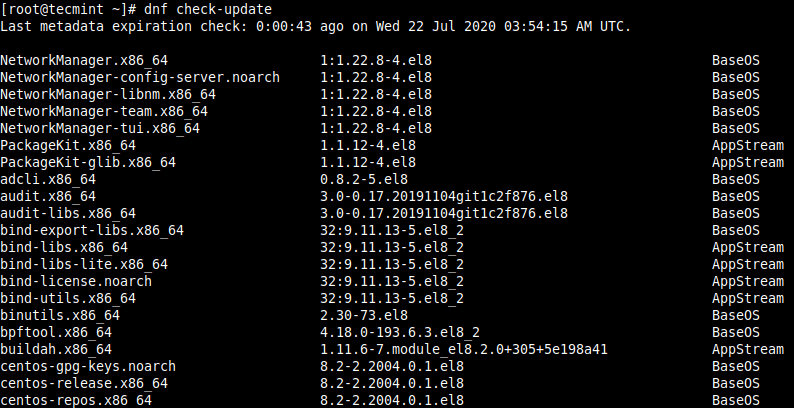
If you want, you can check updates for a specific package, provide the package name as shown.
# dnf check-update cockpit

Checking Security Updates for Installed Software Packages
You can determine if there are security-related updates or notices available, using the following command. It will show a summary of security notices displaying the number of updates in each category. From the screenshot below, there is 1 security update available for us to install on the test system.
# dnf updateinfo

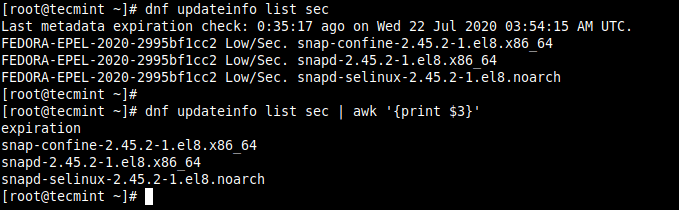
To show the actual number of security packages with updates for the system, run the command that follows. Although there is only 1 security update as indicated in the output of the previous command, the actual number of security packages is 3 because the packages are related to each other:
# dnf updateinfo list sec
OR
# dnf updateinfo list sec | awk '{print $3}'
Updating a Single Package on CentOS 8
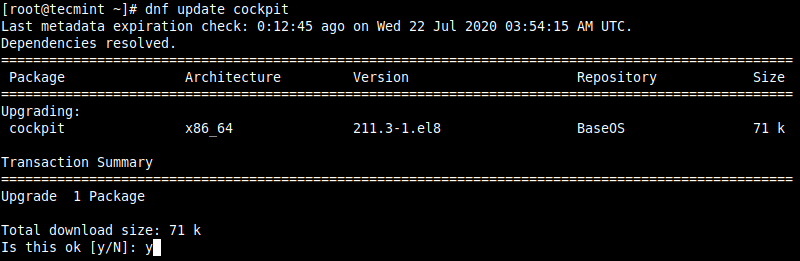
After checking for updates, if there is any available updates, you can install it. To install updates for a single package, issue the following command (replace the cockpit with the package name):
# dnf check-update cockpit
In the same manner, you can also update a group of packages. For example, to update your development tools, run the following command.
# dnf group update “Development Tools”
Updating CentOS 8 System Packages
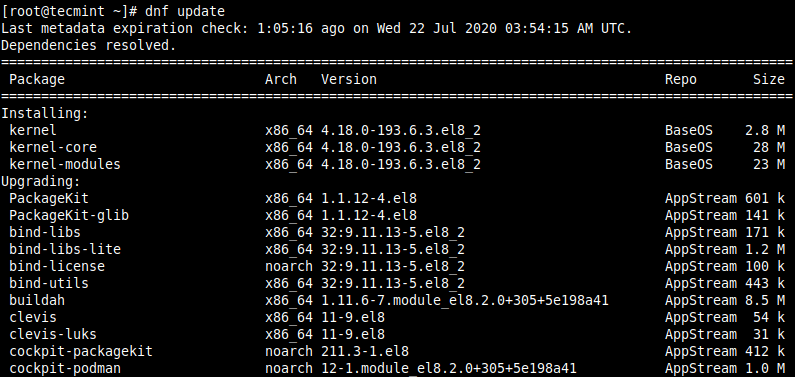
Now to update all of your installed packages to the latest versions, run the following command. Note that this may not be ideal in a production environment, sometimes updates may break your system – note of the next section:
# dnf update
Installing Security Updates Only on CentOS 8
As mentioned above, running a system-wide update of packages may not be ideal in a production environment. So, you can only install security updates to secure your system, as shown.
# dnf update --security
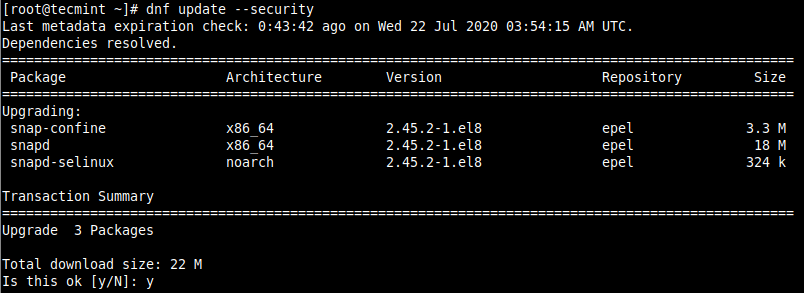
You can also install security updates automatically using our following guide.
That’s all for now! Always know how to protect yourself from known vulnerabilities. And it all starts with keeping your Linux system up-to-date. If you have any questions or comments to share, reach us via the comment section below.

Hello,
I am completely new to Linux and CentOS. Could you explain why my USB keyboard gets disabled at step 2? I cannot complete the CentOS installation because of that.
Thank you for your help.
hello Ravi,
i’m having trouble installing CEntOS 6.3. i have just enrolled for the course of LINUX , and as our instructor guided, we didn’t have to go for configuring network and at ‘step 13’ we chose ‘Create Custom Layout’, then after clicking on ‘Next’ tab the window appears with following data
sda1 (ntfs) 100MB
sda2 (ntfs) 102410MB
sda3 (ntfs) 204809MB
sda4 (ntfs) 100616MB
Free 69002MB
I select ‘Free’ in this step , then click ‘Create’ tab.
A window named ‘Standard Partition’ appears and then again click on ‘Create’ tab
Then the ‘Add Partition’ window arrives, there I select as below for the first selection:
Mount Type : /
File System Type : ext4
Allowable Drives : (The name of my HDD with its size showing as sda with check marked but disabled)
Size(MB) : 40000
after this when i click OK the error msg appears saying ‘Could not allocate requested partitions: not enough free space on disks’. why this error msg appears ? when we tried to install in our classroom pc there was no such trouble.
my default OS is Windows 7 Professional 64-bit
FROM DISK MANAGEMENT DATA
(C) Healthy (Primary ….) 65.06GB free of Capacity 100.01GB
(D) Healthy (Primary ) 25.17GB free of Capacity 200.01GB
(E) Healthy (Primary ) 34.11GB free of Capacity 98.26GB
(System Reserved) Healthy (Primary ) 33MB free of Capacity 100MB
Unallocated __________________________________________________________ 67.38GB
do i have to increase the unallocated space ? 67.38GB is not enough for CEntOS 6.3 ?
@yasmeen,
Please follow below instructions. First create /boot partition with size 300MB and then create swap partition as partition type Swap and then create / Partition and allocate all size..it will work..
sorry to let you know that it’s not working … may i have your e-mail id that i can send you some snaps of those steps which causing troubles during installation
Use contact us page to get in touch..
Hello Mr.Ravi
I managed to install CentOS well, but i want to use USB Modem to access internet without success, any help please.
Which USB Modem you using? can you name the product?
Hi sir,
I am completely new to all these concepts… please tell me where to place thse iso files after downloading them so that while booting system detects it?? and aslo how to identify the vacant drives from the names hda hdb and so on??
After downloading filees make a bootable DVD or USB stick of these files and boot the system using bootable media.
Hi Ravi,
Very nice presentation. I am looking similar presentation or documents for configuring Centos desktop with Centos server with Domain, Active directory config, DNS server. I want to use the server for user authentication purpose.
Thanks and Regards,
Srini.
Yes, surely will try to write on the request article, till then stay tuned..
I have installed CentOS 6.2. But at the time of Package selection, only default are checked. But now i want to select other packages too.
How to do the same. I have CentOS installation CD
Please insert the CentOS installation CD and install software packages from Software Selection application, you will find under Application menu somewhere.
Hi
i am using windows 8 with VMware 6 and installed centos 6.4 with 768 MB memory.
i am very new to Linux…but successfully installed CentOS.
I have following doubts please clarify
1) when i boot my centOS i am just getting Command line with Username and password. i can log in no problem with that. How can i get a GUI display???
2) now on this CentOS i want to install asterisk 3.0 How can i acheive that ?? i have Asterisk setup already downloaded in ISO image…Please guide
Regards
Sandeep
For your first point, run the following command to get GUI.
For second point, search asterisk article using our search form at the top right corner.
Very nice tutorial :) Thanks
hi guys,
i am very much interested to learn the linux, so currently i’m using Centos flavour in linux while practising the Centos i’m getting lot of doubts in my dialy practical scenario, so here my doubt is that when i’m creating partitions automatically it’s taking 4 partitions . so could anyone please explain why its taking 4 partitions when i’m creating only one ???
Dear sirs,
thanks very nice for your tutorial ;
But I want to know Difference oracle linux with centos.
and how clustering-system on linux centos?
thank you very much
After reading this installation guide,am now thinking of moving away from Ubuntu Desktop to CentOS as my primary OS.
I am not getting the screen from #19 to customize the install when using a i386 live CD or live DVD.
Thank you so much. Now, I have installed CentOS 6.4 successfully in my machine with dual boot.
i have windows8 on my laptop and i have installed centos in my laptop along with window8 but during my boot up it is not showing centos option please give tell me the solution
please help me.. my work is gone.. this centos is bullshit
!!!
What kind of help you looking for, can you describe here.
Till snapshot 22 my installation was correct. But dint get the login screen as shown in the snapshots. I tried ssh -X and startx commands but dint work.
here installing centos there default selection is “minimal” and this screen shot shown select a web server:” please remember ,that no need to select “minimal” r “web server”
here we have to select “DESKTOP” … that only select for gui coming on centos otherwise command mode only comming … thanking u ..
done upto step 22, after reboot following
black screen comes , says to login, i m able to root login,,
help to get rid of black screen
How much RAM you have?
I installed 6.4 in my desktop. when i start my PC after boot menu i lost my display.
Please tell me what i do?
What is amount of Memory given for CentOS
Try given atleast 1GB of RAM
I installed CentOS 6.4 x86_64. Installed apache over it. Provided fixed ip to the machine but the apache website is not accessible over LAN, is am I missing something?
Check firewall setting. If not allow in iptables. Verify doing telnet on port 80.
I am trying to download centos 6.3 from mirror web sites. However the directory is empty and it refers to the latest version 6 which is 6.4. Is version 6.3 deprecated and it is encouraged to use version 6.4 ? I am new to centos and I was a bit surprised that point releases are deprecated so fast.
Here is a web site example:
http://mirror.stanford.edu/yum/pub/centos/6.3/
Sam, may be that mirror outdated, we already provided download links for centos 6.3 ISO in the article. Please follow those links to download.
Ravi, I did check a couple of other sites and they were all the same. Thanks for the response and you folks have a helpful site.
my web server not suppert desktop why :(( giveing error
How much RAM you have?
I have xenserver 6.1 and installing centos 6.4 I can not get the gui on xencenter
I can connect through vnc but no console on xencenter
switch to graphical console grayed out
Hi
I was wondering if any one can let me know why I cant download CentOS 6.3 64 dvd ISO.
When I click the link It said ERRO and there is only a blank page.
Thank you
Sorry, the CentOS 6.3 download links were outdated and removed by CentOS team, due to new release of CentOS 6.4. I added new download links, please check.
i think the website is doing a great job. thanks</a
Very useful… Thanking you sir,
Helpful but Im doing the “minimal” install. I want a feeper understanding of CentOS so I can pass Linux certifications.
When installing CentOS on a Vitual Machine, do i need to do the partitioning just the usual way like we partition on the physical machine?
Yes! same way like we do on the physical machine.
Hey thanks for this tutorial. Will it apply for version 6? The part the confused me a little was the ‘wired tab’. I’m not sure if we need that. We need our set up to be used to format hard drives with Linux for Digital Cinema distribution and it will have a a CRU dock attached with a eSata connection to be used as a network drive. It’s a new machine and already has 7 32bit installed on it. Should we keep that on a parition? It will not be connected to the internet, only by the network to my DCP creation machine. We will be loading, or loading content to or from a hard drive in the CRU slot. What’s you opinion on how we should install?
Thank you Ravi. It helped me to setup my site :-)
What should I do to install a wireless network on my Centos 6.3 S.O. ? RT3070 was recognized but there’s no wlan0 when I type $iwconfig …
can u please explain the differences between
1.use all space
2.replace existing linux system
3.shrink current system
4.use free space
5.create custom layout
Hello I Know It’s My Second Comment on Same Post But I’m Totally Confused,
I want To Install Centos But Have a Serious Question “Will I Loose my All Data in Installation”
If Yes Then Please Tell Me Some Method to Protect it – Approx Size of Data is 100GB.
Thanks Your Support is Appreciated
You mean, you have dual boot environment where you like to install CentOS with windows. If yes, then first allocate a drive with free space and then install the centos on that free space drive.
No Ravi I want to Completely Remove Windows And Install CentOS Is There Anyway to Save my Data.
No, you will not loose any data, if you install the centos in windows drive after removing existing windows.
Dear Ravi,
We require to install the Cent OS 6.3 i386 in VMware Env. In cmd line the installation is completed. I can only see very less files in /etc. How to install the 2nd DVD Cent OS. Please advice.
Thanks in advance,
Balaji
firstly, must you have selected minimal packages during installation, so you get less files in /etc. If you want to install other packages you can use yum command to install it. If you not aware of yum, you can take look at the yum guide.
Nice guide, thanks.
Hi,How Can I install Updates & 3rd party tools (VLc) Without Internet Connction….PLZ Guide
No, you can’t install updates or any third party packages without internet connection. You must have connected to internet in order to download updates or packages.
i downloaded CentOS-6.3-x86_64-bin-DVD1to2 and i dont get the GUI! is it a minimal? how do i download the ‘oftware Development Workstation’, is there one?
Thank you, i was glad to find some screenshots!
I installed centos 6.3 on a Lenovo H525s core i5 3GHz, 4GB RAM and 500 GB Win 8 Desktop by creating 146 GB partition. The bios supports UEFI. After installation when I restart the system it always goes to windows only. The GRUB boot loader is not able to see the linux part. When I searched the forums many are saying it is due to MBR / GPT / UEFI incombatibility. If that is the case then I may have to add GRUB 2 support. Where can I get GRUB 2 inclded centos 6.3 distribution. My second query is since i am not able to boot into Linux directly I used rescue mode and am able to get into linux command mode. From there if I trype startx it goes into GUI mode but my keyboard and mouse hangs. Could any one suggest me steps to fix any of these issues. Thanks a lot for any help.
I got the similar problem. I could not see the option to go to Centos. Did you find the solution. If so may you post here for me please?
Short answer – Solution for Lenono desktop could not be found. No success yet. Long answer – Try the following ifyou have time:
1. There is a Centos 6.3 minimal install with Grub2 support at least that is what the website mentioned. This supports few hardware platforms. If you could download and install and if that works for your platform then you should be fine. It did not work for my HW platform.
2. GRUB2 source code is available for download. If you could compile and integrate with Centos 3 it might work. Again it did not work for me.
3. Create three partitions. One with Windows, another one with Centos 6.3 and third one (may be small one) with Fedora latest release (which already has support for Grub2). If using Fedora your system is able to accept the hardware and if you could see boot option then you can modify by it to point to centos as well. This I did not have time to check completely. You can try and see for your self.
4. Last option is wait for Centos 6.4 with Grub2 full support. I do not know when.
Sorry I could not be of much help.
Hi,
I used the same version of CentOs to install it but i only get the command line after installing (no graphic interface). Also during the installation i never got to see all the steps u screenshoted. Why ? Can you provide me an available link where to download the same version as yours ? Thanks
PS : i did try to edit the CentOS-Media.repo file but it wont work at all
The download links are already provided in the article. If you are looking for GUI then install GNOME or KDE. Use the following command to install any of the one.
Hi thanks for ur reply.
I found out i cant install it with the GUI, it says i dont have enough ram to do so.
I did type those commands but it seems i dont have an internet connection because i get this error :
pycurl error 6 – couldn’t resolve host ‘mirrorlist.centos.org’
I did try to edit the repo.conf, it didnt help to solve the internet problem.
Right now im installing the 5.9 version and it seems to work fine (GUI)
Nada, I ran into the same issue in a VM. I gave the VM 512MB by default, but the installer requires minimal 652MB ram on the guest in order to do GUI install. I adjusted the VM with this minimum req , reran the install and was able to install via GUI.
Oh really ?! thanks for sharing this with me. I’ll definetly try this tonight and let u know !
Well Todd i must say thank you so much ! I finally got to install CentOS 6.3 with GUI ^^ Thanks again for ur tip !
Hi,
I’m trying to install centos 6.3 at a new pc in my lab, but the installation stop after step 1 and my screen gets black. Do you have any idea how i fix that problem?
I think video graphic driver problem, from the grub select “Install system with basic video driver” option and proceed installation and let me know what happens next.
I have windows 7 32 bit installed already and then I installed CentOS 64bit , when i start my pc every time i dont see CentOs in bootloader, by default windows gets started.
I dnt know the reason why i dnt se cenos in bootloader
Please help…
Greeting of the day
I was trying to install centos 6.3 through my usb on to the hard in wch i have 100gb free space. other partitions contain window volumn. i was trying to install with options using free space then selecting my harddisk in install target devices it is showing not have enough space for LVM request
please tell what should i do
i was also trying to install through by custom layout same situation was there
This is happening might be because you have less memory space remaining for your CentOS installation.
@ Ravi:
Thank you. It works. I have added drm_kms_helper.poll=0 to menu.lst
Thanks a lot.
Good hear it worked. :)
Hi,
I tried all the steps to install CentOS 6.3 on a desktop (with the default webserver option selected) and i have added mysql server additionally. After installation is complete my desktop restarted and asked for logins. I typed ‘root’ and password but it started showing the below line repeatedly instead of loging in.
[drm] nouveau 000:04:00:0: no native mode, forcing panel scaling
[drm] nouveau 000:04:00:0: no native mode, forcing panel scaling
[drm] nouveau 000:04:00:0: no native mode, forcing panel scaling
[drm] nouveau 000:04:00:0: no native mode, forcing panel scaling
Can any one help me please. Thanks,
I used the same DVD and settings to install CentOS 6.3 on Oracle VM, it works fine. I was even able to run a web based application developed using Jboss & mysql on the VM.
Add the following to kernel line in /boot/grub/menu.lst file, will fix the problem.
or create a config file “modprobe.conf” under /etc/modprobe.d/ directory and add the following line and save.
Restart the server.
hi sir thank you for your response…sir i already added entries in resolve.conf but still i can not connect to internet.. even in local connection i cant ping the ip address that i put in centos server…sir what are those possible configuration…thank you very much sir
Please follow the link below for setting up internet connection. if you
have questions pls buzz me here.
http://www.centos.org/docs/4/html/rhel-sbs-en-4/ch-connect.html
hi sir can you help me pls…i already install centos 6.2 and i already configure the
network by putting static ip address but still i can not connect to internet…
when i login as a root and typing links to browsing internet..still the message appear host not found.
can you help me sir what are some steps to configure so that i can connect to internet
Have you added dns entries in /etc/resolve.conf file? if not, add the entries and try to ping any host and see the results.
The installation is easy. However, I am installing in text mode. It never prompts for hostname, disk partition instructions, network setup, package selection (samba, ftp, apache, php, mysql, etc.) Do I now install individual packages after the initial install?
Yes, you can install individual packages after initial installation of OS via online or using cd-rom.
I have CentOS 6.3 DVD 1 and 2. I believe all packages I need are somewhere on the DVD’s. How do I go about installing them? For example, I need ssh, Samba, Bind, Apache, and more. Some of them I can get from their respective sites. But ssh is ususally part of the initial installation.
Yes, you want you can install those packages using centos dvd. Please follow the below article on how to install packages using centos dvd.
https://www.tecmint.com/install-software-packages-via-yum-command-using-centos-65-installation-dvdcd/
great tutorial, but I have problem on step 2…..If I click yes,discard any data…will it remove my data on the hard disk? I am planning for dual boot.
YES! it will discard data on selected disk. If you’ve planned for dual boot make sure you must have empty drive for your centos installation.
Just installed 6.3 32 bit using the bootable disks created using the 2 iso files provided for download on CentOS site.
I have Two questions.
1- How to configure Broadband connection? (I am having BSNL, India, modem based broadband connection that required user/pwd to connect through my land-line phone)
2- What is the use of Disk 2 iso image that is provided?
The installation got completed with the first disk itself and it never prompted for disk 2 iso image.
Thanks in advance.
if your installation is completed then no need of 2nd disk. and about broadband setup. please follow this artilce.
http://www.thinkdigit.com/forum/open-source/21638-configuring-bsnl-dataone-broadband-linux.html
very nice tutorial, can you help me how to configure in making virtual host? thanks
Ravi,
Very succinct and clear. Thanks.
I currently have 2 internal hard drives on my computer. One already running windows. In the installation could you select the hard disk in which CENTOS would be installed?
Hey thanks for this, definitely helpful. Any idea how I go about retrieving the contents from the second dvd .iso? I think I need some of those packages in order to install the drivers for my graphics card?
Just an fyi…the most recent .iso files are not bootable, please review:
http://wiki.centos.org/FAQ/CentOS6#head-c44e0ab6188ce37ff04eb13dbb34e3f61d08ddab.
Download and run the CentOS-6.3-x##_##-netinstall.iso, and eventually you’ll have an option to install from several sources, choose DVD, The installer looks for CentOS-6.3-x##_##-bin-DVD1.iso in the DVD. What a PITA, I don’t like the extra step.
Hi,
thank you for your help.
I have just to notice that i use vmware player, and the problem of connectoing VM to the physical machine is causing (in part) the choice of the type of virtual connection between the VM and the physical network.
So, how can i mount the device : cdrom, if i’m using the VM?
Thank you.
Best regards,
Hassan,
If you are using VMWare, you could add it in as a device from VMWare Workstation Manager and it will appear as one of the devices if you double click the ‘Computer’ icon in your GUI.
Hi,
Thank you for the guide.
But i have one question, i followed all the steps, and after restarting the machine, i lost the graphical interface (i choose web server as installation just like you), and i have only command line interface.
Can you help me please.
Thank you in advance.
Best regards,
@Hassan,
Don’t worry just connect to internet and install graphical interfaces KDE or GNOME with YUM command. Login as root and run the following command.
For KDE
For GNOME
If you don’t have internet, then open the file /etc/yum.repos.d/CentOS-Media.repo with vi editor, change the “enabled=0” to “enabled=1” and mount the CentOS installation DVD under /media/cdrom/ and run the yum commands again.
If you still having any problem, comment here.
Hi Ravi,
I had a VM with CentOS 6.3 installed in my PC (Windows on host). It had gnome, and I wanted to use kde. I used “yum groupinstall KDE”. It had a warning: no kde-desktop package available…”. Although this installed many kde features but still didn’t have the option to change to kde (no such option during login session. When I tried “KDE” at prompt it replied: no such command). I then found this site and used “yum groupinstall “X Window System” “KDE”. I restarted my VM and looks like it started the boot process and then goes black…probably some conflict. Any help/suggestion would be greatly appreciated.
thank you …Helpful
nice guide
thanks… nice site
Nice article but what about create custom layout in step 13 please help me up…
@Yogesh – You can select custom layout to create custom partitions as per your requirement.
Thanks for the guide. I don’t understand why the CentOS website doesn’t have a visual installation guide like yours.
One question… Why in step #9 would you add another wired network adapter instead of selecting the pre-created “System eth0” and click the “Edit” button?
@Forrest – yes you can select system eth0 to configure your network. and the above example is just for further Ethernet and DNS configuration if you have any.
Hi Forrest,
“I don’t understand why the CentOS website doesn’t have a visual installation guide like yours.”
I thought is easy to answer:
“Branded installation instructions and other documentation for “starting out well” are available for releases through CentOS 5; after that, a license change in upstream sources for this documentation presently rule out creation of “CentOS” branded variants.” http://wiki.centos.org
Reading your question once again shows my citation is probably not the exact answer for your question, just related.
Have a nice day.
Macsek