

Todo.txt (todo.txt-cli) is an easy and extensible shell script for managing your todo.txt file. It allows you to add todos, list added todos, mark an entry as done, appends text to existing lines, and remove duplicate lines from todo.txt all from the Linux command line.
It also supports archiving (moves all done tasks from todo.txt to done.txt and removes blank lines), de-prioritizing (removes the priority) from the task(s) and so much more.
Todo.txt-cli is part of the todo.txt apps which are minimal, open source and cross-platform, todo.txt-focused editors which assist you manage your tasks with a few keystrokes and taps possible. Todo.txt CLI and Todo.txt Touch are built for CLI, iOS, and Android.

How to Install Todo.txt CLI in Linux
To install todo.txt-cli, first you need to clone the git repository on your system using following git command.
$ cd ~/bin
$ git clone https://github.com/todotxt/todo.txt-cli.git
$ cd todo.txt-cli/
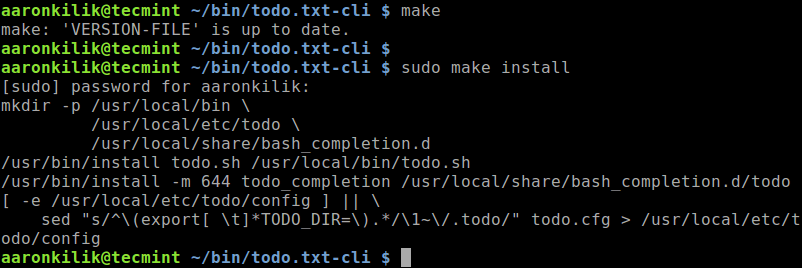
Then run the following commands to build and install todo.txt-cli.
$ make
$ sudo make install
Note: The Makefile makes several default paths for installed files. You can use the following variables to make adjustments on your system:
- INSTALL_DIR: PATH for executables (default /usr/local/bin).
- CONFIG_DIR: PATH for todo.txt config.
- BASH_COMPLETION: PATH for auto-completion scripts (default to /etc/bash_completion.d).
For example:
$ make install CONFIG_DIR=$HOME/.todo INSTALL_DIR=$HOME/bin BASH_COMPLETION_DIR=/usr/share/bash-completion/completions
How to Use Todo.txt CLI in Linux
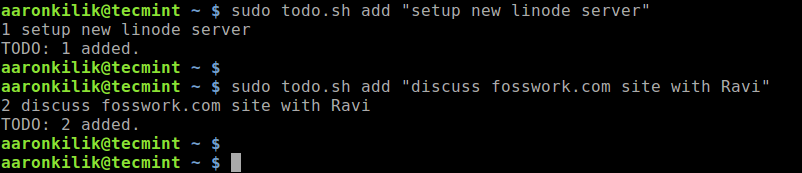
To add a todo task to your todo.txt file, run the following commands.
$ sudo todo.sh add "setup new linode server"
$ sudo todo.sh add "discuss fosswork.com site with Ravi"
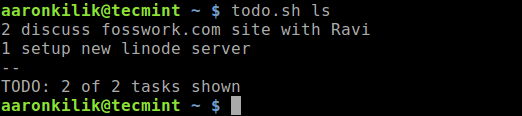
To list added todo tasks, use the following command.
$ todo.sh ls
You can marks task as done in todo.txt using following command.
$ sudo todo.sh do 1

You can also delete a todo item, for example.
$ sudo todo.sh del 1

For more usage and command options, run the following command.
$ todo.sh -h
Todo.txt Homepage: http://todotxt.org/
That’s all! Todo.txt is a simple shell script for creating and managing all your tasks from the Linux terminal. Share your thoughts about it or ask any questions via the feedback form below.

You’re using sudo to run a command that requires no special privileges. That’s probably the worst example one could set
@Marc
Oh yes, sudo is not necessary at all. Thanks for the useful feedback.
Then it may be a good idea to correct this in the tutorial
A really interesting tool to keep in mind. Thanks for the info!
It seems to be a useful tool. Thanks for the tip.
One question: why did you use sudo to add tasks?
@Mauricio
It should work well without sudo depending on the directory you are working in.