

In the world of Linux, the php.ini file is a crucial configuration file for the PHP programming language. This file is responsible for setting various parameters and options that control the behavior of the PHP runtime environment.
Whether you’re a web developer, system administrator, or someone who simply wants to customize their PHP setup, knowing how to locate the php.ini file is an essential skill.
Determining the Location of the php.ini File
The location of the php.ini file can vary depending on your Linux distribution and the way PHP was installed on your system.
Here are a few common places where you can usually find the php.ini file:
- If you’ve installed PHP from a package manager (e.g., apt, yum, or dnf) or compiled it from source, the most common location for the
php.inifile is the default system directory, which is often /etc/php.ini or /etc/php/php.ini. - If you’re running PHP as a user-specific process (e.g., through a web server like Apache or Nginx), the
php.inifile may be located in the user’s home directory, typically at ~/.phprc or ~/.config/php/php.ini.
To determine the exact location of the php.ini file on your system, you can use the following methods:
Method 1: Use the phpinfo() Function
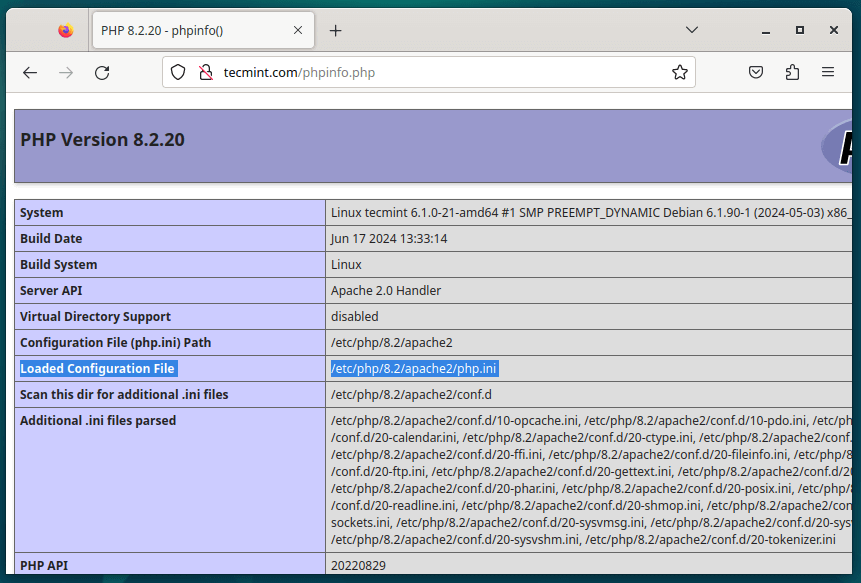
One of the easiest ways to find the location of the php.ini file is to use the phpinfo() function in a PHP script, which displays a wealth of information about the current PHP environment, including the location of the php.ini file.
Create a new PHP file (e.g., phpinfo.php) in your web server’s document root directory and add the following code to the file:
<?php
phpinfo();
?>
Save the file, open it in a web browser and look for the “Loaded Configuration File” entry, which will display the path to the php.ini file.
Method 2: Use the php -i Command
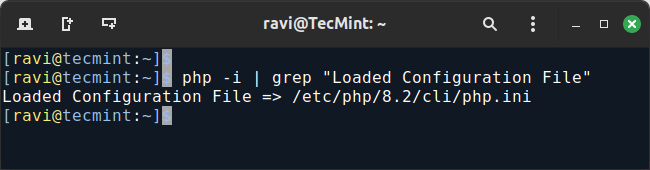
You can also use the php -i command in the terminal to display the same information as the phpinfo() function, which is particularly useful if you don’t have access to a web server or if you want to check the php.ini file location from the command line.
php -i | grep "Loaded Configuration File"
Modifying the php.ini File
Once you’ve located the php.ini file, you can open it in a text editor to make any necessary changes to the PHP configuration.
Some common modifications you might want to make include:
- Increasing the memory limit for PHP scripts.
- Enabling or disabling certain PHP extensions.
- Configuring error reporting and logging.
- Setting the default timezone.
- Adjusting the file upload limits.
After making any changes to the php.ini file, you’ll need to restart your web server or the PHP process for the changes to take effect.
Conclusion
By following the steps outlined in this article, you should be able to easily locate the php.ini file on your Linux system and make any necessary modifications to your PHP configuration.
