

Brief: In this guide, we take a look at the Rustdesk remote desktop software that is an alternative to TeamViewer and AnyDesk.
In the highly digital and technologically advanced world that we live in, accessibility to remote devices is usually a top-of-mind goal for employees and regular users.
Remote Desktop Service is a popular and widely-used remote access protocol that provides an efficient and user-friendly way for users to connect to their devices. It is particularly valuable to the IT helpdesk and support teams in troubleshooting users’ devices that are not physically accessible.
Written in Rust programming language, Rustdesk is a free and open-source desktop software application that simply works out of the box with absolutely no configuration required. It allows you to easily access and control your Desktop PC and Android devices from anywhere at any time.
[ You might also like: Best Tools to Access Remote Linux Desktop ]
Rustdesk Features
At a glance, Rustdesk provides the following key features:
- Great Performance – Rustdesk is fast and lightweight, making it a reliable remote desktop application.
- End-to-end Encryption – Rustdesk provides end-to-end encryption thereby ensuring that your data is safe and secure.
- Multi-platform – Rustdesk works across multiple platforms including macOS, Windows, Linux, Android, and iOS. You can also use the web to connect to a remote device.
- File Transfer and TCP Tunneling – Rustdesk’s file manager allows you to easily transfer files between your current device and the remote client. You can also set up TCP tunneling with Rustdesk.
- Self-hosted Modality – Rustdesk allows users to create their own server to initiate connections. This enhances security and provides more data privacy.
How to install RustDesk on Linux
Now let us now switch gears and install RustDesk. For demonstration purposes, We will be running Ubuntu 20.04.
The easiest way of installing Rustdesk is by running the binary executable for your Linux distribution.
For Ubuntu, we are, first, going to update the package lists
$ sudo apt update
RustDesk’s binary files are hosted on GitHub and by the time of writing this guide, the latest version is v1.1.7. In our case, we will download the .deb file using the wget command as follows.
The binary file’s version number will probably have changed by the time you are reading this guide, so take note and update the command accordingly.
$ wget https://github.com/rustdesk/rustdesk/releases/download/1.1.9/rustdesk-1.1.9.deb
Next, run the binary file as shown.
$ sudo apt install ./rustdesk-1.1.9.deb -y
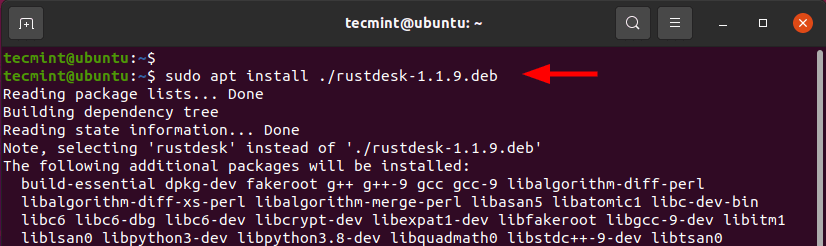
The installation takes up roughly 1 GB on your hard drive and will be done in just a few minutes.
Once installed, you can launch Rustdesk from the command line as follows.
$ rustdesk
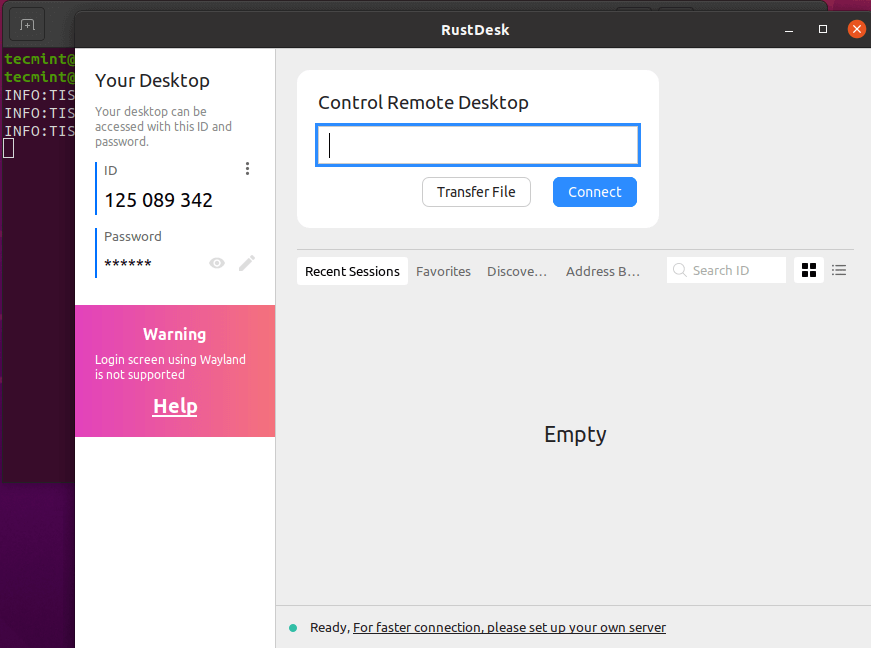
Alternatively, you can launch it from the applications manager by searching for it as shown.
Rustdesk – Connect to a Remote Desktop PC in Ubuntu
As a prerequisite, you need to have RustDesk installed on two devices – your local device and the remote device. In our setup, we have installed RustDesk on Ubuntu 20.04 which is our local device, and Linux Mint 20 which is the remote device.
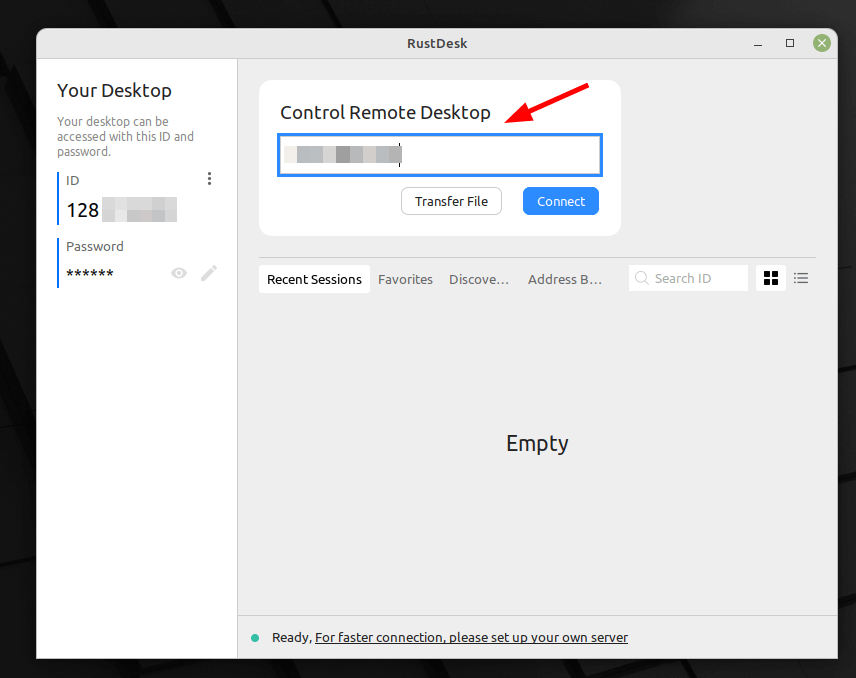
Just like Teamviewer, Enter the Connection ID of the remote device on your local PC as shown and click ‘Connect’.
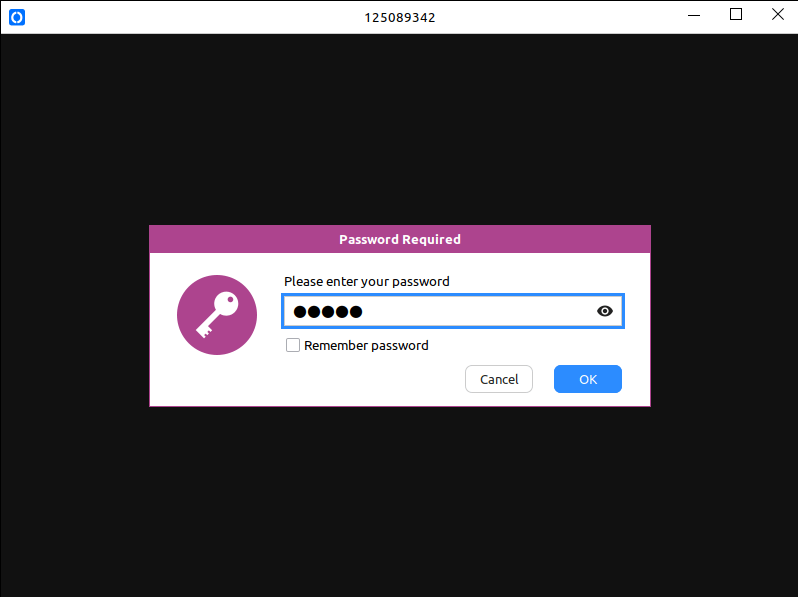
Next, provide the password for the remote device and click ‘Ok’.
Thereafter, the local PC will initiate a connection to the remote device. This will usher you to the remote PC as you can see.
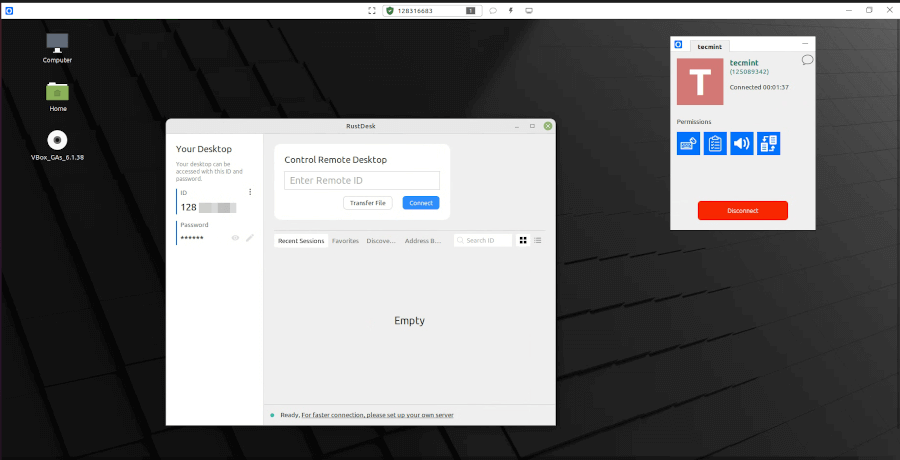
RustDesk is a formidable alternative to popular remote desktop applications such as TeamViewer and AnyDesk. As you have seen, it is easy to install and use to initiate a remote connection.
