

Have you ever tried to run a Linux command using sudo only to see the warning “sudo command not found” splashed on your terminal? This can be quite frustrating and it prevents you from working on your system as a non-root user while performing administrative tasks.
In this guide, we look at how to fix the “sudo command not found” error in Linux.
$ sudo apt install apache2

-bash: sudo: command not found
What Is Sudo Command in Linux?
Sudo, an abbreviation for superuser do, is a program that allows users to run commands or programs with root or elevated privileges. Usually, using sudo is the recommended way to run a Linux system instead of using the root user. This mitigates the risk of breaking the system in case a potentially dangerous command is executed.
The sudo package ships by default in most Linux distributions, and you should not have a problem using it. However, this does not always apply to all Linux distributions. There are particular cases where the system does not come with sudo installed. This is especially true for older Debian systems such as Debian 10 and later.
The “sudo command not found” error is nothing to be worried about and in case you have encountered this error, worry not. You can address it in a few simple steps.
How to Fix “sudo command not found” in Linux
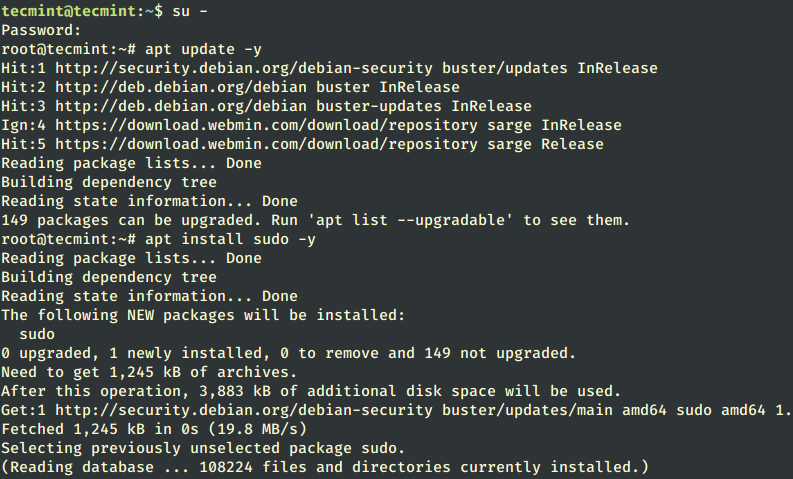
To fix this error, log into your system as the root user or simply switch to the root user.
$ sudo su -
Next, update the package lists and install the sudo package as follows.
# apt update -y
# apt install sudo -y
If you are running an RHEL-based distribution such as CentOS Stream, Fedora or Rocky/Alma Linux switch to the root user.
# su -
Then install sudo using the yum command as shown.
# yum install sudo
For Arch Linux, run the command.
# pacman -Sy sudo
Add User to Sudo Group in Linux
From here, you can add users to the sudo group. For example, to add user tecmint to the sudo group, run the command.
# usermod -aG sudo tecmint
To confirm that the user has been added to the group, run:
# groups tecmint

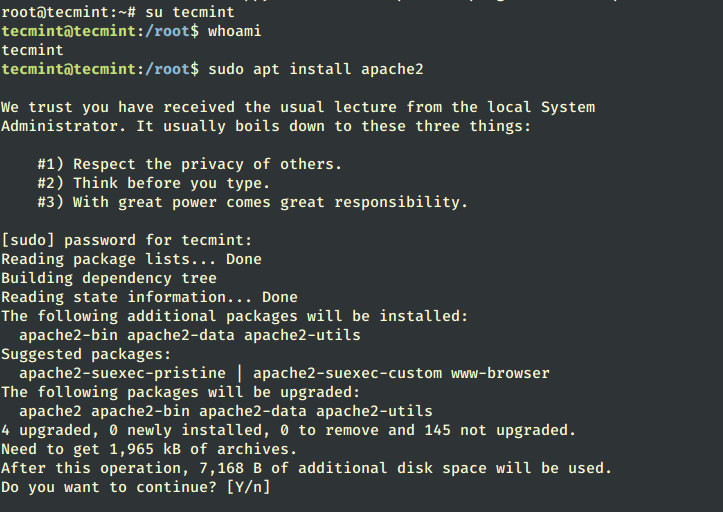
From here, you can comfortably run commands using sudo without an issue at all.
# su tecmint
$ whoami
$ sudo apt install apache2
In this guide, we have demonstrated how to resolve the “sudo command not found” error in Linux. Your comments and feedback are welcome.

I guess it’s a careless mistake. Just run
`su -`without sudo and then install sudo.Simply switch to the root user.
If you are getting the “sudo command not found” error, this will not work.
I laughed out loud at that. The article recommends using sudo to install sudo!