

By default Ubuntu does not set up a root password during installation and therefore you don’t get the facility to log in as root. However, this does not mean that the root account doesn’t exist in Ubuntu or that it can’t be completely accessed. Instead you are given the ability to execute tasks with superuser privileges using sudo command.
Actually, the developers of Ubuntu decided to disable the administrative root account by default. The root account has been given a password which matches no possible encrypted value, thus it may not log in directly by itself.
Attention: Enabling root account is not at all required as most activities in Ubuntu do not actually call for you to use the root account.
Although users are strongly recommended to only use the sudo command to gain root privileges, for one reason or another, you can act as root in a terminal, or enable or disable root account login in the Ubuntu using following ways.
1. How to Enable Root Account in Ubuntu?
To Access/Enable the root user account run the following command and enter the password you set initially for your user (sudo user).
$ sudo -i

2. How to Change Root Password in Ubuntu?
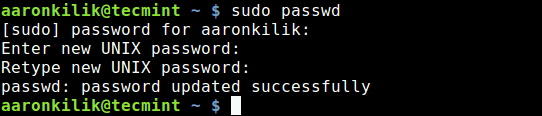
You can change root password with ‘sudo passwd root‘ command as shown below.
$ sudo passwd root
Enter new UNIX password:
Retype new UNIX password:
passwd: password updated successfully
3. How to Disable Root Access in Ubuntu?
If you wish to disable root account login, run the command below to set the password to expire.
$ sudo passwd -l root

You may refer Ubuntu documentation for further information.
That’s it. In this article, we explained how to enable and disable root login in Ubuntu Linux. Use the comment form below to ask any questions or make any important additions.

I recommend you DO NOT expire the root password! This is not the best way to do it, since normally when you do `useradd sudo` and they then log in and type `su` to go to superuser, it’s going to ask for a password. Guess what password that will be? :) Instead, go into /etc/ssh/sshd_conf and change the value to `PermitRootLogin no`.
If you want to only use key login, generate a key for your intended super user and then in that same file also set `PasswordAuthentication no` but be careful, obviously make sure your intended super user can escalate to root first.
Help I already had an login but just wanted to remove root access but now i rebooted and can’t login i just used the basic login that i got from the start username root password too now when i login it says incorrect password please help
Hi Ravi,
The above tip worked, but i want to activate root account in Ubuntu to login through login window. I am using Ubuntu 14.04.
Please guide me on this..
@Arun,
To login Ubuntu directly as root user, follow below instructions.
Go to System -> Administration -> Login window -> Security tab, click on the check box “Allow local system administrator” and reboot the system and login directly using root user.
Same here please guide me how to login with root account in GUI
`sudo passwd -d root` only removes the password, `sudo passwd -dl root` also locks the account. Key-based SSH access might however still be possible. To completely disable the account use `sudo usermod –expire-date 1 root`
@Johannes,
Thanks for the tip, hope it will helpful to others…
Thanks a lot for the nice tip. I was searching for the same and finally found it here.
Straightforward crisp and simple! Exactly what I needed!
Great job! This exactly what I looked for. Thanks!