
In this article, you will learn how to find which process or service is listening on a particular port in Linux using ss, netstat, lsof, and fuser commands.
A port is a logical entity that represents an endpoint of communication and is associated with a given process or service in an operating system.
In previous articles, we explained how to find out the list of all open ports in Linux and how to check if remote ports are reachable using the Netcat command.
1. Using ss Command
The ss (socket statistics) command is the modern replacement for netstat and comes pre-installed on most Linux distributions. It’s faster and provides more detailed information about network connections.
To find which process is listening on a particular port, use:
ss -ltnp | grep -w ':80'
Sample Output:
LISTEN 0 511 0.0.0.0:80 0.0.0.0:* users:(("nginx",pid=2053,fd=6))
The command flags mean:
l– show only listening sockets.t– display TCP connections.n– show numerical addresses (don’t resolve hostnames).p– show process information.grep -w– match exact string(:80).
You can also check all processes listening on a specific port range:
ss -ltnp | grep -E ':(80|443)'
Or find which process is using a specific port with the process name:
ss -ltnp 'sport = :80'
2. Using netstat Command
The netstat (network statistics) command is the traditional tool for displaying network connections. While it’s deprecated in favor of ss, it’s still widely used and available on most systems.
In case you don’t have it installed, use the following command:
sudo apt install net-tools        [On Debian/Ubuntu & Mint]
sudo dnf install net-tools        [On CentOS/RHEL/Fedora and Rocky/AlmaLinux]
pacman -S net-tools               [On Arch Linux]
emerge sys-apps/net-tools         [On Gentoo]
sudo zypper install net-tools     [On openSUSE]
Once installed, you can use it with the grep command to find the process or service listening on a particular port in Linux as follows (specify the port).
netstat -ltnp | grep -w ':80'

The command flags are:
l– tells netstat to only show listening sockets.t– tells it to display tcp connections.n– instructs it to show numerical addresses.p– enables showing of the process ID and the process name.grep -w– shows matching of exact string (:80).
To check both TCP and UDP ports:
netstat -tulpn | grep -w ':53'
3. Using lsof Command
lsof command (List Open Files) is used to list all open files on a Linux system, including network connections.
To install lsof on your system:
sudo apt install lsof             [On Debian/Ubuntu & Mint]
sudo dnf install lsof             [On RHEL/CentOS/Fedora and Rocky/AlmaLinux]
sudo emerge -a sys-apps/lsof      [On Gentoo]
sudo pacman -S lsof               [On Arch Linux]
sudo zypper install lsof          [On openSUSE]
To find the process/service listening on a particular port, type (specify the port).
sudo lsof -i :80

To check a specific protocol (TCP or UDP):
sudo lsof -i tcp:80
sudo lsof -i udp:53
To find all listening ports by a specific process:
sudo lsof -i -P -n | grep nginx
The flags mean:
-i– list network files.-P– show port numbers (don’t convert to port names).-n– show IP addresses (don’t resolve to hostnames).
4. Using fuser Command
The fuser command identifies processes using files or sockets and is part of the psmisc package.
You can install it as follows:
sudo apt install psmisc           [On Debian/Ubuntu & Mint]
sudo dnf install psmisc           [On RHEL/CentOS/Fedora and Rocky/AlmaLinux]
sudo emerge -a sys-apps/psmisc    [On Gentoo]
sudo pacman -S psmisc             [On Arch Linux]
sudo zypper install psmisc        [On openSUSE]
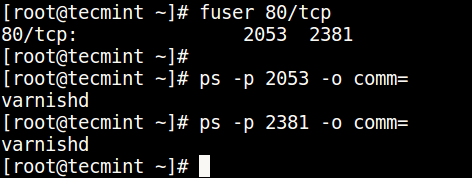
You can find the process/service listening on a particular port by running the command below (specify the port).
sudo fuser 80/tcp
Then find the process name using PID number with the ps command like so.
ps -p 2053 -o comm=
ps -p 2381 -o comm=
Bonus: Using systemctl for Service Ports
If you’re running systemd-based distributions, you can check which service is configured to use a particular port:
sudo systemctl status nginx
This shows the service status and which ports it’s configured to use, though it doesn’t directly query by port number.
Quick Comparison of Tools
Quick Comparison of Tools
| Tool | Speed | Level | Availability | Best For |
|---|---|---|---|---|
| ss | Very Fast | High | Pre-installed (modern systems) | General use, recommended |
| netstat | Moderate | Medium | Needs installation | Legacy systems |
| lsof | Slow | Very High | Needs installation | Detailed file/socket info |
| fuser | Fast | Low | Needs installation | Quick PID lookup |
Common Use Cases
Check if a port is already in use before starting a service:
ss -ltn | grep -w ':8080'
Find all processes listening on privileged ports (1-1024):
sudo ss -ltnp | awk '$4 ~ /:([0-9]{1,3}|10[0-2][0-4])$/ {print}'
Check which process is blocking your application’s port:
sudo lsof -i :3000
Verify web server is listening on correct ports:
ss -ltnp | grep -E ':(80|443)'
Related Articles
You can also check out these useful guides about processes in Linux.
That’s all! Do you know of any other ways of finding the process/service listening on a particular port in Linux, let us know via the comment form below.






In the topic, there isn’t a solution to find a kernel-level service/program listening to a specific port.
In my case, it was a wireguard service like the solution that i have found here https://serverfault.com/questions/1078483/how-to-find-out-what-service-is-listening-on-a-specific-port-of-a-ubuntu-server
There is ss too, like “ss -tlpn port 80“.
-w works with “:::80” but misses “0.0.0.0:80”. Using “:80 “ (with blank) works.
Example:
netstat -ltnp | grep -E ':80 |:443 'The hard way:
on an embedded Linux 2.6 device, with read-only filesystem, without `lsof` or `fuser` binaries, where netstat exists, but ‘-p‘ option is invalid, you can `cat /proc/net/tcp` and see several ‘local_address’ 00000000:####, where #### was the listening port in Hex. In the same row under ‘inode’ column you can see the FD#, and correlate that to /proc//fd/N (each N symlinks to socket:[FD#] or /dev/null).
@Jason
Many thanks for sharing your experience from the embedded Linux side of it.
On my Ubuntu 19.04 I have to use sudo to do “fuser 80/tcp” (I’m not running anything on 80, so I tried ssh, “sudo fuser 22/tcp“). If I run it without sudo – I get no result.