

In this short article, we will explain how to solve the: “module_stderr“: “Shared connection to x.x.x.x closed.\r\n”, “module_stdout”: “/bin/sh: /usr/bin/python: No such file or directory\r\n”, while running Ansible commands.
The following screenshot shows the Ansible module error. We encountered this error while running an Ansible command to execute commands on two newly deployed CentOS 8 servers.
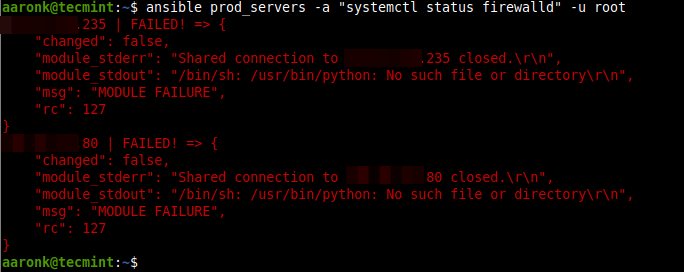
From the error details, the connection failed because the shell(s) in the remote system couldn’t find the Python interpreter (/usr/bin/python) as indicated by the line: “module_stdout”: “/bin/sh: /usr/bin/python: No such file or directory\r\n“.
After checking the remote hosts, we discovered that the systems don’t have Python 2 installed.
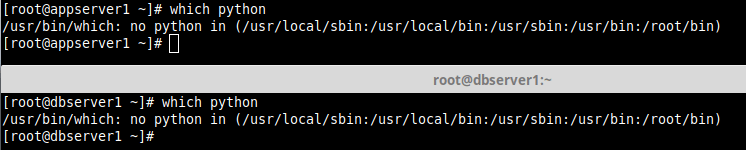
They have Python 3 installed by default and its binary is /usr/bin/python3.
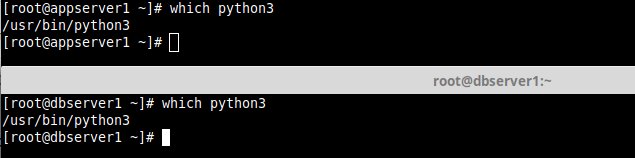
According to the Ansible documentation, Ansible (2.5 and above) works with Python version 3 and above only. Also, Ansible is supposed to automatically detect and use Python 3 on many platforms that ship with it.
However, if it fails to, then you can explicitly configure a Python 3 interpreter by setting the ansible_python_interpreter inventory variable at a group or host level to the location of a Python 3 interpreter as described below.
Passing Python Interpreter to Ansible on the Command-line
To fix the above error temporarily, you can use the -e flag to pass the Python 3 interpreter to Ansible as shown.
$ ansible prod_servers -e 'ansible_python_interpreter=/usr/bin/python3' -a "systemctl status firewalld" -u root
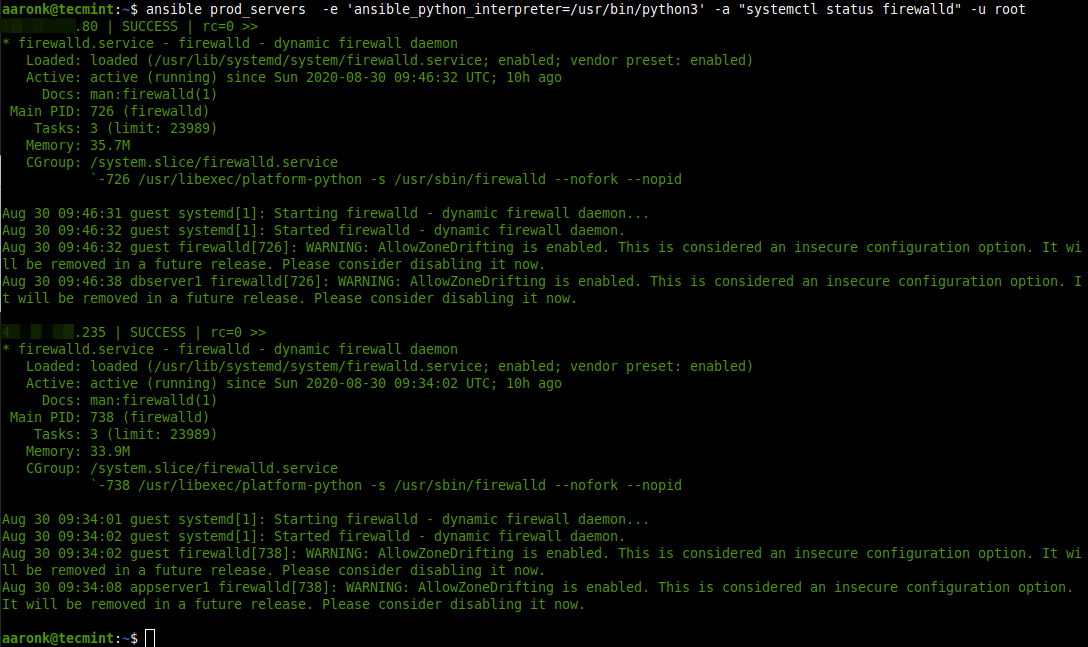
Setting Python Interpreter for Ansible in the Inventory
To fix the error permanently, set the ansible_python_interpreter inventory variable in your inventory /etc/ansible/hosts. You can open it for editing using the v/im or nano text editor as shown.
$ sudo vim /etc/ansible/hosts
OR
# vim /etc/ansible/hosts
Append the following line to each host or hosts in a group:
ansible_python_interpreter=/usr/bin/python3
So, your hosts’ definitions can look like this:
[prod_servers]
192.168.10.1			ansible_python_interpreter=/usr/bin/python3
192.168.10.20			ansible_python_interpreter=/usr/bin/python3.6
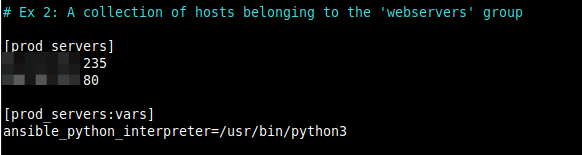
Alternatively, set the same Python interpreter for a group of hosts as shown.
[prod_servers]
192.168.10.1
192.168.10.20

[prod_servers:vars]
ansible_python_interpreter=/usr/bin/python3
Setting Default Python Interpreter in Ansible Configuration
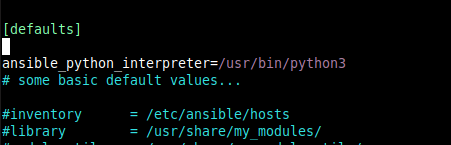
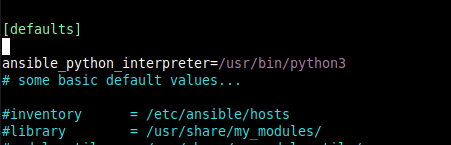
To set the default Python interpreter, you can set the ansible_python_interpreter inventory variable in Ansible’s main configuration file /etc/ansible/ansible.cfg.
$ sudo vim /etc/ansible/ansible.cfg
Add the following line under the the [defaults] section.
ansible_python_interpreter=/usr/bin/python3
Save the file and close it.
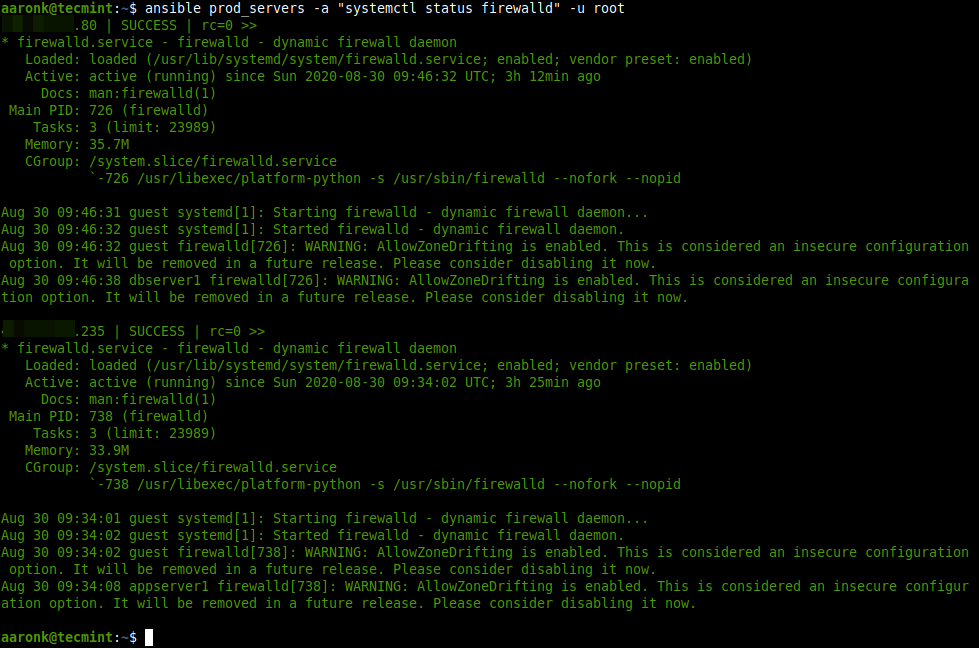
Now try to run the Ansible command once more:
$ ansible prod_servers -a "systemctl status firewalld" -u root
For more information about this topic, see Python 3 support in the official Ansible documentation.

Hello,
I have tried all the suggestions listed in this article but am still not able to resolve the issue. Please is there any other thing you may suggest on this topic?