

This brief article explains the steps you can take to reset your forgotten root password on a Fedora Linux system. For this guide, we are using Fedora 32.
Read Also: How to Reset Forgotten Root Password in CentOS 8
First, you need to reboot or power on your system and wait until the grub menu is displayed as shown below.
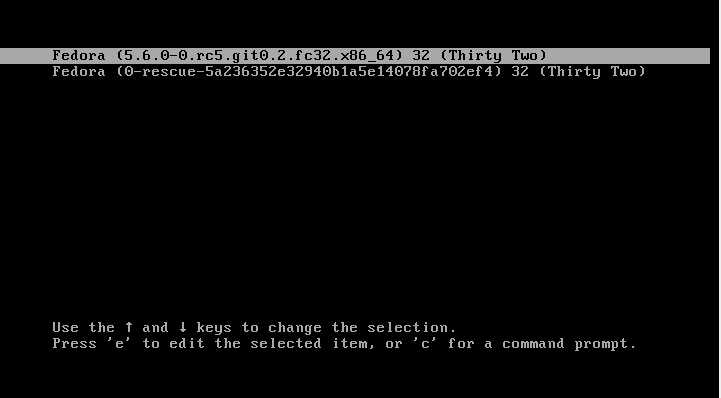
Press 'e' to edit the grub parameters. This ushers you to a display shown below. Next, locate the line beginning with 'linux' as shown below.
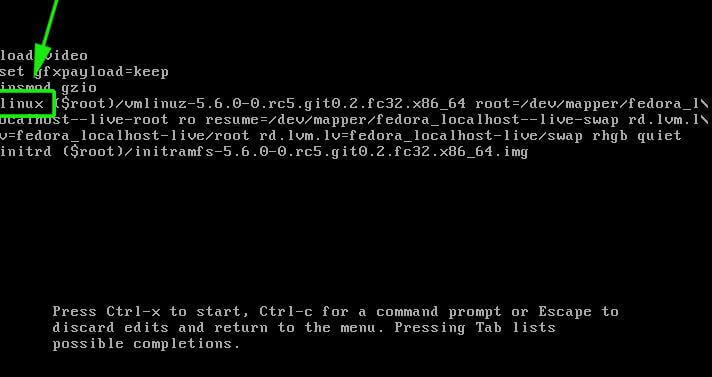
Using the Cursor forward Arrow key, navigate to the section with the rhgb quiet parameter.
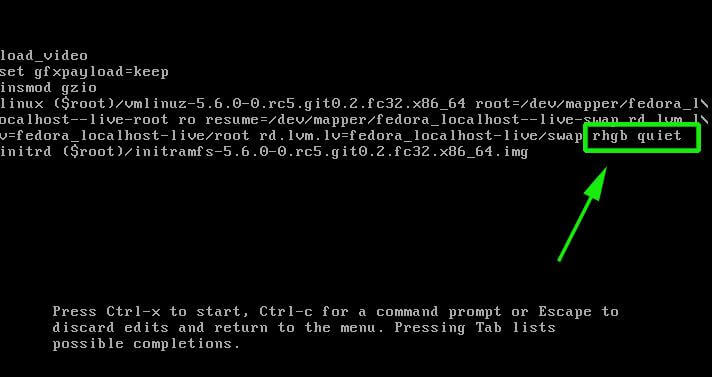
Now replace the rhgb quiet parameter with rd.break enforcing=0.
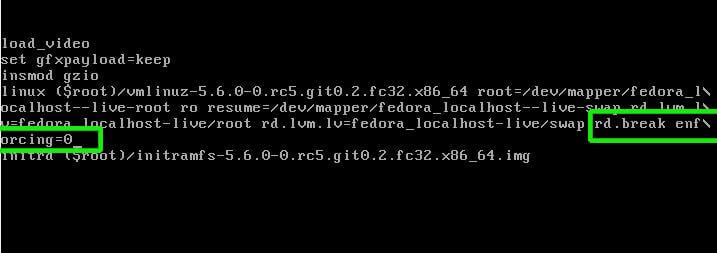
Next press ctrl + x to boot into single-user mode. Next, remount the root filesystem in read and write mode.
# mount –o remount,rw /sysroot
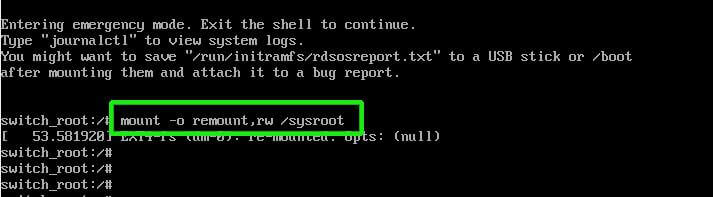
Next, run the command below to gain access to the Fedora system.
# chroot /sysroot
To change or reset the root password simply issue the passwd command as shown.
# passwd
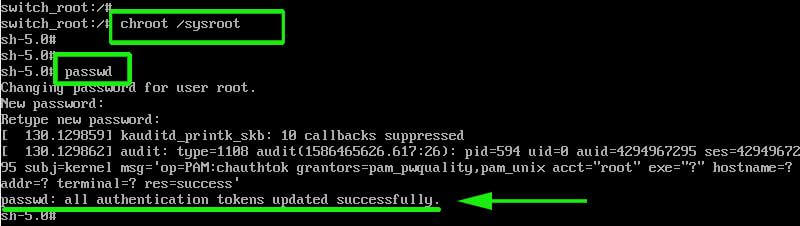
Provide a new password and confirm it. If all went well, a notification ‘password updated successfully‘ will be displayed at the end of the console.
To reboot the system, simply hit Ctrl + Alt + Del. You can thereafter log in as the root user using the newly created root password.
Upon logging in, run the command below to restore SELinux label to the /etc/shadow file.
# restorecon -v /etc/shadow
And finally set SELinux to enforcing mode using the command.
# setenforce 1
And this concludes our topic on how to reset a forgotten root password on Fedora 32. Thank you for taking the time on this tutorial.

Thanks a lot! This worked well.
Thank you for the very clear explanation on how to reset the root password in Fedora 32. When I try it on my Fedora 33 system, after changing “rhgb quiet” with “rd.break enforcing =0” and pressing Ctrl-x to boot into single-user mode, I receive a request for the root password OR Ctrl-D to continue.
Clearly, I don’t have the root password, and the latter choice
(Ctrl-D)just loads the system as normal. Any suggestions? Thank you once again for your article. Best regards, DerekCannot log in after a power failure on Fedora Linux 30.
Will not accept the root or user password. Have to recover by resetting the root password. Any ideas?
Disabling SELinux does eliminate the need for relabeling the entire drive after a password reset.
Does this work if the disk is LUKS encrypted? Would you need to run
vgchange -ato get access to it?