

Under Docker, an image developer can define image defaults related to detached or foreground running, and other useful settings. But, using the docker run [OPTIONS] command, you can add to or override the image defaults set by a developer, thus giving you more control on how a container runs.
Read Also: ctop – Top-like Interface for Monitoring Docker Containers
In this article, we will briefly explain the foreground mode and background mode of running a container and we will also show you how to run a Docker container in the background in detached mode.
Foreground Mode (Default) vs Background/Detached Mode
Before starting a Docker container, you must, first of all, decide if you want to run it in the default foreground mode or in the background in a detached mode.
In the foreground mode, Docker can start the process in the container and attach the console to the process’s standard input, standard output, and standard error.
There are also command line options to configure it more such as -t to allocate a pseudo-tty to the process, and -i to keep STDIN open even if not attached. You can also attach it to one or more file descriptors (STDIN, STDOUT and/or STDERR) using the -a=[value here] flag.
Importantly, the --rm option tells Docker to automatically remove the container when it exits. This example shows how to start a Docker container in foreground mode:
# docker run --rm -ti -p 8000:80 -p 8443:443 --name pandorafms pandorafms/pandorafms:latest
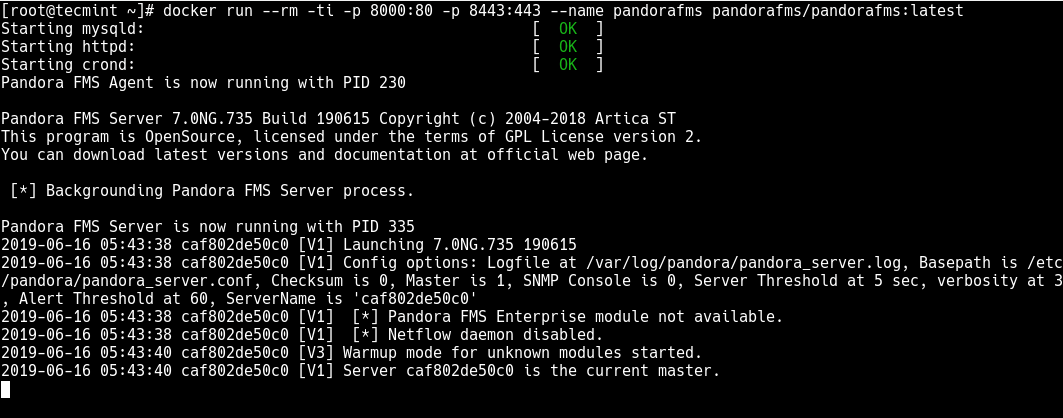
The disadvantage of running a container in the foreground is that you can not access the command prompt anymore, as you can see from the screenshot above. Which means you can not run any other commands while the container is running.
To run a Docker container in the background, use the use -d=true or just -d option. First, stop it from the foreground mode by pressing [Ctrl+C], then run it in a detached mode as shown:
# docker run -d --rm -p 8000:80 -p 8443:443 --name pandorafms pandorafms/pandorafms:latest

To list all containers, run the following command (default shows just running).
# docker ps -a

In addition, to reattach to a detached container, use docker attach command.
# docker attach --name pandorafms
OR
# docker attach 301aef99c1f3
If you want to stop the above container or any other running container, use the following command (replace 301aef99c1f3 with the actual container ID).
# docker stop 301aef99c1f3
You might also like to read these following related Docker articles.
- Install Docker and Learn Basic Container Manipulation in CentOS and RHEL 7/6 – Part 1
- How to Name or Rename Docker Containers
- How to Remove Docker Images, Containers and Volumes
That’s it! In this article, we have shown how to run a Docker container in the background in detached mode. Use the comment form below to give us feedback or ask questions concerning this article.

In this article, you treated running background images the same as a detached mode. But both are not the same.
Detached mode = Standard console will note be attached for Terminal IO. This may stop once the main process in docker image is completed
Background mode = Run in the background continuously without stopping (like daemon).
Foreground or console = If you exit console the process may stop.
I was looking to run a python-3.7.5 image in the background but it seems detached mode option doe not works.
@RS
Refer to this documentation for more information detached(or background) mode vs foreground mode: https://docs.docker.com/engine/reference/run/
I just found the StackOverflow explaining this:
https://stackoverflow.com/questions/30209776/docker-container-will-automatically-stop-after-docker-run-d
Good summary of basic commands. However I think there is a typo with the explanation of the ‘–rm’ parameter. This parameter removes the container when it “exits”, not when it “exists”
@Cedric,
Thanks for notifying about that error, corrected in the article..