

Wayland is a secure display protocol as well as a library implementing the protocol, that enables communication between your video hardware (the server) and clients (each and every single application on your system). Wayland is the default GNOME display server.
If you notice that some of your applications are not functioning as expected in Wayland, you can switch to GNOME in X11 as shown in this article.
To run GNOME in X11 on Fedora Linux, there are two ways to do it. The first is by choosing the Gnome on xorg option in the session chooser on the login screen and the second way is by manually editing the GNOME display manager (GDM) configuration as shown below.
First, determine the session number and other details by running the following loginctl command.
# loginctl
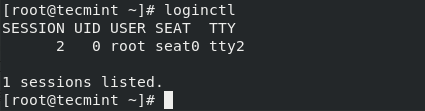
Next, find out the type of session is running by using the following command (replace 2 with your actual session number).
# loginctl show-session 2 -p Type

Now open the GDM configuration file /etc/gdm/custom.conf using your favorite text editor.
# vi /etc/gdm/custom.conf
Then uncomment the line below to force the login screen to use Xorg display manager.
WaylandEnable=false
And add the following line to the [daemon] section as well.
DefaultSession=gnome-xorg.desktop
The whole GDM configuration file should now look like this.
# GDM configuration storage
[daemon]
WaylandEnable=false
DefaultSession=gnome-xorg.desktop

[security]
[xdmcp]
[chooser]

[debug]
#Enable=true
Save the changes in the file and reboot your system to start using xorg as the default GNOME session manager.
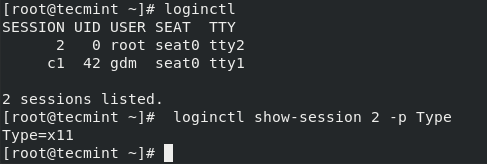
After the system reboot, verify again your session number and type by running the following commands, it should show Xorg.
# loginctl	# get session number from command output
# loginctl show-session 2 -p Type
That’s all! In this article, we have explained how to configure Xorg as the default GNOME session in Fedora Linux. Do not forget to reach us via the feedback form below, for any questions or comments.

Unfortunately, I got trapped after rebooting in a black screen that says: “Booting, ‘Fedora Linux (6.0.7-301.fc37.x86_64) 37 Workstation Edition)”
Does anyone have an alternate solution for setting xfce as the default desktop for all users?
If you did this and get trapped in a frozen black screen after restart, you need to undo the changes you made to the custom.conf file. The only way to do this is to boot from a live USB, mount the current Linux file system, switch to the root user, launch the nautilus and edit that file to undo the changes.
Thanks, it works for Peek.
Regards