

So, you’ve just installed Ubuntu 25.04 “Plucky Puffin” on your computer—congrats! I recently did the same, and let me tell you, this release feels fresh, fast, and packed with cool features, but as with any new system, there are a few things I always do right after installation to make my setup smoother and more enjoyable.
Here’s my step-by-step guide, based on what worked for me.
1. First Things First: Update Everything
Even though Ubuntu 25.04 is brand new, there are always some updates waiting, so it’s a good idea to take care of them right away.
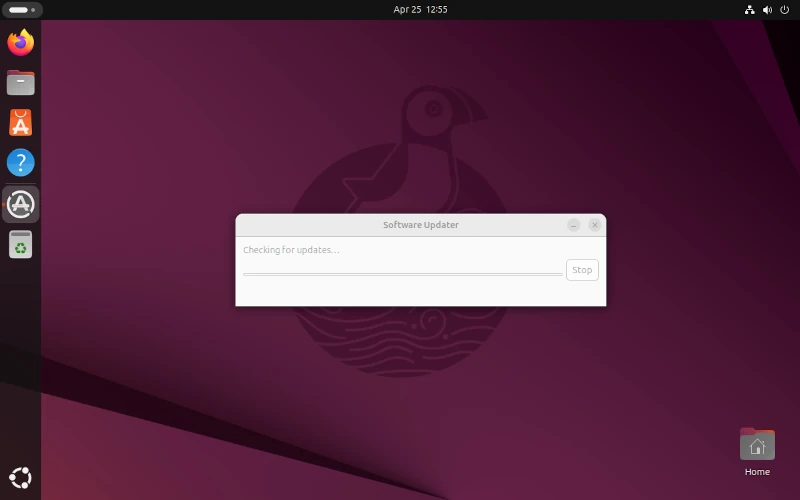
I opened the “Software Updater” from the app menu and let it check for updates.
If you’re like me and prefer the terminal, just open it and type the following apt commands:

sudo apt update
sudo apt upgrade

Once the updates were done, I restarted the computer to make sure everything was applied properly.
2. Add “New Document” to the Right-Click Menu
I always missed the “New Document” option when right-clicking in folders.
Here’s how I fixed it:
- Open the Text Editor.
- Save a blank file as Blank Document.txt in the Templates folder inside your Home folder (if you don’t see Templates, just create it).

That’s it! Now when I right-click in any folder, I see “New Document” and can create new files easily.
3. Set Up My Printer
I use my printer often, so I made sure it was ready to go:
- I searched for “Printers” in the app menu.
- My printer showed up automatically. If yours doesn’t, just click “Add” and follow the steps.
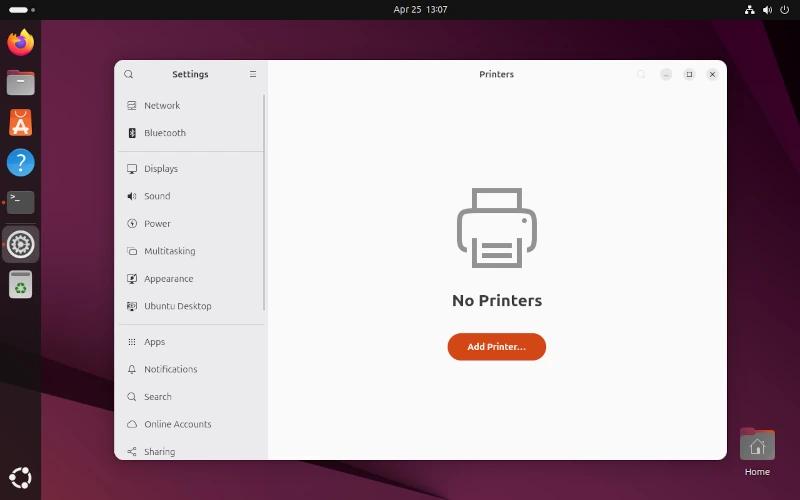
For more control (like sharing or advanced settings), I installed the printer tool by running:
sudo apt install system-config-printer
This made it easier to manage my printer settings.
4. Customize the Ubuntu Dock
The dock (the panel on the left side) is really useful, but I wanted it to look and work my way.
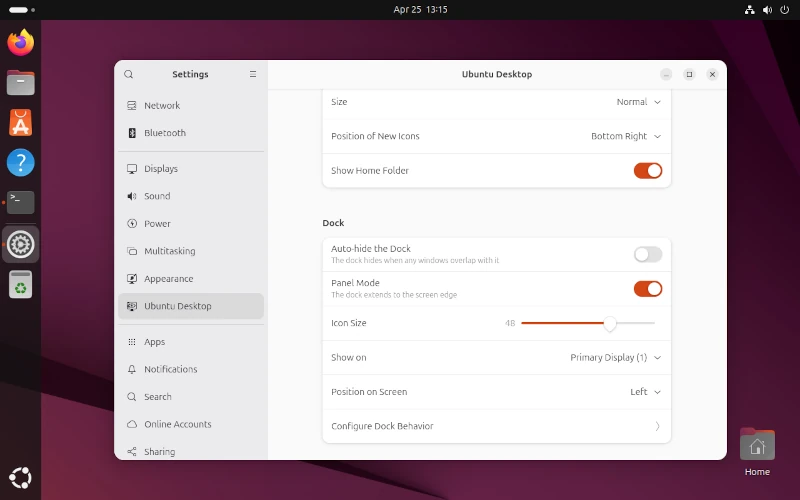
I went to: Settings > Ubuntu Desktop > Dock, and I made a few changes:
- Shrunk the icon size
- Turned on auto-hide
- Shortened the dock so it didn’t take up the full side of the screen.
To get even more options, I installed the GNOME Extension Manager by running this in the terminal:
sudo apt install gnome-shell-extension-manager
With that, I could add cool features like moving the dock to the center or changing how it looks.
5. Install My Favorite Default Apps
Sometimes, the system doesn’t install a few apps I like to use, so I just reinstall them myself.
Here’s what I usually add:
- LibreOffice – for working with documents and spreadsheets
- Shotwell – to manage my photos
- Deja Dup – for backups
- Transmission – for downloading torrents
- Remmina – for remote desktop access
- Rhythmbox – to play music
- Totem – to watch videos
- File Roller – to open ZIP and other archive files
To install them all at once, I just ran this command:
sudo apt install libreoffice shotwell deja-dup transmission remmina rhythmbox totem file-roller

Now all the apps I need are ready to go!
6. Add Media Codecs and Fonts
To play MP3s, watch videos, and use Microsoft fonts, I installed the restricted extras:
sudo apt install ubuntu-restricted-extras
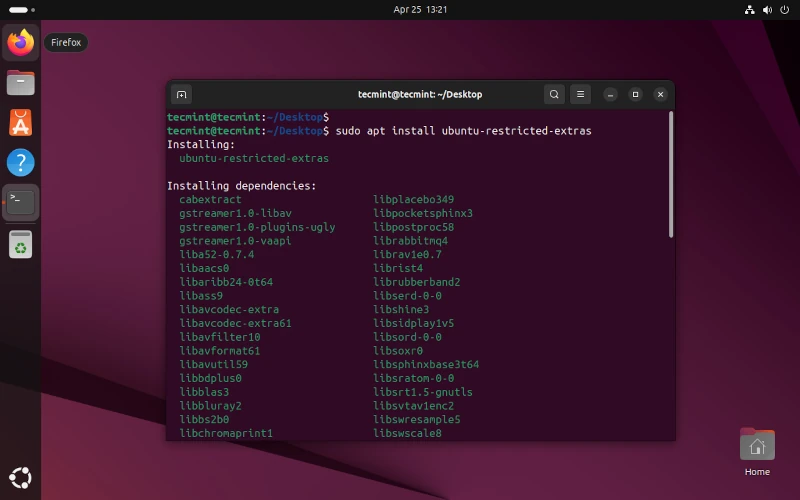
I had to accept a license, but after that, everything worked perfectly, no more “missing codec” errors!
7. Install GNOME Tweaks and Other Tools
I enjoy customizing my desktop, and GNOME Tweaks is essential for that:
sudo apt install gnome-tweaks
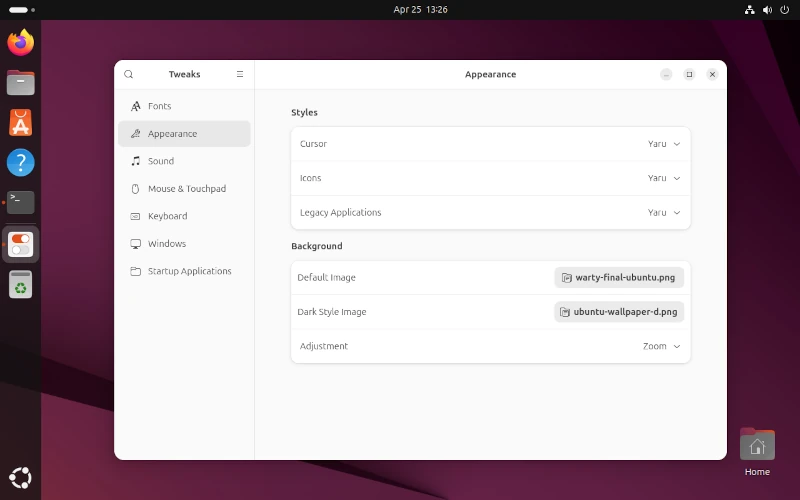
With GNOME Tweaks, I changed the fonts, themes, and adjusted how windows behave. I also installed the Extension Manager (mentioned above) and Dconf Editor for more advanced tweaks (use these if you enjoy experimenting).
sudo apt install dconf-editor
8. Adjust Privacy and Power Settings
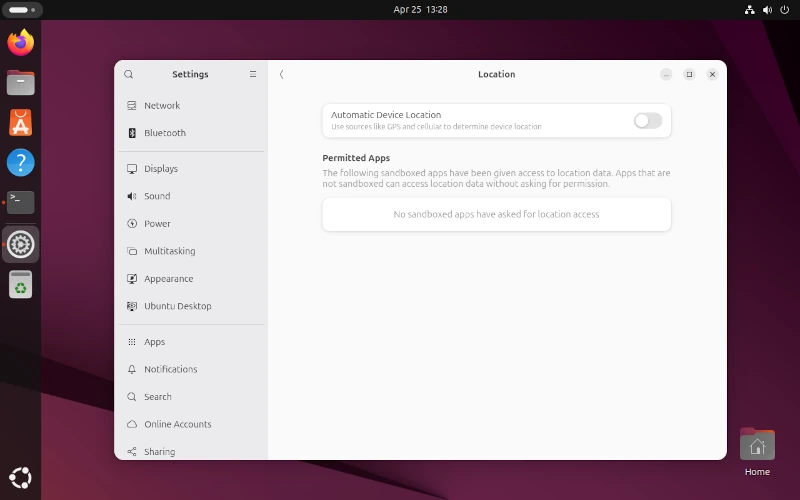
I care about my privacy, so I went to Settings > Privacy and turned off location services and usage history.
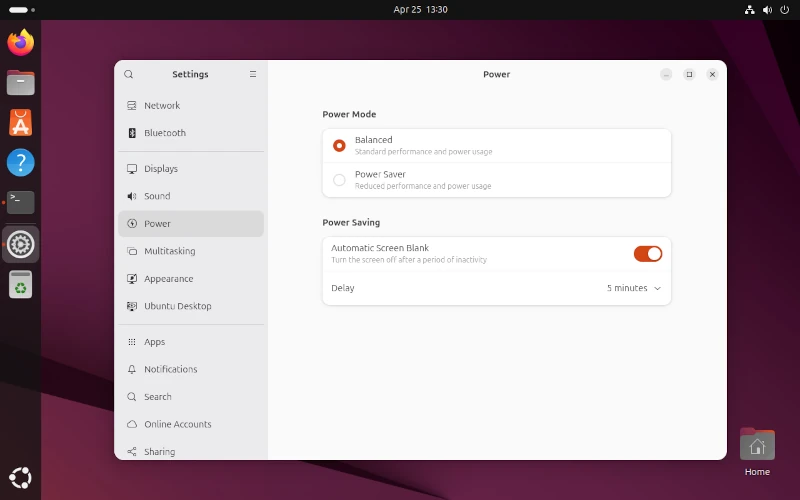
For my laptop, I checked the new Preserve Battery Health feature in Settings > Power to make my battery last longer.
9. Install the Extra Apps I Use Every Day
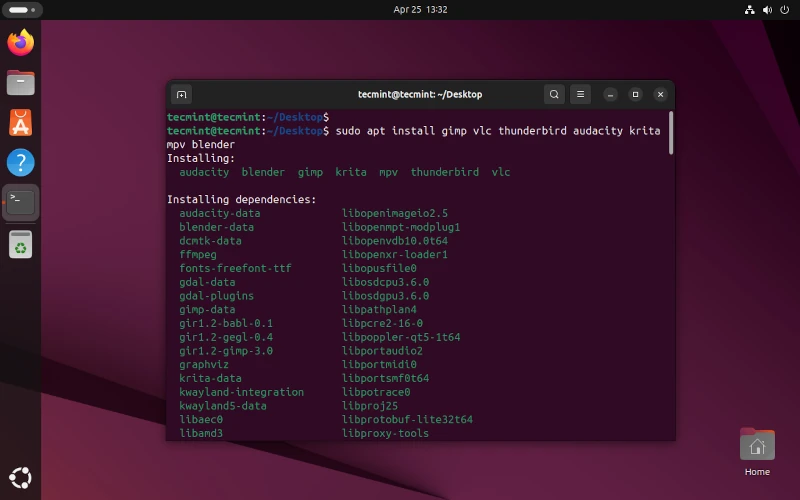
The Ubuntu App Center and Snap Store are easy to use, but I prefer using the terminal.
Here’s what I installed:
- GIMP (for image editing)
- VLC (for playing media)
- Thunderbird (for email)
- Audacity (for audio editing)
- Krita (for digital painting)
- MPV (another media player)
- Blender (for 3D modeling)
sudo apt install gimp vlc thunderbird audacity krita mpv blender
10. Check Graphics and Gaming Settings
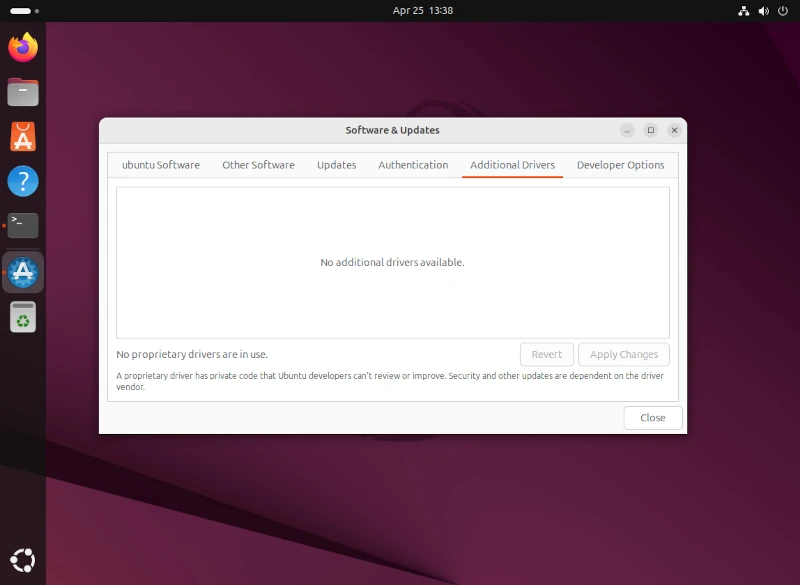
I have an NVIDIA graphics card, so I went to Software & Updates > Additional Drivers to make sure I’m using the recommended driver. Ubuntu 25.04 now supports NVIDIA Dynamic Boost, which is great for gaming on laptops.
If you play Windows games, Wine and Proton work better now thanks to updates in the kernel. Steam runs smoothly, and I’ve noticed some games perform better.
11. Set Up Backups
I’ve lost important files in the past, and it’s something I never want to go through again. That’s why I make sure to set up backups as soon as I can.
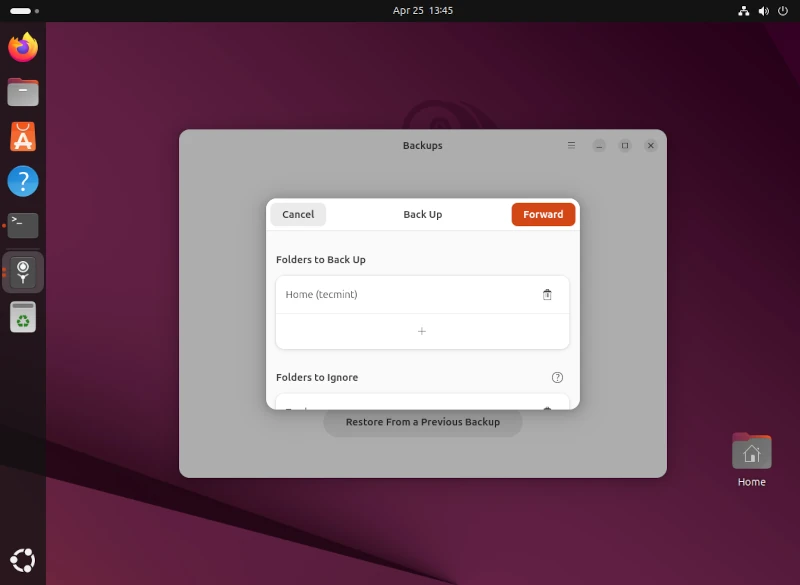
First, I opened the backup software called ‘Déjà Dup’, which is easy to use and gets the job done. Then, I chose an external drive to store my backups, so they’re safe and separate from my computer.
Next, I set up a schedule for the backups to run every week automatically. This way, I don’t have to remember to do it manually. It’s a simple process, but it gives me peace of mind knowing that my files are backed up and protected from being lost.
12. Explore New Features in Ubuntu 25.04
There’s a lot to enjoy in this release:
- GNOME 48: Smoother animations, grouped notifications, and a more modern design.
- New PDF Reader: “Papers” is fast and easy to use.
- Installer Improvements: The new installer worked great with my dual-boot setup alongside Windows.
- Confidential Computing: I don’t personally use it, but it’s good to know the security is better if you need it.
- ARM64 Support: If you have an ARM-based laptop or desktop, there’s now an official ISO.
13. Connect Online Accounts
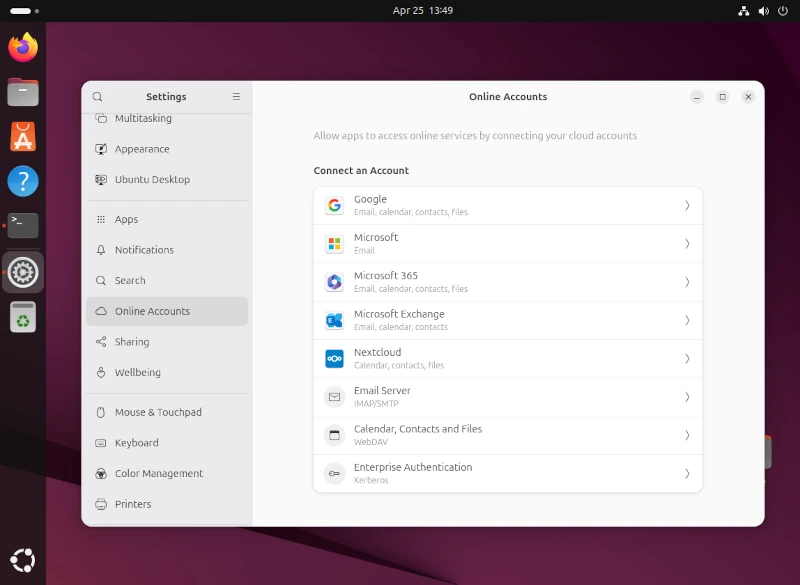
I use Google Drive and Nextcloud to store my files and manage my calendar. To sync everything automatically, I went to the Settings menu and selected ‘Online Accounts‘
From there, I logged into both my Google Drive and Nextcloud accounts. Now, my files and calendar update and sync automatically across all my devices.
14. Set Up Developer Tools
Since I do some coding, I installed the following developer tools on my system:
sudo apt install python3 gcc g++ openjdk-24-jdk dotnet-sdk-9.0 golang rustc
Ubuntu 25.04 comes with updated toolchains, which are basically the latest versions of programming tools. If you need even more programming environments, you can also find additional “devpacks” (developer packs) in the Snap Store.
These devpacks offer a variety of tools for different programming languages and frameworks to help you get started with coding.
15. Explore Other Ubuntu Flavours
If you want to try something new, Ubuntu offers different versions, known as ‘flavours,’ each with its own unique desktop environment.
I’ve tested Kubuntu, which uses the KDE desktop, and Ubuntu MATE in virtual machines. Both are excellent choices if you’re looking for a different look and user experience from the standard Ubuntu.
Each flavour has its own style and features, so you might find one that suits you better!
sudo apt install kubuntu-desktop                [#KDE Plasma]
sudo apt install ubuntu-mate-desktop            [#Mate]
sudo apt install xubuntu-desktop                [#XFCE]
sudo apt install lubuntu-desktop                [#LXQt]
sudo apt install ubuntu-budgie-desktop          [#Budgie]
sudo apt install ubuntustudio-desktop           [#Ubuntu Studio]
sudo apt install ubuntu-kylin-desktop           [#Ubuntu Kylin]
sudo apt install cinnamon-desktop-environment   [#Cinnamon]
16. Enable Night Light in Ubuntu
Protecting your eyes at night while you work on your computer is important and essential. GNOME has an integrated tool called night light, which reduces the blue lights, which reduces eye strain at night, significantly.
To enable this feature, go to Settings -> Display -> Night Light and turn it on.
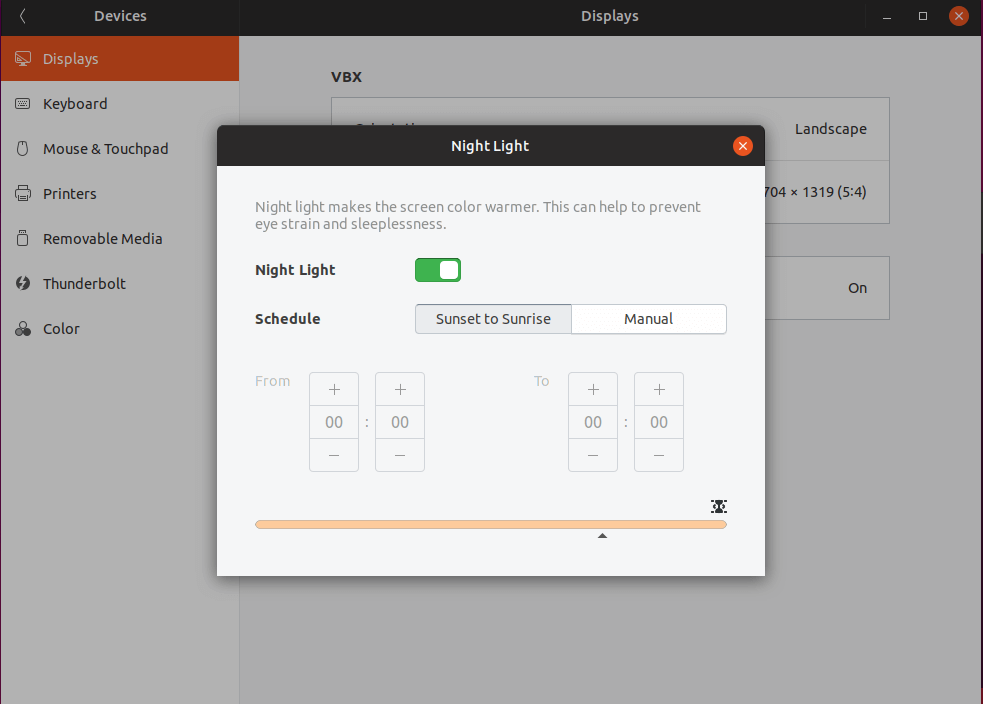
You may select exact hours during which Night Light is to be turned on or allow it to automatically start on sunset to sunrise.
17. Opt-out/Opt-in from Data Collection
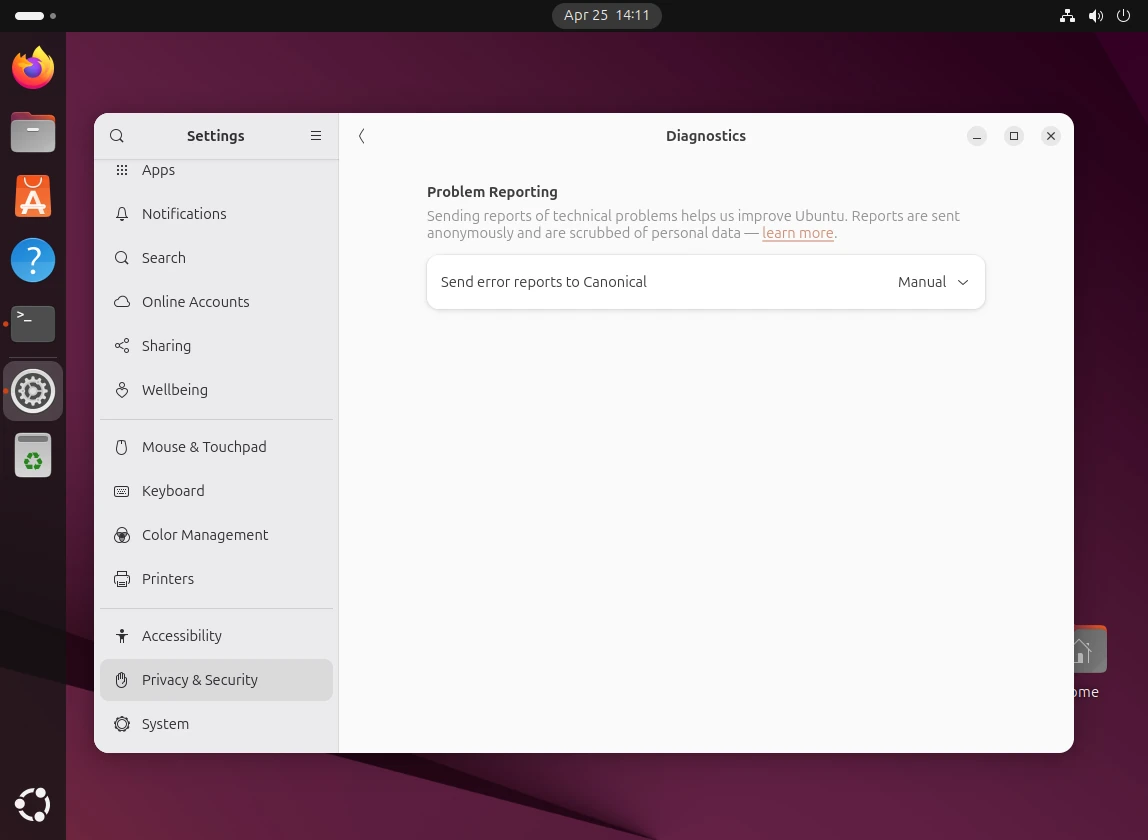
Ubuntu collects some data about your system hardware that helps determine on what hardware the OS is used on and improves it. If you are not comfortable with providing such information, you can disable the option by going to Settings -> Diagnostics -> Problem Reporting and choosing the option:
18. Install Archive Applications
By default, Ubuntu can easily handle tar files, but to extend the number of different archive files that you can use on your Ubuntu system (zip, tar.gz, zip, 7zip rar etc) install the following packages by running the command below:
sudo apt-get install unrar zip unzip p7zip-full p7zip-rar rar
19. Clean Up
Once everything is installed, I like to clean up the system to keep it running smoothly:
sudo apt autoremove
This command removes any unnecessary packages that were installed but are no longer needed.
Next, run the following command, which will clear out the local package cache, which helps free up space on your hard drive.
sudo apt clean
By doing this, you’ll keep your system tidy and make sure there’s more space for new updates and software.
20. Join the Ubuntu Community
Whenever I need help or want to learn something new, I visit the Ubuntu Forums, Ask Ubuntu, and subreddits like r/Ubuntu. These places are full of friendly people who are always ready to help.
Whether I’m stuck on an issue or looking for tips, the community is a great resource to find answers and learn more about Ubuntu.
Final Thoughts
Ubuntu 25.04 “Plucky Puffin” is the best Ubuntu release I’ve used so far. It’s fast, stable, and looks great. After following these steps, my system feels truly mine—ready for work, play, and everything in between.
If you’re new to Ubuntu, don’t be afraid to explore and make it your own.

Bluetooth is not working, How to resolve it?
Dear Friend,
After installing fresh 19.10 Xubuntu, wireless is working but Lan not working. when I check with ifconfig command the below output appear on the screen, can you help me in fixing this issue?
kk@iconwave:~$ ifconfig lo: flags=73 mtu 65536 inet 127.0.0.1 netmask 255.0.0.0 inet6 ::1 prefixlen 128 scopeid 0x10 loop txqueuelen 1000 (Local Loopback) RX packets 11502 bytes 1162724 (1.1 MB) RX errors 0 dropped 0 overruns 0 frame 0 TX packets 11502 bytes 1162724 (1.1 MB) TX errors 0 dropped 0 overruns 0 carrier 0 collisions 0Try to use your ethernet cable then update then go to additional drivers your wifi should pop up there.
Please give the installation step to load samba for browse windows’ share computer or drive and printers from ubuntu 19.10
Hello,
Thanks for the article it helps out a lot however until I got to the number 18. Try Different Desktop Environments now I’m having an issue within Ubuntu with mate and cinnamon locking up freezing my desktop had to reboot the computer for the first time. This option 18 messed up my system so how do I uninstall the two mate and cinnamon within Ubuntu, please.?
Thanks for your valuable advice in Switching from windows 7 to ubuntu on my windows 7 laptop
Wow, where were you three days ago? I’m a first-time Linux user and using these tips has made my life a lot easier with getting Ubuntu set up.
Thank you!
How to activate the WiFi adapters cards, the system works fine with Windows 10 but as soon as I dual boot to ubuntu 19.10 the WiFi stops and the drivers/adaptor is not recognized.
How to solve this problem??
@Moinuddin,
Check this article – How to Connect Wi-Fi from Linux Terminal Using Nmcli Command.
I always like adding Kubuntu because of the wealth of configuration options to adjust its appearance. I’ve never had trouble bouncing between the two. I’ve thought about trying Cinnamon again just to see how it has changed. I’ve only used it directly with Linux Mint.
Don’t try different DE, that’s what Ubuntu flavors are for. Test Ubuntu, Xubuntu, Kubuntu, Ubuntu Budgie, etc., and install the one you like.
Only install Java if you really need it to run applications, you will know if you need it. If you don’t know what it is or if you need it, you probably don’t need to install it. Browsers don’t use Java like before as websites now use CSS, HTML, and JavaScript.
And why would you recommend SystemBack? Its development and support stopped in 2016 and there’s no package for any Ubuntu release after 16.10 in the ppa. Déjà Dup is an alternative and comes installed by default in Ubuntu. Or Timeshift from ppa:teejee2008/ppa
@Bicodegas,
I am agree with you, don’t try different DE in Ubuntu, instead go with DE flvarous like you mentioned, but still we have added the instructions for DE’s if anyone wants to try…
Replaced SystemBackup with Timeshift, as per your request..
Trying different desktop environments is not recommended since you might end up with a buggy overcharged system. Stick with the native DE and you’ll be grateful.
100% agree with you!
I tried doing a fresh install of Ubuntu and while I finished the install and even got so far as installing Chrome, media codecs, etc, When I turned my PC off and went to use it the next day,
I received an error where my monitor could not be found. I have tried all sorts of ways to fix this, but still, nothing works. I don’t know what to do as I wiped the drive and tried another install…to the same end. How do I fix this and use my system again?
will some body help me…my ubunto software updater not updating any software
Are you conected to internet?
Press “cntl + alt + T” and type “sudo apt-get update” Insert your password and press enter. Once this finishs enter “sudo apt-get upgrade”, your password again and enter. You can also do “sudo apt-get update && sudo apt-get upgrade” but I don’t recommend it, it doesnt always work.
wtf? all this article is about install all the closed source software
The #11 Spotify advice is VERY bad from a security perspective.
You should never recommend for people to put an old encryption library with known vulnerabilities on their system. The better solution is to pull Spotify from their “testing” repos. Spotify team already made the change to use correct libgcrypt in that version.
Just change the one line in your instructions to this:
And delete that entire 2nd part advising people to download the old lib11. Cheers.
Thanks for very well article .
i think that i need SystemBack .
articles like this will help to people that GNU/Linux is now very better from few years ago and it can be replacement for windows .
Sadly, the “move window controls from left side to right side” no longer functions in the Unity Tweak Tools. Ubuntu has set that bug to “wontfix”, forcing your unity desktop to be a Mac instead of a, you know, real computer :)
Thanks so much great article.
Clean Install from downloaded and checked iso.
Software Centre must also be called from command line with admin privileges.
Unity Tweak Tool will not install & run without incomprehensible errors.
Hello Cushie,
The software center always asked for privileges when performing operations with it. You don’t need to load it with from the command line. Instead, you can use Unity Dash.
As for the Unity Tweak Tool, what kind of errors did you receive?
Step 28. Reinstall Ubuntu 15.10 to get rid of all the cruft you just put on your machine.
Hello Artuhr,
The idea behind this tutorial is to show what you can do to add more functionality to your Ubuntu 15.10 installation. It’s not necessary to use all that software. You can pick the one that you really need to use.
Hi Marin,
First, I want to apologize for leaving that obnoxious comment. I appreciate that you are trying to be helpful and I appreciate that it takes a lot of work to put together an article for publication. Partly, it’s me lashing out because I have seen a lot of similar “Top 10 Things to Do…” none of which I find very useful. That’s a personal problem and has nothing to do with you. I’m sure there are some people who read your article will learn something from it.
Having said that, I do want to offer a bit of criticism that I hope can be received as constructive. If what you say is true, then the headline for this article is misleading. “27 thing TO do …” implies that you should do all of them. Like you said in your comment, “27 things YOU CAN do …” would be a better headline for this article.
What makes that headline worse is that, if we take #10 for example, you list applications without explaining what they are used for. If this article is meant for newbies, then I think that at least a word or two, or better yet a link to the project, would serve them better. Otherwise it reads as if they need to download everything to get “support for media files”, which is very vague.
tl;dr I don’t like this article, but I don’t want to be a dick about it.
Thank you for the feedback Arthur. When you put it that way, indeed the subject may seem misleading to a newbie user. I don’t mind being criticized for my work and point has been taken :) Furthermore thank you for taking the time to go through the article and express your opinion. I encourage all readers to do that!
I will have a word with our editor and see if we can improve the quality of the article, per your recommendation.
Regards,
Marin Todorov
Actually It’s better to link users to the below libraries for libgcrypt11 instead of your own link.
https://launchpad.net/ubuntu/+archive/primary/+files/libgcrypt11_1.5.3-2ubuntu4.2_amd64.deb
https://launchpad.net/ubuntu/+archive/primary/+files/libgcrypt11_1.5.3-2ubuntu4.2_i386.deb
Thank you Mehran, you helped me in pushing Spotify working. I suggest to change the link as Mehran says