
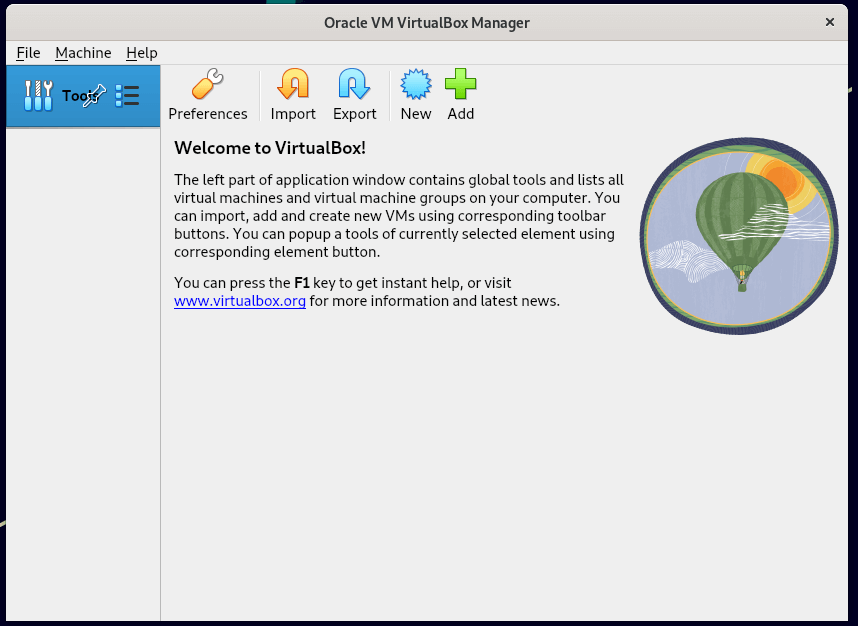
VirtualBox is an open-source cross-platform virtualization software, that can be installed on any operating system to run multiple guest virtual machines on the same computer.
For example, if you install it on your Linux system, you can run Windows operating system under it as a Guest OS or run Linux OS on your Windows system, and so on. This way, you can install and run as many guest operating systems (virtual machines) as you like, the only limit is disk space and memory.
Recently Oracle released the major stable version of Virtualbox 7.0, the newest version of VirtualBox comes with so many major changes and new features added to it.
You can see the complete new changelog details about VirtualBox 7.0 on their Official Changelog Page.
This guide explains how to install VirtualBox 7.0 on RHEL-based distributions such as RHEL, Fedora, Rocky Linux, AlmaLinux, and CentOS Stream using VirtualBox’s own repository with YUM and DNF commands.
This guide also explains how to install VirtualBox 7.0 on Debian-based distributions such as Debian, Ubuntu, and Linux Mint systems using VirtualBox’s own repository with APT-GET or APT commands.
On this page:
Installing VirtualBox 7.0 in RHEL-based Systems
To install the latest stable version of VirtualBox, you need to first download the virtualbox.repo configuration file using the following wget command and then import the public key using the rpm command.
----------------- On RHEL-based Distributions -----------------
# wget https://download.virtualbox.org/virtualbox/rpm/rhel/virtualbox.repo -P /etc/yum.repos.d/
# rpm --import https://www.virtualbox.org/download/oracle_vbox.asc

----------------- On Fedora Linux -----------------
# wget http://download.virtualbox.org/virtualbox/rpm/fedora/virtualbox.repo -P /etc/yum.repos.d/
# rpm --import https://www.virtualbox.org/download/oracle_vbox.asc
Next, enable the EPEL repository to install build tools and dependencies on the system.
----------------- On RHEL-based 9 Release -----------------
# dnf install https://dl.fedoraproject.org/pub/epel/epel-release-latest-9.noarch.rpm

----------------- On RHEL-based 8 Release -----------------
# yum install https://dl.fedoraproject.org/pub/epel/epel-release-latest-8.noarch.rpm

----------------- On RHEL-based 7 Release -----------------
# yum install https://dl.fedoraproject.org/pub/epel/epel-release-latest-7.noarch.rpm
Install Dependency Packages for VirtualBox
VirtualBox uses the vboxdrv kernel module to control and allocate physical memory for the execution of guest operating systems. Without this module, you can still use VirtualBox to create and configure virtual machines, but they will not work.
So, to make VirtualBox fully functional you will need to update your system first, then install some additional modules like DKMS, kernel-headers, kernel-devel, and some dependency packages.
----------------- On RHEL-based Distributions -----------------
# yum update
# yum install binutils kernel-devel kernel-headers libgomp make patch gcc glibc-headers glibc-devel dkms -y

----------------- On Fedora Linux -----------------
# dnf update
# dnf install @development-tools
# dnf install kernel-devel kernel-headers dkms qt5-qtx11extras  elfutils-libelf-devel zlib-devel
Install VirtualBox 7.0 in RHEL-based Systems
Once you’ve installed all the needed dependency packages, you can install the latest version of VirtualBox using the following command.
# dnf install VirtualBox-7.0
OR
# yum install VirtualBox-7.0
At this point, you are ready to start using VirtualBox by running the following command on the terminal.
# virtualbox
If you get the following error during the Virtualbox installation, it means there is a conflict between the two Kernel versions.
This system is currently not set up to build kernel modules.
Please install the Linux kernel "header" files matching the current kernel
To resolve the issue, first, check your installed kernel and then update the Linux kernel by running the command:
# uname -r
# dnf update kernel-*
Or
# yum update kernel-*
When the update is complete, reboot your system and select the latest kernel from the grub boot menu, this entry is usually the first entry as you can see.
# reboot
Once the system is done with booting, log in and once again confirm that the kernel-devel version now matches the version of the Linux kernel.
# rpm -q kernel-devel
# uname -r
Then, re-start the build set-up process and confirm that your VirtualBox installation was successful by running:
# /sbin/vboxconfig
# systemctl status vboxdrv
Troubleshooting
If you get any error message like KERN_DIR or if your kernel source directory is not detected automatically by the build process, you can set it by using the following command. Make sure you change the kernel version according to your system as shown in red color.
# KERN_DIR=/usr/src/kernels/4.19.0-1.el7.elrepo.x86_64
# export KERN_DIR
Installing VirtualBox 7.0 in Debian, Ubuntu, and Linux Mint
To install the latest stable version of VirtualBox, you need to add the official Virtualbox repository using the following command.
$ wget -q https://www.virtualbox.org/download/oracle_vbox_2016.asc -O- | sudo apt-key add -
$ wget -q https://www.virtualbox.org/download/oracle_vbox.asc -O- | sudo apt-key add -
$ sudo apt install software-properties-common
$ echo "deb [arch=amd64] https://download.virtualbox.org/virtualbox/debian $(lsb_release -sc) contrib" | sudo tee /etc/apt/sources.list.d/virtualbox.list
Then, update the software package list and install the latest version of VirtualBox.
$ sudo apt-get install virtualbox-7.0
Simply execute the following command to start it from the terminal or use the launcher from the menu to start.
# virtualbox
VirtualBox 7.0 Screenshot
Installing VirtualBox Extension Pack in Linux
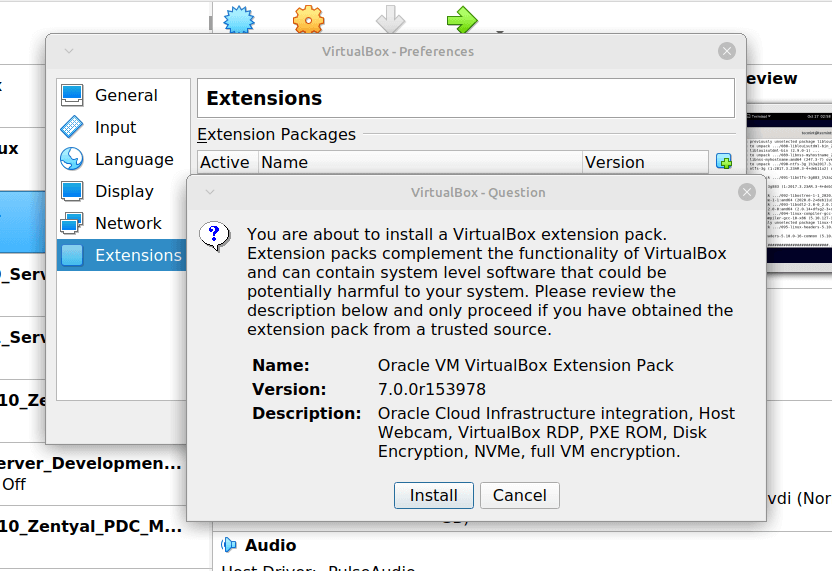
If you need some additional functionality such as VirtualBox RDP, PXE, ROM with E1000 support and USB 2.0 Host Controller support, etc. You need to download and install the VirtualBox Extension Pack using the following wget command.
# wget https://download.virtualbox.org/virtualbox/7.0.0/Oracle_VM_VirtualBox_Extension_Pack-7.0.0.vbox-extpack
To install the extension pack, you must have Virtualbox 7.0 installed, once you downloaded vbox-extpack open with Virtualbox as shown below.
If it doesn’t work out, then open Virtualbox –> File –> Preferences –> Tools –> Extension Manager and browse for the vbox-extpack to install it.
[ You might also like: How to Enable USB in VirtualBox ]
Updating VirtualBox in Linux Systems
If you want to update the VirtualBox with the latest version in the future, you can simply run the following command to update it.
On RHEL-based Systems
# yum update VirtualBox-*
On Debian-based Systems
# apt-get install VirtualBox-*
Remove VirtualBox from Linux Systems
If in case you want to remove VirtualBox completely, just use the following command to remove it completely from your system.
On RHEL-based Systems
# cd /etc/yum.repos.d/
# rm -rf virtualbox.repo
# yum remove VirtualBox-*
On Debian-based Systems
# apt-get remove VirtualBox-*
You can also Download VirtualBox 7.0 for other Linux, Windows, and Mac OS X platforms.




Credit to Gentoo Bug 912242 I had to modify BoxNetFlt-linux.c as follows:
After this, run
vboxconfig.Thank you so much. I got this setup on Centos7. So far no problems.
Thanks Ravi, got it installed, per your instructions. Now it’s off to installing a Windows 7 virtual machine. (I may be back – soon)
Installing VirtualBox 6.0 in Debian, Ubuntu and Linux Mint does not work in Linux Mint 19. Can anyone tell me how to get VirtualBox 6.0 installed?
@Guy,
Have you followed instructions provided in the article for Linux Mint? If not, follow below instructions.
Install VirtualBox 6.0 on Linux Mint 19 and Linux Mint 18.
It worked perfect. Thank you!
Hi,
I am also stuck on installing this. I have a centos7 and tried to install virtualbox. I started by downloading the virtualbox.repo and added it into my repositories.
But as soon as I type `yum update` I get a massive error:
[ROOTUSER@SERVER yum.repos.d]# yum install VirtualBox-5.1
Loaded plugins: fastestmirror, ovl
virtualbox/7/x86_64/signature | 181 B 00:00:00
Retrieving key from https://www.virtualbox.org/download/oracle_vbox.asc
virtualbox/7/x86_64/signature | 1.1 kB 00:00:00 !!!
Traceback (most recent call last):
File “/usr/bin/yum”, line 29, in
yummain.user_main(sys.argv[1:], exit_code=True)
File “/usr/share/yum-cli/yummain.py”, line 370, in user_main
errcode = main(args)
File “/usr/share/yum-cli/yummain.py”, line 179, in main
result, resultmsgs = base.doCommands()
File “/usr/share/yum-cli/cli.py”, line 583, in doCommands
return self.yum_cli_commands[self.basecmd].doCommand(self, self.basecmd, self.extcmds)
File “/usr/share/yum-cli/yumcommands.py”, line 445, in doCommand
return base.installPkgs(extcmds, basecmd=basecmd)
File “/usr/share/yum-cli/cli.py”, line 983, in installPkgs
txmbrs = self.install(pattern=arg)
File “/usr/lib/python2.7/site-packages/yum/__init__.py”, line 4825, in install
mypkgs = self.pkgSack.returnPackages(patterns=pats,
File “/usr/lib/python2.7/site-packages/yum/__init__.py”, line 1074, in
pkgSack = property(fget=lambda self: self._getSacks(),
File “/usr/lib/python2.7/site-packages/yum/__init__.py”, line 778, in _getSacks
self.repos.populateSack(which=repos)
File “/usr/lib/python2.7/site-packages/yum/repos.py”, line 347, in populateSack
self.doSetup()
File “/usr/lib/python2.7/site-packages/yum/repos.py”, line 157, in doSetup
self.retrieveAllMD()
File “/usr/lib/python2.7/site-packages/yum/repos.py”, line 88, in retrieveAllMD
dl = repo._async and repo._commonLoadRepoXML(repo)
File “/usr/lib/python2.7/site-packages/yum/yumRepo.py”, line 1479, in _commonLoadRepoXML
result = self._getFileRepoXML(local, text)
File “/usr/lib/python2.7/site-packages/yum/yumRepo.py”, line 1256, in _getFileRepoXML
size=102400) # setting max size as 100K
File “/usr/lib/python2.7/site-packages/yum/yumRepo.py”, line 1031, in _getFile
**kwargs
File “/usr/lib/python2.7/site-packages/urlgrabber/mirror.py”, line 448, in urlgrab
return self._mirror_try(func, url, kw)
File “/usr/lib/python2.7/site-packages/urlgrabber/mirror.py”, line 425, in _mirror_try
return func_ref( *(fullurl,), opts=opts, **kw )
File “/usr/lib/python2.7/site-packages/urlgrabber/grabber.py”, line 1197, in urlgrab
return self._retry(opts, retryfunc, url, filename)
File “/usr/lib/python2.7/site-packages/urlgrabber/grabber.py”, line 1086, in _retry
r = apply(func, (opts,) + args, {})
File “/usr/lib/python2.7/site-packages/urlgrabber/grabber.py”, line 1191, in retryfunc
_run_callback(opts.checkfunc, obj)
File “/usr/lib/python2.7/site-packages/urlgrabber/grabber.py”, line 1054, in _run_callback
return cb(obj, *arg, **karg)
File “/usr/lib/python2.7/site-packages/yum/yumRepo.py”, line 1728, in _checkRepoXML
self.gpg_import_func(self, self.confirm_func)
File “/usr/lib/python2.7/site-packages/yum/__init__.py”, line 6418, in getKeyForRepo
self._getAnyKeyForRepo(repo, repo.gpgdir, repo.gpgkey, is_cakey=False, callback=callback)
File “/usr/lib/python2.7/site-packages/yum/__init__.py”, line 6337, in _getAnyKeyForRepo
if hex(int(info[‘keyid’]))[2:-1].upper() in misc.return_keyids_from_pubring(destdir):
File “/usr/lib/python2.7/site-packages/yum/misc.py”, line 599, in return_keyids_from_pubring
for k in ctx.keylist():
gpgme.GpgmeError: (7, 32870, u’Inappropriate ioctl for device’)
Can you maybe help me?
@Ruth,
To fix, open and edit the file /etc/yum/pluginconf.d/rhnplugin.conf and change enabled to
0and then do.Please have a look at /var/log/vbox-install.log to trace why the build process failed
Run the following commands to build the kernel modules correctly : ( I am using RHEL -7)
YOU ARE ALL SET TO GO.
Hey i am stuck installing VirtualBox please help!
What should i do getting this vboxdrv.sh: failed: modprobe vboxdrv failed. Please use ‘dmesg’ to find out why.
Below mentioned is my /var/log/vbox-install.log file-
make KBUILD_VERBOSE=1 SUBDIRS=/tmp/vbox.0 SRCROOT=/tmp/vbox.0 CONFIG_MODULE_SIG= -C /lib/modules/3.10.0-514.el7.x86_64/build -j4 modules
arch/x86/Makefile:96: stack-protector enabled but compiler support broken
Makefile:641: Cannot use CONFIG_CC_STACKPROTECTOR_STRONG: -fstack-protector-strong not supported by compiler
make[1]: gcc: Command not found
make[1]: warning: -jN forced in submake: disabling jobserver mode.
test -e include/generated/autoconf.h -a -e include/config/auto.conf || ( \
echo >&2; \
echo >&2 ” ERROR: Kernel configuration is invalid.”; \
echo >&2 ” include/generated/autoconf.h or include/config/auto.conf are missing.”;\
echo >&2 ” Run ‘make oldconfig && make prepare’ on kernel src to fix it.”; \
echo >&2 ; \
/bin/false)
mkdir -p /tmp/vbox.0/.tmp_versions ; rm -f /tmp/vbox.0/.tmp_versions/*
make -f scripts/Makefile.build obj=/tmp/vbox.0
gcc -Wp,-MD,/tmp/vbox.0/linux/.SUPDrv-linux.o.d -nostdinc -isystem -I./arch/x86/include -Iarch/x86/include/generated -Iinclude -I./arch/x86/include/uapi -Iarch/x86/include/generated/uapi -I./include/uapi -Iinclude/generated/uapi -include ./include/linux/kconfig.h -D__KERNEL__ -Wall -Wundef -Wstrict-prototypes -Wno-trigraphs -fno-strict-aliasing -fno-common -Werror-implicit-function-declaration -Wno-format-security -fno-delete-null-pointer-checks -std=gnu89 -O2 -m64 -mno-mmx -mno-sse -mno-red-zone -mcmodel=kernel -maccumulate-outgoing-args -Wframe-larger-than=2048 -pipe -Wno-sign-compare -fno-asynchronous-unwind-tables -fstack-protector-strong -fno-omit-frame-pointer -fno-optimize-sibling-calls -g -pg -include /tmp/vbox.0/include/VBox/SUPDrvMangling.h -I/lib/modules/3.10.0-514.el7.x86_64/build/include -I/tmp/vbox.0/ -I/tmp/vbox.0/include -I/tmp/vbox.0/r0drv/linux -I/tmp/vbox.0/vboxdrv/ -I/tmp/vbox.0/vboxdrv/include -I/tmp/vbox.0/vboxdrv/r0drv/linux -D__KERNEL__ -DMODULE -DRT_OS_LINUX -DIN_RING0 -DIN_RT_R0 -DIN_SUP_R0 -DVBOX -DRT_WITH_VBOX -DVBOX_WITH_HARDENING -DSUPDRV_WITH_RELEASE_LOGGER -Wno-declaration-after-statement -DCONFIG_VBOXDRV_AS_MISC -DRT_ARCH_AMD64 -DVBOX_WITH_64_BITS_GUESTS -fno-omit-frame-pointer -fno-pie -DMODULE -D”KBUILD_STR(s)=#s” -D”KBUILD_BASENAME=KBUILD_STR(SUPDrv_linux)” -D”KBUILD_MODNAME=KBUILD_STR(vboxdrv)” -c -o /tmp/vbox.0/linux/.tmp_SUPDrv-linux.o /tmp/vbox.0/linux/SUPDrv-linux.c
/bin/sh: gcc: command not found
thanks, so quick so helpful ..
For those who still have a problem when they launch the command:
I’ve solved my problem by disabling the “secure boot” from the bios (i am using the standard Unified Extensible Firmware Interface “UEFI”)
My machine:
CentOS Linux release 7.3.1611 (Core)
Linux AP-amphi.ensm.intranet 3.10.0-514.10.2.el7.x86_64 #1 SMP Fri Mar 3 00:04:05 UTC 2017 x86_64 x86_64 x86_64 GNU/Linux
File: /var/log/vbox-install.log;
Makefile:185: *** Error: unable to find the sources of your current Linux kernel.
Specify KERN_DIR= and run Make again. Stop.
make KBUILD_VERBOSE=1 SUBDIRS=/tmp/vbox.0 SRCROOT=/tmp/vbox.0 CONFIG_MODULE_SIG= -C /usr/src/kernels/2.6.32-042stab116.1/ -j4 modules
make[1]: warning: -jN forced in submake: disabling jobserver mode.
test -e include/linux/autoconf.h -a -e include/config/auto.conf || (            \
        echo;                                                           \
        echo "  ERROR: Kernel configuration is invalid.";               \
        echo "         include/linux/autoconf.h or include/config/auto.conf are missing.";      \
        echo "         Run 'make oldconfig && make prepare' on kernel src to fix it.";  \
        echo;                                                           \
        /bin/false)
Can any body help ?
@Sevki,
Could you show me the output of the following commands:
I suggest you to first update the system and then try to install Virtualbox.
hi.
i currently used Ubuntu 16.04 (xenial).
i try to update then i got flowing warning ..
“W: GPG error: http://download.virtualbox.org/virtualbox/debian xenial InRelease: The following signatures couldn’t be verified because the public key is not available: NO_PUBKEY A2F683C52980AECF
W: The repository ‘http://download.virtualbox.org/virtualbox/debian xenial InRelease’ is not signed.
N: Data from such a repository can’t be authenticated and is therefore potentially dangerous to use.
N: See apt-secure(8) manpage for repository creation and user configuration details.'”
after install time
WARNING: The following packages cannot be authenticated!
virtualbox-5.1
Install these packages without verification? [y/N]
what to do now?
is i continue? is this better or not?
@Sayanthan,
First you need to remove old Virtualbox keys before doing a upgarde, here is how to remove the old keys:
Find the offending key (something like “virtualbox”, after “pub”, xxx/KEYHERE) and do:
Then follow the instructions as described in this article..
I used the above procedure to install VirtualBox 5.1 in a Fedora host and a Windows 7 guest, however, I have to run # /usr/lib/virtualbox/vboxdrv.sh setup each time after reboot/shutdown inorder to get any devices to appear in VB > Settings > USB > USB Device Filters. How can I make the change permanent so I don’t have to run # /usr/lib/virtualbox/vboxdrv.sh all the time?
I posted this question a few minutes ago but the email address was wrong.
Thanks,
I followed the installation process for VirtualBox in a Fedora 24 host and a Windows 7 guest. Everything worked fine, but I have to run # /usr/lib/virtualbox/vboxdrv.sh setup each time after a reboot/shutdown inorder to get any listings in Settings > USB > USB Device Filters.
How can I make the USB Filter choices permanent so i don’t have to run # /usr/lib/virtualbox/vboxdrv.sh?
Thanks.
I try to install virtualbox 5 on centos 7 but he gave the header problem then I install it but still having the issue ,plus what should I do
# yum install kernel-devel
@Busuyi,
Could you share the exactly what error message is giving by Virtualbox? so that it will help us to better identify the problem..
i get this error when run virtualbox
Qt FATAL: This application failed to start because it could not find or load the Qt platform plugin “xcb”.
Available platform plugins are: xcb.
Reinstalling the application may fix this problem.
Aborted (core dumped)
@Waleed,
It seems xcb libraries are not installed on the system, to install just run the following command will fix the error:
I have the same problem, I checked this list and installed the first item which was the only one missing and still get this error, I am running on Linux Mint 17.1
@Steve,
I suggest you to install all missing xcb related packages and see, if it solves the error..
Ravi,
The only package that was missing was libdouble-conversion1 and I have already installed it. So all the packages listed above are installed but it still gives me this error.
Ravi,
I found this on another site, if I run this
P=/usr/lib/virtualbox; sudo LD_LIBRARY_PATH=$P:$P/plugins/platforms $P/VirtualBox
in a terminal then Virtualbox opens like it should and it works, so doesn’t seem to be missing component.
@Steve,
Thanks for sharing the tip, I hope it will help other users, who are facing similar issue….
First of all, many thanks for this very useful guide!
However, in my case (CentOS 5.11) with the current VirtualBox Version 5.1.2, I ran into a problem which blocked virtualbox when started, so I could not use it at all:
$ virtualbox
Qt FATAL: This application failed to start because it could not find or load the Qt platform plugin “xcb”.
Available platform plugins are: xcb.
Reinstalling the application may fix this problem.
After some research, I discovered, that the required “xcb” libraries are installed in /usr/lib/virtualbox and /usr/lib/virtualbox/plugins.
So the solution is quite simple. As “root” (or using sudo) user do the following two steps:
1. create a new file containing the two paths mentioned above
# cd /etc/ld.so.conf.d
# vi virtualbox-5.1.2.conf
/usr/lib/virtualbox/
/usr/lib/virtualbox/plugins/platforms/
2. Update system wide configuration of “ldd”
# /sbin/ldconfig
Hope this helps some people to overcome this missing peace in the installation procedure of the VirtualBox package.
Have fun!
—
workaholic
@Nenad,
Thanks a ton for discovering and sharing such tip with us, hope this will help other users who face similar issue….
Nenad, Thanks for this, I was having the same problem on Linux Mint and this has fixed it.
@simon
Although six weeks are gone since your question, just a hint:
I just installed VirtualBox-5 on my Fedora-21 box. The script ‘vboxdrv.sh’ did the job for me:
# /usr/lib/virtualbox/vboxdrv.sh setup
@Peter,
Thanks for the tip, hope it will other users.. Keep sharing such hints with us and keep connected to Tecmint…
Hi Peter,
I have tried this. But got this error:
Stopping VirtualBox kernel modules [ OK ]
Uninstalling old VirtualBox DKMS kernel modules [ OK ]
Trying to register the VirtualBox kernel modules using DKMSError! echo
Your kernel headers for kernel 4.5.7-200.fc23.x86_64 cannot be found at
/lib/modules/4.5.7-200.fc23.x86_64/build or /lib/modules/4.5.7-200.fc23.x86_64/source.
[FAILED]
(Failed, trying without DKMS)
Recompiling VirtualBox kernel modules [FAILED]
(Look at /var/log/vbox-install.log to find out what went wrong)
Any help will be appreciated.
Thanks
@Dandu,
It seems me to like a Kernel header problem, you should install kernel-headers using:
Hello,
sorry for my poor English… I fail to install on Centos 7 at start stem, neither of these commands succeed:
# /etc/init.d/vboxdrv setup
OR
# service vboxdrv setup
=>
/etc/init.d/vboxdrv setup
bash: /etc/init.d/vboxdrv: No such file or directory
service vboxdrv setup
The service command supports only basic LSB actions (start, stop, restart, try-restart, reload, force-reload, status). For other actions, please try to use systemctl.
I found no error in /var/log/vbox-install.log
Any hints ? Thanks !
@Simon,
Have you correctly installed and enabled VirtualBox repository under /etc/yum.repos.d/ directory in your CentOS 7?
similar issue for me. I installed virtualbox repo in /etc/yum.repos.d/. I am using Fedora 23. I badly need VirtualBox. Please give me some solution to make it work. Thanks!
It appears there is a minor error in this guide. The suggested options for a RHEL/CentOS 7 host (or Fedora 19-24 hosts) are actually only suitable for RHEL/CentOS 5/6 hosts (or Fedora 16-18 hosts). Here is the change I made to the author’s procedure that allowed me to get VirtualBox 5.1 working on my CentOS 7 host:
/usr/lib/virtualbox/vboxdrv.sh setup
usermod -a -G vboxusers user_name
NOTE: Replace “user_name” with an actual user name.
I was able to otherwise follow this guide and just replace the portion concerning rebuilding the kernel modules with what I supplied above.
Source: http://www.if-not-true-then-false.com/2010/install-virtualbox-with-yum-on-fedora-centos-red-hat-rhel/
@John,
Thanks a ton for pointing out, we’ve included the instructions as suggested, hope it will help other users who are facing similar issues with latest version of CentOS/RHEL and Fedora..
What’s the deal with the 32bit only guests?
@Aj,
Your question is incomplete, could you please take some time to explain more clearly so that we can help you out..
You must enable Virtualization in BIOS
Thank you so much!
Thanks Ravi. Updated my system to CentOS 6.7 and also updated from VirtualBox 4.3 to 5.0. It all worked perfectly.
I have a question. Why do we need to rebuild the kernel modules? Is it necessary? Thanks!
@lvin,
VirtualBox has kernel modules that are required for it to work. They have to be built against the kernel that is in use. So, if you are upgrading virtualbox, or upgrading your kernel by doing a yum update, the kernel modules specific to VirtualBox must be rebuilt against the kernel. You can’t use modules that were built against an older kernel or modules from an older version of VirtualBox.
I’ve updated virtual box to 5.0 yesterday, my host machine is win 7 prof. after i updated to this i found major changes in my guest machines (centOS 6.6) all the fonts are visible as font and it’s very difficult to look for more time.
Hi, good job but with LinuxMint 17.2 the command lsb_release -cs give as answer : rafaela.
Oracle doesn’t know rafeala dist but knows ubuntu trusty dist or debian wheezy dist.
When you try apt-get update you get an error not found on oracle servers.
Regards
Gilbert
@GMarin,
Yup you correct, just replace the rafaela with trusty, it will work without any errors..
Very Good Explanation. I have installed VBOX 5 in Centos 6.5 with out any error :).
Hello ,
I gone through u r site and good. My concern is I need to install RHEL server on my laptop .In that Rhel i want to install VirtualBOX S/W to run a few windows applications..
So inside Virtal box -Going to insatll Windows..is it possible to such so?? please let me know..
2) I have RHEL 5.8 ,wan to install VirtualBOX 4.3 said as like of above by u…
I have moved to “”/etc/yum.repos.d”” and while executing i got Error …
Error ::
[root@NEURAREPO yum.repos.d]# pwd
/etc/yum.repos.d
/etc/yum.repos.d
[root@NEURAREPO yum.repos.d]# wget http://download.virtualbox.org/rpm/rhel/virtualbox.repo
–2015-05-27 12:00:38– http://download.virtualbox.org/rpm/rhel/virtualbox.repo
Resolving download.virtualbox.org… failed: Temporary failure in name resolution.
wget: unable to resolve host address `download.virtualbox.org’
[root@NEURAREPO yum.repos.d]#
So please guide me to resolve this issue and mail me the concern … Thank u …
@Kalyan,
Is your machine is connected to network? please check your internet connectivity and then execute the commands as described in the article.
very good explanation“ good job
Hi Ravi, could you explain me what’s the reason of the problem?
Sorry bro, didn’t find any solution, even I am confuse why such error coming. It would be great if you could give me access to your machine via teamviewer.
Bro, the new error is Failed to open the X11 display!
I copied libGL.so.1 from /usr/lib64 to /usr/lib/virtualbox , The error information is changed as below.
VirtualBox: supR3HardenedMainGetTrustedMain: dlopen(“/usr/lib/virtualbox/VirtualBox.so”,) failed: /usr/lib/virtualbox/libGL.so.1: undefined symbol: _XGetRequest
I think better, re-install Virtualbox.
Does anybody help me with the problem?
I think you’re using Ubuntu distribution, if yes, just re-install the Virtualbox with the help of following command.
Another reason is, your libGL.so.1 might be installed on different directly. Just find the libGL.so.1 and copy to /usr/lib/virtualbox/ will fix your problem.
VirtualBox: supR3HardenedMainGetTrustedMain: dlopen(“/usr/lib/virtualbox/VirtualBox.so”,) failed: /usr/lib64/libGL.so.1: undefined symbol: _XGetRequest
The problem is occured when I run VirtualBox. Thanks
kmod_virtual box
make sure the kmod version matches you kernel version
Hi,
When I run this command:
service vboxdrv setup
the error is shown,what should I do?
Stopping VirtualBox kernel modules [ OK ]
Uninstalling old VirtualBox DKMS kernel modules [ OK ]
Trying to register the VirtualBox kernel modules using DKMSError! echo
Your kernel headers for kernel 2.6.32-431.3.1.el6.x86_64 cannot be found at
/lib/modules/2.6.32-431.3.1.el6.x86_64/build or /lib/modules/2.6.32-431.3.1.el6.x86_64/source.
[FAILED]
(Failed, trying without DKMS)
Recompiling VirtualBox kernel modules [FAILED]
(Look at /var/log/vbox-install.log to find out what went wrong)
awsome examples thank you so much ravi bhai
I’m running a CentOs 6.5 Kernel Linux 2.6.32-431.1.2.0.1.el6.686 and install Virtualbox 4.3.6
All goes fine until the end of the instalation process but launching VirtualBox on a command line give the following :
# VirtualBox
Segmentation fault (core dumped)
With no more information.
Any idea ?
Christian.
Sorry for the lack of information but it’s impossible to launch it. Th elast vBox.log I get is a really old and not one generated by a recent session.
On another hand there is tons of segmentation faul issues genrated by VirtualBox for various reasons that it is a nightmare to find if my problem was met or not.
The debug mode sounds like unable to be activated.
i’m feeling a little bit disarmed.
Christian.
Hi Christian I have the same issue on centos 6.x
VirtualBox[6343]: segfault at b3e14000 ip 01e6ccbc sp bffa8c94 error 7 in libQtGui.so.4.6.2[1d51000+9ff000]
Did u find any solution ?
CENTOS 6.4 kernel -2.6.32-358.el6.x86_64
everything was fine to the finaly step when I received a message that libpython requires
then I installed “yum installed python-devel.x86_64” but the same problem persist on the end of installation process?
What I should to do ?
thanks
CENTOS 6.4 kernel -2.6.32-358.el6.x86_64
Ups, I didn’t noticed that I had AMD64 infrastructure platform.
Well, I guess there’s a kernel downgrade story there since I don’t see any 3.9 version on my /usr/src/kernels/ .. But no problem, because I choosed a simpler solution : switching to kvm/qemu ^^
Cheers,
Edrisse
Dear all,
I’m on Fedora 19 and up to date. I got the error message you put in “Troubleshooting”.
Then I applied the KERN_DIR operation with my kernel version :
[root@localhost ]# KERN_DIR=/usr/src/kernels/3.11.9-200.fc19.i686/
[root@localhost ]# export KERN_DIR
Unfortunately, I still get an error I don’t understand :
[root@localhost ]# /etc/init.d/vboxdrv setup
Stopping VirtualBox kernel modules [ OK ]
Uninstalling old VirtualBox DKMS kernel modules [ OK ]
Removing old VirtualBox pci kernel module [ OK ]
Removing old VirtualBox netadp kernel module [ OK ]
Removing old VirtualBox netflt kernel module [ OK ]
Removing old VirtualBox kernel module [ OK ]
Trying to register the VirtualBox kernel modules using DKMSError! echo
Your kernel headers for kernel 3.9.5-301.fc19.i686 cannot be found at
/lib/modules/3.9.5-301.fc19.i686/build or /lib/modules/3.9.5-301.fc19.i686/source.
[FAILED]
(Failed, trying without DKMS)
Recompiling VirtualBox kernel modules [ OK ]
Starting VirtualBox kernel modules [FAILED]
(modprobe vboxdrv failed. Please use ‘dmesg’ to find out why)
[root@localhost ]# tail dmesg
[23018.339440] vboxdrv: version magic ‘3.11.9-200.fc19.i686 SMP mod_unload 686 ‘ should be ‘3.9.5-301.fc19.i686 SMP mod_unload 686 ‘
any idea ?
Thanks,
Sorry for wasting bandwidth, it was only a reboot that was needed to align the running kernel with the header files. Silly me…
Hi,
I followed the instructions above and all was OK until the latest step.
How can I get the vboxdrv to compile against the correct headers? I’m on Fedora 18.
# /etc/init.d/vboxdrv setup
Stopping VirtualBox kernel modules [ OK ]
Uninstalling old VirtualBox DKMS kernel modules [ OK ]
Removing old VirtualBox pci kernel module [ OK ]
Removing old VirtualBox netadp kernel module [ OK ]
Removing old VirtualBox netflt kernel module [ OK ]
Removing old VirtualBox kernel module [ OK ]
Trying to register the VirtualBox kernel modules using DKMSError! echo
Your kernel headers for kernel 3.11.4-101.fc18.x86_64 cannot be found at
/lib/modules/3.11.4-101.fc18.x86_64/build or /lib/modules/3.11.4-101.fc18.x86_64/source.
[FAILED]
(Failed, trying without DKMS)
Recompiling VirtualBox kernel modules [ OK ]
Starting VirtualBox kernel modules [FAILED]
(modprobe vboxdrv failed. Please use ‘dmesg’ to find out why)
[root@leia ~]# echo $KERN_DIR
/usr/src/kernels/3.11.7-100.fc18.x86_64
# uname -r
3.11.4-101.fc18.x86_64
# yum -y install kernel-devel kernel-headers-$(uname -r)
Loaded plugins: fastestmirror, langpacks, presto, refresh-packagekit
Repository google-chrome is listed more than once in the configuration
Loading mirror speeds from cached hostfile
* fedora: mirror.proserve.nl
* rpmfusion-free: mirror.proserve.nl
* rpmfusion-free-updates: mirror.proserve.nl
* rpmfusion-nonfree: mirror.proserve.nl
* rpmfusion-nonfree-updates: mirror.proserve.nl
* updates: mirror.proserve.nl
Package kernel-devel-3.11.7-100.fc18.x86_64 already installed and latest version
No package kernel-headers-3.11.4-101.fc18.x86_64 available.
Nothing to do
In Fedora 19 (today), there is no /etc/init.d/vboxdrv file. I’m trying to get virtualbox running via vagrant, and when I try a “vagrant box add…” I get an error that the kernel module is not loaded.
This might be useful:
$ systemctl status systemd-modules-load.service
systemd-modules-load.service – Load Kernel Modules
Loaded: loaded (/usr/lib/systemd/system/systemd-modules-load.service; static)
Active: failed (Result: exit-code) since Mon 2013-11-11 13:04:38 CST; 11s ago
Docs: man:systemd-modules-load.service(8)
man:modules-load.d(5)
Process: 6298 ExecStart=/usr/lib/systemd/systemd-modules-load (code=exited, status=1/FAILURE)
Nov 11 13:04:38 x1-idlelion-net systemd-modules-load[6298]: Failed to insert ‘vboxdrv’: Required key not available
Nov 11 13:04:38 x1-idlelion-net systemd[1]: systemd-modules-load.service: main process exited, code=exited, status=1/FAILURE
Nov 11 13:04:38 x1-idlelion-net systemd[1]: Failed to start Load Kernel Modules.
Nov 11 13:04:38 x1-idlelion-net systemd[1]: Unit systemd-modules-load.service entered failed state.
The “required key not available” is a big red flag for me, but I’m not sure how to proceed. Any help greatly appreciated.
I can’t get bridged networking to work in FC19. Has anyone else gotten this to work?
Hi Ravi, I follow the instructions step by step on installing VirtualBox-4.3. My distro is fedora 19. But still I’m having a problem.
here’s the details:
$cd /etc/yum.repos.d/
$wget http://download.virtualbox.org/virtualbox/rpm/fedora/virtualbox.repo
$yum -y update
$yum -y install binutils qt gcc make patch libgomp glibc-headers glibc-devel kernel-headers kernel-devel dkms
$yum -y install VirtualBox-4.3
Here’s the Error:
VirtualBox-4.3-4.3.0_89960_fed FAILED ] 79 B/s | 26 MB 220:34:39 ETA
http://download.virtualbox.org/virtualbox/rpm/fedora/19/i386/VirtualBox-4.3-4.3.0_89960_fedora18-1.i686.rpm: [Errno 12] Timeout on http://download.virtualbox.org/virtualbox/rpm/fedora/19/i386/VirtualBox-4.3-4.3.0_89960_fedora18-1.i686.rpm: (28, ‘Operation too slow. Less than 1000 bytes/sec transferred the last 30 seconds’)
Trying other mirror.
Error downloading packages:
VirtualBox-4.3-4.3.0_89960_fedora18-1.i686: [Errno 256] No more mirrors to try.
Its seems your internet speed is very slow, its transferring data less than 1000 bytes as shown error.
I see. thanks for the reply. Is there any alternative solution for that?
No, that’s the only way to install Virtualbox.
I have the same issue.
This is not an internet speed issue, this is something else or something deeper. I have had this issue with Virtualbox installation from the repo for over 8 hours now, I just watched a full length Bollywood movie, ran Flash plugin on Chrome, Firefox and Opera (mostly youtube) on Ubuntu and Centos 6.5, downloaded 150+ MB worth of yum updates yet virtualbox.org wont even ping from the command line.
But if I go via normal browser http, virtualbox.org loads fine and the downloads seem to be working too.
I hate to do rpm installs when yum repos can do the trick.
So if this keeps happening over the next 24 hours, I guess this means I use rpm installation as given on the virtualbox.org site?
Will that work or is it a known bad thing to do?
thanks,
dave
Thank you very much for this guide. It worked for me. I had wasted a few hours and I didn’t know how to fix a trouble in the installation of Virtual Box.
This guide is very clear.
Thank You!
I gives an error with Xen kernel which is created after upgradation of centos 5.6 to 5.9
These are the errors. Please suggest to rectify the problem.
Thanks
(Running VirtualBox in a Xen environment is not supported)
Hi Ravi, I am getting this same error as Andres Maurer
“Failed to open the X11 display!”
I am on CentOS 6.4 and logging in via putty.
You cannot start Virtualbox from PUTTY, you need to be logged in GUI mode to start it. PUTTY is made for to access CLI, not GUI.
Thanks! Huge help! I was struggling to get this work on 3.10.9-200.fc19.x86_64.
i forgot to tell you that i’m using Centos 6.4 with a 2.6.32-358.14.1.el6.i686 kernel and Virtualbox is 4.2.16 version…
Thanks!!
Well, after try everything i had to run “yum update” then “service vboxdrv setup ”
and works great!
I loaded virtualbox without any strange message and i’m ready to put a Winbloods guest
THANKS for your appreciable HELP!!
Ravi, does this installation works on Centos 5.3? and, Is the web interface included in this installation?
No, it will not work. Upgrade your CentOS to 6.4.
Upgraded to 6.4. But Is the web interface included?
Simply run init 3 command to get command line interface and init 5 to GUI mode.
Loaded plugins: langpacks, presto, refresh-packagekit
Setting up Remove Process
No Match for argument: VirtualBox-4.2
Cairo-Dock | 2.9 kB 00:00
Dropbox | 951 B 00:00
adobe-linux-i386 | 951 B 00:00
adobe-linux-x86_64 | 951 B 00:00
google-chrome | 951 B 00:00
google-earth | 951 B 00:00
google-talkplugin | 951 B 00:00
livna | 3.6 kB 00:00
rpmfusion-free-updates | 3.3 kB 00:00
skype | 1.2 kB 00:00
updates/metalink | 6.2 kB 00:00
No Packages marked for removal
[root@core yum.repos.d]# ^C
[root@core yum.repos.d]#
I am using Fedora 15 and donno why I am getting this error. :/
Have you correctly added Virtualbox repo?
I have followed the steps for installing virtualbox 4.2 in my newly installed fedora 17 OS and having the problem is:
1. When i started the virtualbox and created a xp system and when i clicked on start then i got this-
Kernel driver not installed (rc=-1908)
The VirtualBox Linux kernel driver (vboxdrv) is either not loaded or there is a permission problem with /dev/vboxdrv. Please reinstall the kernel module by executing
‘/etc/init.d/vboxdrv setup’
as root. If it is available in your distribution, you should install the DKMS package first. This package keeps track of Linux kernel changes and recompiles the vboxdrv kernel module if necessary
2. after abort this window a second window showing the message this–
Failed to open a session for the virtual machine xp.
The virtual machine ‘xp’ has terminated unexpectedly during startup with exit code
1.
Result Code: NS_ERROR_FAILURE (0×80004005)
Component: Machine
Interface: IMachine {22781af3-1c96-4126-9edf-67a020e0e858}
after that i have installed jre but it still having problems same as above.
please reply what to do?
Good post, however , you don’t need to run the setup and if dkms is installed it will automatically rebuild the kernel module. If you set up the kernels and build tools and then install Virtualbox as stated in this article.
http://minimallinux.blogspot.co.uk/2012/07/centos-6-install-virtualbox-guest-os.html
You should be fine.
Hi. I did that and have exactly the same behaviour.
Error messages
TSC mode is ‘synchronous’, kernel mode is ‘normal’
vboxpci: IOMMU not found (not compiled)
Thanks
I am sorry, before that error message I get this one.
When trying to recompile kernel modules by issuing
service vboxdrv setup
I get this message
TSC mode is “synchronous”, kernel timer mode is “normal”
Thanks
Andres
Try to uninstall and re-install again VirtualBox and start the service this way.
Hi. I did so but I keep getting the same error and the kernel does’t compile.
Which CentOS version you using? Have you installed all the required packages as shown above in this article? after installing virtualbox you restarted system. I think any of the below packages missed, install them.
Hi. I have installed VirtualBox over a Centos system but when I try to start VirtualBox I get a message
Failed to open the X11 display.
What can I do ?
Thanks
Andres
I think you trying to launch program from the terminal, that’s the reason you getting such error. If you are already in X Window, try to start from the Application Menu.
Hi. Thank you for your answer. How do I know if I am in X Windows. I am issuing the command from the command line and as a Root user.
Regards
“KERN_DIR or if your kernel source directory not detected automatically by build process”
I got this error msg on RHEL 6.4.
KERN_DIR=/usr/src/kernels/2.6.18-194.11.1.el5-x86_64
export KERN_DIR
Exactly where i can run this commands ? or write in conf file ? or run on terminal ?
I figured it out.. I had to blacklist the nouveau module on the grub line, and then do Xorg -configure to generate a new xorg.conf.
It’s working again.
I am glad finally it worked for you. :)
Thank you very much!!!
Ravi,
Centos 6.4 is out and so is VirtualBox 4.2.10. Any pointers for upgrading from Centos 6.3 and VirtualBox 4.2.6?
I figure a yum update and a reboot to go to Centos 6.4. Then what? Do a service vboxdrv setup? and a yum update VirtualBox-4.2?
Think anything else will be needed?
@Derwood,
I have already written a fair article that show you how to upgrade from any CentOS 6.x to CentOS 6.4.
I have updated this article to Virtualbox 4.2.10, simple follow the above steps to install it. If any please do let me know..
Well, I upgraded from CentOS 6.3 to CentOS 6.4, and also update Virtualbox to 4.2.10. Everything went fine except for one small problem.
I have no text visible in any window or on any of the task bars.
I managed to get Virtualbox started by blind guessing where its icon was and I got the VMs to start after it started. So they’re up, but still no text in the windows.
here’s a screenshot from a vnc session:
http://i11.photobucket.com/albums/a188/derwood5555/desktop_zps3676fb15.png
Any ideas?
No idea man, try rebooting the machine may work..
Yeah.. I tried rebooting.. It’s apparently a problem with the nouveau driver. It has issues.
I’m either going to have to put a different video card in or install nvidia proprietary drivers.
Hello Friends,
I am getting the below error while yum update after downloading virtualbox.repo
[root@025 yum.repos.d]# yum -y update
Loaded plugins: aliases, changelog, downloadonly, fastestmirror, kabi, presto, refresh-packagekit, security, tmprepo, verify,
: versionlock
Loading support for CentOS kernel ABI
Loading mirror speeds from cached hostfile
* base: mirror.nbrc.ac.in
* epel: mirrors.ispros.com.bd
* extras: mirror.nbrc.ac.in
* updates: mirror.nbrc.ac.in
virtualbox/primary | 226 B 00:00
http://download.virtualbox.org/virtualbox/rpm/el/6/x86_64/repodata/primary.xml.gz: [Errno -1] Metadata file does not match checksum
Trying other mirror.
Error: failure: repodata/primary.xml.gz from virtualbox: [Errno 256] No more mirrors to try.
Please Help.
I think you need to clear yum meta cache, run the following command to clear the cache and run the update.
I hope it will work out..
Hello Ravi,
I tried out yum clean metadata; yum clean all , After this i am facing the below error.
Trying other mirror.
updates | 3.5 kB 00:00
updates/primary_db | 5.1 MB 00:35
virtualbox | 951 B 00:00
virtualbox/primary | 226 B 00:00
http://download.virtualbox.org/virtualbox/rpm/el/6/x86_64/repodata/primary.xml.gz: [Errno -1] Metadata file does not match checksum
Trying other mirror.
virtualbox/primary | 218 B 00:00
http://download.virtualbox.org/virtualbox/rpm/el/6/x86_64/repodata/primary.xml.gz: [Errno -1] Metadata file does not match checksum
Trying other mirror.
Error: failure: repodata/primary.xml.gz from virtualbox: [Errno 256] No more mirrors to try.
Hi,
I am also not able to install virtualbox4.2, and I have update kernel-devel,
and successfully able to /etc/init.d/vboxdrv setup but when i trying to open VirtualBox but not able to start. also i tried from gui mode but not run and alos no error coming.
please guide me on the same.
restart the server will fix this issue..
Thanks Ravi you are a star , thanks a ton……
@Prasad,
Thanks for your compliment.
Thank you so much! This really helped me out.
I am very impressed by your achivements, I was greatly helpfull to me , I just transfer a virtual box (cloned) from a win 7 ultimate host to a centos host , inside my vm i had a centos server running my web sites,
Thank you so much!!!! I had a kernell problem when I moved and try to install the clone files (vdi) , Because I am a newbie on linux, and I am loving it, but I don’t quite understand how everything works, But I made it , Thanks to God, and your nice explanation here , I find it out that you have to do by rpm and repo files otherwise will not work at all, at the begin I had installed by the binary package … :( , then to fix it I have removed the installation and follow your steps on how to install and works just great!!!! May God Bless you Greatly!!!!!.. Thank you!!!…
Thank you very much Ravi . It perfectly worked and once again thank you……..
I’ve been everywhere trying to get this to work and it won’t no matter what I do.
I’ve set the KERN_DIR variable. see:
[root@derwood kernels]# set | grep KERN
KERN_DIR=/usr/src/kernels/2.6.32-279.11.1.el6.centos.plus.x86_64
[root@derwood kernels]# ls
2.6.32-279.11.1.el6.centos.plus.x86_64
[root@derwood kernels]# pwd
/usr/src/kernels
Yet when I try to set up vboxdev, I get this:
Error! Your kernel headers for kernel 2.6.32-279.el6.x86_64 cannot be found at
/lib/modules/2.6.32-279.el6.x86_64/build or /lib/modules/2.6.32-279.el6.x86_64/source.
[FAILED]
(Failed, trying without DKMS)
Recompiling VirtualBox kernel modules [FAILED]
It points to the wrong directory.. This is on a fresh install of Centos 6.3. No updates applied to it.
Any ideas would be appreciated.
@Darin – Have you installed required dependency packages like kernel-headers kernel-devel?
If not please install it, The error clearly saying that “kernel headers cannot be found”.
Please install and try again..
@Ravi
Yeah.. I had the headers and kernel-devel installed. I figured out the problem.
For some reason, the kernel headers were for a newer kernel.. I uninstalled the headers, did a full yum update, then reinstalled everything and it worked properly. Don’t know why yum did that but its fixed.
The reboot did the trick because the yum update caused you to have a higher kernel version. Next time u should just reboot and you will see that your kernel will be updated also (uname -r and ls in the src dir)
btw thx for the tutorial u might want to add the part about rebooting when the kernel is not updated :)
Rebooting fixed the problem. Thanks!
Hi Ravi
I tried to install virtualbox on centos 5.9 but it failed
It was upgraded to 2.6.18-348.16.1.el5-xen-x86_64 and vertualbox does not support xen
How to rectify the problem
Thanks
Ojha
Can you post the exact error, so we could rectify and give a solution to fix such issue.
This was perfect! Thanks for publishing, it really saved me a lot of time. I didn’t see anything in the docs on how to pull down all of the dependencies and I was constantly failing installs. This time I received errors on the DKMS not being there, but it still compiled and I was able to import an appliance built on an OSX computer without a problem.