
How to Disable SELinux on CentOS 8

SELinux or Security-Enhanced Linux is a mechanism or security module that provides access control security policies. In simple terms, it’s a feature or service used for restricting users to certain policies and rules set by the systems administrator.

In this topic, you will learn how to disable SELinux temporarily and later permanently on CentOS 8 Linux.

How to Temporarily Disable SELinux on CentOS 8

Before you start disabling SELinux on CentOS 8, it’s prudent that you first check the status of SELinux.

To do so, run the command:

# sestatus
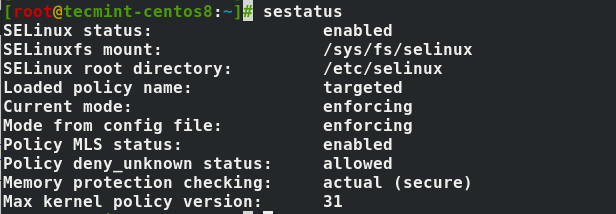
Check SELinux Status in CentOS 8

This shows that SELinux is up and running.

To temporarily disable SELinux run the command.

# setenforce 0

Also, you can run the command.

# setenforce Permissive

Either of these commands will temporarily disable SELinux only until the next reboot.

How to Permanently Disable SELinux on CentOS 8

Now, let’s see how we can permanently disable SELinux. The configuration file for SElinux is located at /etc/selinux/config. Therefore, we need to make a few modifications to the file.

# vi /etc/selinux/config

Set the SELinux attribute to disabled as shown below:

SELINUX=disabled
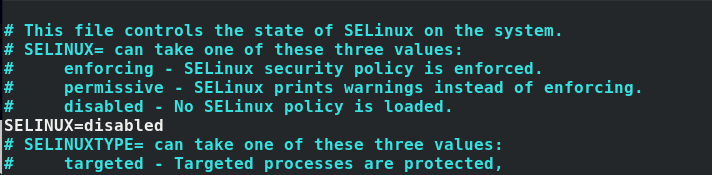
Disable SELinux in CentOS 8

Save and exit the configuration file and reboot your CentOS 8 Linux system using any of the commands below.

# reboot
# init 0
# telinit 0

Now check the status of SELinux using the command.

# sestatus

Verify SELinux Status in CentOS 8

SELinux is a very crucial feature on CentOS 8 and helps in restricting unauthorized users from accessing certain services on the system.

In this guide, we demonstrated how you can disable SELinux on CentOS 8. Ideally, it’s always recommended to keep SELinux enabled with the exception of instances where you are configuring services that require SELinux to be disabled.

We hope you found this guide insightful. And that’s all for today. Your feedback is most welcome.

If this article helped, with someone on your team.

TecMint Weekly Newsletter
Get the Learn Linux 7 Days Crash Course free when you join 34,000+ Linux professionals reading every Thursday.
Check your email for a magic link to get started.
Something went wrong. Please try again.
TecMint has been free for 14 years. Help keep it that way.
Google AI Overviews and tools like ChatGPT have cut into search traffic for independent tech sites like TecMint. Running this site costs over $2,000 every month for hosting, infrastructure, and paying authors to keep the content accurate and tested.

If this article helped you solve a problem, consider buying a coffee. It helps keep TecMint free, supports the authors, and keeps the project going.
☕ Buy Me a Coffee
James Kiarie
This is James, a certified Linux administrator and a tech enthusiast who loves keeping in touch with emerging trends in the tech world. When I'm not running commands on the terminal, I'm taking listening to some cool music. taking a casual stroll or watching a nice movie.

Each tutorial at TecMint is created by a team of experienced Linux system administrators so that it meets our high-quality standards.

Got Something to Say? Join the Discussion...

Thank you for taking the time to share your thoughts with us. We appreciate your decision to leave a comment and value your contribution to the discussion. It's important to note that we moderate all comments in accordance with our comment policy to ensure a respectful and constructive conversation.

Rest assured that your email address will remain private and will not be published or shared with anyone. We prioritize the privacy and security of our users.

Free Course
Get a free Linux course before you go.
Subscribe to TecMint Weekly and get the Learn Linux 7 Days Crash Course free. Read by 34,000+ Linux professionals every Thursday.
Something went wrong. Please try again.
Check your email for a magic link to get started.