

VirtualBox Guest Additions are software (typically device drivers and other special system applications) that enable seamless integration between the host and guest systems. They help you make the best out of your guest operating system for better performance and usability.
Read Also: How to Install VirtualBox Guest Additions in Ubuntu
Some of the features offered by Guest Additions include mouse pointer integration, Drag’n’Drop functionality, shared clipboard, shared folders, enhanced video support, time sync, generic host/guest communication pathways, seamless windows and more.
Guest Additions are designed to be installed in a virtual machine, once a guest operating system has been installed.
In this article, we will explain how to install VirtualBox Guest Additions on CentOS and RHEL based distributions such Fedora and Scientific Linux.
How to Install VirtualBox Guest Additions in CentOS
1. First start by enabling the EPEL repository on your CentOS/RHEL guest operating system to install some required packages needed for the installation process as shown.
# yum -y install epel-release
2. Next, update each package on your guest system including the kernel to the latest version that is both available and resolvable, as shown. Once the upgrade process is done, reboot your system to complete the upgrade process and start using the new kernel.
# yum -y update   [On RHEL/CentOS]
# dnf -y upgrade  [On Fedora 22+]
3. Once update process completes, install all kernel headers, developer tools and other related packages that are required for installing the guest additions from source as shown.
---------- On RHEL/CentOS ----------
# yum install make gcc kernel-headers kernel-devel perl dkms bzip2

---------- On Fedora 22+ ----------
# dnf install make gcc kernel-headers kernel-devel perl dkms bzip2
4. Next, set the KERN_DIR environment variable to kernel source code directory (/usr/src/kernels/$(uname -r)) and export it at the same time as shown.
# export KERN_DIR=/usr/src/kernels/$(uname -r)
5. Now, you can mount the Guest Additions ISO and run the installer in two ways:
Install Guest Additions via a GUI
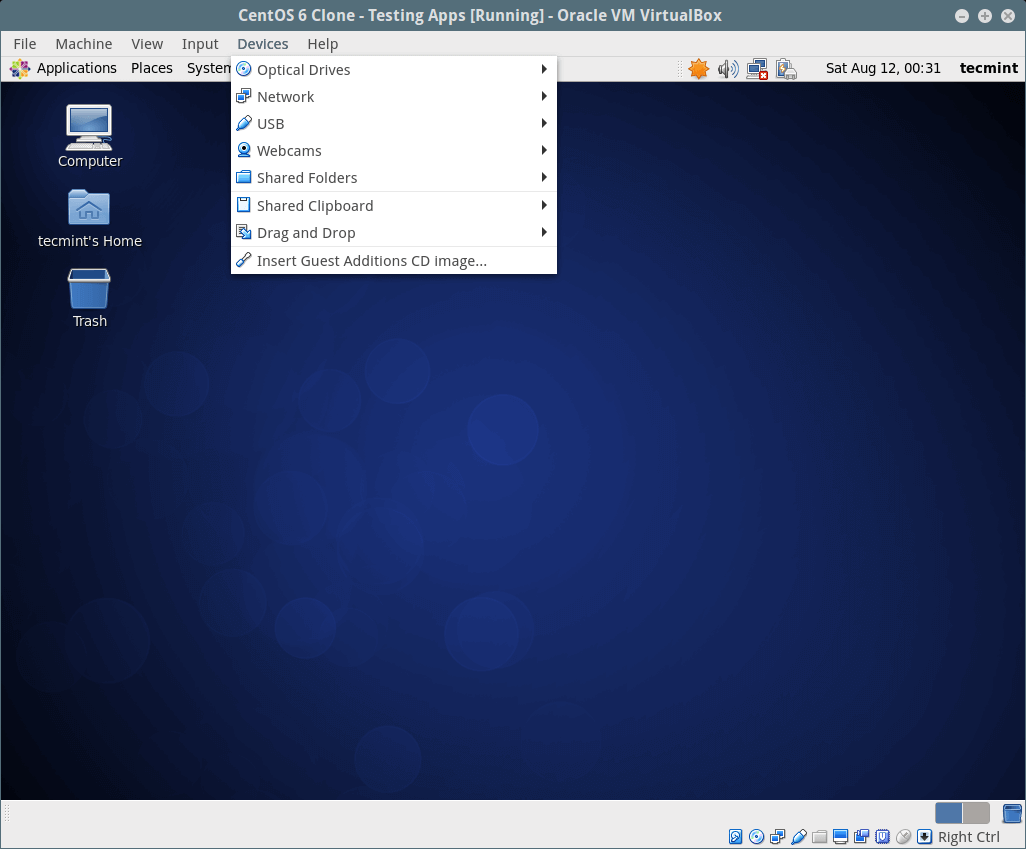
If you have a desktop environment installed, use this option, from the Virtual machine menu bar, go to Devices => click on Insert Guest Additions CD image to mount the Guest Additions ISO file in your guest OS.
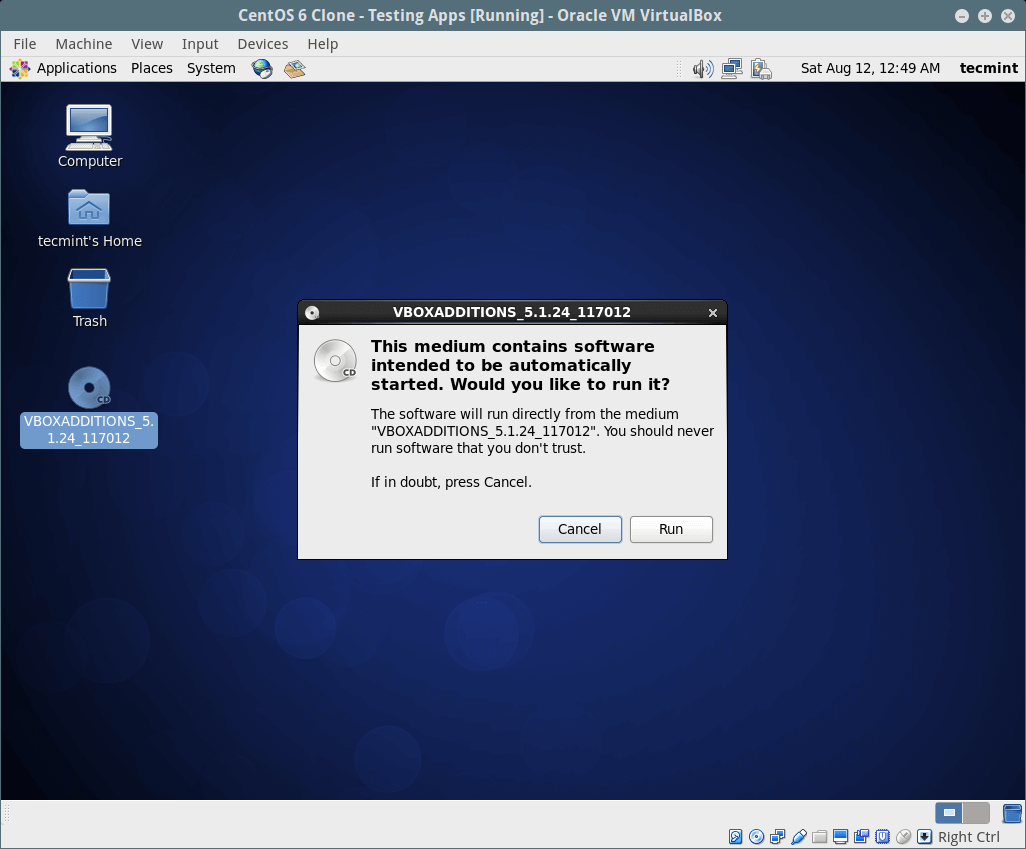
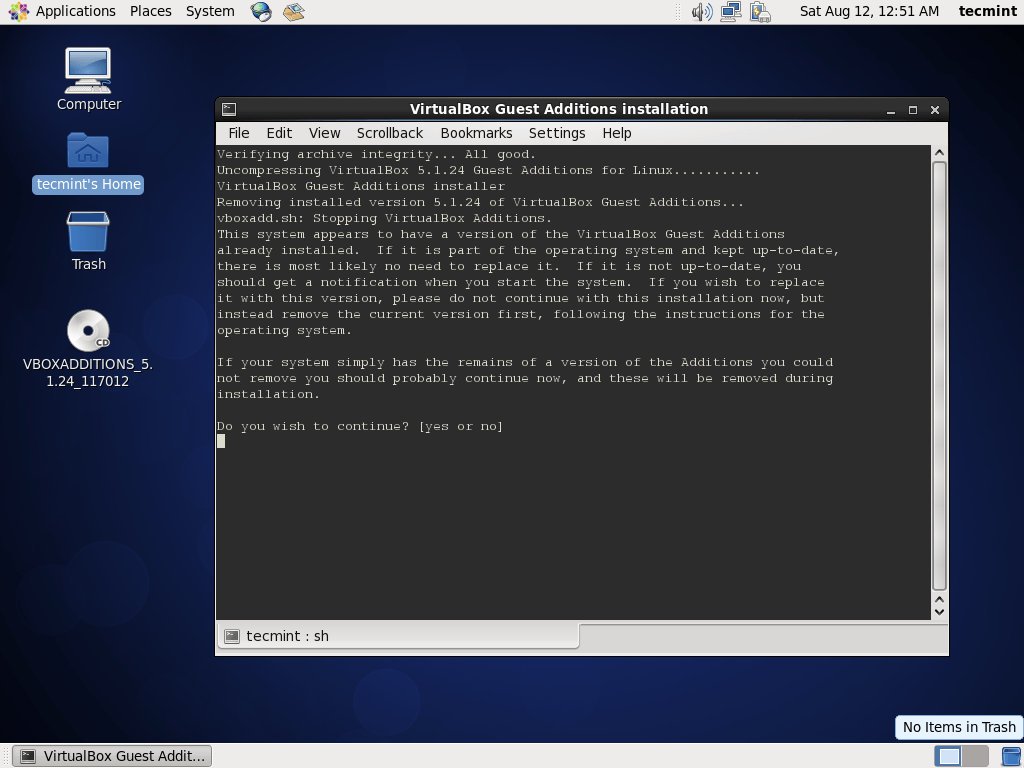
A dialog window will open up, asking you to Run the installer, click on the Run to execute it. This will in turn open a terminal which shows the installation details (follow the on-screen instructions).
Install Guest Additions via a Terminal
Login into terminal and run the following commands to mount the Guest Additions ISO file, move into the directory where the guest additions ISO has been mounted, inside there you will find VirtualBosx guest addition installers for various platform, run the one for Linux, as follows.
# mount -r /dev/cdrom /media
# cd /media/
# ./VBoxLinuxAdditions.run
6. Once the installation is complete, power off your guest system to perform certain settings as explained below.
Note: If you don’t have a desktop environment installed, you can install Gnome 3 desktop or skip the next section. You should be good to go.
7. Now you need to enable the shared clipboard and drag’n’drop functionality for your guest operating system. From the CentOS, RHEL and Fedora guest machine settings, go to General => Advanced and enable these two options from there, click on the drop down options to select an option.
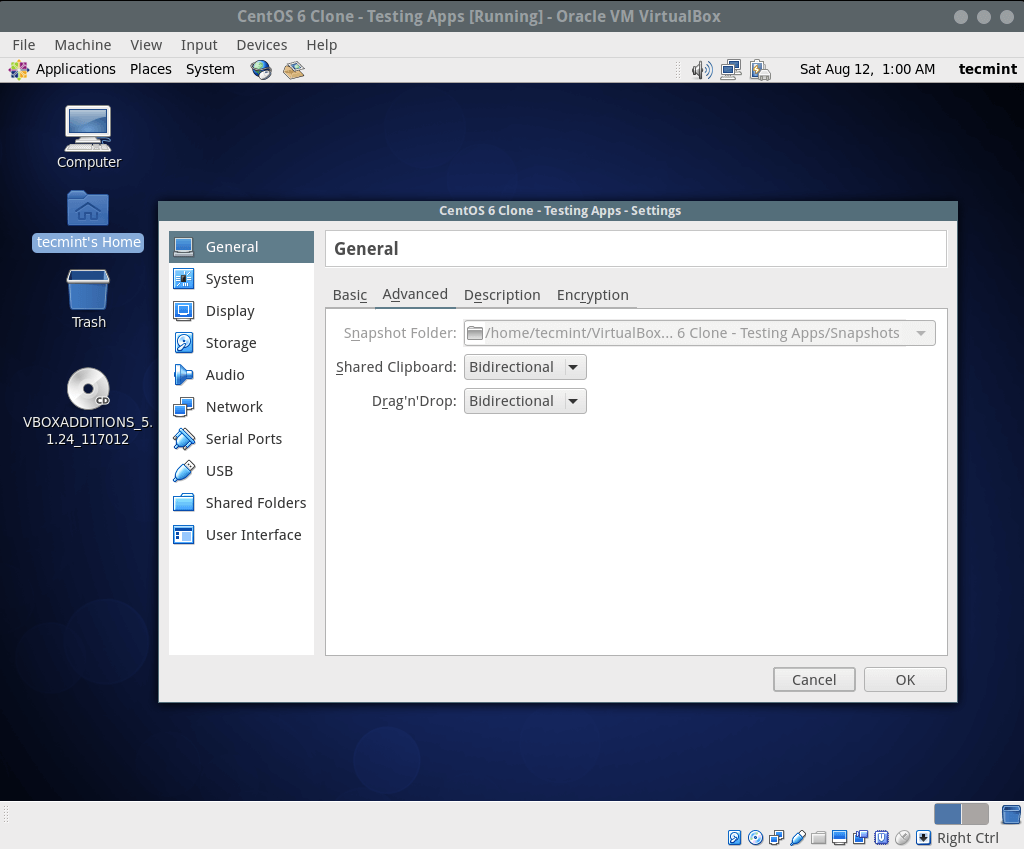
Once you are done, click on OK to save the settings and boot your guest OS and confirm that the changes you have just made are working as expected.
Read Also: How to Enable USB in VirtualBox
That’s it! VirtualBox Guest Additions make your life simple while using guest operating systems by enabling seamless integration between the host and guest systems. If you face any problems during installation, use the feedback form below to ask any questions.
