

The importance of financial management and accounting practices in personal life or small enterprise businesses is one of the growing factors of a business.
There are a lot of software out there to help you in managing your income and expenses whether personal or business. One such software is GnuCash and in this guide, I will show you how to install GnuCash on different Linux distributions.
What is GnuCash?
GnuCash is a free and open-source, simple-to-use financial accounting software. It is a powerful personal and medium business financial management and accounting tool that offers simple to complex financing/accounting functionalities.
It is available on GNU/Linux, Solaris, BSD, Windows, and Mas OS operating systems and supports database management systems such as MySQL/MariaDB, PostgreSQL, and SQLite.
GnuCash Features
It provides a range of features for comprehensive financial tracking, budgeting, and reporting.
- Double-Entry Accounting – GnuCash follows the double-entry accounting system, ensuring accurate recording and tracking of financial transactions.
- Income/Expense Tracking – Users can easily monitor income and expenses, categorize transactions, and analyze spending patterns.
- Bank and Investment Accounts – The software allows users to manage multiple bank accounts and investment portfolios, enabling detailed tracking of financial assets.
- Budgeting – GnuCash offers tools for creating and maintaining budgets, helping users plan and control their finances effectively.
- Reports and Graphs – The software provides a variety of customizable reports and graphs to visualize financial data and track key metrics.
- Scheduled Transactions – Users can set up recurring transactions such as bills and payments, streamlining regular financial management tasks.
- Import and Export – GnuCash supports importing data from various sources and exporting reports, enabling seamless integration with external systems.
- Tax Support – The software includes features to assist with tax preparation and compliance, providing a comprehensive financial overview.
- Multi-Currency Support – GnuCash accommodates transactions in multiple currencies, making it suitable for international financial management.
- Customizable – Users can customize accounts, categories, and reports to suit their specific financial needs and preferences.
How to Install GnuCash in Linux
Let us now look at how you can be able to get GnuCash software working on your system. The steps are very easy to follow and I expect you not to face many problems during the installations.
In most Linux distributions the version of GnuCash comes with a bundled, though it’s not always the most latest version, and by default, it may not have been installed, but it’s still recommended that you use the GnuCash version that comes with your respective Linux distributions.
To install GnuCash on Linux, use the following appropriate command for your specific Linux distribution.
sudo apt install gnucash         [On Debian, Ubuntu and Mint]
sudo yum install gnucash         [On RHEL/CentOS/Fedora and Rocky/AlmaLinux]
sudo emerge -a sys-apps/gnucash  [On Gentoo Linux]
sudo apk add gnucash             [On Alpine Linux]
sudo pacman -S gnucash           [On Arch Linux]
sudo zypper install gnucash      [On OpenSUSE]
sudo pkg install gnucash         [On FreeBSD]
To install the EPEL repository on RHEL-based distributions, you can use the following command in the terminal with superuser privileges.
sudo yum install epel-release
Once the installation is complete, you can then proceed to install GnuCash or other packages from the EPEL repository.
How to Use GnuCash in Linux
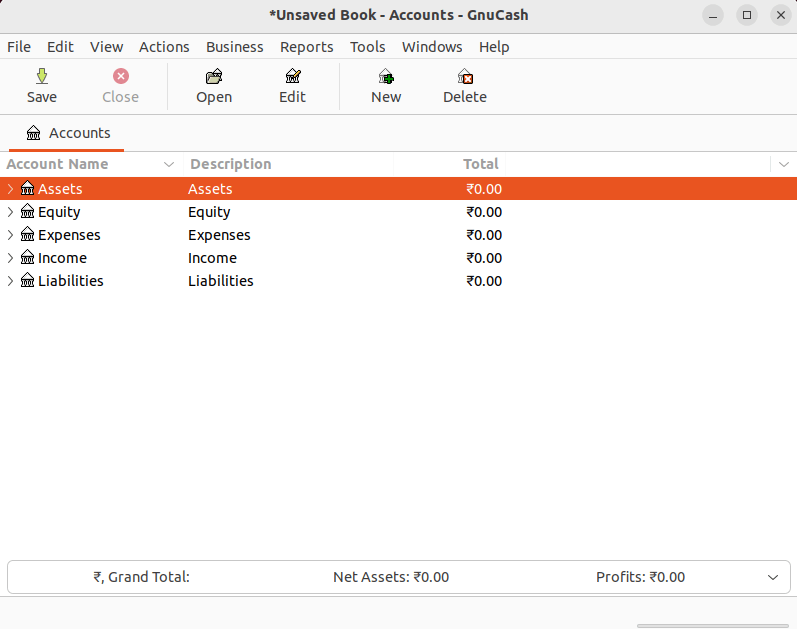
You can start and use GnuCash from the terminal as follows or launch from the application menu.
gnucash
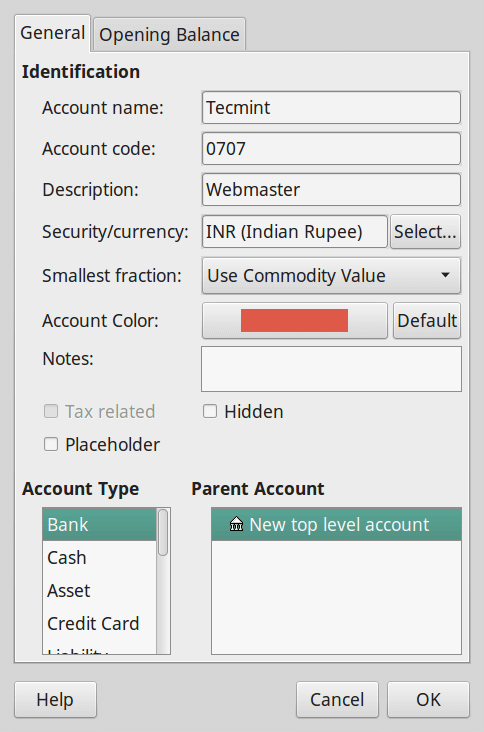
The screenshot below shows the interface for a user to add his/her bank account details for bank account tracking.
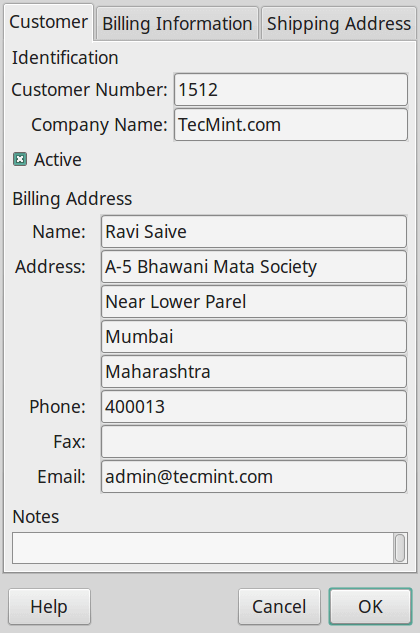
To add a new business customer, you can access the interface below by going to Business –> Customer –> New Customer.
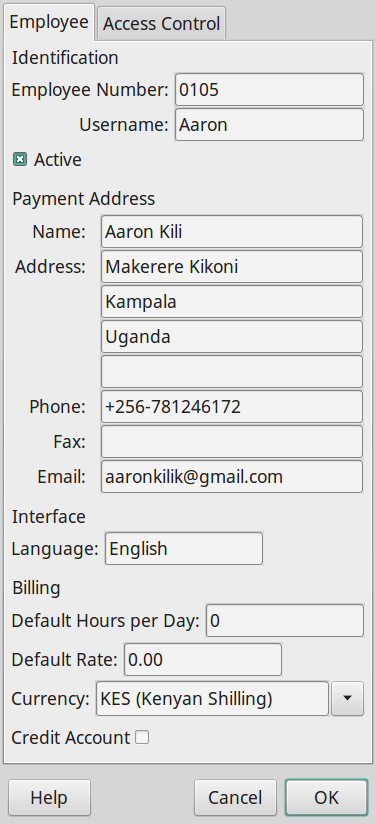
To add a new business employee. It can be accessed by going to Business –> Employee –> New New Employee.
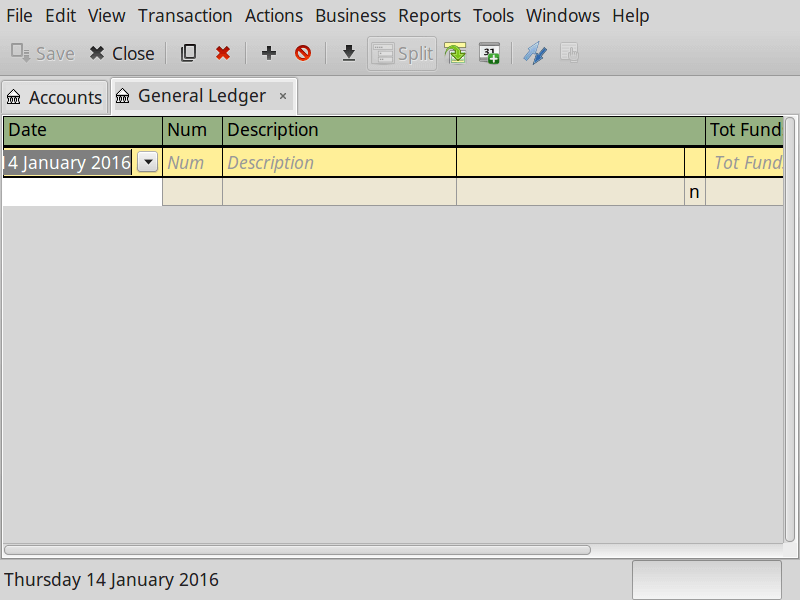
You can access the general ledger interface by going to Tools –> General Ledger.
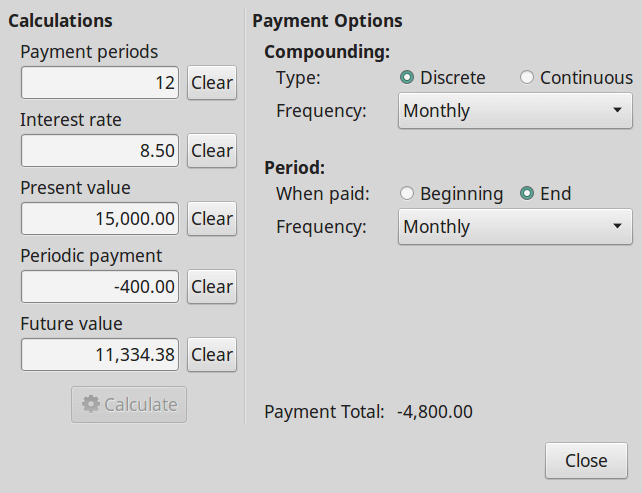
GnuCash also offers users a loan payment calculator hence no need to use external calculators.
Conclusion
Many financial management and accounting software are being used out there and GnuCash offers you similar functionalities with powerful and improved results, yet maintaining simple usability features.
Hope you find this guide useful and please leave a comment about areas where you need more clarity or even tell us about other related software that you have used.

@Zuhayer Tahir
Welcome and thanks for reading
Thanks for sharing. defiantly worth a try.