

Git is a free and open source, fast and distributed version control system (VCS), which by design is based on speed, efficient performance, and data integrity to support small-scale to extensive software development projects.
Git is a software repository that allows you to keep track of your software changes, revert to previous versions, and create another version of files and directories.
Git is written in C, with a mix of Perl and a variety of shell scripts, it’s primarily intended to run on the Linux kernel and has a number of remarkable features as listed below:
- Easy to learn
- It is fast and most of its operations are carried out locally, in addition, this offers it a tremendous speed on centralized systems that need to communicate with remote servers.
- Highly efficient.
- Supports data integrity checks.
- Enables cheap local branching.
- Offers a convenient staging area.
- It also maintains multiple workflows together with many others.
In this how-to guide, we shall move through the necessary steps of installing Git on RHEL-based and Debian-based distributions along with how to configure Git so that you can start participating right away.
How to Install Git in Linux
We shall install Git from the system default repositories, and make sure that your system is up-to-date with the latest version of packages by running the YUM or APT package manager update command below.
sudo yum update   [On RHEL/CentOS/Fedora and Rocky/AlmaLinux]
sudo apt update   [On Debian, Ubuntu and Mint]
Next, install Git by typing the following command:
sudo yum install git   [On RHEL/CentOS/Fedora and Rocky/AlmaLinux]
sudo apt install git   [On Debian, Ubuntu and Mint]
After git is successfully installed, you can issue the following command to display the version of Git installed.
git --version

git version 2.41.0
Install Git from Source
Before you begin, first you need to install the required software dependencies from the default repositories, along with the utilities that needed to build a binary from the source:
-------------- On RHEL/CentOS/Fedora and Rocky/AlmaLinux --------------
sudo yum groupinstall "Development Tools"
sudo yum install gettext-devel openssl-devel perl-CPAN perl-devel zlib-devel autoconf

-------------- Debian, Ubuntu and Mint --------------
sudo apt install build-essential
sudo apt install gettext-devel openssl-devel perl-CPAN perl-devel zlib-devel autoconf
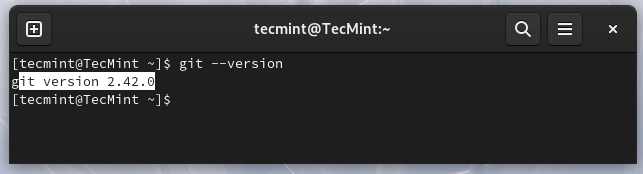
After you have installed the required software dependencies, download the latest git tarball and compile it from the source using the following series of commands.
wget https://github.com/git/git/archive/refs/tags/v2.42.0.tar.gz
tar -xvf v2.42.0.tar.gz
cd git-2.42.0/
make configure
sudo ./configure --prefix=/usr/local
sudo make
sudo make install
git --version
How to Create a Git User Account in Linux
In this section, we shall cover how to set up a Git account with correct user information such as name and email address to avoid any commit errors and the git config command is used to do that.
Important: Make sure to replace the username with the actual name for the Git user to be created and used on your system.
You can start by creating a Git user with the useradd command below, where the -m flag used to create the user’s home directory under /home and -s specifies the user’s default shell.
useradd -m -s /bin/bash username
passwd username
Now, add the new user to the wheel group to enable the account to use the sudo privileges using the usermod command as shown:
usermod username -aG wheel

Then configure Git with the new user as follows:
su username
sudo git config --global user.name "Your Name"
sudo git config --global user.email "[email protected]"
Now verify the Git configuration using the following command.
sudo git config --list
If there are no errors with the configurations, you should be able to view an output with the following details:
user.name=username
user.email= [email protected]

Conclusion
In this simple tutorial, we have looked at how to install Git on your Linux system as well as configuring it. I believe the instructions are easy to follow, however, to get in touch with us for any questions or suggestions you can make use of the reaction section below.

Hi,
After following this document git was installed successfully
In normal user:
?
I did everything step by step but git doesn’t update :(
[root@mdhescprda209 git-2.10.1]# git –version
git version 1.8.3.1
And as an aside, Git isn’t in any of RHEL Desktop Repos. I was doing a proof of concept for RHEL 7 Desktop and you cannot install git from the repos directly. Just wanted to put that here for anyone else doing the same thing.
@Kyle
Okay, we’ll check this out. Many thanks for writing back.
Hi!
If you want a local/remote Git hosting solution, use an Affero GPL one: https://rocketgit.com
It is free of charge for hosting both public and private repos.
It also have a bug tracker and Continuous Integration and deployment features.
VM images for KVM/VMWare/VirtualBox can be found at https://rocketgit.com/op/download/vm
You can have you Git hosting solution, on your servers, in less than 2 minutes!
Enjoy!
Full disclosure: I am the author.
@Catalin(ux)
Many thanks for the useful and well explained info, i know this will be helpful to several Git users out there.