

MATE, pronounced as ‘matey’ is a lightweight, simple and intuitive desktop environment that can be installed on most Linux distributions to give that smooth and appealing look. It’s easily customizable and easy on resource consumption.
In this brief article, you will learn how to install the MATE desktop on Arch Linux distribution. If you prefer the Cinnamon or XFCE desktop environments, refer to our guides on how to install Cinnamon or XFCE on Arch Linux.
Installing MATE Desktop on Arch Linux
Now lets our hands dirty and install MATE desktop:
Step 1: Update Arch Linux
Before anything else, first, ensure that you update the Arch Linux packages by running the command.
$ sudo pacman -Syu

I’ve used the latest version of Arch Linux ( version 2020.01.01) which is freshly installed. That’s why the system registers that no updates are available.
Step 2: Install the X Windows System on Arch Linux
Xorg is a popular X windows system or display system that was designed for Unix / Linux systems to provide a graphical environment. To install Xorg on Arch Linux, run the command.
$ sudo pacman -S xorg xorg-server
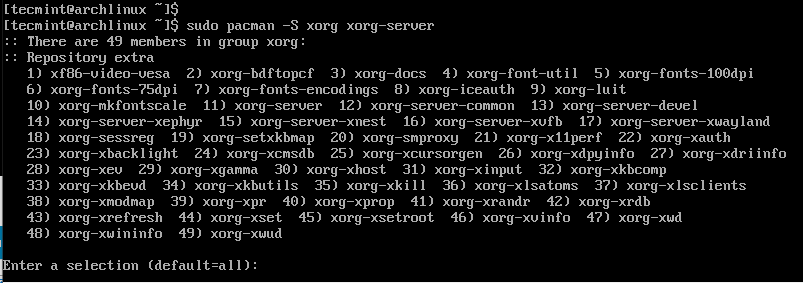
When prompted, simply hit the ENTER button to install all the packages.
Step 3: Installing MATE Desktop Environment in Arch Linux
With Xorg installed, we can then proceed to install the MATE desktop environment. Simply run the command below. This is going to take some time, and it would be a good time to unwind with a cup fo coffee.
$ sudo pacman -S mate mate-extra
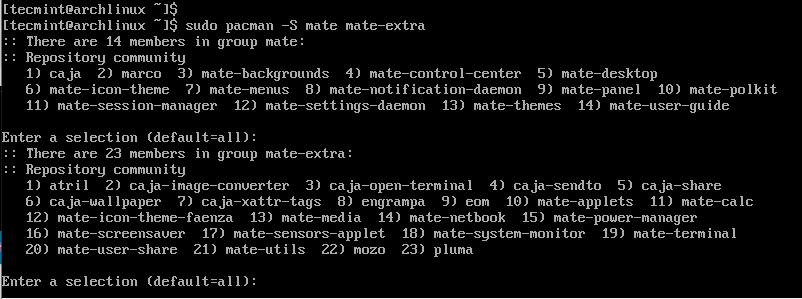
As seen earlier, when prompted, simply hit ENTER to install all the packages.
Step 4: Install LightDM Display Manager in Arch Linux
The LightDM display manager handles the graphical login for a user in the system with login credentials. To install lightDM run the command.
$ sudo pacman -S lightdm
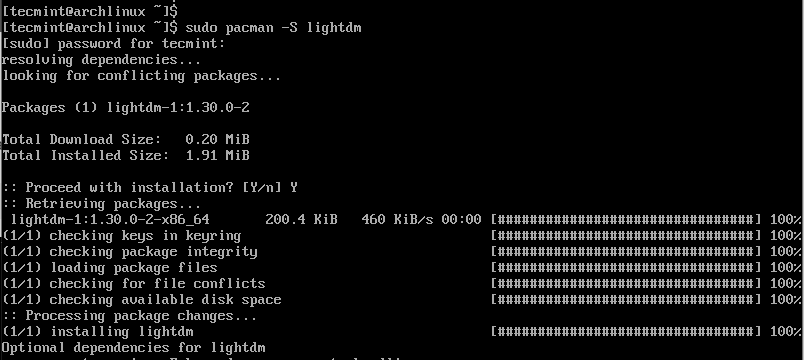
Next, let’s install greeter, a utility that provides a GUI login screen.
$ sudo pacman -S lightdm-gtk-greeter
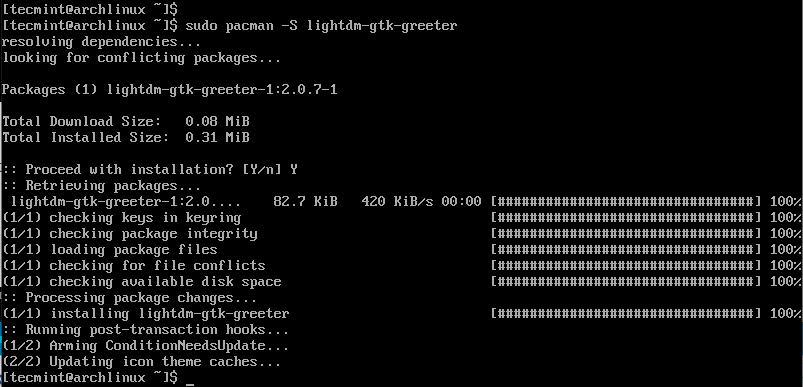
Enable the lightDM service to start on boot.
$ sudo systemctl enable lightdm
Finally, reboot your ArchLinux system.
$ sudo reboot
Step 5: Booting Into the MATE Desktop in Arch Linux
Upon rebooting, the login screen below will be displayed.
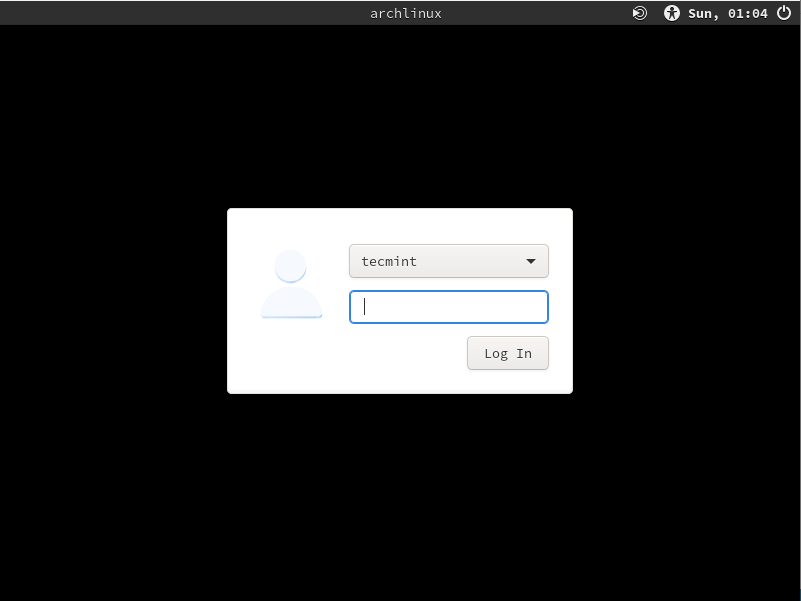
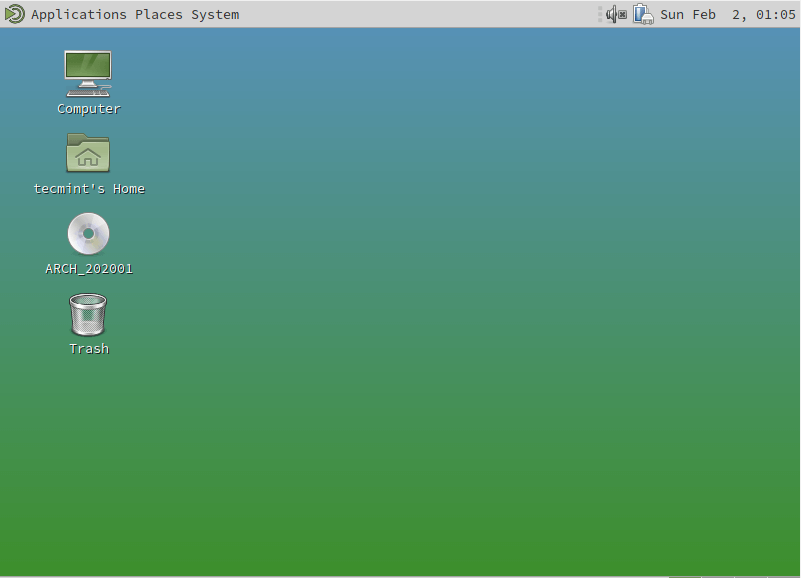
Provide your password and hit ENTER. The MATE desktop environment will come into view and as you will discover it’s quite minimalistic and easy to use.
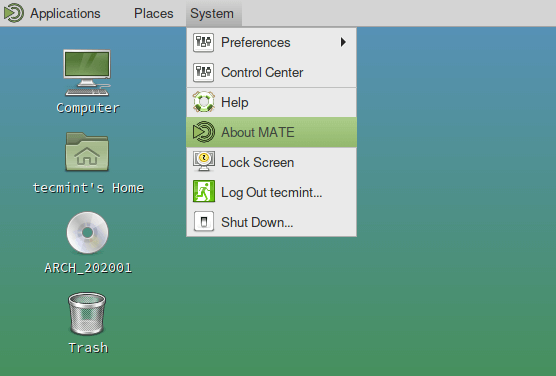
To get more information about the MATE desktop environment, click on the ‘Places’ tab and select ‘About MATE’ option.
You will get the version and a brief history of the MATE desktop environment.
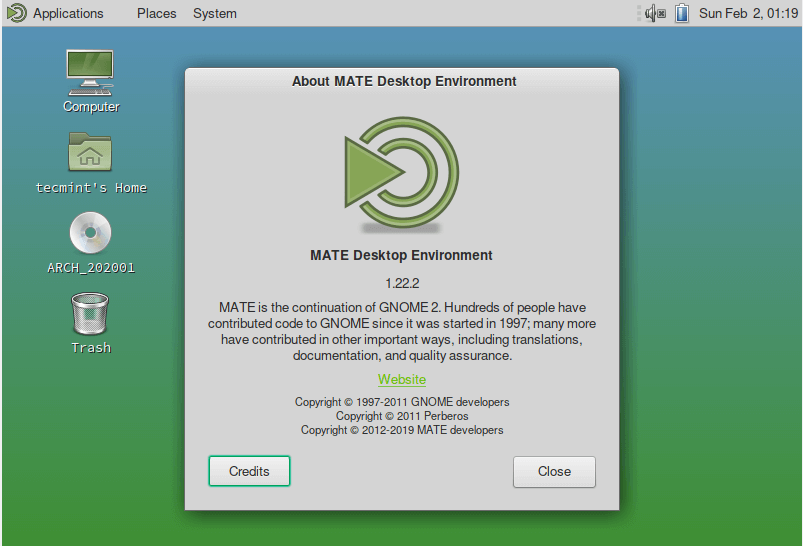
We have finally succeeded in installing the MATE desktop environment on Arch Linux. Feel free to customize your desktop and install more software utilities to enhance your user experience. That’s all for now.

Hi,
I have SDDM installed on my computer, should I install LIGHTDM too?
You can use sddm, it doesn’t make a huge difference which one you use. I personally use ly.