

Mosh, which stands for Mobile Shell is a command-line application which is used for connecting to the server from a client computer, over the Internet. It can be used as SSH and contains more feature than Secure Shell.
It is an application similar to SSH, but with additional features. The application is written originally by Keith Winstein for Unix like operating system and released under GNU GPL v3.

Features of Mosh
- It is a remote terminal application that supports roaming.
- Available for all major UNIX-like OS viz., Linux, FreeBSD, Solaris, Mac OS X and Android.
- Intermittent Connectivity supported.
- Provides intelligent local echo.
- Line editing of user keystrokes supported.
- Responsive design and Robust Nature over wifi, cellular and long-distance links.
- Remain Connected even when IP changes. It usages UDP in place of TCP (used by SSH). TCP time out when connect is reset or new IP assigned but UDP keeps the connection open.
- The Connection remains intact when you resume the session after a long time.
- No network lag. Shows users typed key and deletions immediately without network lag.
- Same old method to login as it was in SSH.
- Mechanism to handle packet loss.
Installation of Mosh Shell in Linux
On Debian, Ubuntu and Mint alike systems, you can easily install the Mosh package with the help of apt-get package manager as shown.
# apt-get update
# apt-get install mosh
On RHEL/CentOS/Fedora based distributions, you need to turn on third party repository called EPEL, in order to install mosh from this repository using yum package manager as shown.
# yum update
# yum install mosh
On Fedora 22+ version, you need to use dnf package manager to install mosh as shown.
# dnf install mosh
On other Linux distributions can install it as shown.
# pacman -S mosh         [On Arch/Manjaro Linux]
$ sudo zypper in mosh    [On OpenSuse]
# emerge net-misc/mosh   [On Gentoo]
How do I use Mosh Shell?
1. Let’s try to login into remote Linux server using mosh shell.
$ mosh [email protected]
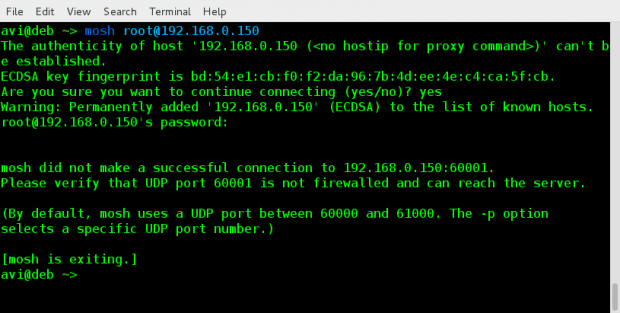
Note: Did you see I got an error in connecting since the port was not open in my remote CentOS 7 box. A quick but not recommended solution I performed was:
# systemctl stop firewalld [on Remote Server]
The preferred way is to open a port and update firewall rules. And then connect to mosh on a predefined port. For in-depth details on firewalld you may like to visit this post.
2. Let’s assume that the default SSH port 22 was changed to port 70, in this case you can define custom port with the help of ‘-p‘ switch with mosh.
$ mosh [email protected] --ssh="ssh -p 70"
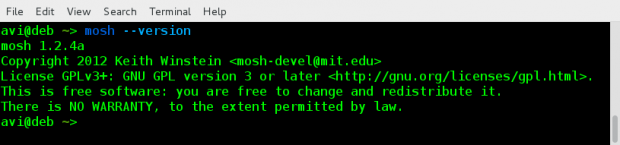
3. Check the version of installed Mosh.
$ mosh --version
4. You can close mosh session type ‘exit‘ on the prompt.
$ exit
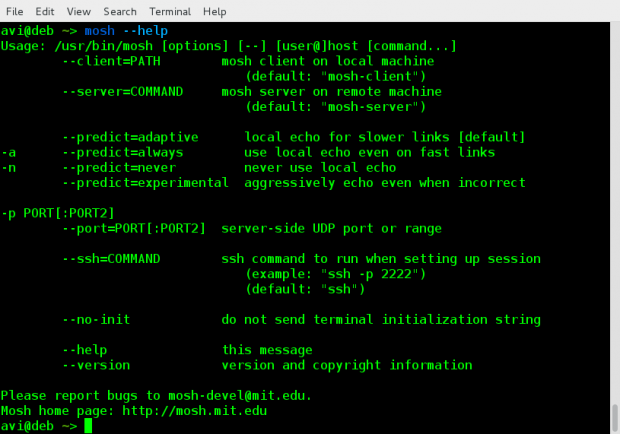
5. Mosh supports a lot of options, which you may see as:
$ mosh --help
Cons of Mosh Shell
- Mosh requires additional prerequisite for example, allow direct connection via UDP, which was not required by SSH.
- Dynamic port allocation in the range of 60000-61000. The first open fort is allocated. It requires one port per connection.
- Default port allocation is a serious security concern, especially in production.
- IPv6 connections supported, but roaming on IPv6 not supported.
- Scrollback not supported.
- No X11 forwarding supported.
- No support for ssh-agent forwarding.
Conclusion
Mosh is a nice small utility which is available for download in the repository of most of the Linux Distributions. Though it has a few discrepancies specially security concern and additional requirement it’s features like remaining connected even while roaming is its plus point. My recommendation is Every Linux-er who deals with SSH should try this application and mind it, Mosh is worth a try.

This application seems to fill out a much-needed gap in the Linux world.
The -p (port) option does not set the port SSH uses, although the article seems to reference an older version of MOSH. The
"-p"is an option the client will use to attempt to have the server use for the UDP stream.To set the port SSH will use, for the SSH authentication, we need
--ssh="ssh -p 70".ex.
David,
I have corrected the command in the article as you suggested…
Thanks