

SSH Key-based authentication (also known as public-key authentication) allows for password-less authentication and it is a more secure and a much better solution than password authentication. One major advantage of SSH password-less login, let alone security is that it allows for automation of various kinds of cross-server processes.
In this article, we will demonstrate how to create an SSH key pair and copy the public key to multiple remote Linux hosts at once, with a shell script.
Create a New SSH Key in Linux
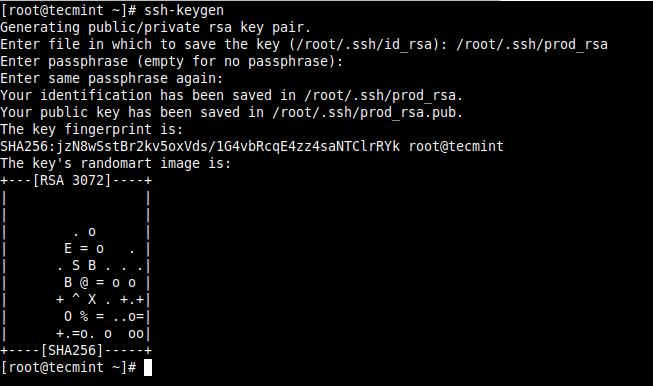
First, generate the SSH key pair (the private/identity key that an SSH client uses to authenticate itself when logging into a remote SSH server and the public key stored as an authorized key on a remote system running an SSH server) using the ssh-keygen command as follows:
# ssh-keygen
Create a Shell Script for Mulitple Remote Logins
Next, create a shell script that will help in copying a public key to multiple remote Linux hosts.
# vim ~/.bin/ssh-copy.sh
Copy and paste the following code in the file (replace the following variables accordingly USER_NAME – the username to connect with, HOST_FILE – a file which contains the list of hostnames or IP addresses, and ERROR_FILE – a file to store any ssh command errors).
#!/bin/bash
USER_NAME="root"
HOST_FILE="/root/hosts"
ERROR_FILE="/tmp/ssh-copy_error.txt"
PUBLIC_KEY_FILE="$1"

if [ ! -f  $PUBLIC_KEY_FILE ]; then
        echo "File '$PUBLIC_KEY_FILE' not found!"
        exit 1
fi

if [ ! -f $HOST_FILE ]; then
        echo "File '$HOST_FILE' not found!"
        exit 2
fi

for IP in `cat $HOST_FILE`; do
        ssh-copy-id -i $PUBLIC_KEY_FILE $USER_NAME@$IP 2>$ERROR_FILE
        RESULT=$?
        if [ $RESULT -eq 0 ]; then
                echo ""
                echo "Public key successfully copied to $IP"
                echo ""
        else
                echo "$(cat  $ERROR_FILE)"
                echo
                exit 3
        fi
        echo ""
done
Save the file and close it.
Then make the script executable with the chmod command as shown.
# chmod +x ssh-copy.sh
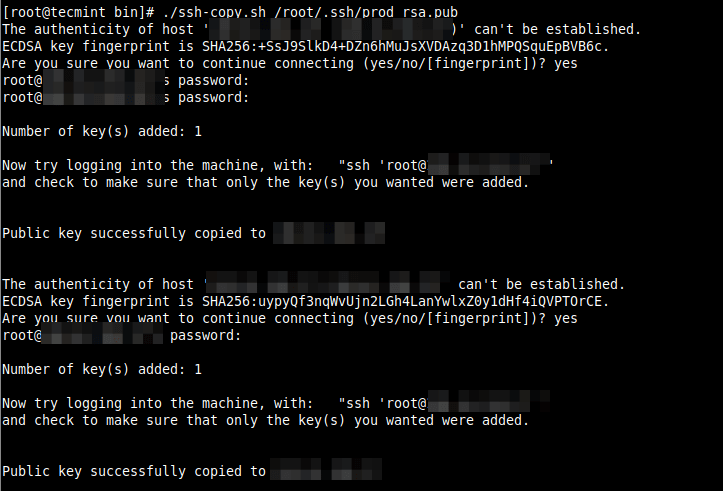
Now run the ssh-copy.sh script and specify your public key file as the first argument as shown in the screenshot:
# ./ssh-copy.sh /root/.ssh/prod-rsa.pub
Next, use ssh-agent to manage your keys, which holds your decrypted private key in memory and uses it to authenticate logins. After starting the ssh-agent, add your private key to it as follows:
# eval "$(ssh-agent -s)"
# ssh-add  ~/.ssh/prod_rsa

Login to Remote Linux Server without Password
Now you can log into any of your remote hosts without providing a password for SSH user authentication. This way, you can automate cross-server processes.
# ssh [email protected]

That’s all we had for you! If you have any contribution(s) to make particularly towards improving the shell script, let us know via the feedback form below.

Hello, How to make your scripts work? explain it as well.
best regards
It’s just a suggestion (on-topic) – this little script can make life easier. I hope it benefits someone. I’m its author. Thanks for the discussion.
https://github.com/aguedeney/ezssh
@Alan
Thanks for sharing, we did check it out. It’s a more advanced script.